
You can use the following document to learn about how to use UI Metadata with Mutable Characters.
UI Metadata
All parameter and state nodes have a UI section section of properties in the Details panel. In this section, you can specify extra information for each parameter and parameter option. This information is available in-game. UI metadata is commonly used to help generate the in-game UI.
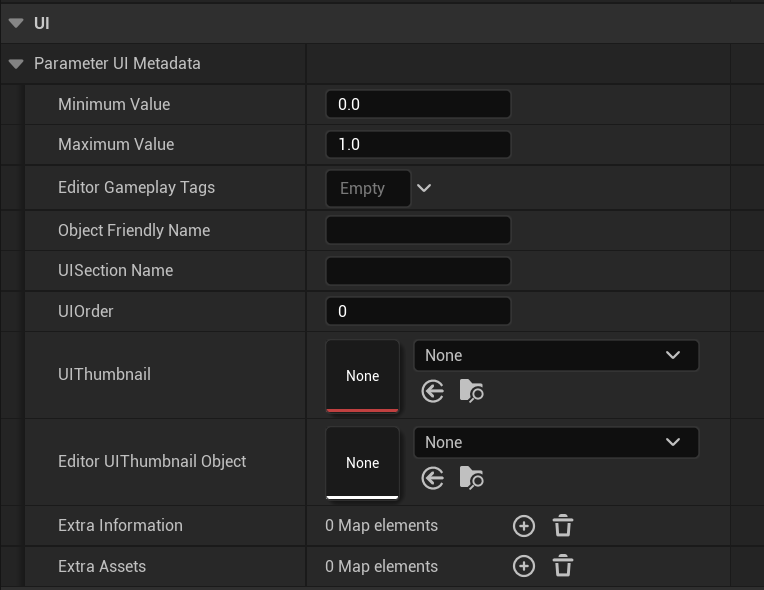
Here you can reference a list of the properties found in this section, with a description of their functionality:
| Property | Description |
|---|---|
| Minimum & Maximum Values | In these properties you can set two numerical scalar values that can be used as the minimum and maximum values for the node. |
| Editor Gameplay Tags | This is an Editor Only variable, which means that it is not available in-game. Using this property you can add tags to parameters and parameter options. Then, from the Preview Instance tab, you can filter parameter options that contain any or all the specified tags. 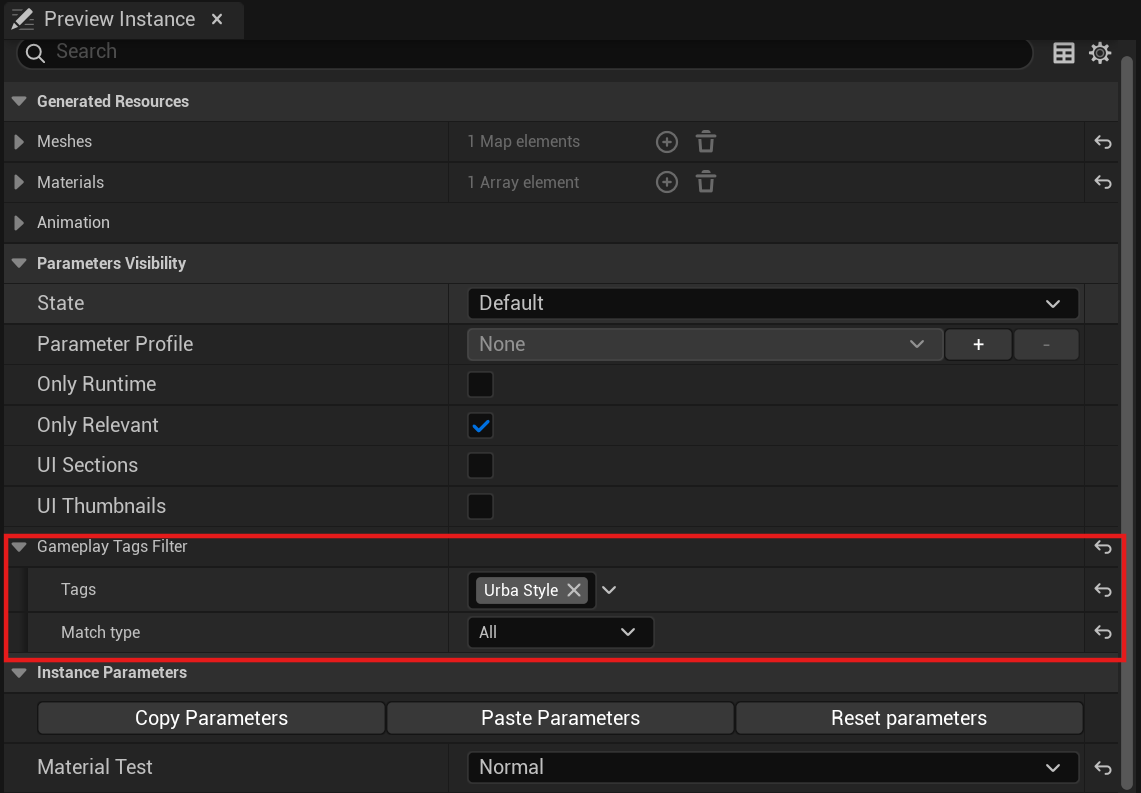 |
| Object Friendly & UI Section Names | Here you can set object friendly and UI Section names. |
| UI Order | Here you can set an order for the UI element using an integer value. |
| UI Thumbnail | Here you can set a UI Thumbnail image. |
| Editor UIThumbnail Object | This is an Editor Only variable, which means that it is not available in-game. You can use this property to set a thumbnail for a parameter option in the Instance Properties tab when the 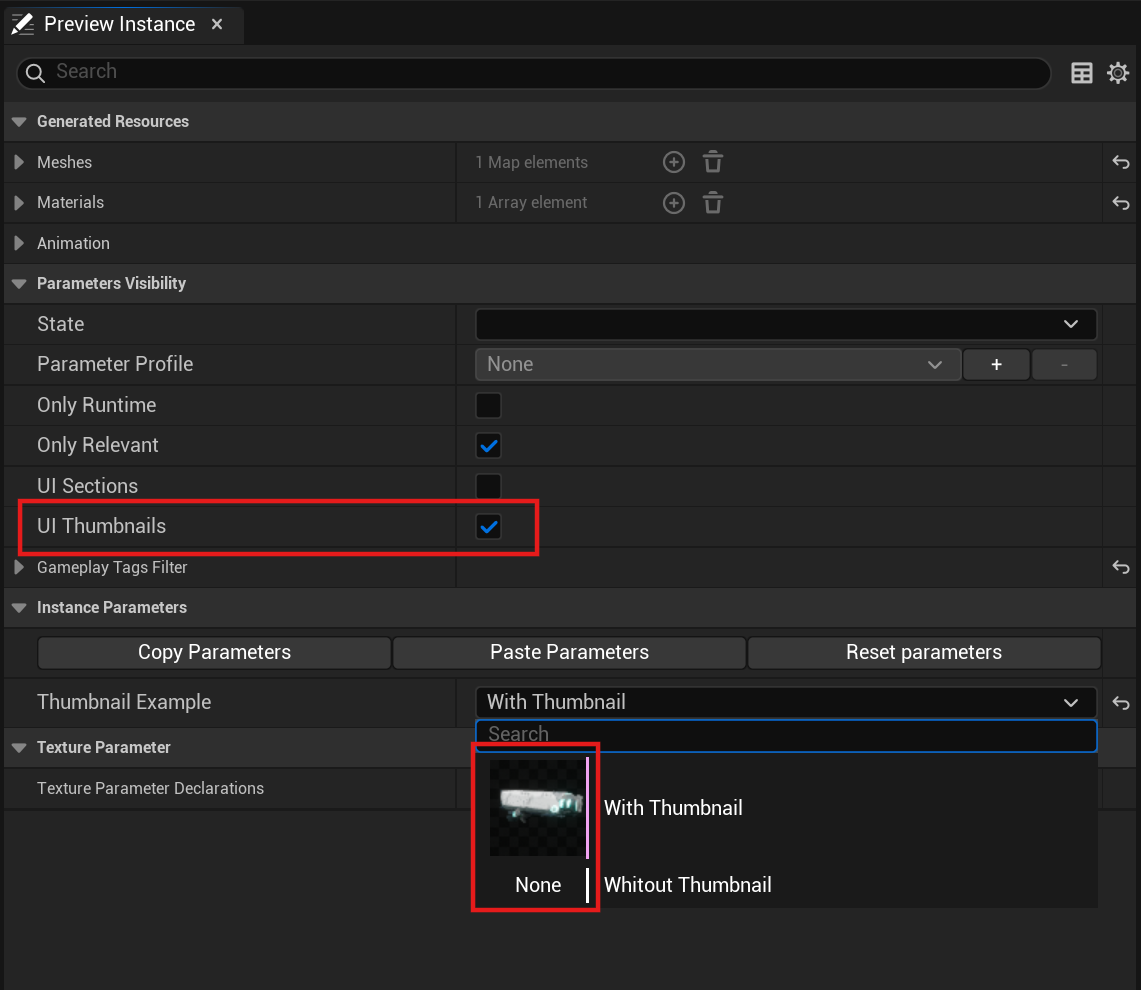 |
| Extra Information | This option is a Map that you can use to add extra String information with a specifier.  |
| Extra Assets | This option is similar to the Extra Information property that you can use to add extra asset information with a specifier.  |
UI Metadata API
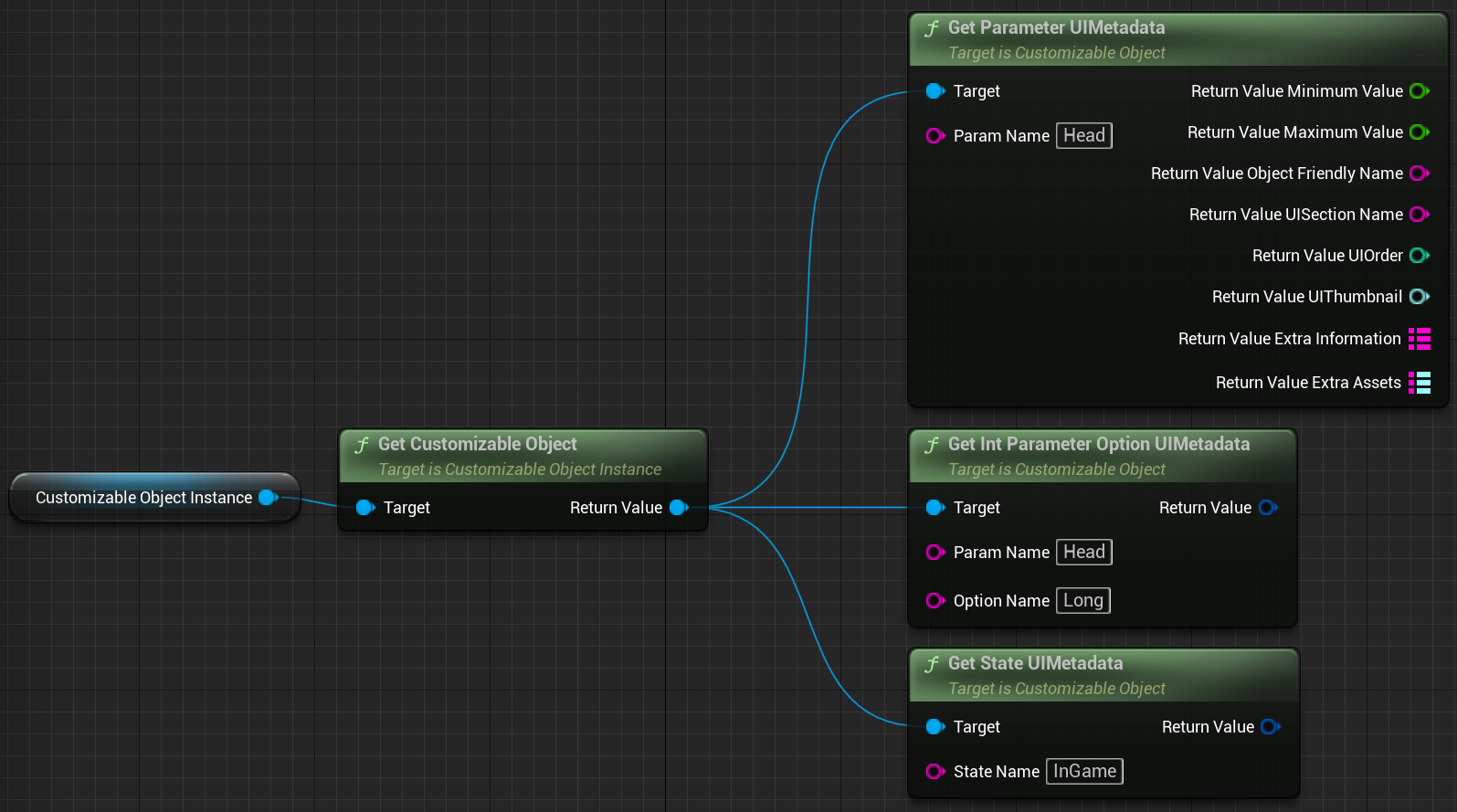
The UI Metadata is stored inside the CO, which you can access using the following methods:
-
GetParameterUIMetadata: This method returns the UI Metadata of the specified parameter.
-
GetIntParameterOptionUIMetadata: This method returns the UI Metadata of the specified parameter option.
-
GetStateUIMetadata: This method returns the UI Metadata of the specified state.
UI Metadata with Table Nodes
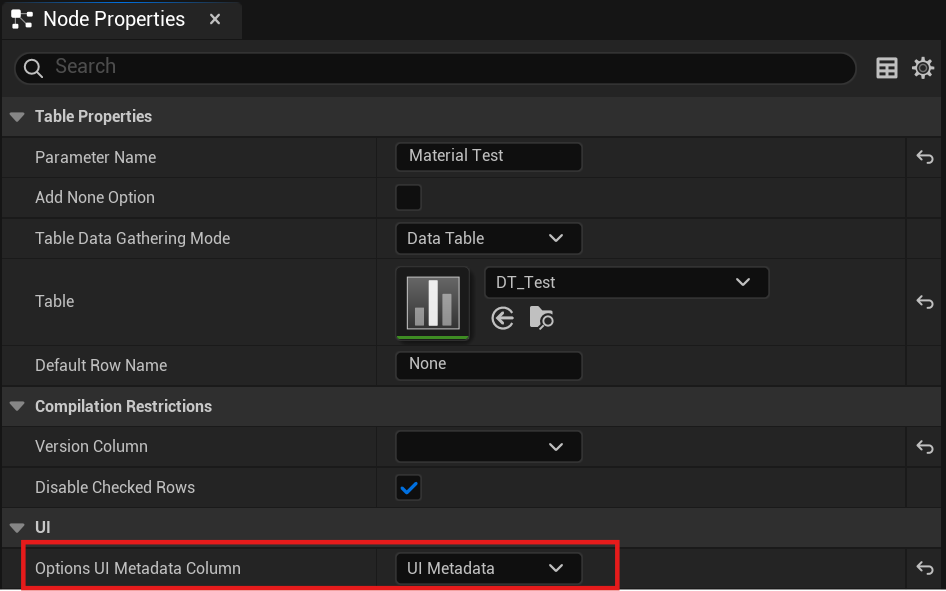
Parameters generated through a Table node can contain metadata as well. You can add metadata to these assets by adding a new variable to the Data Table Structure using the Mutable Param UI Metadata data type. Then, from the Table node’s Properties tab, you can specify which column of the Data Table will be used as UI Metadata for each parameter option.
Example of Usage
The perfect example to see how the UI Metadata works is the Preview Instance tab of the Customizable Object and Customizable Object Instance Editors.
In the editor, you can set the Maximum Value and Minimum Value options to determine the boundaries of the float parameters. In the following example, the value of the middle point changes depending on the Maximum and Minimum values.

You can organize the parameters of the Preview Instance tab by specifying a UI Section for each parameter. After recompiling the Customizable Object and enabling the UI Sections property of the Preview Instance, all the parameters will be organized in their corresponding sections. Parameters that do not have a section specified will be assigned to a section called Miscellaneous.
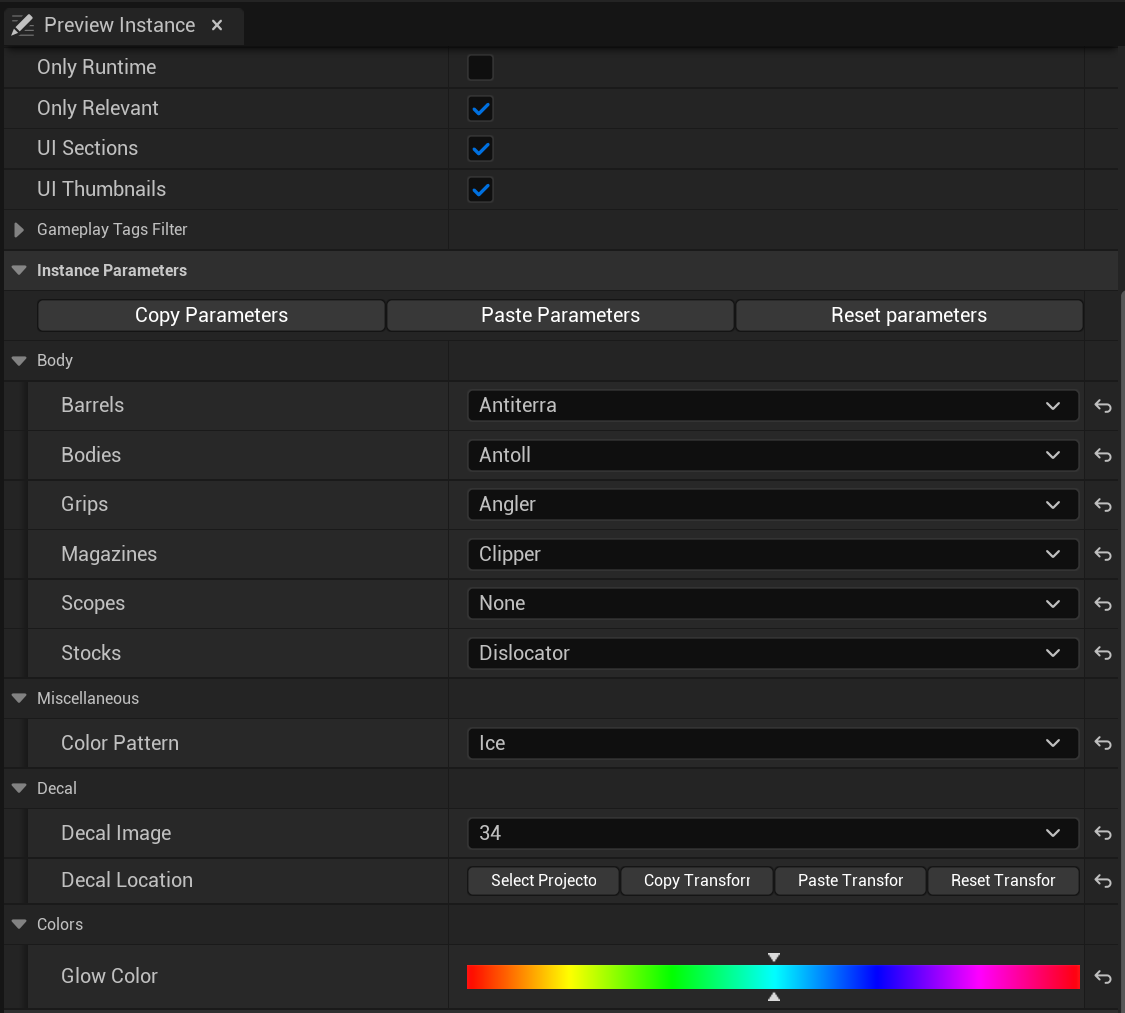
Another way to organize the parameters of the Preview Instance is by setting a value to the UI Order option. This setting organizes parameters by this value from low to high.
If you specify a Texture to the UI Thumbnail option or an UAsset to the UI Thumbnail Editor option, each parameter option will have a thumbnail next to the option name.
If there is a value in both options, the thumbnail that is shown is the Texture2D set to the UI Thumbnail option.
Finally, the Editor UI also has an example of how to use the Extra Assets map. If you add a new map entrance to a float parameter with the Key SliderImage and a UTexture2D asset, the slider of the float parameter will set that texture to the widget's background.
