
You can use the following document to learn about how to use MetaHuman assets with Mutable Characters.
Using Mutable with MetaHuman Assets
The Metahuman framework offers developers the creation and animation of highly realistic human characters. The MetaHuman Creator and Editor is only usable on the cloud service, which does not allow for real time character customization and editing in a game project. Using the Mutable plugin you can augment the Metahuman's framework functionality with its powerful customization features both in-editor and in-game.
How to use Mutable with MetaHuman Assets
You can set up a Mutable Customizable Object directly using a MetaHuman’s Skeletal Mesh, material, and texture assets coming from Quixel Bridge without any kind of engine modification or extra import process. With this workflow, you can also apply customizable hair grooms to your MetaHuman character.
You can configure the graph to switch between different heads, bodies and garments, which can come from Metahuman Creator or any other source. All of Mutable's functionality can be leveraged so you can merge mesh sections and textures to reduce draw calls, layer the base body and clothing and clip or hide the unseen elements of the mesh, procedurally deform meshes (for example to tug loose pants into high boots), project decals onto textures, bake morphs, and more.
Usability of Mutable with MetaHuman Assets
The major benefit of using the Mutable plugin with MetaHuman assets is that the customization can be done in-game, for instance to create a character customizer for players to create their own character, or in-editor to literally create infinite variations of NPC characters that can be baked to regular skeletal meshes, and iterated multiple times over the development of your project.
One key aspect that's often overlooked is that you can use Mutable to drop LODs (Level of Detail), sections and bones from a Metahuman character just using a graph. Then you can bake these generated models into optimized Skeletal Mesh assets, or ask Mutable to generate them in-game. Metahuman characters are very performance intensive and many projects do not need, or cannot afford a full character. The main advantage of generating model combinations with Mutable, is that if the character needs to be modified in any way in the Metahuman Creator, the only thing that needs to be done is to reimport the assets and overwrite the existing ones. As these will still be hooked to the Mutable graph, the optimizations will be reapplied automatically by Mutable. This workflow is much more efficient when compared to the traditional workflow of needing to manually edit a MetaHuman asset each time there's a change required for the character’s appearance.
Limitations of Using Mutable with MetaHuman Characters
Mutable is unable to perform the complex face creation and blending that Metahuman is known for, as everything is baked to the meshes and not available to Mutable. In order to edit a face of a MetaHuman character it must be manually edited within Metahuman Creator, and only after that it can be imported into UE and fed to a Mutable Customizable Object graph, where the actual physical looks of the face will stay fixed. From that point on, the only physical modifications you can do to the face or head are what the Mutable tools offer. You can only switch between different fixed heads and change any of their material parameters, modify or project onto the textures, apply procedural reshaping or clipping of the meshes.
Configuring Mutable for optimal Metahuman results
Although MetaHuman assets that have been imported into the Unreal Engine Editor using Quixel Bridge work out of the box with Mutable, there are a few Mutable configuration tweaks that you will need to make in order for the assets to work better, especially with skinning and animation. By default, Mutable may not be set up for the number of bone influences and their precision needed for optimal Metahuman operation.
To enable 12 bone influences, modify the CustomizableObjectNumBoneInfluences property in the Engine\Plugins\Mutable\Config\DefaultMutable.ini or in the equivalent file in your project's config folder and set it to twelve.
CustomizableObjectNumBoneInfluences=Twelve
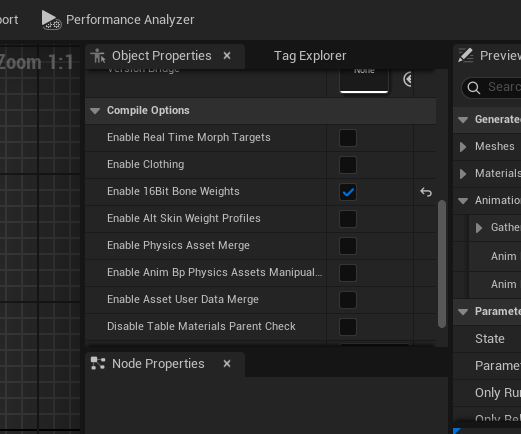
To enable 16 bit bone weights, open the base Customizable Object, go to the Object Properties tab and in the Compile Options section, enable the Enable 16bit Bone Weights property.
Enabling and using the Mutable RigLogic Extensions DNA plugin
In order for the MetaHuman character’s facial animations to work, you must set up the Metahuman DNA. If this is not correctly set up, the facial bones will be in the wrong pose and the resulting character can end up with strange wrinkling artifacts on the face. To set up the MetaHuman DNA to work with Mutable, follow these steps:
-
Ensure the RigLogic Extensions for Mutable plugin is installed and enabled. You can access your project’s installed plugins by navigating in the Menu Bar to Edit > Plugins, and searching for RigLogic Extensions For Mutable using the Search Bar.

-
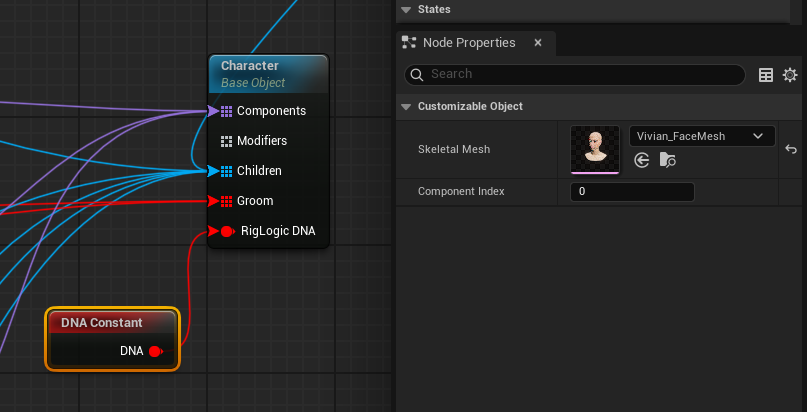
Then using a DNA Constant node in the MetaHuman’s Character Blueprint, connect the DNA output pin to the RigLogic DNA input pin on the character’s Object node. After connecting the pin, select the DNA Constraint node and select the Metahuman’s face UAsset that contains the DNA that you want on that object node, using the Skeletal Mesh property’s asset selection menu.
Using the Correct Animation Blueprint
The generated face skeletal mesh should be set up to use the Metahuman-provided post-process animation BP in order to have the correct face animation, but if you set the Face_Archetype Skeletal Mesh as the reference mesh in the face component node, Mutable should copy the appropriate Animation BP automatically.
Passing the facial morphs to the GPU
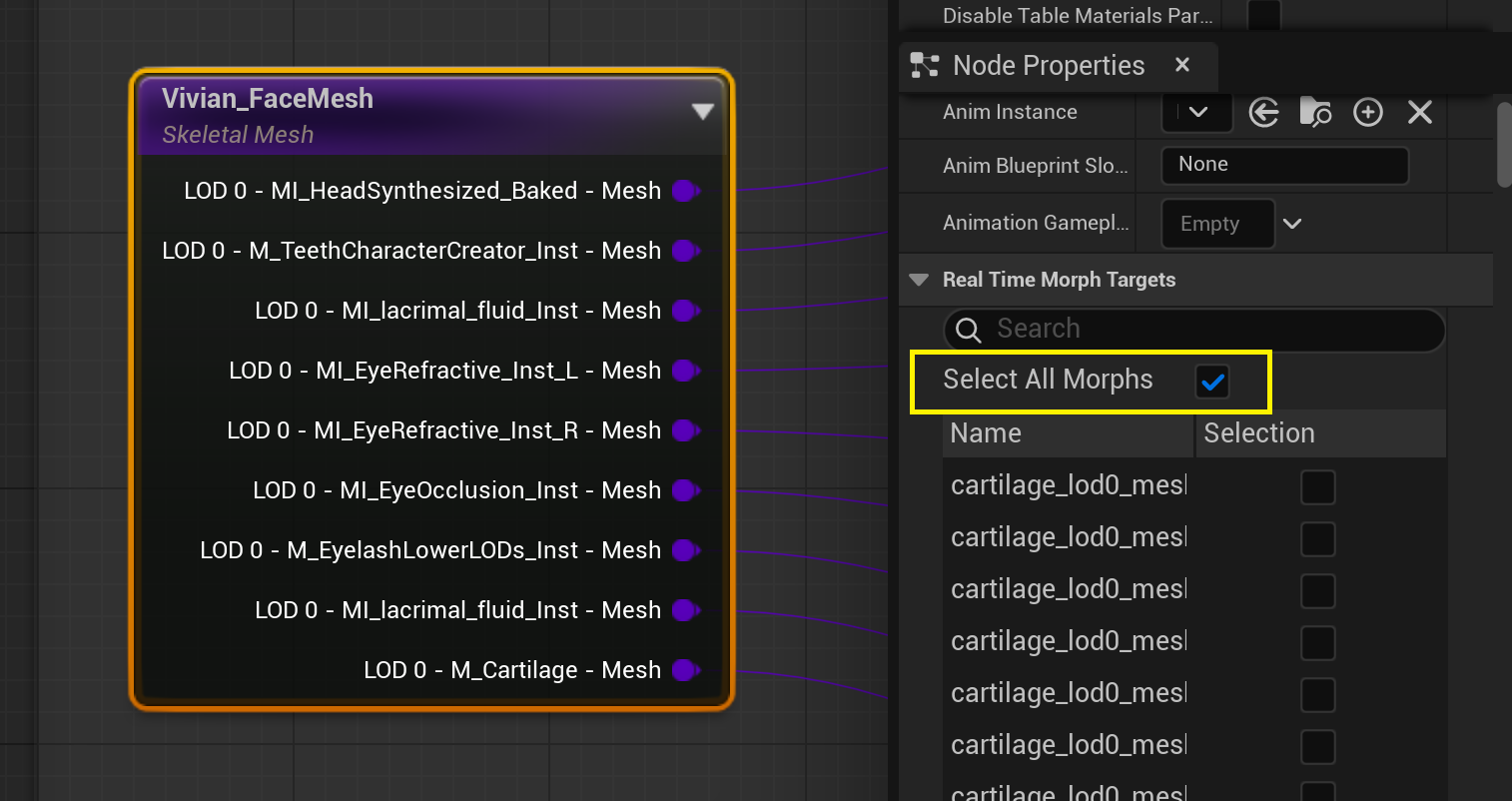
In order for the LOD0 facial animations to look completely right when zoomed-in, you should set up all the morphs in the face to be realtime. You can do this by enabling the Select All Morphs property in the node’s Details panel.
By default, these facial morphs are baked or removed for performance reasons.
For more information about using MetaHuman Facial Morphs with Mutable, see the Real-time morphs section of documentation.
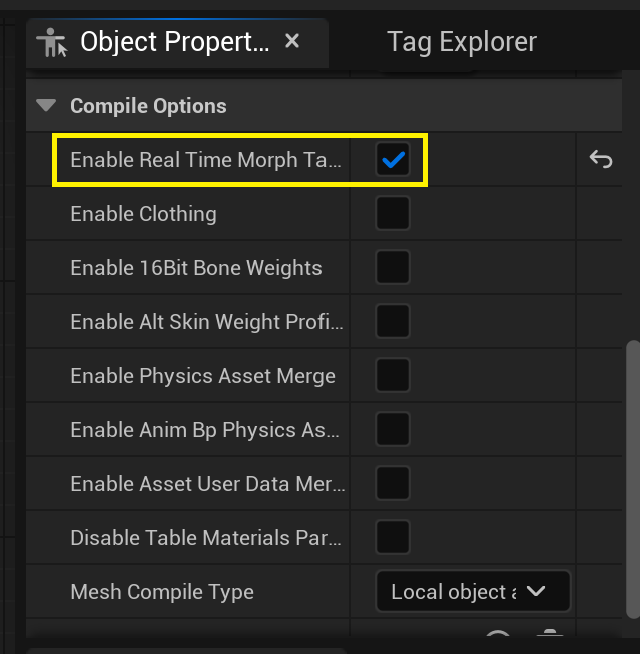
Also remember to make sure that real-time morphs are enabled in the CustomizableObject's Object Properties tab by enabling the Enable Real Time Morph Targets property.
Hair Grooms
To use grooms, see the requirements in the Grooms page.
Any groom that worked with the original Metahuman can be used, but the bindings may need to be redone. If the face mesh generated by Mutable is different in structure to the original one in the groom binding, such as different number of LODs, sections, or their order, you may have to rebind the groom. To rebind the groom you must bake the generated face mesh from the Customizable Object Editor preview viewport, and then create a new binding with the baked mesh and the original groom.
In a future build of Unreal Engine supports hair groom rebinding in-game, this step may become unnecessary.