
This document covers some debugging options to help you solve problems with your Mover project.
Visualization and State Readout Information
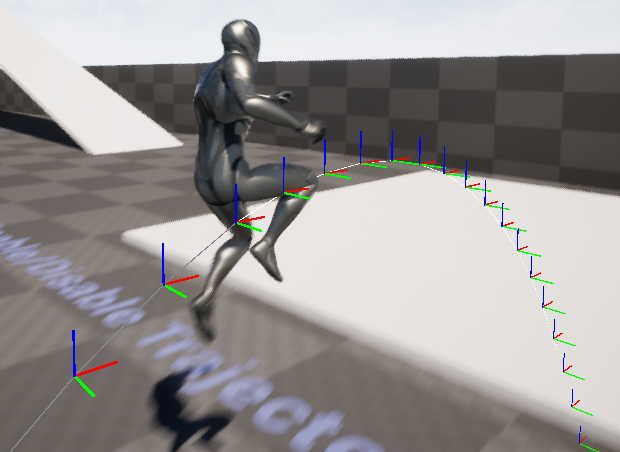
You can review visualization and state readout information through the Gameplay Debugger Tool (GDT).
To activate GDT for Mover during Play In Editor (PIE):
- Press the apostrophe key (
') to display the GDT panel. - In the GDT panel, find the number associated with the Mover category.
- Press the Mover category number on your numpad.
GDT selects the locally-controlled player character by default, but you can change this via GDT input and gdt.* console commands.
You can find Mover logging information in the Output Log by filtering with the LogMover category.
Console Commands
| Command | Description |
|---|---|
Mover.Debug.MaxMoveIntentDrawLength=X |
The max length (in cm) of the move intent visualization arrow. |
Mover.Debug.OrientationDrawLength=X |
The max length (in cm) of the orientation visualization arrows. |
Mover.Debug.ShowTrail |
Toggles the trail display for the selected server-controlled actor. The trail displays the previous path and rollback information. For the local player, use Mover.LocalPlayer.ShowTrail instead. |
Mover.Debug.ShowTrajectory |
Toggles the trajectory prediction display for the selected server-controlled actor. For the local player, use Mover.LocalPlayer.ShowTrajectory instead. |
Mover.Debug.ShowCorrections |
Toggles the network corrections display for the selected server-controlled actor. For the local player, use Mover.LocalPlayer.ShowCorrections instead. |
Mover.Debug.LogAnimRootMotionSteps=X |
If enabled, logs detailed information about anim root motion layered moves. (0: Disable, 1: Enable) |
Mover.Debug.LogRootMotionAttrSteps=X |
If enabled, logs detailed information about root motion attribute layered moves. (0: Disable, 1: Enable) |
Mover.Debug.DisableRootMotionAttributes=X |
If enabled, ignores contributions from root motion attributes in favor of other Mover influences. (0: Disable, 1: Enable) |
Mover.LocalPlayer.ShowTrail |
Toggles the player's trail according to the Mover component. The trail displays the previous path and rollback information. By default, this applies to the first local player controller. |
Mover.LocalPlayer.ShowTrajectory |
Toggles the player's trajectory according to the Mover component. By default, this applies to the first local player controller. |
Mover.LocalPlayer.ShowCorrections |
Toggles the player's network corrections display. Green represents the updated position after correction, and red represents the position before correction. By default, this applies to the first local player controller. |