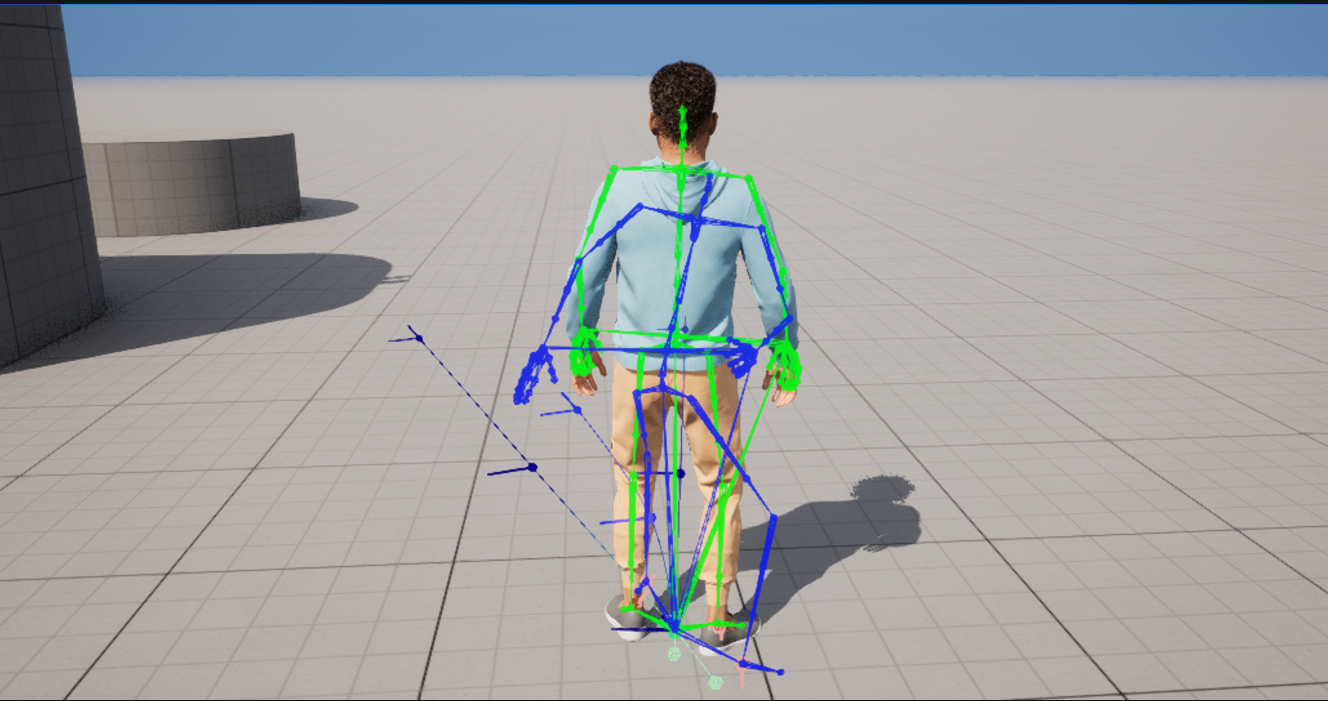
The Pose Search plugin comes packaged with a suite of debugging tools and options you can use to edit and tune your Motion Matching system in Unreal Engine. Additionally the plugin features a custom Rewind Debugger implementation designed to observe the Motion Matching node’s pose selections during a recorded segment of gameplay.
Prerequisite
- Enable the Animation Insights Plugin. Navigate in the Menu Bar to Edit > Plugins and locate the Pose Search plugin in the Animation section, or use the Search Bar. Enable the Plugin and restart the editor.
- Enable the Pose Search Plugin. Navigate in the Menu Bar to Edit > Plugins and locate the Animation Insights plugin in the Animation section, or use the Search Bar. Enable the Plugin and restart the editor.
- You have a character blueprint using a Motion Matching node to drive its Animation Blueprint.
Custom Rewind Debugger Implementation
The Rewind Debugger is a debugging and optimization tool that you can use to record segments of gameplay, and then play back recordings to better observe your animation system’s behaviors. The Pose Search plugin comes packaged with a custom set of Rewind Debugger tools that traces Motion Matching pose sections and values, that you can observe to better understand what poses were selected, and why.
In order to get started using the Rewind Debugger with your Motion Matching system, open the Rewind Debugger and the Rewind Debugger Details panel from the menu bar, by navigating to Tools > Debug > Rewind Debugger and Rewind Debugger Details.
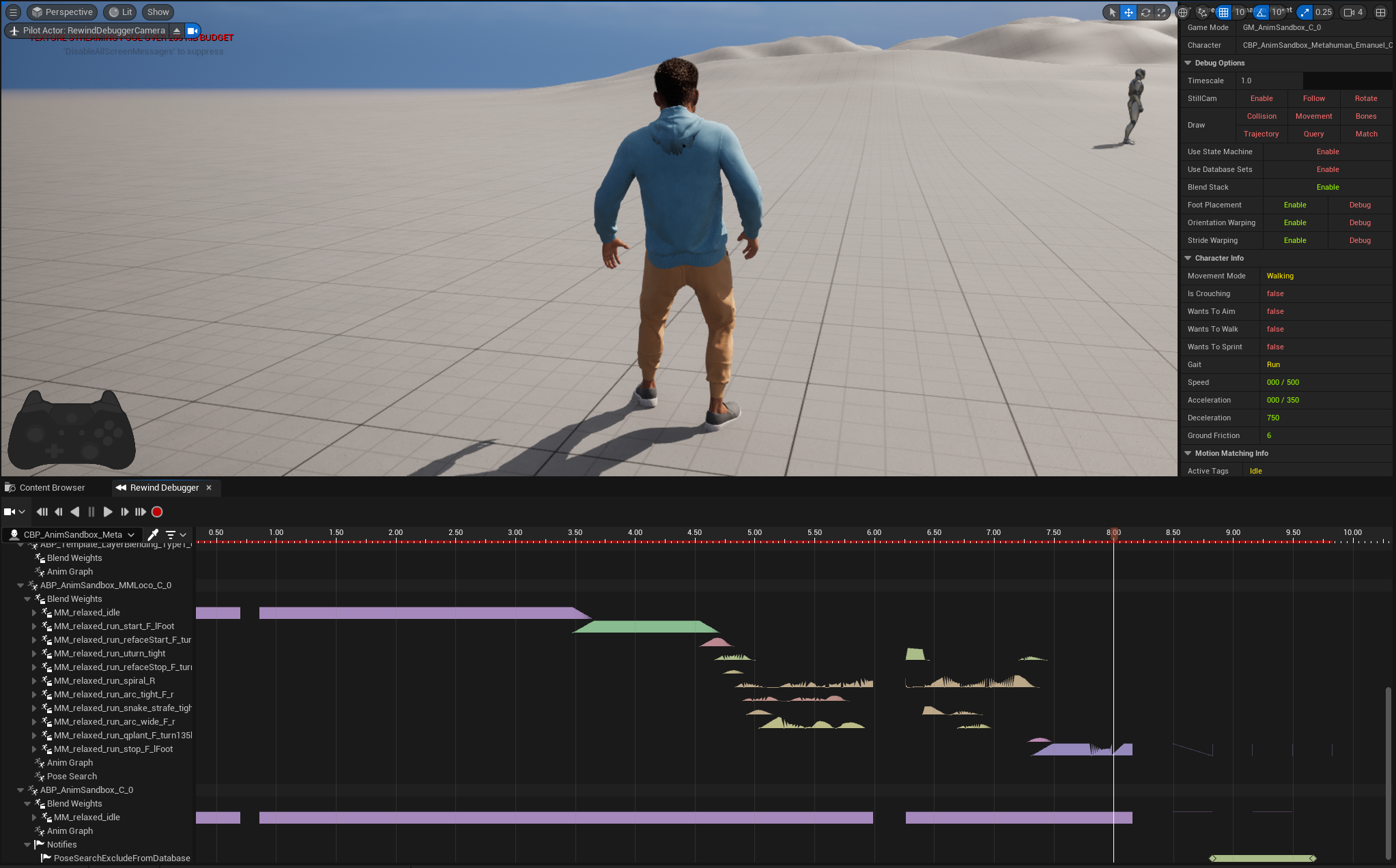
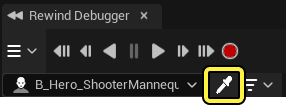
After recording a section of gameplay, you can observe the Motion Matching system make selections in real time with the playback of your recording. To see the Motion Matching selection table, select your character that is using a motion matching system in its animation schema using the eyedropper tool.
After selecting your character the Rewind Debugger outliner will populate with the actors various components and assets. Expand the Animation Blueprint track, and then expand the Pose Search track to observe the different animation selections and respective weights of each animation’s playback. Additionally, you can observe the Motion Matching Selection Table in the Rewind Debugger Details panel when the Pose Search track is selected.
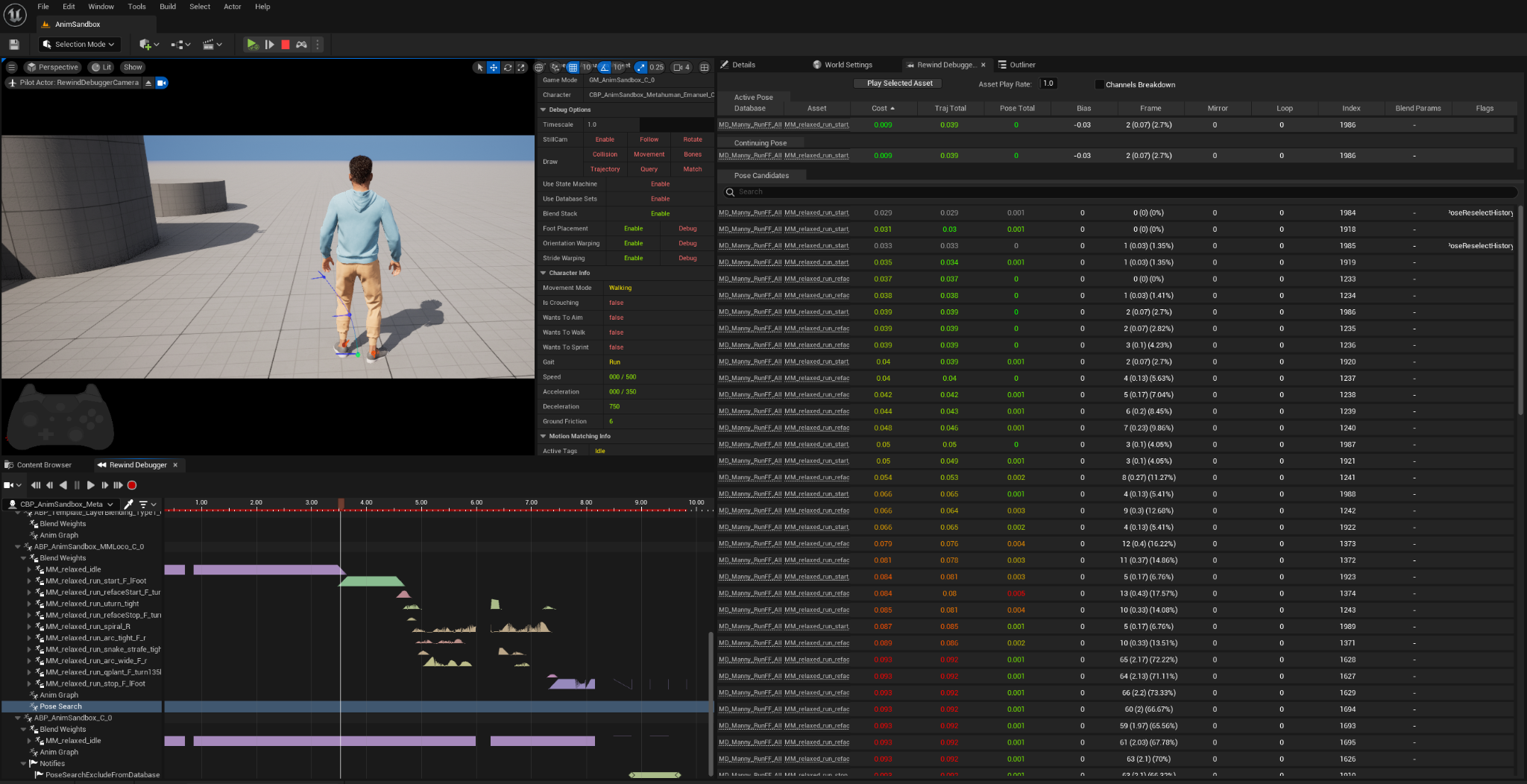
Motion Matching Selection Table
The Rewind Debugger Details panel contains several tabs that contain useful information and data related to your Motion Matching systems selection criteria. You can use these tabs to observe why the Motion Matching system selected a given pose. The Active Pose tab to see what pose is currently active based on the moment the Rewind Debugger is set to in the timeline. The Continuing Pose tab will list the animation that would be selected next. Comparing selections between the Active Pose and the Continuing Pose tabs can be useful to observe when and why a pose is swapped for another during runtime. Finally the Pose Candidates tab will list the remaining poses that could be selected from the connected database assets.
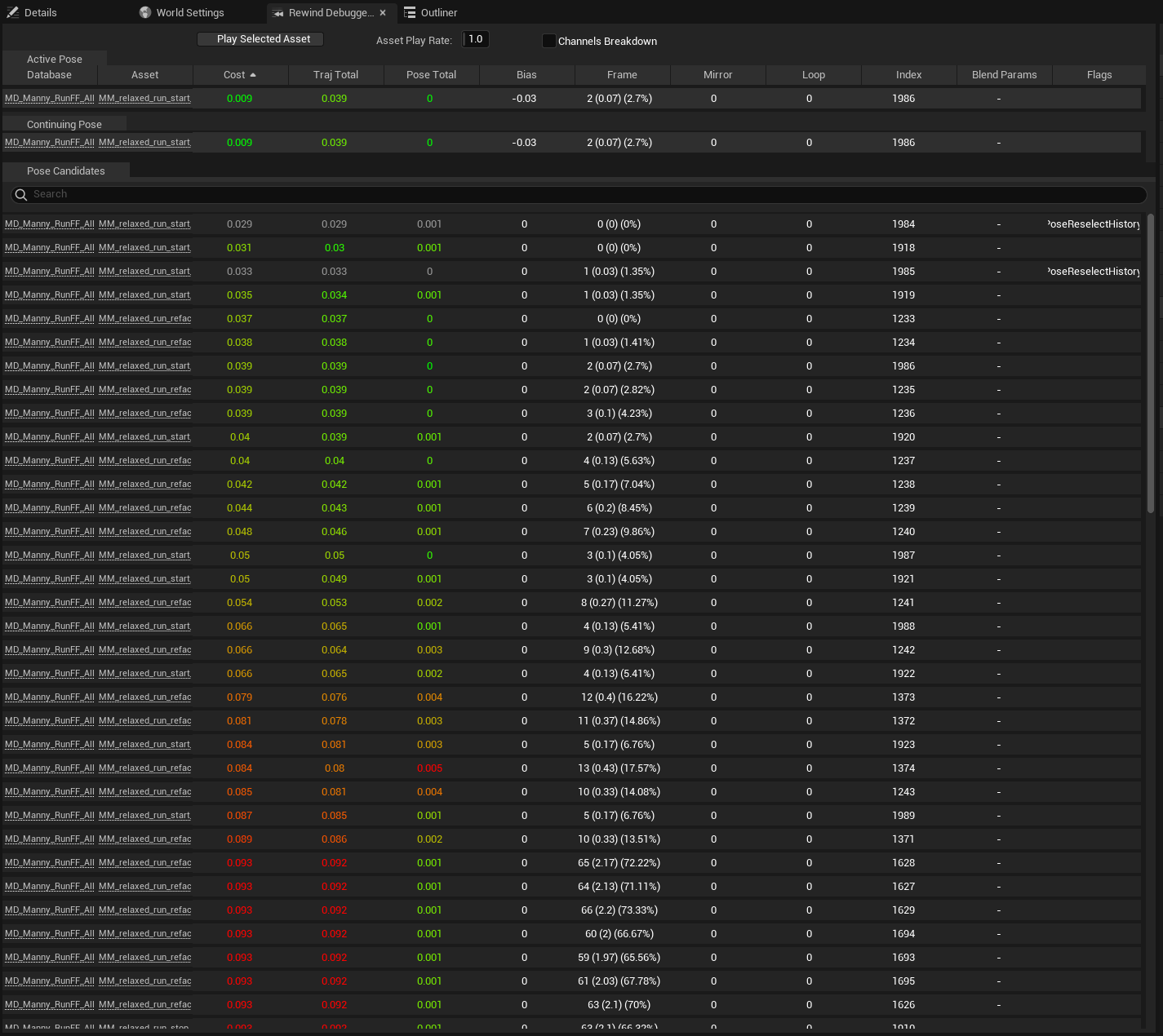
Each tab contains values associated with different selection factors the Motion Matching system considers when making a pose selection. The Rewind Debugger Details panel color codes these based on what makes a pose selection more favorable. This heat map will visually represent which values are most ideal and therefore which poses are more likely to be selected. Green values indicate the selection is more favorable to be selected, while red values indicate the selection is less favorable across all value types tracked. Gray values represent pose selections that will be ignored completely. The Motion Matching system tries to find the animation selection that is the most favorable across all categories.
The following is a list of the values that are considered in a typical Motion Matching setup:
| Value | Description |
|---|---|
| Database | Lists the Pose Search Database Asset that the selection is contained in. |
| Asset | Lists the animation asset that is being used to set the current active pose. |
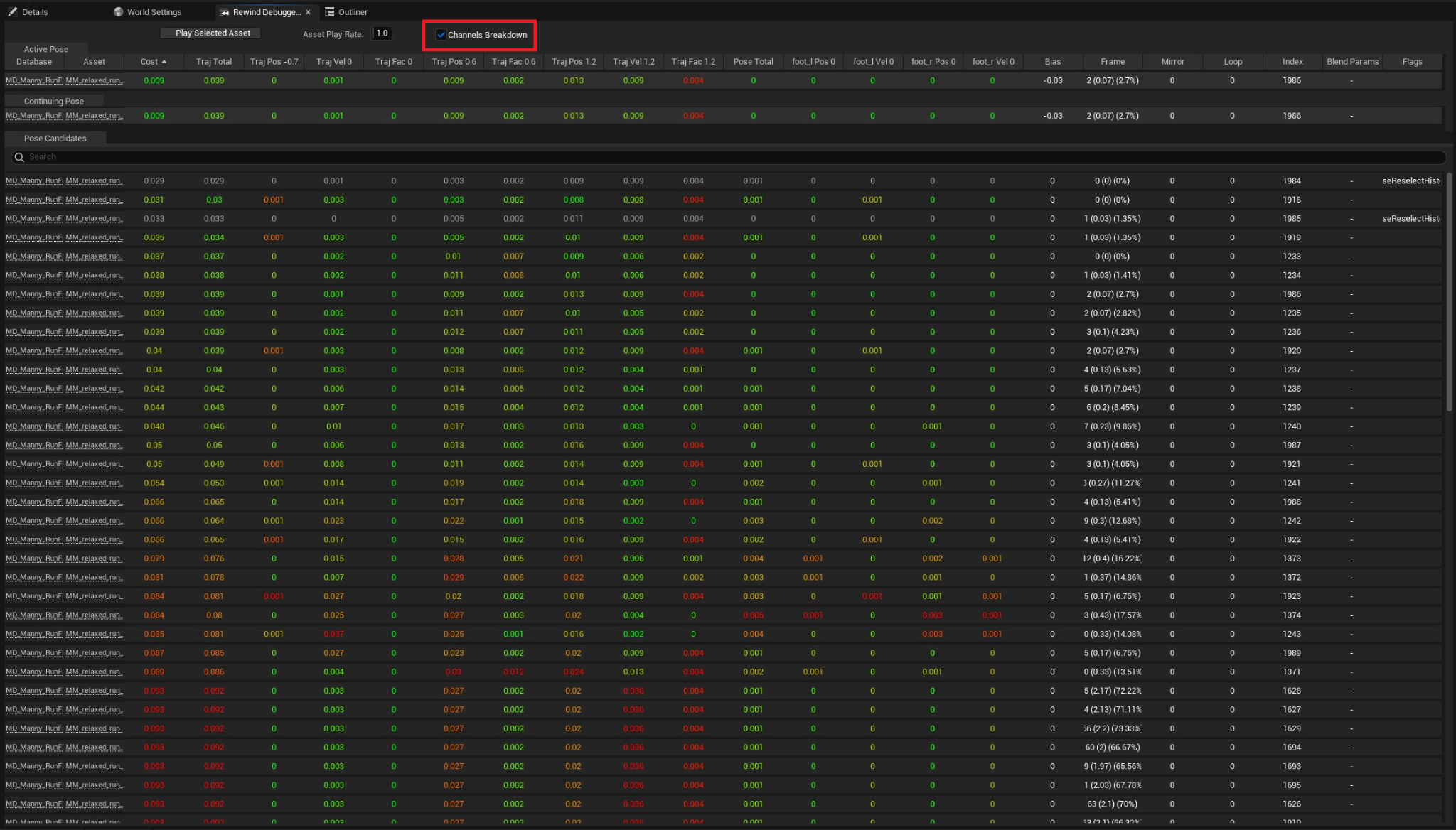
| Cost | Lists a generalized value of the performance cost to make the selection. A more expansive breakdown of the different factors that are used to calculate the general cost value by enabling the Channels Breakdown property at the top of the panel. |
| Trajectory Total | Lists a value that shows how closely the selection matches the query system. |
| Pose Total | Lists a value that shows how closely the pose matches the current active pose. This value represents how hard the selection would be to transition to from the current active pose. |
| Bias | Lists a value that shows how much bias the motion matching system is applying to the pose selection. Positive values indicate it is more likely to select it, while negative values indicate it is less likely to select it. |
| Frame | Lists the frame the current active pose is using from the selected asset. |
| Mirror | Lists whether or not the asset is being mirrored to achieve the selected pose. A value of 0 indicates the pose is not mirrored, while a value of 1 indicates the pose is mirrored. |
| Loop | Lists whether or not the asset is set to loop during playback. A value of 0 indicates the pose will not loop, while a value of 1 indicates that the asset can be looped. |
| Flags | Here you can see any flags the Motion Matching system has assigned to a pose selection. These flags can make selections more likely to be selected, less likely to be selected, or even completely ignored. A common one assigned in the default configuration is PoseReselectHistory which means the pose was used recently and the system will ignore it until more poses have been selected. |
Additionally you can expand the values listed to include a full breakdown of the specifics factors that are attributing to the overall cost or the cost difference. You can break down the channels inside the cost output by selecting Channel Breakdown to get a full breakdown of what's attributing to the cost of a frame.
You can observe a debug drawing of the different pose selections by selecting the poses in the Rewind Debugger Details panel. The selected pose’s skeletons will be rendered in the viewport, in addition to their respective ideal character trajectory.