
In the following document we will take a look at the various ways you can go about tracking down performance issues in your Google VR projects.
Google Daydream Performance HUD
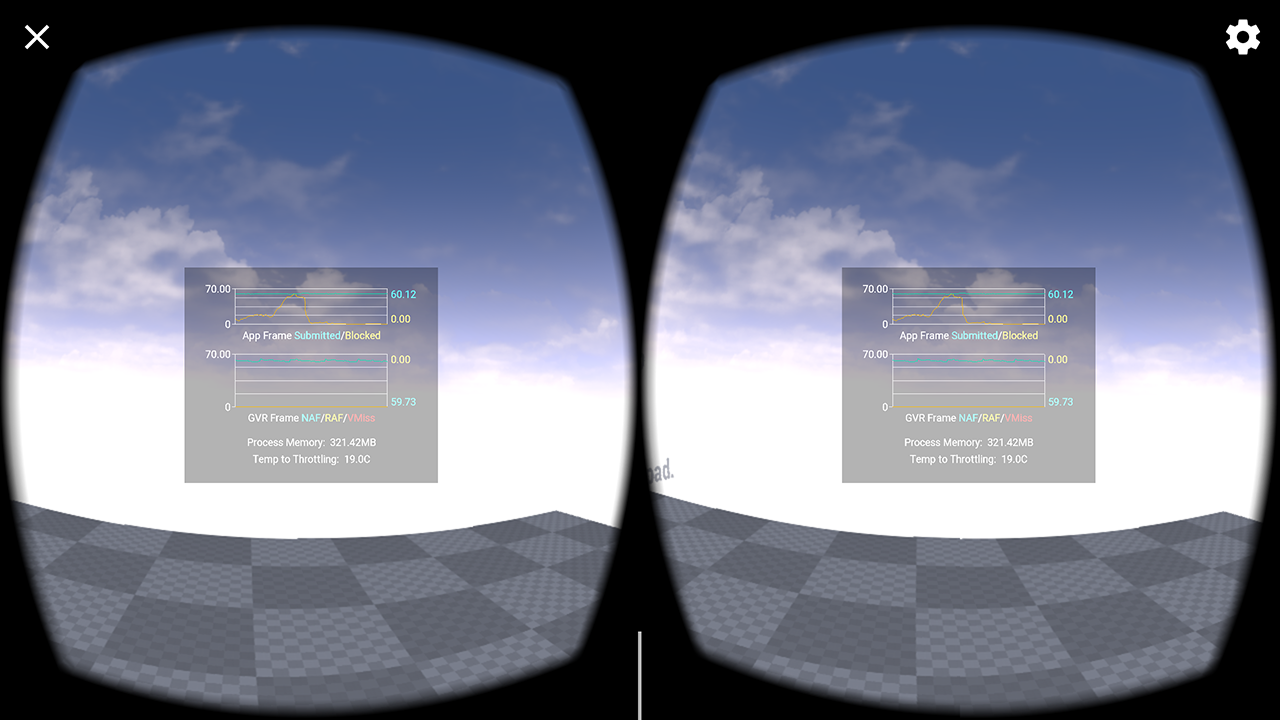
The Daydream Performance HUD is a performance overlay enabled for all Daydream applications built with Google VR SDK 1.60 and above.
Google Daydream comes with a built-in performance overlay that when enabled, will provide quick insight into performance issues you might encounter. With this overlay enabled, you can see the following stats:
- Application frame submit rate, and whether frames were blocked on the GPU.
- Asynchronous Reprojection statistics.
- Process memory usage.
- How many degrees (�C) the device is from thermal throttling.
Enabling Performance HUD
To enable the Performance HUD you will need to do the following.
-
Open VR Settings, available by tapping the gear icon at the top right of the phone's screen after launching a Daydream application.

-
Tap the Build Version option six times to make the Developer Options item appear.
Click for full image.
-
Select Developer Options then enable Enable performance heads-up display by clicking on the checkmark box next to it. Enabling this option also implicitly enables the Enable Performance Monitoring option as well.
Click for full image.
-
You should now see the performance overlay the next time you run a VR app, as in the following image:
Click for full image.
For more information on how to use Performance HUD, check the offical Google VR Performance HUD documentation.