

概述
类型转换(Cast)是一种常用的通信方法,它允许你引用一个Actor,并尝试将它转换为其他类。如果转换成功,则可以直接访问对象Actor的信息和函数。
此方法中,你可以先引用关卡中的Actor,然后使用 类型转换(Cast) 节点将其转换为特定类型。在这类通信方法中,当前Actor和目标Actor之间是一对一的关系。
设置
-
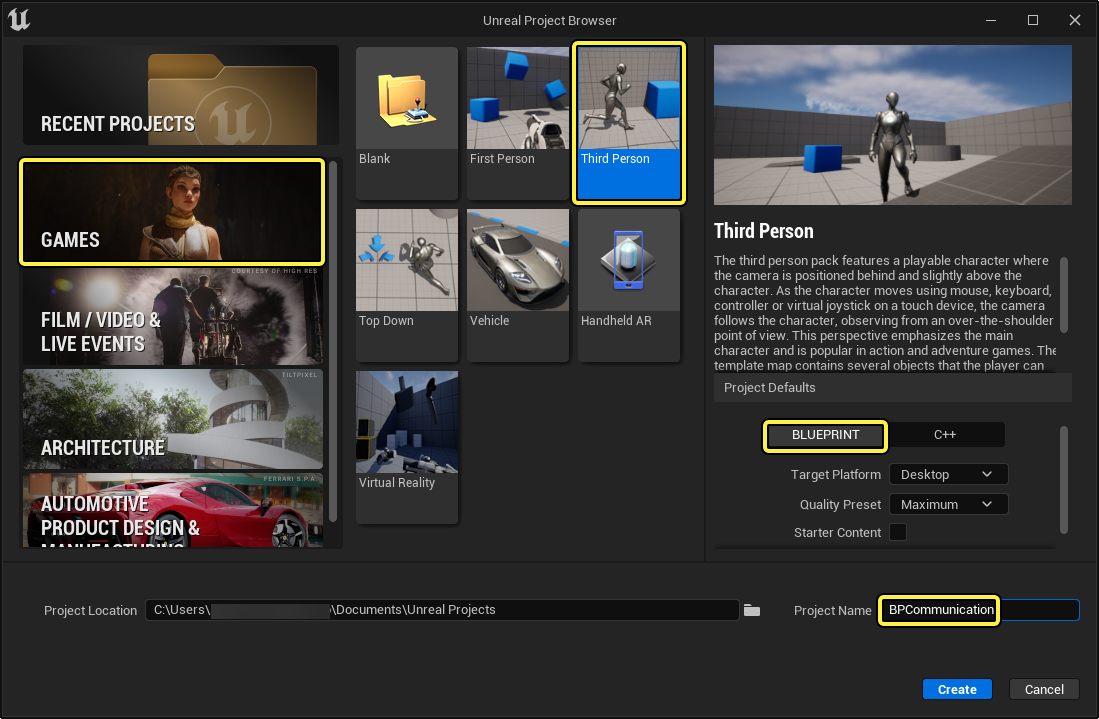
首先,点击 游戏 > 第三人称 > 蓝图,创建一个名为 BPCommunication 的项目。
2 - 创建旋转Actor
本示例将创建一个静态网格体Actor,当玩家靠近时,该Actor将会开始旋转。
-
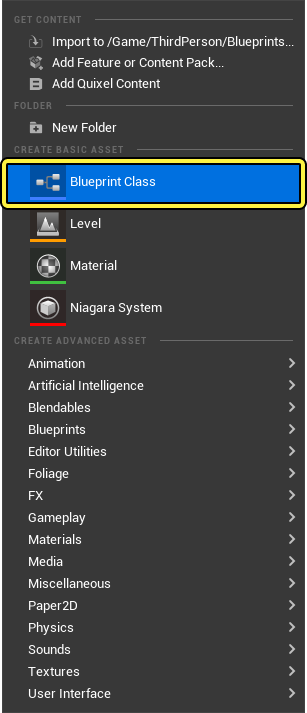
在 内容浏览器(Content Browser) 中点击右键,在 创建基本资产(Create Basic Asset) 分段下点击 蓝图类(Blueprint Class)。
-
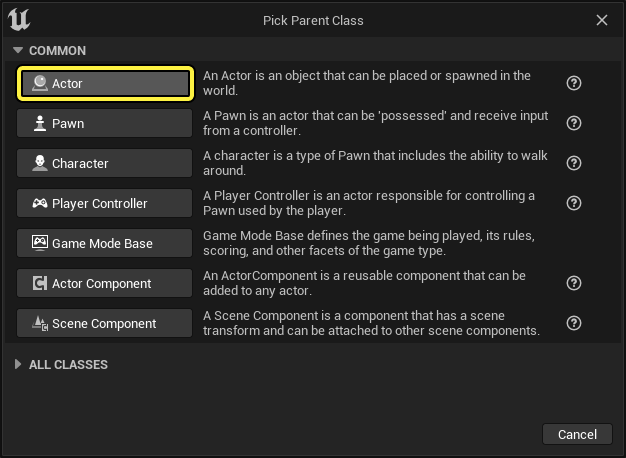
选择 Actor 作为父类,并将蓝图命名为 BP_RotateActor。
-
在 内容浏览器(Content Browser) 中双击蓝图将其打开。然后在蓝图编辑器窗口中,转到 组件(Components) 面板,点击 添加组件(Add Component) 按钮。搜索并选择 静态网格体(Static Mesh)。这会将静态网格体组件添加到蓝图。
![]StaticMesh.png)
-
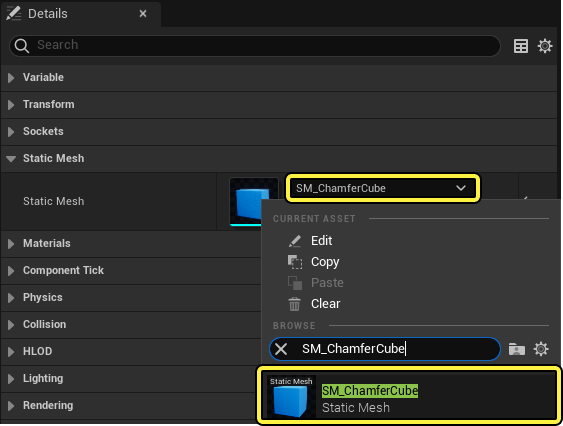
在选择 静态网格体(Static Mesh) 组件之后,转到 细节(Details) 面板并点击 静态网格体(Static Mesh) 下拉菜单。搜索并选择 Shape_Cube。
-
在 事件图表(Event Graph) 中点击右键以打开上下文敏感的搜索窗口,搜索并选择 AddActorLocalRotation,以将此节点添加到图表。
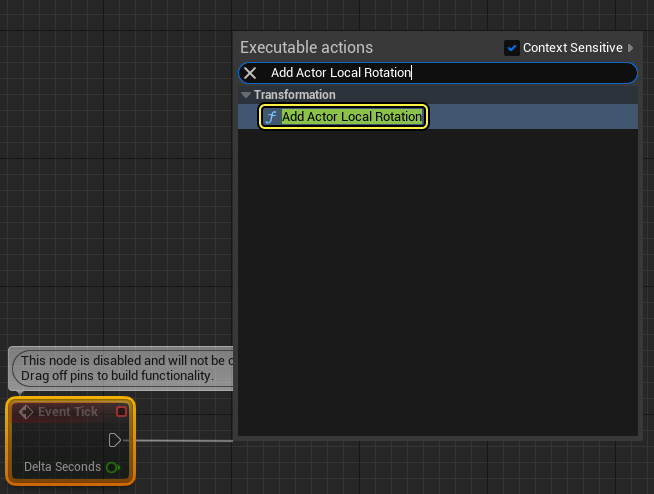
-
将 AddActorLocalRotation 节点连接到 Event Tick。将 Z值(Z value) 设置为 2.0。
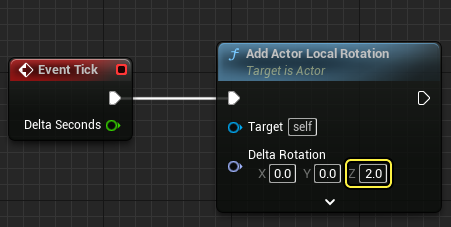
-
编译(Compile) 并 保存(Save) 蓝图。
-
将 BP_RotateObject Actor 拖动到关卡中,然后点击 运行(Play)。你应该看到立方体在持续旋转。
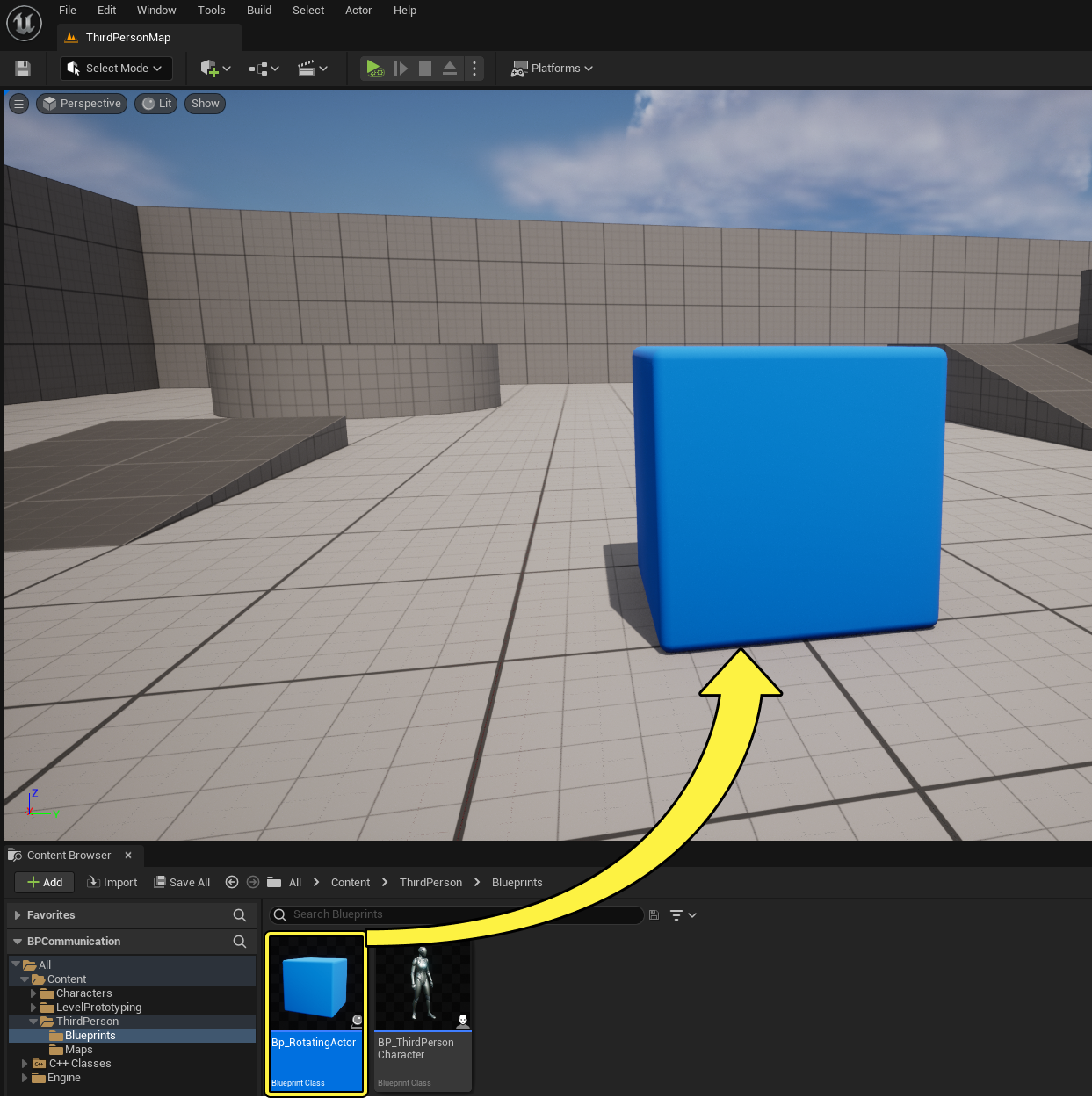
-
现在要添加一个条件,让对象仅在玩家靠近时旋转。右键点击 事件图表(Event Graph),然后添加 Branch 节点。连接 Event Tick 节点的输出引脚和 AddActorLocalRotation 节点的输入引脚之间的节点。
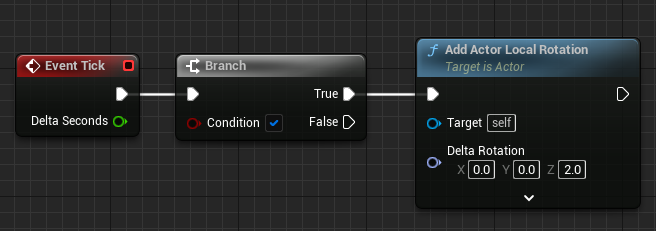
-
创建名为 可以旋转(Can Rotate) 的布尔类型的变量,然后将其连接到 Branch 节点的 条件(Condition) 引脚,如下所示。
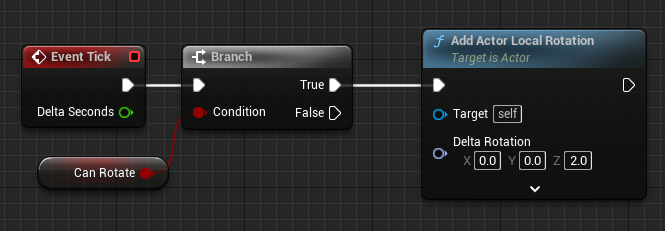
-
编译(Compile) 蓝图,将 CanRotate 的 默认值(Default Value) 设置为 False。

-
打开 我的蓝图(My Blueprints) 选项卡,然后点击 添加函数(+ Function) 按钮以创建新的函数。将函数命名为 OverlappedPlayer。
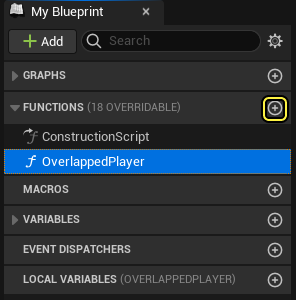
-
在选择函数之后,转到 细节(Details) 面板并点击 添加新参数(+ New Parameter) 按钮。将新的布尔参数命名为 开始重叠(Begin Overlap)。

-
将 CanRotate 变量拖动到函数内部,然后选择 设置CanRotate(Set CanRotate)。将 Overlapped Player 节点连接到 Set Can Rotate 节点。将 Overlapped Player 节点的 开始重叠(Begin Overlap) 引脚连接到 Set Can Rotate 节点的 可以旋转(Can Rotate) 引脚,如下所示。
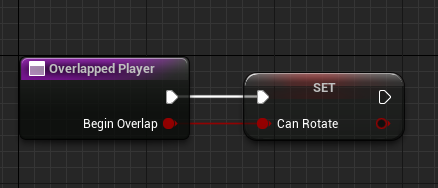
-
编译(Compile) 并 保存(Save) 蓝图。
修改玩家蓝图
在此部分中,你将修改 ThirdPersonCharacter 蓝图,以便将碰撞对象转换成 BP_RotateObject Actor,并在你靠近时将其 旋转(Rotate) 变量设置为 True。
-
打开 ThirdPersonCharacter 蓝图。
-
在蓝图编辑器窗口中,转到 组件(Components) 面板,点击 添加组件(Add Component) 按钮。 搜索并选择 球体碰撞(Sphere Collision)。这会将球体碰撞组件添加到蓝图。
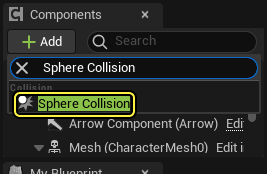
-
选择 球体碰撞(Sphere Collision) 组件之后,转到 细节(Details) 面板,将 半径(Radius) 设置为200。

-
右键点击 球体碰撞(Sphere Collision) 组件,然后选择 OnComponentBeginOverlap 和 OnComponentEndOverlap 事件,将其添加到 事件图表(Event Graph)。
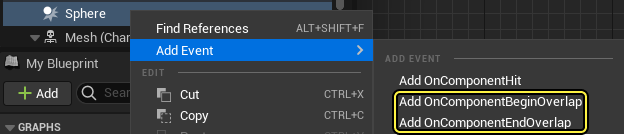
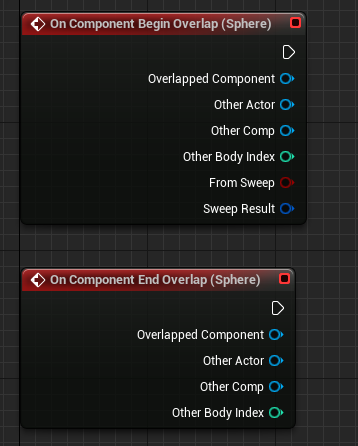
-
从 On Component Begin Overlap 节点的 其他Actor(Other Actor) 引脚拖出一根引线,然后搜索并选择 类型转换到BP旋转对象(cast to BP Rotate Object)。
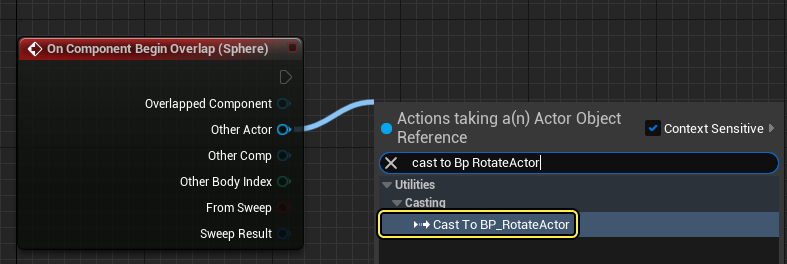
-
从 作为BP旋转对象(As BP Rotate Object) 引脚拖出一根引线,然后搜索并选择 Overlapped Player。启用 Overlapped Player 节点的 开始重叠(Begin Overlap)。
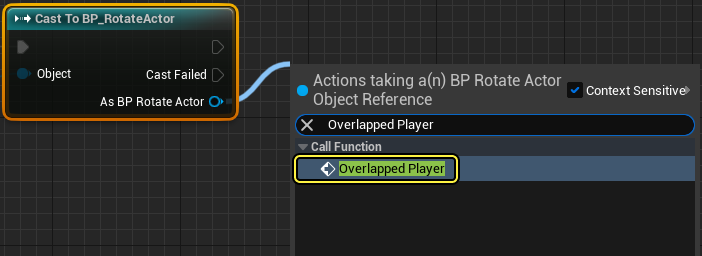
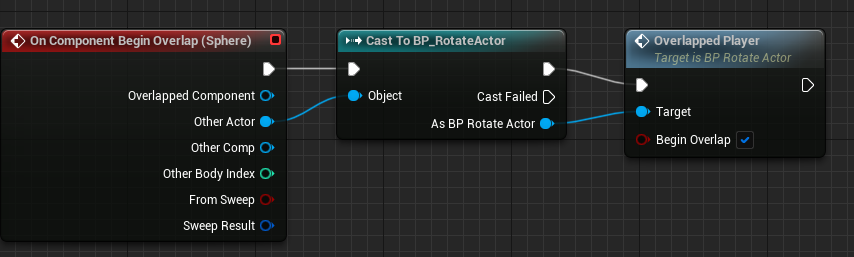
-
重复步骤5和6,将相同的节点附加到 On Component End Overlap 节点。禁用 Overlapped Player 节点的 开始重叠(Begin Overlap) 引脚。
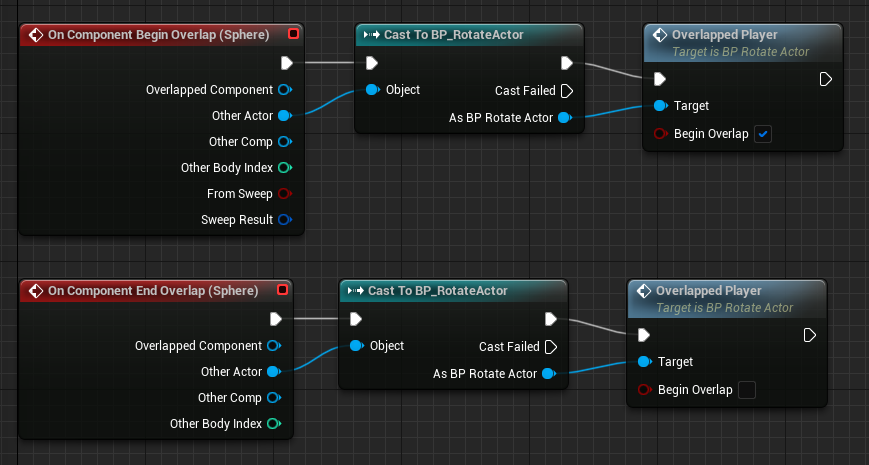
-
编译(Compile) 并 保存(Save) 蓝图。
-
按 运行(Play) 并接近 BP_RotateObject Actor,可以看到只有当玩家靠近后它才会开始旋转。
 (w:600)(convert:false)
后续步骤
现在你已了解如何使用类型转换方法,接下来请了解Actor通信中提到的其他通信类型。
概述
对蓝图类进行类型转换是一种常见的通信手段。在这种方法中,你需要引用某个Actor类的蓝图,然后将它转换为其他类。如果成功,则能通过"直接蓝图通信(Direct Blueprint)"来访问其信息和功能。
此方法需要你引用关卡中的Actor类蓝图,以便使用 Cast 节点将其转换为特定类。采用这种通信类型时,当前Actor类蓝图和目标Actor类蓝图之间是一对一关系。
在此快速入门指南中,你将学习如何使用C++创建Actor,为它编写转换蓝图类的功能,以便它访问目标蓝图中的信息。
设置
-
首先,点击 游戏 > 第三人称 > C++ ,新建一个名为 BPCommunication 的项目。
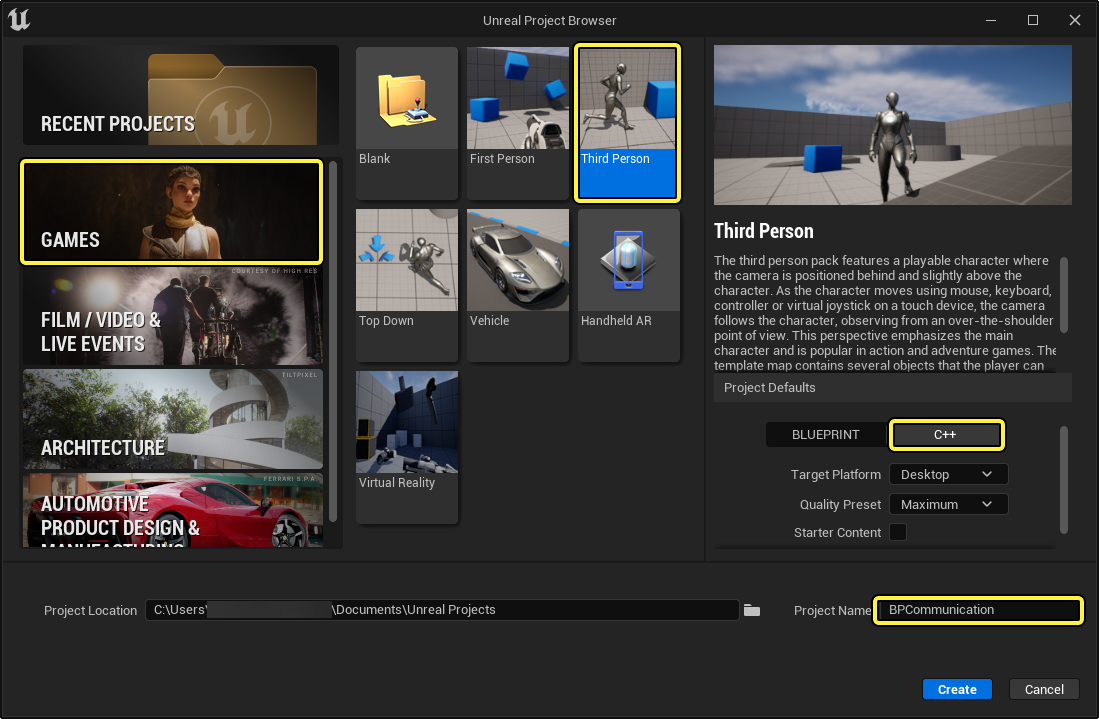
创建旋转Actor
在此示例中,你将创建一个静态网格体蓝图,当玩家靠近时,该蓝图将开始旋转。
-
在 C++类向导 中新建名为 RotatingActor 的新Actor类。
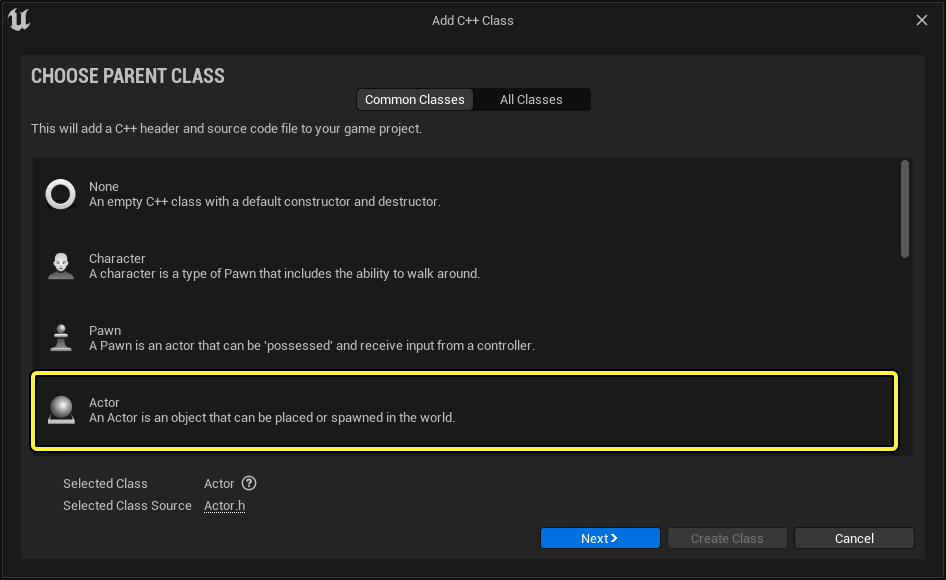
-
在 RotatingActor.h 的类默认值中实现以下代码。
public: void SetbCanRotate(bool value); protected: // 当游戏开始或重生(Spawn)时被调用 virtual void BeginPlay() override; void RotateActor(); bool bCanRotate; UPROPERTY(EditAnywhere, BlueprintReadWrite) UStaticMeshComponent* MeshComp; -
导航到 RotatingActor.cpp 并在构造函数 ARotatingActor::ARotatingActor 中声明以下代码
ARotatingActor::ARotatingActor() { RootComponent = CreateDefaultSubobject<USceneComponent>(TEXT("SceneComponent")); MeshComp = CreateDefaultSubobject<UStaticMeshComponent>(TEXT("StaticMesh")); MeshComp->SetupAttachment(RootComponent, FAttachmentTransformRules::KeepRelativeTransform); bCanRotate = false; } -
为 ARotatingActor::RotateActor 方法实现以下代码。
void ARotatingActor::RotateActor() { AddActorLocalRotation(ActorRotation); } -
找到 ARotatingActor::Tick 方法并实现以下代码。
void ARotatingActor::Tick(float DeltaTime) { Super::Tick(DeltaTime); if (bCanRotate) { RotateActor(); } }
已完成代码
RotatingActor.h
#pragma once
#include "CoreMinimal.h"
#include "GameFramework/Actor.h"
#include "RotatingActor.generated.h"
UCLASS()
class BPCOMMUNICATION_API ARotatingActor : public AActor
{
GENERATED_BODY()
public:
// 为此Actor的属性设置默认值
ARotatingActor();
void SetbCanRotate(bool value);
protected:
// 当游戏开始或重生(Spawn)时被调用
virtual void BeginPlay() override;
void RotateActor();
bool bCanRotate;
UPROPERTY(EditAnywhere, BlueprintReadWrite)
UStaticMeshComponent* MeshComp;
//Actor的旋转速度。
const FQuat ActorRotationRate =(FQuat(FRotator(0,2,0));
public:
// 每一帧都调用
virtual void Tick(float DeltaTime) override;
};
RotatingActor.cpp
#include "RotatingActor.h"
// 设置默认值
ARotatingActor::ARotatingActor()
{
// 让此Actor每帧调用Tick()。 如果你不需要,可以关闭它以提升性能。
PrimaryActorTick.bCanEverTick = true;
RootComponent = CreateDefaultSubobject<USceneComponent>(TEXT("SceneComponent"));
MeshComp = CreateDefaultSubobject<UStaticMeshComponent>(TEXT("MeshComp"));
MeshComp->SetupAttachment(RootComponent, FAttachmentTransformRules::KeepRelativeTransform);
bCanRotate = false;
}
void ARotatingActor::SetbCanRotate(bool value)
{
bCanRotate = value;
}
// 当游戏开始或重生(Spawn)时被调用
void ARotatingActor::BeginPlay()
{
Super::BeginPlay();
}
void ARotatingActor::RotateActor()
{
AddActorLocalRotation(ActorRotation);
}
// 每帧都调用
void ARotatingActor::Tick(float DeltaTime)
{
Super::Tick(DeltaTime);
if (bCanRotate)
{
RotateActor();
}
}
-
编译 你的代码。
-
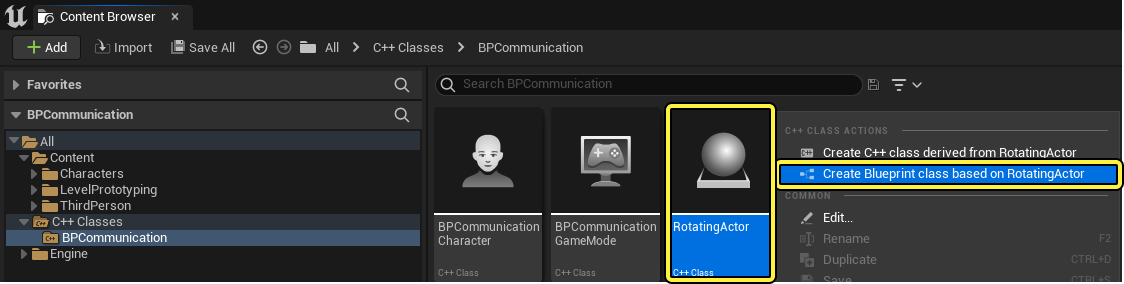
在编辑器中,导航至 C++类文件夹(C++ Classes folder),右键点击 RotatingActor,在 C++类操作(C++ Class Actions) 下拉菜单中,选择 基于RotatingActor创建蓝图类(Create Blueprint class based on RotatingActor),此旋转Actor名为 BP_RotatingActor。
-
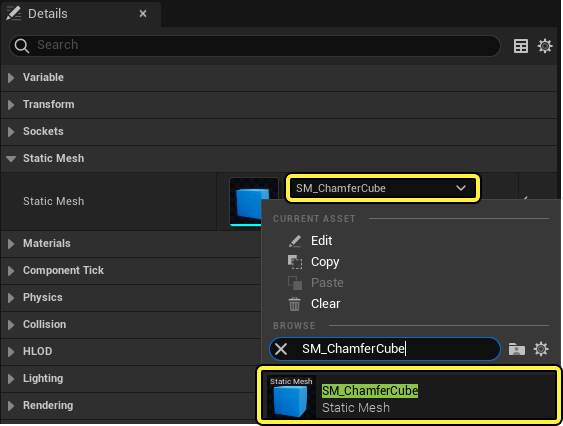
在 BP_RotatingActor 蓝图的类默认值中,导航至 组件(Components) 选项卡,选择 MeshComp 静态网格体组件(Static Mesh Component),然后导航至 细节面板(Details panel),在 静态网格体类别(Static Mesh category) 中, 选择 静态网格体变量(Static Mesh variable) 旁边的箭头。 最后,在下拉菜单中选择 Shape_Cube 静态网格体。
-
编译(Compile) 并 保存(Save) 蓝图。
-
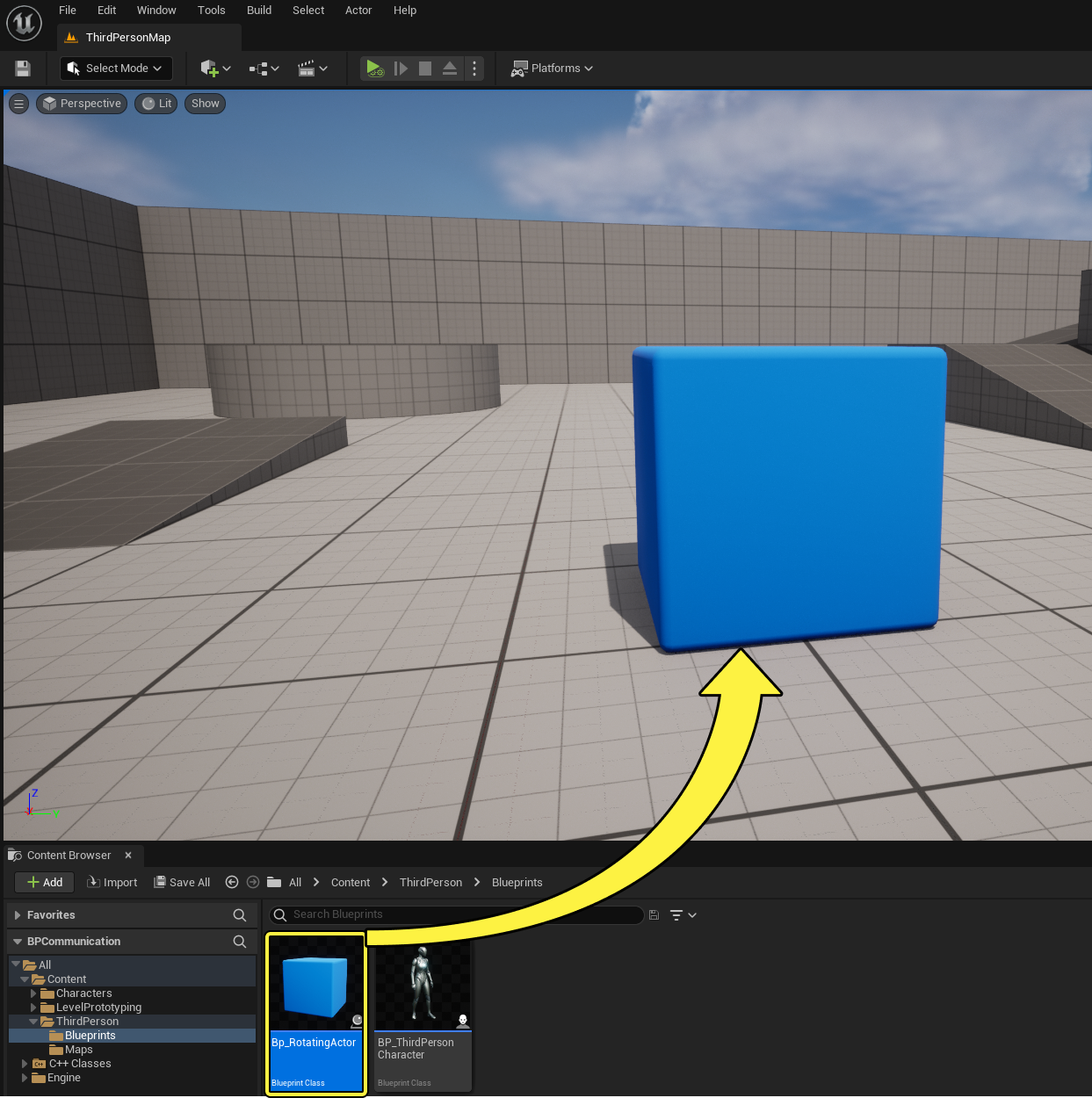
从 内容浏览器(Content Browser) 中,将 Bp_RotatingActor 的实例拖动到关卡中。
修改第三人称角色类
在此小节中,你将修改 BPCommunicationCharacter 类 ,以便将碰撞对象转换为 旋转Actor(Rotating Actor) 类,并在玩家靠近时将 bCanRotate 变量设置为 True**。
-
打开 BPCommunicationCharacter.h 并实现以下代码。
protected: virtual void NotifyActorBeginOverlap(AActor* OtherActor); virtual void NotifyActorEndOverlap(AActor* OtherActor); class USphereComponent* SphereComp; -
在 BPCommunicationCharacter.cpp 中包含以下类库
#include "RotatingActor.h" #include "Components/SphereComponent.h" -
在构造函数 ABPCommunicaionCharacter::BPCommunicationCharacter 中声明以下代码。
SphereComp = CreateDefaultSubobject<USphereComponent>(TEXT("SphereComp")); SphereComp->AttachToComponent(GetMesh(), FAttachmentTransformRules::KeepRelativeTransform); SphereComp->SetSphereRadius(200); -
接下来,实现 ABPCommunicationCharacter::NotifyActorBeginOverlap 和 ABPCommunicationCharacter::NotifyActorEndOverlap。
void ABPCommunicationCharacter::NotifyActorBeginOverlap(AActor* OtherActor) { if (ARotatingActor* RotatingActorCheck =Cast<ARotatingActor>(OtherActor)) { ActorCheck->SetbCanRotate(true); } } void ABPCommunicationCharacter::NotifyActorEndOverlap(AActor* OtherActor) { if (ARotatingActor* RotatingActorCheck = Cast<ARotatingActor>(OtherActor)) { ActorCheck->SetbCanRotate(false); } } -
编译你的代码。
最终代码
BpCommunicationCharacter.h
//版权所有Epic Games, Inc。保留所有权利。
#pragma once
#include "CoreMinimal.h"
#include "GameFramework/Character.h"
#include "BPCommunicationCharacter.generated.h"
UCLASS(config=Game)
class ABPCommunicationCharacter : public ACharacter
{
GENERATED_BODY()
/** 用于将摄像机放置在角色后面的摄像机升降臂 */
UPROPERTY(VisibleAnywhere, BlueprintReadOnly, Category = Camera, meta = (AllowPrivateAccess = "true"))
class USpringArmComponent* CameraBoom;
/** 跟随摄像机 */
UPROPERTY(VisibleAnywhere, BlueprintReadOnly, Category = Camera, meta = (AllowPrivateAccess = "true"))
class UCameraComponent* FollowCamera;
public:
ABPCommunicationCharacter();
/** 基本旋转速度,以"度/秒"为单位。其他计量方式可能会影响最终旋转速度。*/
UPROPERTY(VisibleAnywhere, BlueprintReadOnly, Category=Camera)
float BaseTurnRate;
/** 基本仰视/俯视速度,以"度/秒"为单位。其他计量方式可能会影响最终速度。*/
UPROPERTY(VisibleAnywhere, BlueprintReadOnly, Category=Camera)
float BaseLookUpRate;
protected:
virtual void NotifyActorBeginOverlap(AActor* OtherActor);
virtual void NotifyActorEndOverlap(AActor* OtherActor);
UPROPERTY(EditAnywhere, BlueprintReadWrite)
class USphereComponent* SphereComp;
/** 重置VR中的HMD方向。*/
void OnResetVR();
/** 出现向前/向后输入时调用 */
void MoveForward(float Value);
/** 出现侧边到侧边输入时调用 */
void MoveRight(float Value);
/**
* 通过输入进行调用,以给定的速度旋转。
* @param速度 这是标准化速度,即1.0表示100%的所需旋转速度
*/
void TurnAtRate(float Rate);
/**
* 通过输入进行调用,以给定的速度仰视/俯视旋转。
* @param速度 这是标准化速度,即1.0表示100%的所需旋转速度
*/
void LookUpAtRate(float Rate);
/** 当触摸输入开始时的处理程序。*/
void TouchStarted(ETouchIndex::Type FingerIndex, FVector Location);
/** 当触摸输入停止时的处理程序。*/
void TouchStopped(ETouchIndex::Type FingerIndex, FVector Location);
protected:
// APawn接口
virtual void SetupPlayerInputComponent(class UInputComponent* PlayerInputComponent) override;
// APawn接口结束
public:
/** 返回CameraBoom子对象 **/
FORCEINLINE class USpringArmComponent* GetCameraBoom() const { return CameraBoom; }
/** 返回FollowCamera子对象 **/
FORCEINLINE class UCameraComponent* GetFollowCamera() const { return FollowCamera; }
};
BpCommunication.cpp
//版权所有Epic Games, Inc。保留所有权利。
#include "BPCommunicationCharacter.h"
#include "HeadMountedDisplayFunctionLibrary.h"
#include "Camera/CameraComponent.h"
#include "Components/CapsuleComponent.h"
#include "Components/InputComponent.h"
#include "GameFramework/CharacterMovementComponent.h"
#include "GameFramework/Controller.h"
#include "GameFramework/SpringArmComponent.h"
#include "CeilingLight.h"
#include "RotatingActor.h"
#include "Components/SphereComponent.h"
//////////////////////////////////////////////////////////////////////////
// ABPCommunicationCharacter
ABPCommunicationCharacter::ABPCommunicationCharacter()
{
// 设置碰撞胶囊体的大小
GetCapsuleComponent()->InitCapsuleSize(42.f, 96.0f);
// 设置我们的输入旋转速度
BaseTurnRate = 45.f;
BaseLookUpRate = 45.f;
// 不在控制器旋转时旋转。使其仅影响摄像机。
bUseControllerRotationPitch = false;
bUseControllerRotationYaw = false;
bUseControllerRotationRoll = false;
// 配置角色移动
GetCharacterMovement()->bOrientRotationToMovement = true; // 角色沿输入方向移动...
GetCharacterMovement()->RotationRate = FRotator(0.0f, 540.0f, 0.0f); // ...以此旋转速度
GetCharacterMovement()->JumpZVelocity = 600.f;
GetCharacterMovement()->AirControl = 0.2f;
// 创建摄像机升降臂(如果发生碰撞,朝着玩家推进)
CameraBoom = CreateDefaultSubobject<USpringArmComponent>(TEXT("CameraBoom"));
CameraBoom->SetupAttachment(RootComponent);
CameraBoom->TargetArmLength = 300.0f; // 摄像机在角色后面的这个距离上跟随
CameraBoom->bUsePawnControlRotation = true; // 基于控制器旋转升降臂
// 创建跟随摄像机
FollowCamera = CreateDefaultSubobject<UCameraComponent>(TEXT("FollowCamera"));
FollowCamera->SetupAttachment(CameraBoom, USpringArmComponent::SocketName); // 将摄像机附于升降臂末端,调整升降臂,使其与控制器方向一致
FollowCamera->bUsePawnControlRotation = false; // 摄像机不相对于升降臂旋转
SphereComp = CreateDefaultSubobject<USphereComponent>(TEXT("SphereComp"));
SphereComp->SetupAttachment(GetMesh(), FAttachmentTransformRules::KeepRelativeTransform);
SphereComp->SetSphereRadius(200);
// 注意:网格体组件上的骨骼网格体和动画蓝图引用(从角色继承)
// 是在名为MyCharacter的派生蓝图资产中设置的(以避免C++中的直接内容引用)
}
//////////////////////////////////////////////////////////////////////////
// 输入
void ABPCommunicationCharacter::SetupPlayerInputComponent(class UInputComponent* PlayerInputComponent)
{
// 设置游戏按键绑定
check(PlayerInputComponent);
PlayerInputComponent->BindAction("Jump", IE_Pressed, this, &ACharacter::Jump);
PlayerInputComponent->BindAction("Jump", IE_Released, this, &ACharacter::StopJumping);
PlayerInputComponent->BindAction("Use", IE_Pressed, this, &ABPCommunicationCharacter::ToggleCeilingLight);
PlayerInputComponent->BindAxis("MoveForward", this, &ABPCommunicationCharacter::MoveForward);
PlayerInputComponent->BindAxis("MoveRight", this, &ABPCommunicationCharacter::MoveRight);
// 我们提供了两个版本的旋转绑定来分别处理不同类型的设备
// "turn"处理提供绝对增量的设备,例如鼠标。
// "turnrate"适用于我们选择以变化速度方式进行处理的设备,例如模拟摇杆
PlayerInputComponent->BindAxis("Turn", this, &APawn::AddControllerYawInput);
PlayerInputComponent->BindAxis("TurnRate", this, &ABPCommunicationCharacter::TurnAtRate);
PlayerInputComponent->BindAxis("LookUp", this, &APawn::AddControllerPitchInput);
PlayerInputComponent->BindAxis("LookUpRate", this, &ABPCommunicationCharacter::LookUpAtRate);
// 处理触摸设备
PlayerInputComponent->BindTouch(IE_Pressed, this, &ABPCommunicationCharacter::TouchStarted);
PlayerInputComponent->BindTouch(IE_Released, this, &ABPCommunicationCharacter::TouchStopped);
// VR头戴设备功能
PlayerInputComponent->BindAction("ResetVR", IE_Pressed, this, &ABPCommunicationCharacter::OnResetVR);
}
void ABPCommunicationCharacter::NotifyActorBeginOverlap(AActor* OtherActor)
{
if (ARotatingActor* RotatingActorCheck =Cast<ARotatingActor>(OtherActor))
{
ActorCheck->SetbCanRotate(true);
}
}
void ABPCommunicationCharacter::NotifyActorEndOverlap(AActor* OtherActor)
{
if (ARotatingActor* RotatingActorCheck = Cast<ARotatingActor>(OtherActor))
{
ActorCheck->SetbCanRotate(false);
}
}
void ABPCommunicationCharacter::OnResetVR()
{
// 如果在虚幻编辑器中通过"添加功能(Add Feature)"将BPCommunication添加到项目,则BPCommunication.Build.cs中HeadMountedDisplay上的依赖关系不会自动传播,
// 并将产生连接器错误。
// 你需要:
// 将"HeadMountedDisplay"添加到[YourProject].Build.cs PublicDependencyModuleNames,以便成功构建(如果支持VR则适用)。
// 或者:
// 注释掉或删除下面对ResetOrientationAndPosition的调用(如果不支持VR则适用)
UHeadMountedDisplayFunctionLibrary::ResetOrientationAndPosition();
}
void ABPCommunicationCharacter::TouchStarted(ETouchIndex::Type FingerIndex, FVector Location)
{
Jump();
}
void ABPCommunicationCharacter::TouchStopped(ETouchIndex::Type FingerIndex, FVector Location)
{
StopJumping();
}
void ABPCommunicationCharacter::TurnAtRate(float Rate)
{
// 根据速度信息计算此帧的增量
AddControllerYawInput(Rate * BaseTurnRate * GetWorld()->GetDeltaSeconds());
}
void ABPCommunicationCharacter::LookUpAtRate(float Rate)
{
// 根据速度信息计算此帧的增量
AddControllerPitchInput(Rate * BaseLookUpRate * GetWorld()->GetDeltaSeconds());
}
void ABPCommunicationCharacter::MoveForward(float Value)
{
if ((Controller != nullptr) && (Value != 0.0f))
{
// 找出向前方向
const FRotator Rotation = Controller->GetControlRotation();
const FRotator YawRotation(0, Rotation.Yaw, 0);
// 获取向前矢量
const FVector Direction = FRotationMatrix(YawRotation).GetUnitAxis(EAxis::X);
AddMovementInput(Direction, Value);
}
}
void ABPCommunicationCharacter::MoveRight(float Value)
{
if ( (Controller != nullptr) && (Value != 0.0f) )
{
// 找出向右方向
const FRotator Rotation = Controller->GetControlRotation();
const FRotator YawRotation(0, Rotation.Yaw, 0);
// 获取向右矢量
const FVector Direction = FRotationMatrix(YawRotation).GetUnitAxis(EAxis::Y);
// 添加该方向上的动作
AddMovementInput(Direction, Value);
}
}
-
按运行(Play)并接近 BP_RotateActor Actor,可以看到它仅当玩家在附近时才会旋转。
(w:600)(convert:false)
后续步骤
现在你已了解如何使用类型转换方法,接下来请了解 Actor通信 中提到的其他通信类型。