

Offer Disguise items for players to conceal themselves and blend in with the environment. Both the Creepin Cardboard and the Sneaky Snowman can replenish themselves when used so that players can decorate their surroundings with matching props to blend in.
Disguise items include:
-
Creepin’ Cardboard
-
Sneaky Snowman
-
Bush
-
Big Bush Bomb
Finding and Placing Items
Click the image to enlarge.
-
From Create mode, press the Tab key, then click CREATIVE on the top navigation bar to select the CREATIVE inventory screen if not already displayed.
-
Click the CONSUMABLES tab.
-
Scroll to find and select the item, use the Search box to look up the item by name, or check the list of relevant Categories specific to the item you're looking for to filter the view.
-
Click the item, then click either Equip or Add To Chest.
Clicking Equip will add the item to your Equipment bar. When you're back in Create mode, you can view any items you've equipped by pressing the F key. You can select equipped items by either scrolling your middle mouse button or by pressing its corresponding number on your keyboard.
From the Chest tab, you can select either Create Chest or Create Llama to store the items in a chest or a llama for use in-game.
Click the image to enlarge.
Chests and llamas are a great way to offer item bundles to players. Selecting Add To Chest will add the item to the Chest tab. Each time you click Add To Chest, the item count will increase by one, shown as a yellow box on the Chest tab.
You can add up to fifteen items to the Chest tab. When it’s full, the Add To Chest button will disappear. You must remove items from the Chest tab to add more.
There are many ways to offer these items to players. Use any devices under the Registering Items section to offer or require these items during gameplay.
Managing Items
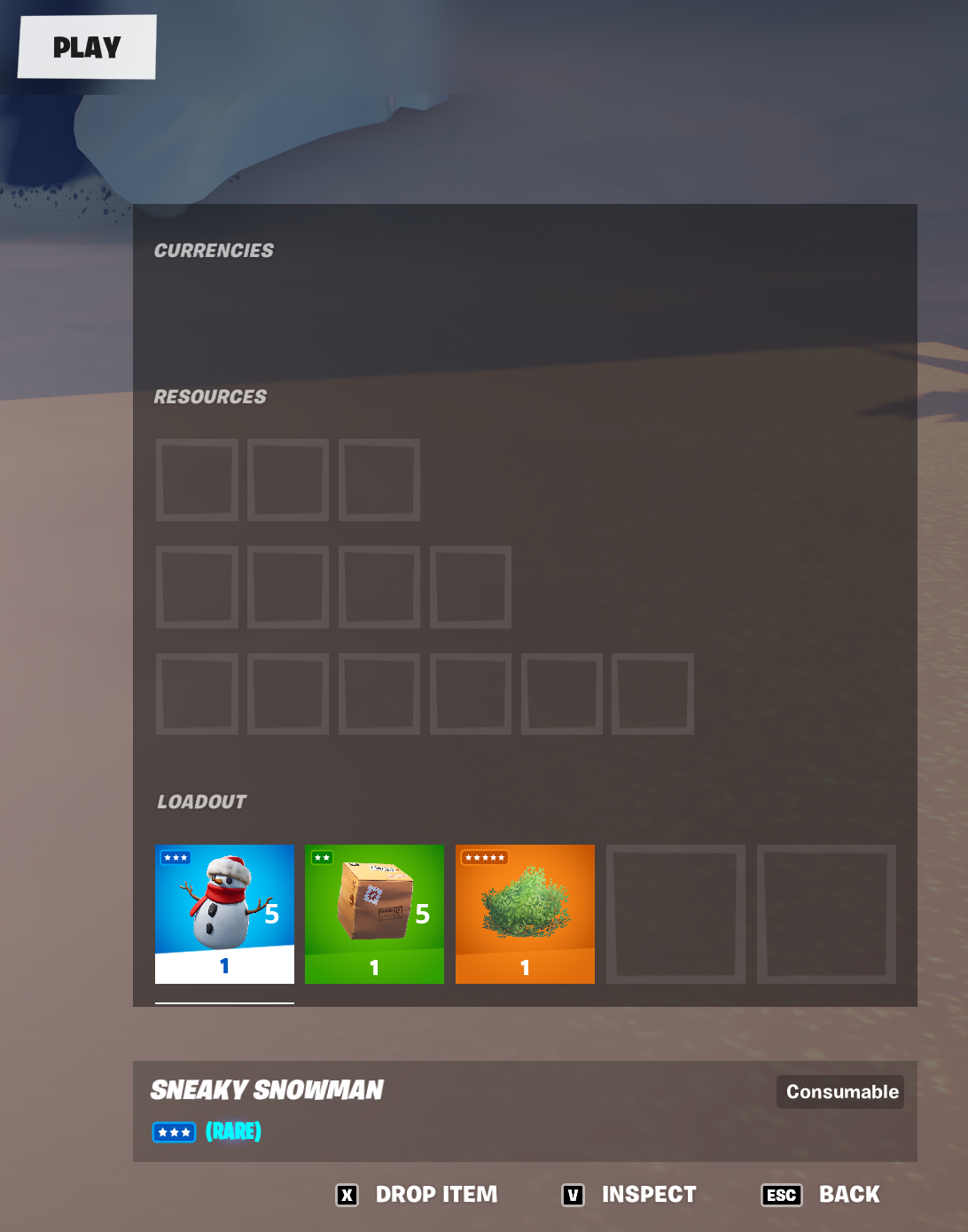
You can manage these items in the Play inventory. To access the Play inventory screen, press Tab and click Play in the top navigation bar. Here, you can swap item positions or drop them from your Equipment bar.
You cannot reposition or copy items with the phone tool. To delete an item from your inventory in Create mode, you will have to select either Respawn or Back To Hub from the Menu. When you do this, your inventory clears.
Using Disguise Items
Players can use Creepin’ Cardboard and Sneaky Snowman by holding the right mouse button. Use the aiming arc to position and throw the item and press the interact button to enter. The Bush can be entered by pressing the interact button.
| Item | Usage | |
|---|---|---|
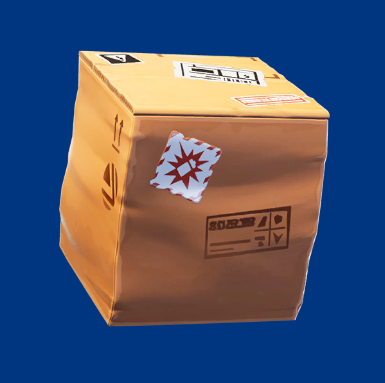 |
Creepin’ Cardboard | Can be thrown and entered for a player to disguise themselves as a prop. A player can still move freely and build while hiding inside this prop. To fully hide, a player must crouch while in disguise. While hiding, a player can also throw multiple copies of this prop to blend in with their surroundings. Enemy players can destroy this prop when inflicting damage. When thrown, this item will regenerate after 30 seconds. Players can equip this item a stack of one, which comes with 5 uses.  |
 |
Sneaky Snowman | Can be thrown and entered for players to disguise themselves as props. A player can still move freely and build while hiding inside this prop. To fully hide, a player must crouch while in disguise. While hiding, a player can also throw multiple copies of this prop to blend in with their surroundings. Enemy players can destroy this prop when inflicting damage. When destroyed, this prop will turn into a throwable snowball that deals 80 points of damage while freezing the contacting player’s feet, causing them to slide uncontrollably. This item will regenerate its uses after 30 seconds when thrown. Players can equip this item in stacks of one, which comes with 5 uses. 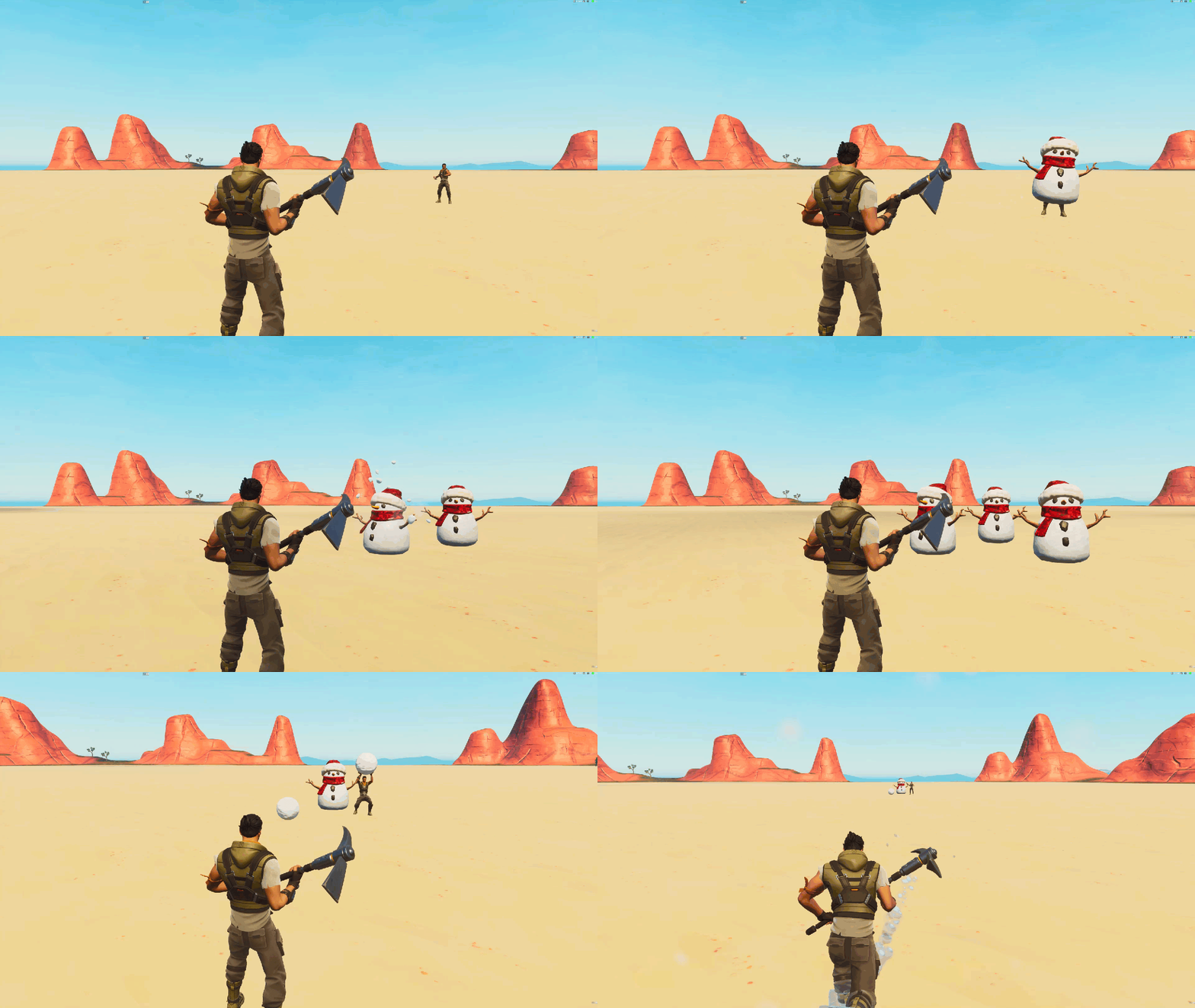 |
 |
Bush | Can be consumed to apply a bush over the player. This bush will appear transparent to the player wearing it, allowing them to move and build freely. To fully hide, the player must crouch while in disguise. The Bush can only take damage once before it is destroyed. This item can be equipped in stacks of two.  |
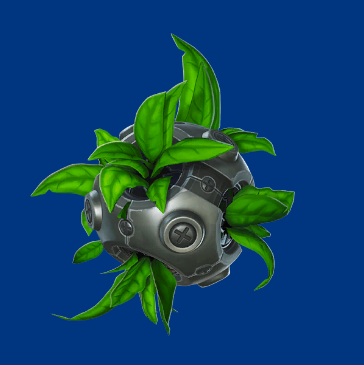 |
Big Bush Bomb | Can be thrown to deploy a large bush for players to hide in. This item can be equipped in stacks of four. 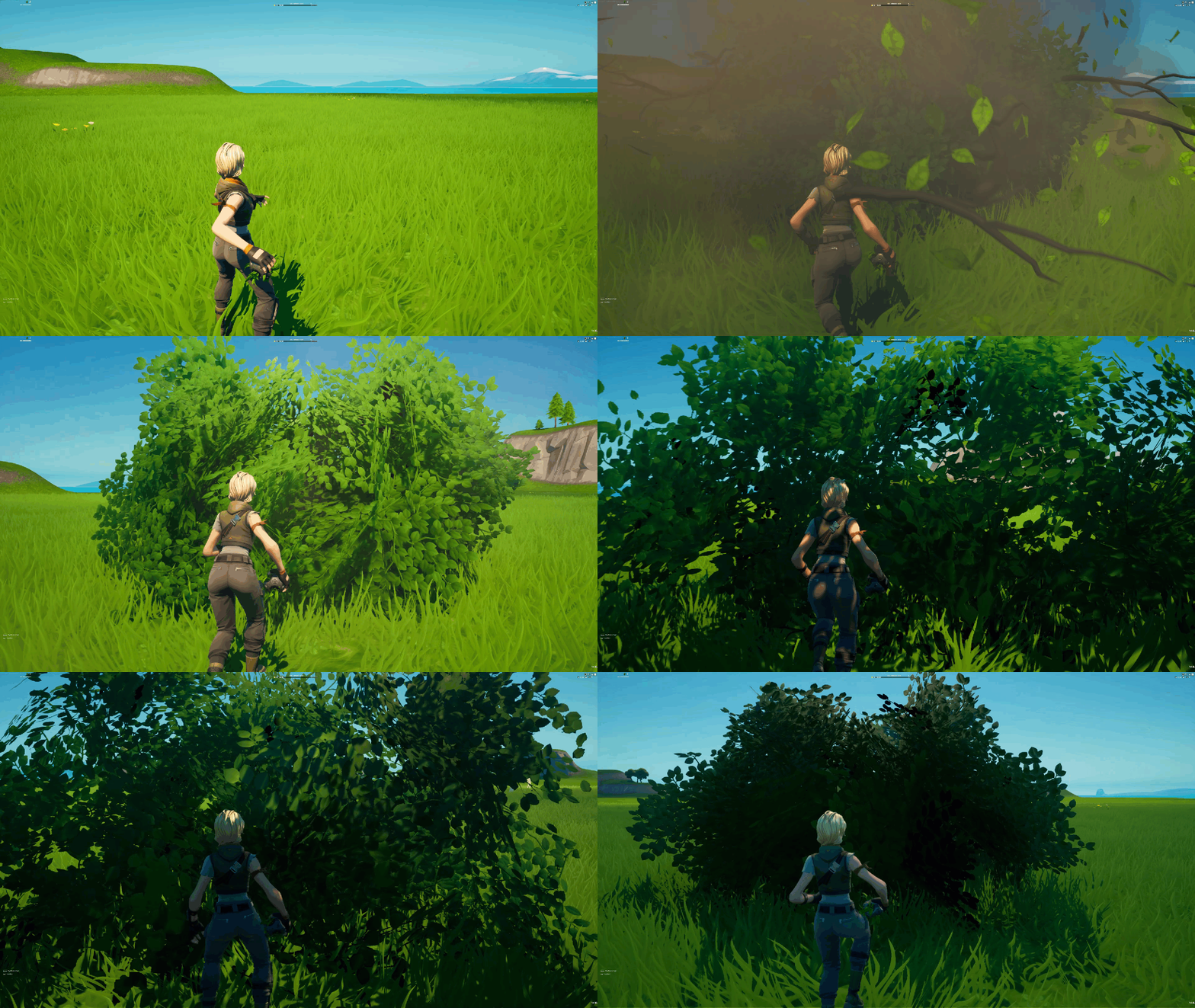 |
Registering Items
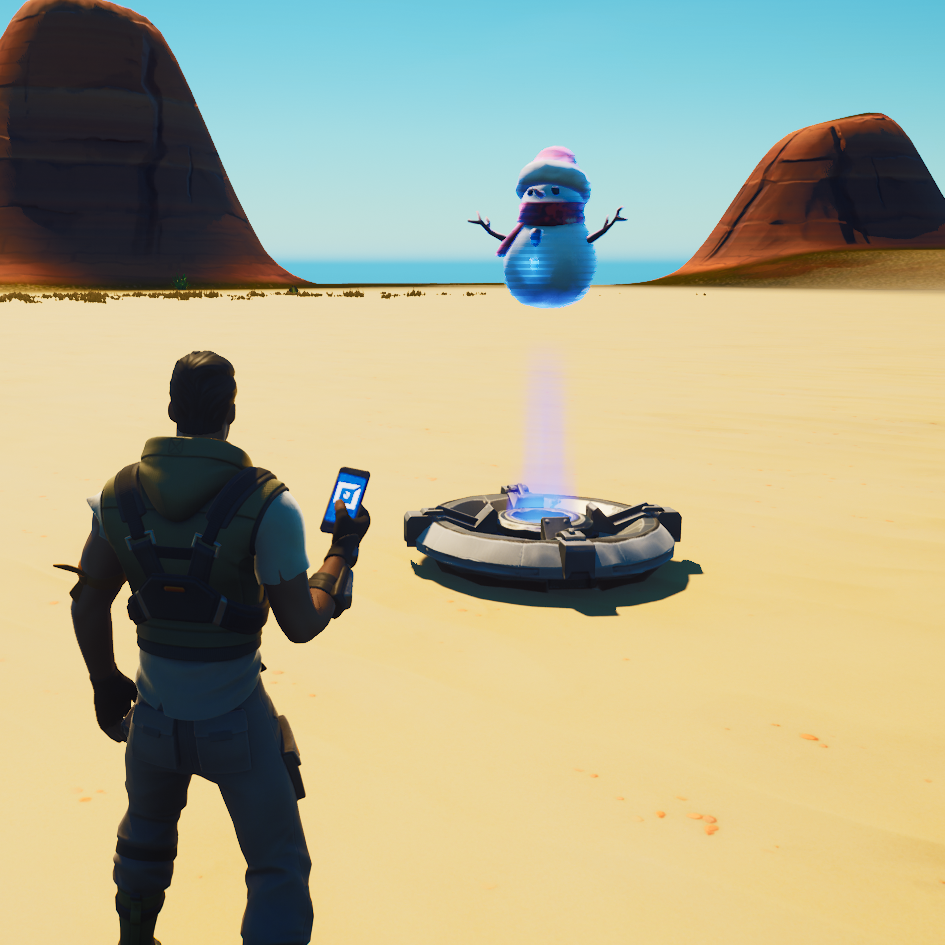
You can drop items directly onto devices that can either hold or grant items. You must register these items to save in the device's memory.
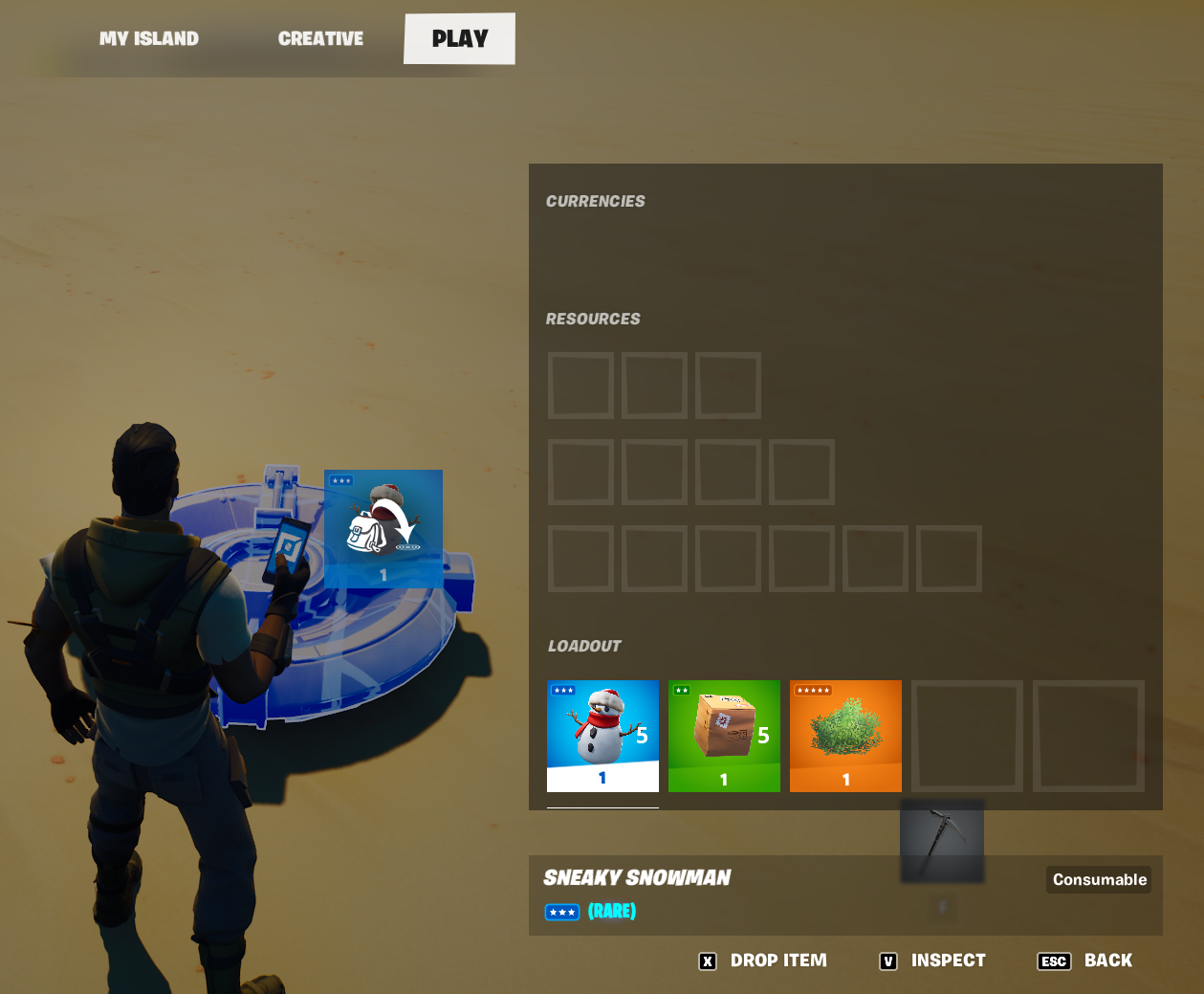
To register items to a device, stand directly on or immediately beside the device.
To register an item for this kind of device, follow the steps below. (You can also watch a video tutorial that shows you how to register items, for crafting or other in-game use.)
-
In the CREATIVE inventory, find the equipment and items you want to register with a device and equip them.
-
In Create mode, stand directly beside the device registering the item.
-
Press the Tab key to open the PLAY inventory screen.
-
Click the item, then press either Z or X to split or drop the item. You can also drag the item to the side until a backpack icon appears.
The compatible device will automatically register the dropped item. Compatible devices that can hold items include:
-
Vending Machine
-
Team Settings & Inventory
-
Class Designer
-
Capture Item Spawner
-
Capture Area
-
Item Granter
-
Item Spawner
-
Conditional Button
-
Elimination Manager
-
Item Remover
Use these devices to set up a system for granting and spawning items onto your island.
Using Items for Crafting
You can pair items with each other and with weapons to create the process of crafting, where players exchange one item or group of items for another.
To do this, choose from the list of compatible devices above like the Conditional Button and Item Spawner to set up the crafting process.
For example, you can require Flower Petals and Fibrous Herbs as items needed to craft a Bush.
Visit our video tutorials to learn more about working with items and for tips to enhance gameplay.