
This page is not available in the language you have chosen. It will be displayed in English by default. If you would like to view it in a different language, you can try selecting another language.
The Level Editor can be put into different editing modes to enable specialized editing interfaces and workflows for editing particular types of Actors or geometry.
To display a selection of modes, in the Level Editor Toolbar, open the Modes dropdown.

| Icon | Mode | Shortcut | Description |
|---|---|---|---|
 |
Select | Shift + 1 | Activate Select mode to select Actors in your scene. |
 |
Landscape | Shift + 2 | Activate Landscape mode to edit Landscape terrains. |
 |
Foliage | Shift + 3 | Activate Foliage mode to paint instanced foliage. |
 |
Brush Editing | Shift + 4 | Activate Brush Editing mode to modify Geometry Brushes. |
 |
Mesh Paint | Shift + 5 | Activate Mesh Paint mode to paint vertex colors and textures on Static Mesh Actors directly in the viewport. |
 |
Fracture | Shift-6 | Activate Fracture mode to create destructible objects and environments. |
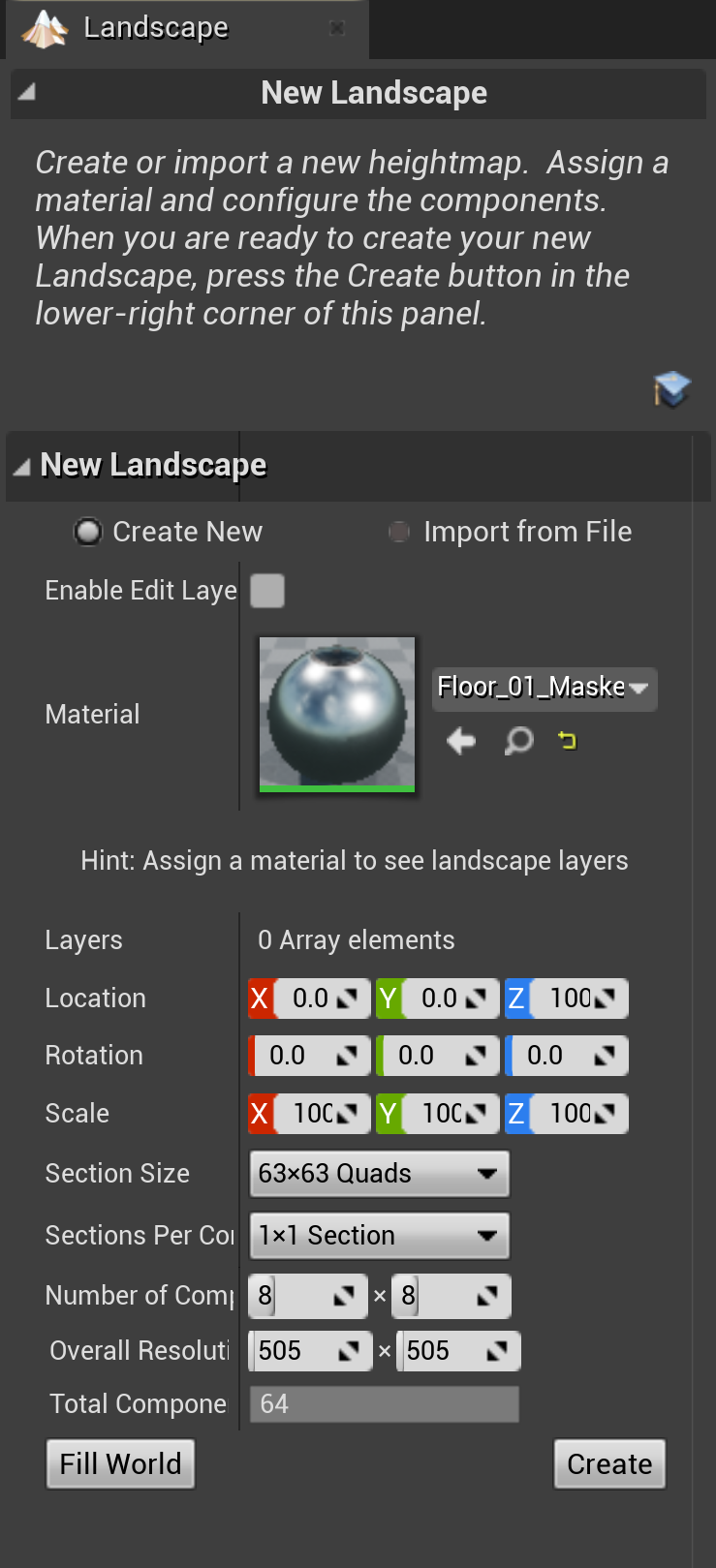
The Landscape panel
You can close any panel by clicking the small "X" in the upper-right corner of the tab. You can also hide any panel by right-clicking on the tab, and then clicking Hide Tab on the context menu that appears. To reopen a panel that you have closed, click that panel's name on the Window menu.