
The Sound Cue Editor is divided into the following regions:
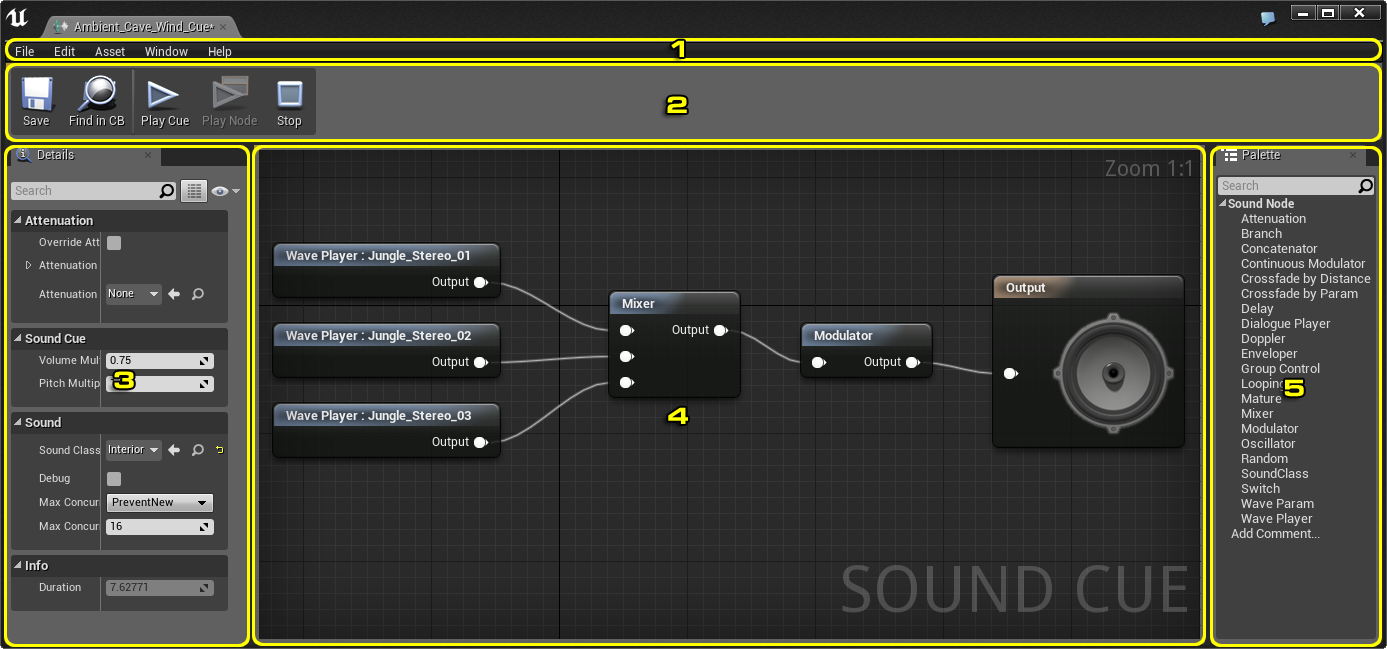
You can close any panel by clicking the small "X" in the upper-right corner of the tab. You can also hide any panel by right-clicking on the tab, and then clicking Hide Tab on the context menu that appears. To reopen a panel that you have closed, click that panel's name on the Window menu.
Pressing F1 will display the Unreal Engine 4 (UE4) Material documentation.
For more information about the Sound Cue Editor, see Sound Cue Editor.
Menu Bar
File
- Save - Saves the asset you are currently working on.
- Open Asset - Opens the Global Asset Picker to quickly find an asset and open the appropriate editor.
- Save All - Saves all unsaved levels and assets for your project.
- Choose Files to Save - Brings up a dialog box that allows you to choose which levels and assets you want to save for your project.
- Connect To Source Control - Brings up a dialog box that allows you to choose or interact with a source-control system that the Unreal Editor can integrate with.
Edit
- Undo - Undoes the most recent action.
- Redo - Redoes the most recent Undo, if it was the last action taken.
- Editor Preferences - Gives you a list of options, any of which open that part of the Editor Preferences window, where you can modify your Unreal Editor preferences.
- Project Settings - Gives you a list of options, any of which open that part of the Project Settings window, where you can modify various settings for your Unreal Engine project.
Asset
- Find in Content Browser - Locates and selects the current asset in the Content Browser.
Window
- Toolbar - Toggles the display of the Toolbar.
- Viewport - Toggles the display of the Viewport panel.
- Details - Toggles the display of the Details panel.
- Palette - Toggles display of the Palette panel.
- Content Browser - Brings up the Content Browser in a separate window.
- Developer Tools - Brings up the selected Developer Tool in a separate window (Camera Debugger, Collision Analyzer, Debug Tools, Modules, Widget Reflector).
- Blueprint Debugger - Brings up the Blueprint Debugger in a separate window.
- Collision Analyzer - Brings up the Collision Analyzer in a separate window.
- Debug Tool - Brings up the Debug Tool in a separate window.
- Message Log - Brings up the Message Log in a separate window.
- Output Log - Brings up the Output Log in a separate window.
- Visual Logger - Bring up the Visual Logger tool in a separate window.
- Class Viewer - Brings up the Class Viewer in a separate window.
- Device Manager - Brings up Device Manager in a separate window.
- Device Profiles - Brings up the Device Profiles in a separate window.
- Modules - Brings up Modules in a separate window.
- Session Frontend - Brings up Unreal Frontend in a separate window.
- Widget Reflector - Brings up Widget Reflector in a separate window.
- Undo History - Brings up the Undo History panel in a separate window.
- Plugins - Brings up the Plugins window.
- Reset Layout - Resets your layout to a default arrangement. Requires the editor to restart after saving your changes and creating a backup of your settings.
- Save Layout - Saves the current layout of the panels as the new default layout.
- Enable Fullscreen - Enables fullscreen mode for the application, expanding across the entire monitor.
Help
Toolbar
| Button | Description |
|---|---|
 |
Saves the current asset. |
 |
Finds and selects the current asset in the Content Browser. |
 |
Plays the entire Sound Cue. |
 |
Plays only the currently selected node in the Audio Node Graph. |
 |
Stops playing the Sound Cue or node. |
Details Panel
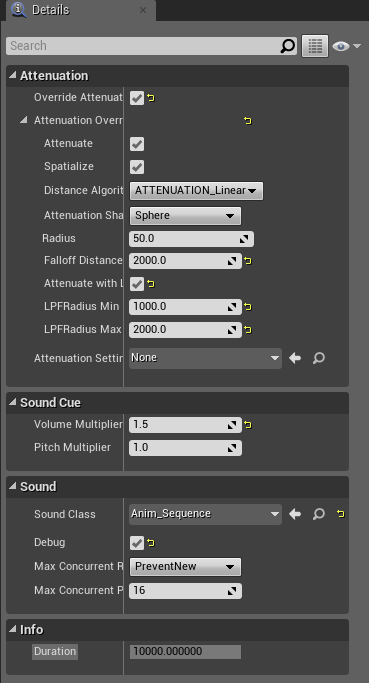
The Details panel displays the properties of the currently selected node. If multiple nodes are selected, the Details panel displays only the properties that the nodes have in common.
For information about the basics of using this panel, see the Editor Details Panel documentation.
Audio Node Graph
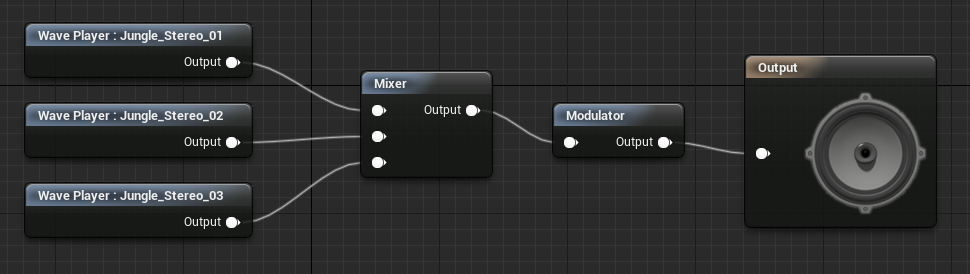
The Audio Node Graph is located in the Viewport panel. It displays the audio signal path from left to right, with interconnected nodes representing audio control modules and audio files. The Output node, which has an image of a speaker on it, represents the final output of audio as heard in-game and is always positioned furthest to the right in the signal path. The source audio files (Sound Waves) are always positioned furthest to the left in the signal path. Wires are used to connect the nodes.
Palette
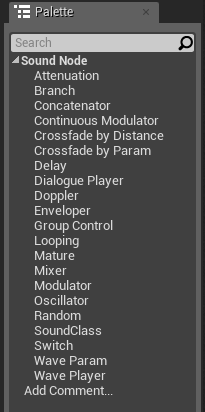
The Palette lists all the available nodes for the Audio Node Graph. To add a node, you can drag it into the graph from the Palette. For information about other ways of adding sound nodes, see Audio Node Graph.
You can add a comment to the Audio Node Graph either by dragging Add Comment into the graph, or by dragging a box around nodes with the left mouse button, right-clicking a selected node, and then clicking Create Comment from Selection on the context menu that appears.