

Overview
Direct Actor communication is a common method of sharing information between Actors in your Level. This method requires a reference to the target Actor so you can access it from your working Actor. This communication method uses a one-to-one relationship between your working Actor and your target Actor. In this Quick Start guide, you will learn how to use direct Actor communication to access information from a target Actor in order to use its functions.
Required Setup
-
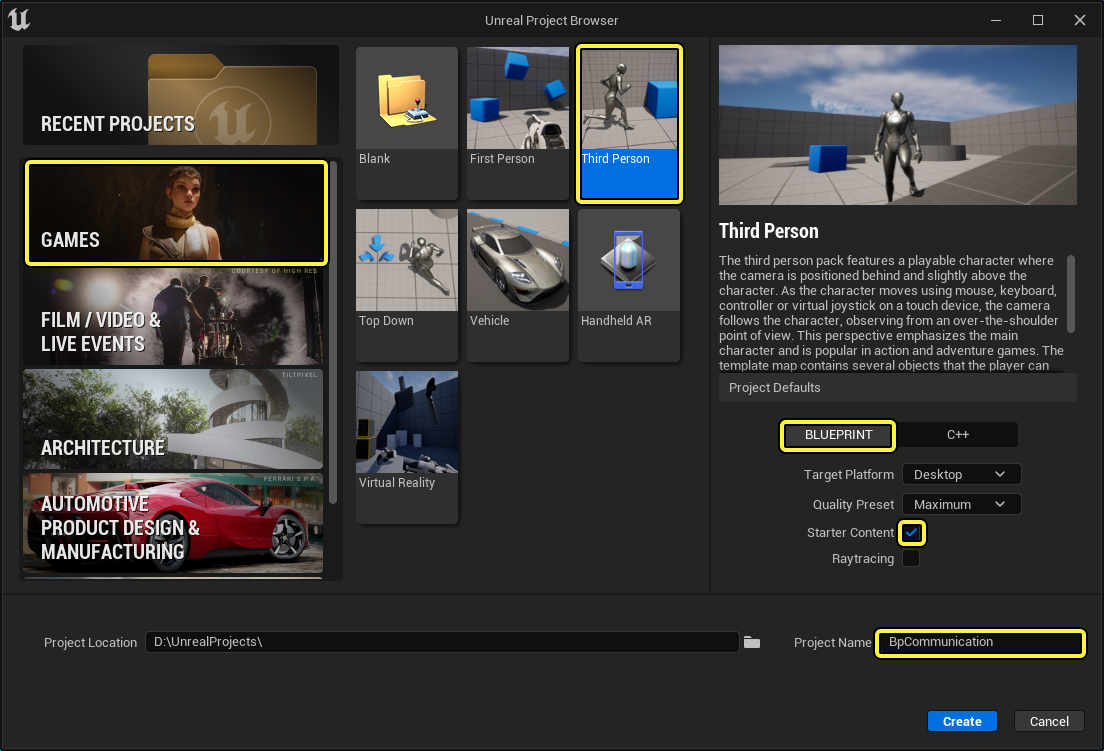
Begin by creating a new Games > Third Person > Blueprint Project with Starter Content enabled named BPCommunication.
Adding Direct Actor Communication
-
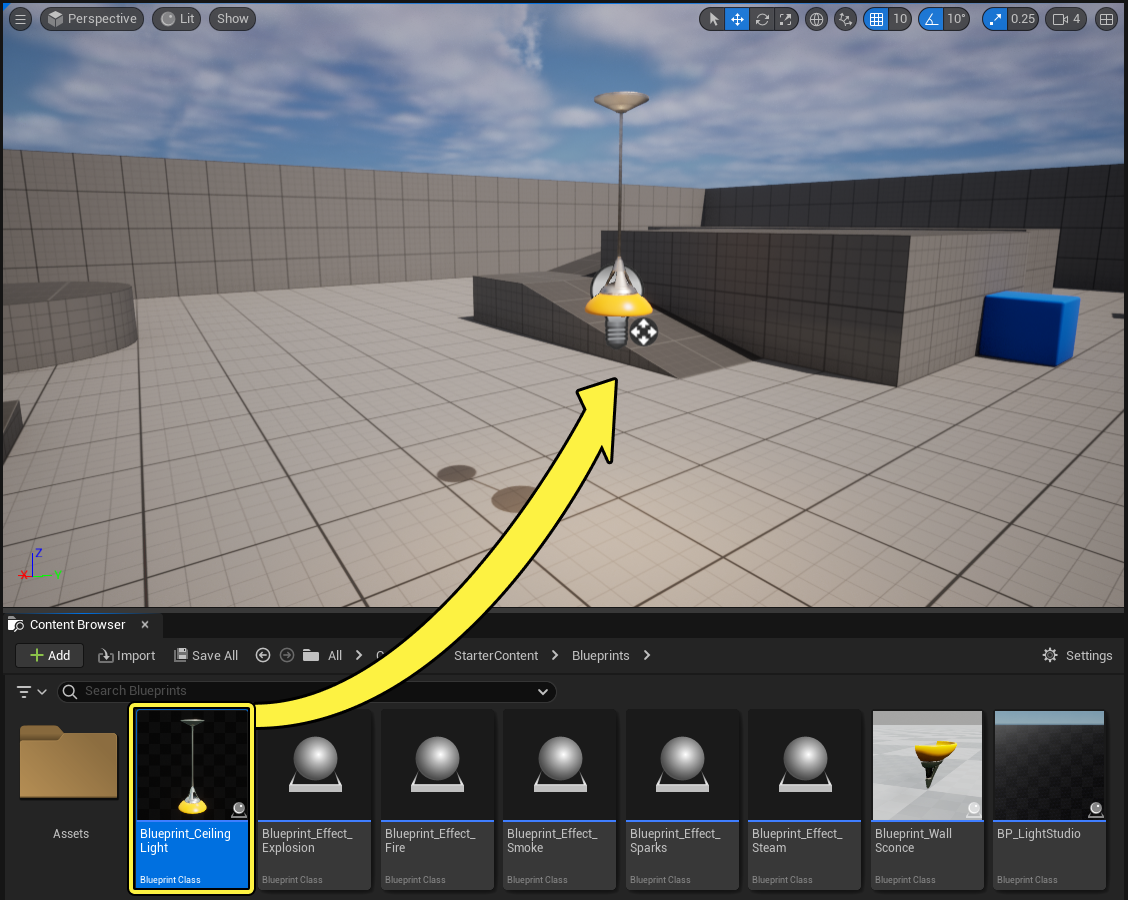
From the Content Browser navigate to Starter Content > Blueprints and drag the Blueprint_CeilingLight Actor into the Level.
-
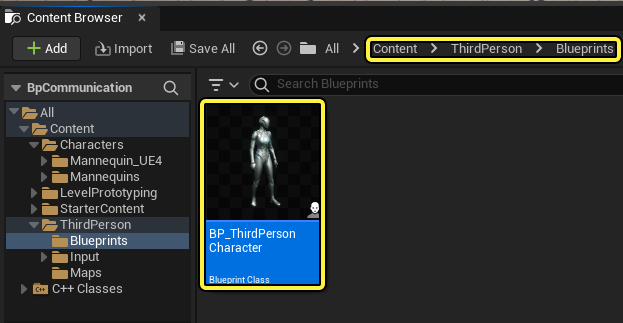
Navigate to ThirdPerson > Blueprints > BP_ThirdPersonCharacter and double-click to edit the Blueprint.
-
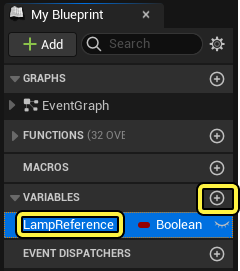
Go to the Variables section and click the Add(+) button to create a new variable named LampReference.
-
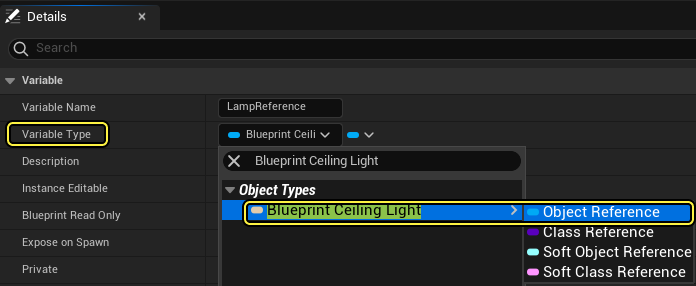
Go to the Details panel and click the Variable Type dropdown. Search for and select the Object Reference for the Blueprint Ceiling Light as shown below.
-
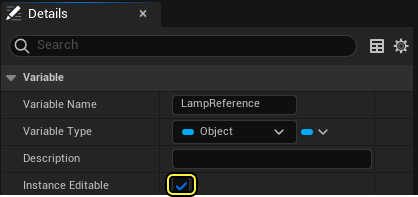
Enable the Instance Editable checkbox and Compile and Save the Blueprint.
-
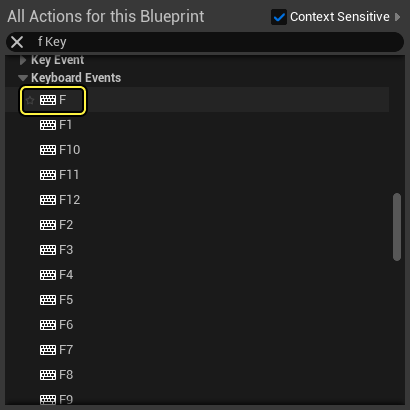
In the Event Graph, right-click and search for and select the F key to create the input node.
-
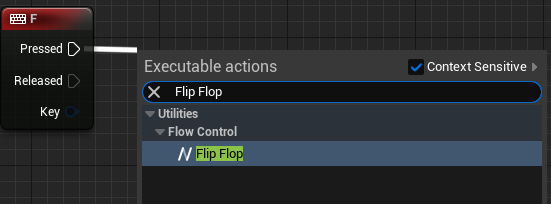
Drag from the Pressed pin of the F Key node and search for and select Flip Flop.
-
Drag the Lamp Reference variable into the Event Graph and select Get LampReference, then drag from the Lamp Reference pin and search for and select Set Visibility.
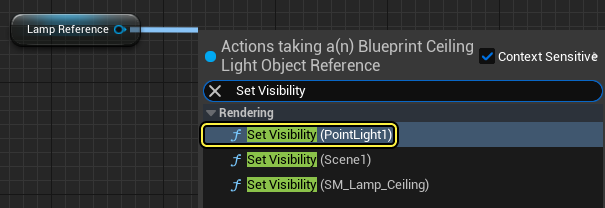
-
Connect the A pin from the Flip Flop node to the Set Visibility node as shown below.
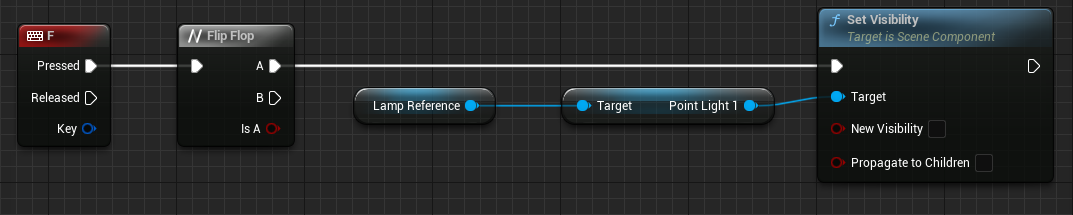
-
Copy the Lamp Reference, Point Lamp 1, and Set Visibility nodes and connect them to the B Pin of the Flip Flop Node. Enable the New Visibility checkbox as shown below.
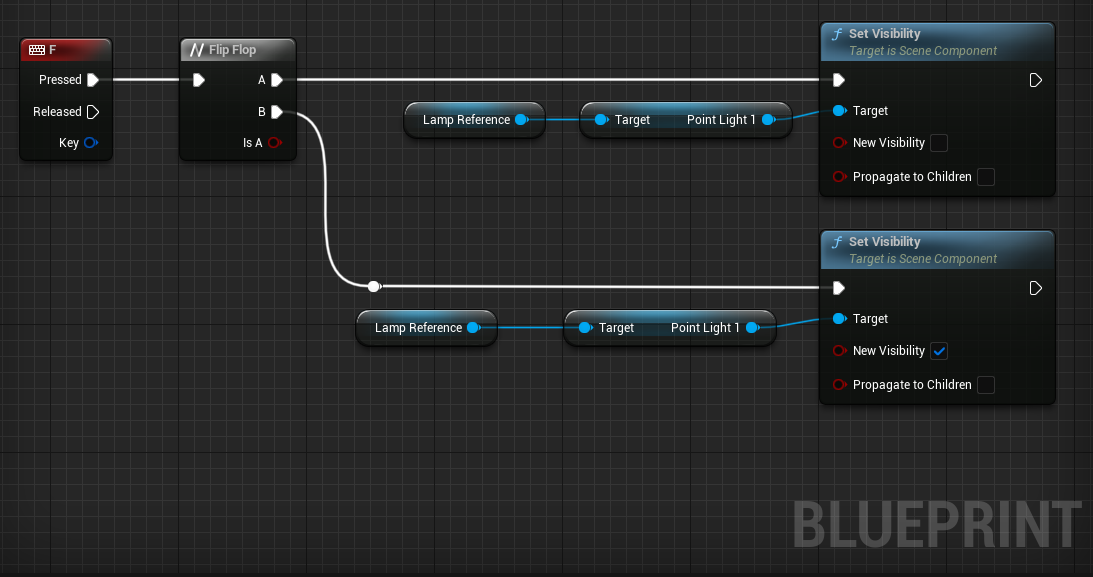
-
Navigate to the Begin Play Script, click and drag off the execution pin and search and select for Get Actor of Class.
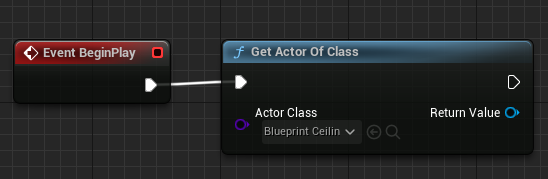
-
Set the Actor class to Blueprint Ceiling Light, then drag a copy of your Lamp Reference variable onto the graph to set and connect it's value to the Return Value pin.

-
Compile and Save the Blueprint.
Interacting with the Lamp Actor
-
Press Play to go into Play Mode and press the F key to turn the lamp on and off.
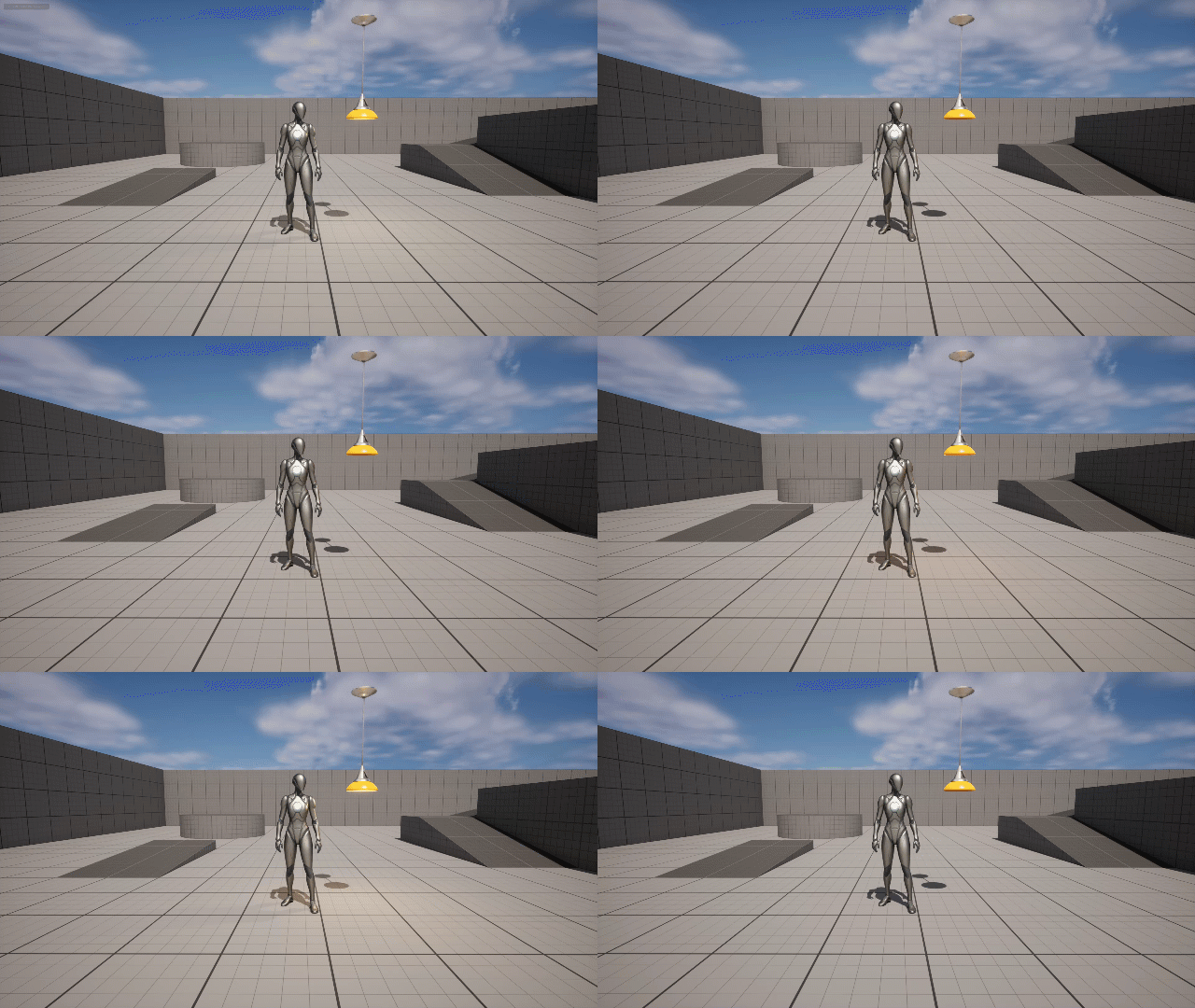
Next Steps
Now that you know how to use direct Actor communication, take a look at the other types of communication referenced in the Actor Communication documentation page.
Overview
Direct Actor communication is a common method of sharing information between Actors in your Level. This method requires a reference to the target Actor so you can access it from your working Actor. This communication method uses a one-to-one relationship between your working Actor and your target Actor. In this Quick Start guide, you will learn how to use direct Actor communication to access information from a target Actor in order to use its functions.
Setup
-
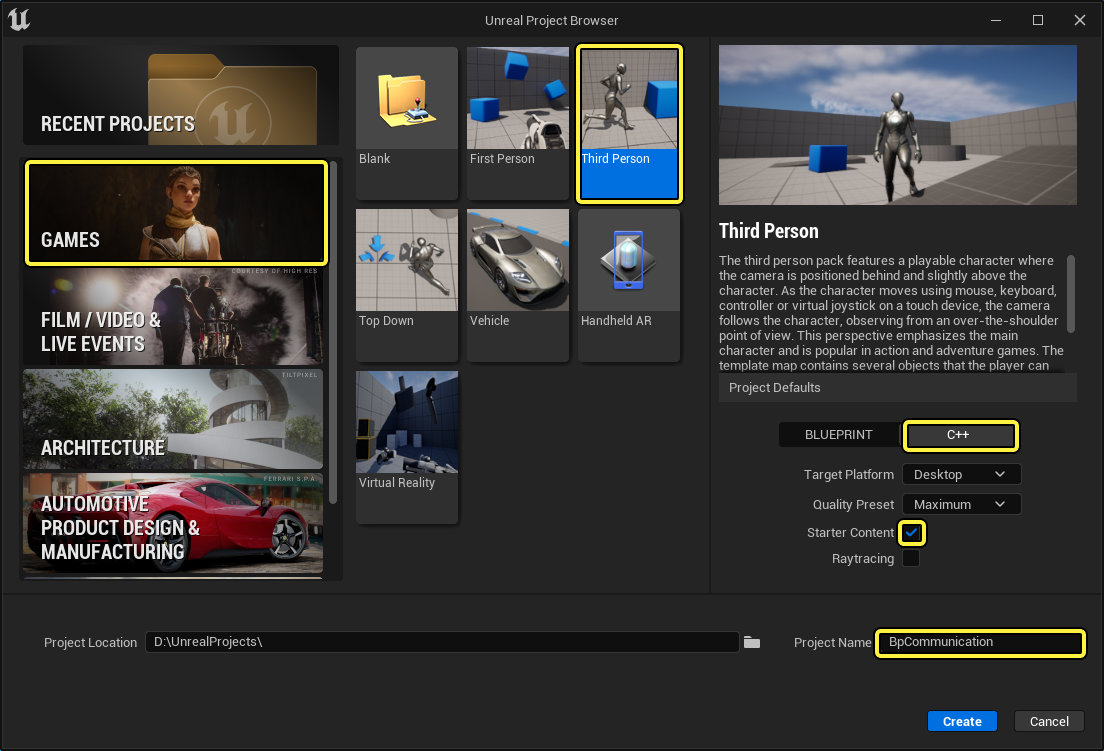
Begin by creating a new Games > Third Person > C++ Project with Starter Content enabled named BPCommunication.
Creating the Ceiling Light Actor
-
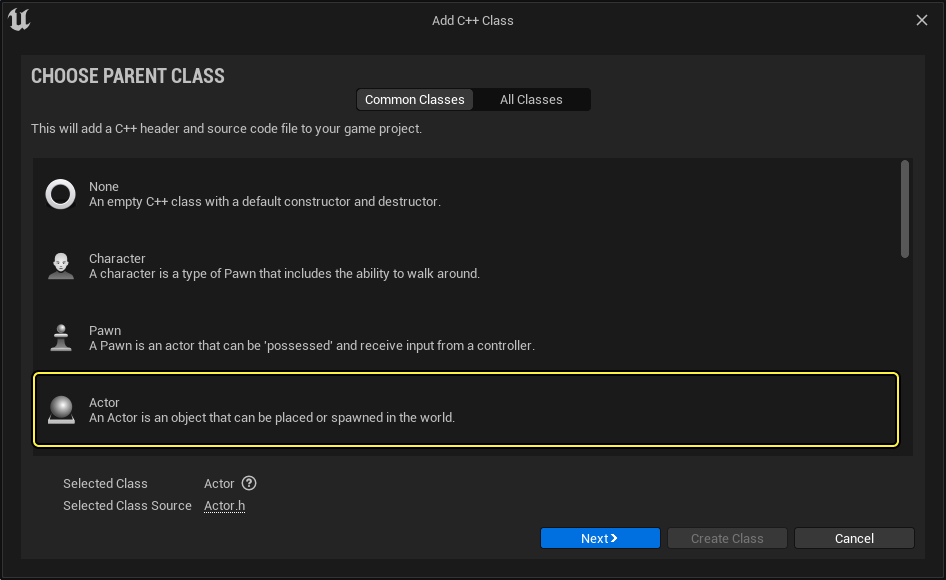
From the C++ Class Wizard, create a new Actor class named CeilingLight.
-
In the class defaults of CeilingLight.h implement the following code.
protected: UPROPERTY(EditDefaultsOnly, BlueprintReadWrite) USceneComponent* SceneComp; UPROPERTY(EditDefaultsOnly, BlueprintReadWrite) class UPointLightComponent* PointLightComp; UPROPERTY(EditDefaultsOnly, BlueprintReadWrite) UStaticMeshComponent* StaticMeshComp; UPROPERTY(EditDefaultsOnly, BlueprintReadWrite) float Brightness; UPROPERTY(EditDefaultsOnly, BlueprintReadWrite) float SourceRadius; UPROPERTY(EditDefaultsOnly, BlueprintReadWrite) FLinearColor Color; UPROPERTY(EditDefaultsOnly, BlueprintReadWrite) bool IsLightOn; -
Next navigate to CeilingLight.Cpp and declare the following Include library.
#include "Components/PointLightComponent.h" -
From the constructor ACeilingLight::CeilingLight declare the following.
ACeilingLight::ACeilingLight() { // Set this actor to call Tick() every frame. You can turn this off to improve performance if you don't need it. PrimaryActorTick.bCanEverTick = true; SceneComp = CreateDefaultSubobject<USceneComponent>(TEXT("SceneComp")); PointLightComp = CreateDefaultSubobject<UPointLightComponent>(TEXT("PointLightComp")); StaticMeshComp = CreateDefaultSubobject<UStaticMeshComponent>(TEXT("StaticMeshComp")); SceneComp = RootComponent; PointLightComp->AttachToComponent(SceneComp,FAttachmentTransformRules::KeepRelativeTransform); StaticMeshComp->AttachToComponent(SceneComp, FAttachmentTransformRules::KeepRelativeTransform); PointLightComp->SetWorldLocation(FVector(0, 0, -130)); Brightness = 1700.f; Color = FLinearColor(1.f, 0.77f, 0.46f); SourceRadius = 3.5f; PointLightComp->SetIntensity(Brightness); PointLightComp->SetLightColor(Color); PointLightComp->SetSourceRadius(SourceRadius); } -
Compile your code.
Finished Code
CeilingLight.h
// Fill out your copyright notice in the Description page of Project Settings.
#pragma once
#include "CoreMinimal.h"
#include "GameFramework/Actor.h"
#include "CeilingLight.generated.h"
UCLASS()
class BPCOMMUNICATION_API ACeilingLight : public AActor
{
GENERATED_BODY()
public:
// Sets default values for this actor's properties
ACeilingLight();
protected:
// Called when the game starts or when spawned
virtual void BeginPlay() override;
UPROPERTY(EditDefaultsOnly, BlueprintReadWrite)
USceneComponent* SceneComp;
UPROPERTY(EditDefaultsOnly, BlueprintReadWrite)
class UPointLightComponent* PointLightComp;
UPROPERTY(EditDefaultsOnly, BlueprintReadWrite)
UStaticMeshComponent* StaticMeshComp;
UPROPERTY(EditDefaultsOnly, BlueprintReadWrite)
float Brightness;
UPROPERTY(EditDefaultsOnly, BlueprintReadWrite)
float SourceRadius;
UPROPERTY(EditDefaultsOnly, BlueprintReadWrite)
FLinearColor Color;
UPROPERTY(EditDefaultsOnly, BlueprintReadWrite)
bool IsLightOn;
public:
// Called every frame
virtual void Tick(float DeltaTime) override;
UFUNCTION()
void TurnOffLight();
};
CeilingLight.cpp
//Copyright Epic Games, Inc. All Rights Reserved.
#include "CeilingLight.h"
#include "Components/PointLightComponent.h"
// Sets default values
ACeilingLight::ACeilingLight()
{
// Set this actor to call Tick() every frame. You can turn this off to improve performance if you don't need it.
PrimaryActorTick.bCanEverTick = true;
SceneComp = CreateDefaultSubobject<USceneComponent>(TEXT("SceneComp"));
PointLightComp = CreateDefaultSubobject<UPointLightComponent>(TEXT("PointLightComp"));
StaticMeshComp = CreateDefaultSubobject<UStaticMeshComponent>(TEXT("StaticMeshComp"));
SceneComp = RootComponent;
PointLightComp->AttachToComponent(SceneComp,FAttachmentTransformRules::KeepRelativeTransform);
StaticMeshComp->AttachToComponent(SceneComp, FAttachmentTransformRules::KeepRelativeTransform);
PointLightComp->SetWorldLocation(FVector(0, 0, -130));
Brightness = 1700.f;
Color = FLinearColor(1.f, 0.77f, 0.46f);
SourceRadius = 3.5f;
PointLightComp->SetIntensity(Brightness);
PointLightComp->SetLightColor(Color);
PointLightComp->SetSourceRadius(SourceRadius);
}
// Called when the game starts or when spawned
void ACeilingLight::BeginPlay()
{
Super::BeginPlay();
}
void ACeilingLight::TurnOffLight()
{
if (IsLightOn)
{
PointLightComp->SetVisibility(false);
IsLightOn = false;
}
else
{
PointLightComp->SetVisibility(true);
IsLightOn = true;
}
}
// Called every frame
void ACeilingLight::Tick(float DeltaTime)
{
Super::Tick(DeltaTime);
}
-
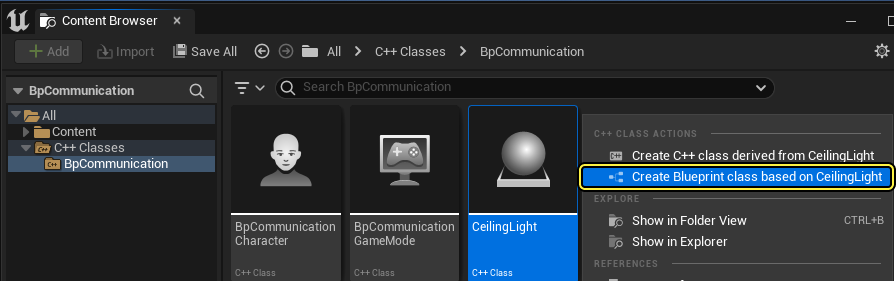
From the C++ Classes folder, right-click your CeilingLight Actor, then from the C++ Class Actions dropdown menu, select Create Blueprint class based on CeilingLight. Name your Blueprint BP_CeilingLight.
-
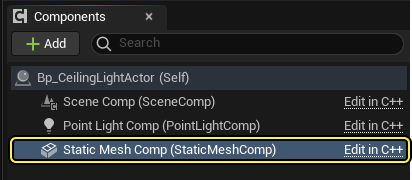
From the BP_CeilingLight class defaults, navigate to the Components panel, then select the StaticMeshComp.
-
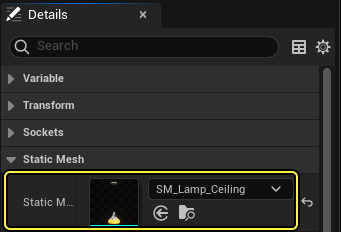
From the Details panel, navigate to the Static Mesh category, select the dropdown arrow next to the Static Mesh variable, then search and select for SM_Lamp_Ceiling.
-
Compile and save your Blueprint.
-
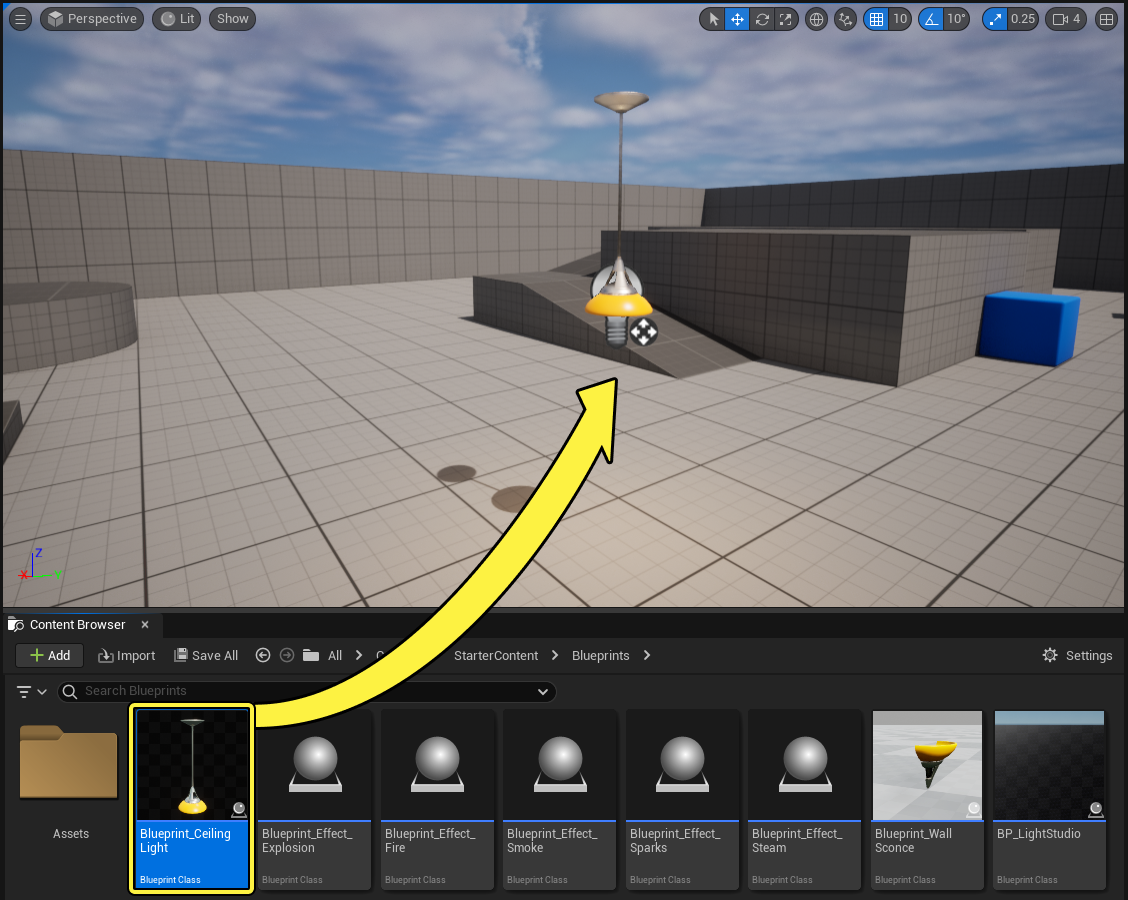
From the Content Browser, drag an instance of your BP_CeilingLight Actor into your Level.
Modifying the ThirdPersonCharacter Class
-
Navigate to your C++ Classes folder, and double-click the BPCommunicationCharacter class to open its BPCommunicationCharacter.h, then declare the following code in the class defaults.
protected: UPROPERTY(EditDefaultsOnly, BlueprintReadWrite) class ACeilingLight* CeilingLightToToggle; void ToggleCeilingLight(); -
Navigate to your BPCommunicationCharacter.cpp, and declare the following include.
#include "CeilingLight.h" -
Implement your ABPCommunicationCharacter::ToggleCeilingLight method.
void ABPCommunicationCharacter::ToggleCeilingLight() { if (CeilingLightToToggle) { CeilingLightToToggle->TurnOffLight(); } } -
Navigate to the ABPCommunicationCharacter::SetupPlayerInputComponent method and declare the following.
PlayerInputComponent->BindAction("Use", IE_Pressed, this, &ABPCommunicationCharacter::ToggleCeilingLight); -
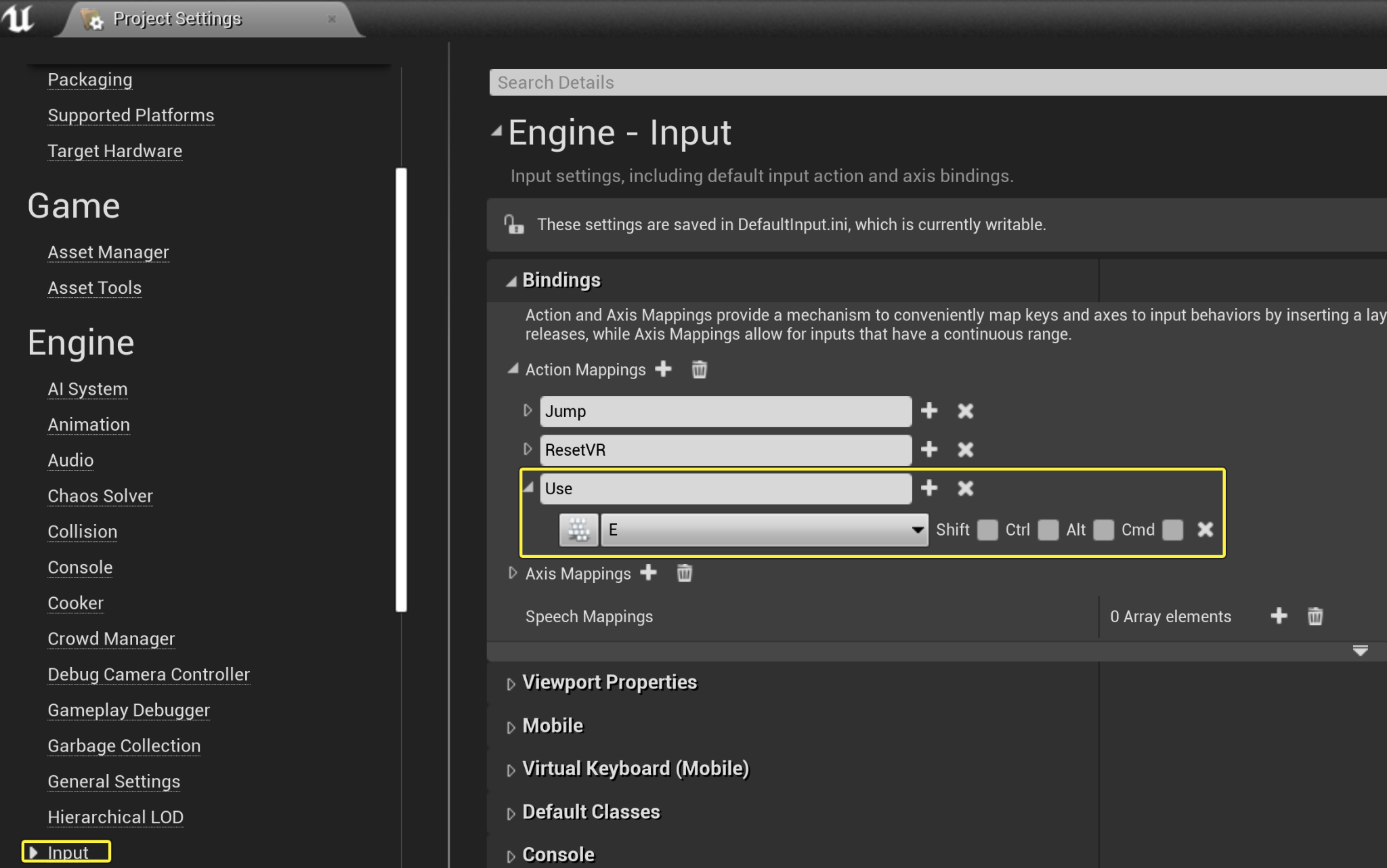
In the Editor, navigate to Edit > Project Settings > Input. From the Bindings category, navigate to the Action Mappings then click the Add (+) button to create a new Action mapping named Use, and select the E key for the key value.
-
Compile your code.
Finished Code
BPCommunicationCharacter.h
// Copyright Epic Games, Inc. All Rights Reserved.
#pragma once
#include "CoreMinimal.h"
#include "GameFramework/Character.h"
#include "BPCommunicationCharacter.generated.h"
UCLASS(config=Game)
class ABPCommunicationCharacter : public ACharacter
{
GENERATED_BODY()
/** Camera boom positioning the camera behind the character */
UPROPERTY(VisibleAnywhere, BlueprintReadOnly, Category = Camera, meta = (AllowPrivateAccess = "true"))
class USpringArmComponent* CameraBoom;
/** Follow camera */
UPROPERTY(VisibleAnywhere, BlueprintReadOnly, Category = Camera, meta = (AllowPrivateAccess = "true"))
class UCameraComponent* FollowCamera;
public:
ABPCommunicationCharacter();
/** Base turn rate, in deg/sec. Other scaling may affect final turn rate. */
UPROPERTY(VisibleAnywhere, BlueprintReadOnly, Category=Camera)
float BaseTurnRate;
/** Base look up/down rate, in deg/sec. Other scaling may affect the final rate. */
UPROPERTY(VisibleAnywhere, BlueprintReadOnly, Category=Camera)
float BaseLookUpRate;
protected:
UPROPERTY(EditDefaultsOnly, BlueprintReadWrite)
class ACeilingLight* CeilingLightToToggle;
void ToggleCeilingLight();
/** Resets HMD orientation in VR. */
void OnResetVR();
/** Called for forwards/backward input */
void MoveForward(float Value);
/** Called for side to side input */
void MoveRight(float Value);
/**
* Called via input to turn at a given rate.
* @param Rate This is a normalized rate, i.e. 1.0 means 100% of desired turn rate
*/
void TurnAtRate(float Rate);
/**
* Called via input to turn look up/down at a given rate.
* @param Rate This is a normalized rate, i.e. 1.0 means 100% of desired turn rate
*/
void LookUpAtRate(float Rate);
/** Handler for when a touch input begins. */
void TouchStarted(ETouchIndex::Type FingerIndex, FVector Location);
/** Handler for when a touch input stops. */
void TouchStopped(ETouchIndex::Type FingerIndex, FVector Location);
protected:
// APawn interface
virtual void SetupPlayerInputComponent(class UInputComponent* PlayerInputComponent) override;
// End of APawn interface
public:
/** Returns CameraBoom subobject **/
FORCEINLINE class USpringArmComponent* GetCameraBoom() const { return CameraBoom; }
/** Returns FollowCamera subobject **/
FORCEINLINE class UCameraComponent* GetFollowCamera() const { return FollowCamera; }
};
BPCommunicationCharacter.cpp
// Copyright Epic Games, Inc. All Rights Reserved.
#include "BPCommunicationCharacter.h"
#include "HeadMountedDisplayFunctionLibrary.h"
#include "Camera/CameraComponent.h"
#include "Components/CapsuleComponent.h"
#include "Components/InputComponent.h"
#include "GameFramework/CharacterMovementComponent.h"
#include "GameFramework/Controller.h"
#include "GameFramework/SpringArmComponent.h"
#include "CeilingLight.h"
ABPCommunicationCharacter::ABPCommunicationCharacter()
{
// Set size for collision capsule
GetCapsuleComponent()->InitCapsuleSize(42.f, 96.0f);
// set our turn rates for input
BaseTurnRate = 45.f;
BaseLookUpRate = 45.f;
// Don't rotate when the controller rotates. Let that just affect the camera.
bUseControllerRotationPitch = false;
bUseControllerRotationYaw = false;
bUseControllerRotationRoll = false;
// Configure character movement
GetCharacterMovement()->bOrientRotationToMovement = true; // Character moves in the direction of input...
GetCharacterMovement()->RotationRate = FRotator(0.0f, 540.0f, 0.0f); // ...at this rotation rate
GetCharacterMovement()->JumpZVelocity = 600.f;
GetCharacterMovement()->AirControl = 0.2f;
// Create a camera boom (pulls in towards the player if there is a collision)
CameraBoom = CreateDefaultSubobject<USpringArmComponent>(TEXT("CameraBoom"));
CameraBoom->SetupAttachment(RootComponent);
CameraBoom->TargetArmLength = 300.0f; // The camera follows at this distance behind the character
CameraBoom->bUsePawnControlRotation = true; // Rotate the arm based on the controller
// Create a follow camera
FollowCamera = CreateDefaultSubobject<UCameraComponent>(TEXT("FollowCamera"));
FollowCamera->SetupAttachment(CameraBoom, USpringArmComponent::SocketName); // Attach the camera to the end of the boom and let the boom adjust to match the controller orientation
FollowCamera->bUsePawnControlRotation = false; // Camera does not rotate relative to arm
// Note: The skeletal mesh and anim blueprint references on the Mesh component (inherited from Character)
// are set in the derived blueprint asset named MyCharacter (to avoid direct content references in C++)
}
void ABPCommunicationCharacter::SetupPlayerInputComponent(class UInputComponent* PlayerInputComponent)
{
// Set up gameplay key bindings
check(PlayerInputComponent);
PlayerInputComponent->BindAction("Jump", IE_Pressed, this, &ACharacter::Jump);
PlayerInputComponent->BindAction("Jump", IE_Released, this, &ACharacter::StopJumping);
PlayerInputComponent->BindAction("Use", IE_Pressed, this, &ABPCommunicationCharacter::ToggleCeilingLight);
PlayerInputComponent->BindAxis("MoveForward", this, &ABPCommunicationCharacter::MoveForward);
PlayerInputComponent->BindAxis("MoveRight", this, &ABPCommunicationCharacter::MoveRight);
// We have 2 versions of the rotation bindings to handle different kinds of devices differently
// "turn" handles devices that provide an absolute delta, such as a mouse.
// "turn rate" is for devices that we choose to treat as a rate of change, such as an analog joystick
PlayerInputComponent->BindAxis("Turn", this, &APawn::AddControllerYawInput);
PlayerInputComponent->BindAxis("TurnRate", this, &ABPCommunicationCharacter::TurnAtRate);
PlayerInputComponent->BindAxis("LookUp", this, &APawn::AddControllerPitchInput);
PlayerInputComponent->BindAxis("LookUpRate", this, &ABPCommunicationCharacter::LookUpAtRate);
// handle touch devices
PlayerInputComponent->BindTouch(IE_Pressed, this, &ABPCommunicationCharacter::TouchStarted);
PlayerInputComponent->BindTouch(IE_Released, this, &ABPCommunicationCharacter::TouchStopped);
// VR headset functionality
PlayerInputComponent->BindAction("ResetVR", IE_Pressed, this, &ABPCommunicationCharacter::OnResetVR);
}
void ABPCommunicationCharacter::ToggleCeilingLight()
{
if (CeilingLightToToggle)
{
CeilingLightToToggle->TurnOffLight();
}
}
void ABPCommunicationCharacter::OnResetVR()
{
// If BPCommunication is added to a project via 'Add Feature' in the Unreal Editor the dependency on HeadMountedDisplay in BPCommunication.Build.cs is not automatically propagated
// and a linker error will result.
// You will need to either:
// Add "HeadMountedDisplay" to [YourProject].Build.cs PublicDependencyModuleNames in order to build successfully (appropriate if supporting VR).
// or:
// Comment or delete the call to ResetOrientationAndPosition below (appropriate if not supporting VR)
UHeadMountedDisplayFunctionLibrary::ResetOrientationAndPosition();
}
void ABPCommunicationCharacter::TouchStarted(ETouchIndex::Type FingerIndex, FVector Location)
{
Jump();
}
void ABPCommunicationCharacter::TouchStopped(ETouchIndex::Type FingerIndex, FVector Location)
{
StopJumping();
}
void ABPCommunicationCharacter::TurnAtRate(float Rate)
{
// calculate delta for this frame from the rate information
AddControllerYawInput(Rate * BaseTurnRate * GetWorld()->GetDeltaSeconds());
}
void ABPCommunicationCharacter::LookUpAtRate(float Rate)
{
// calculate delta for this frame from the rate information
AddControllerPitchInput(Rate * BaseLookUpRate * GetWorld()->GetDeltaSeconds());
}
void ABPCommunicationCharacter::MoveForward(float Value)
{
if ((Controller != nullptr) && (Value != 0.0f))
{
// find out which way is forward
const FRotator Rotation = Controller->GetControlRotation();
const FRotator YawRotation(0, Rotation.Yaw, 0);
// get forward vector
const FVector Direction = FRotationMatrix(YawRotation).GetUnitAxis(EAxis::X);
AddMovementInput(Direction, Value);
}
}
void ABPCommunicationCharacter::MoveRight(float Value)
{
if ( (Controller != nullptr) && (Value != 0.0f) )
{
// find out which way is right
const FRotator Rotation = Controller->GetControlRotation();
const FRotator YawRotation(0, Rotation.Yaw, 0);
// get right vector
const FVector Direction = FRotationMatrix(YawRotation).GetUnitAxis(EAxis::Y);
// add movement in that direction
AddMovementInput(Direction, Value);
}
}
Interacting with the Lamp Blueprint
-
Press Play to go into PlE (Play-in Editor) mode and press the E key to turn the lamp on and off.
 (w:600)(convert:false)
Next Steps
Now that you know how to use direct Blueprint communication type, take a look at the other communication types referenced in the Actor Communication documentation page.