

This page covers some advanced Unreal Engine programming concepts. The explanations below assume that you are familiar with Unity C# and want to learn Unreal Engine C++. That said, for most things, you can also use Blueprint and get the same results, so we added examples in both C++ and Blueprint wherever possible.
Let's talk about some of the most common gameplay programming patterns and how to approach them in Unreal Engine. The examples below cover some common Unity functions and how to implement the same functionality in Unreal Engine.
Instantiating GameObject / Spawning Actor
In Unity, you used the Instantiate function to create new instances of objects. This function took any UnityEngine.Object type (GameObject, MonoBehaviour, etc.), and made a copy of it.
public GameObject EnemyPrefab;
public Vector3 SpawnPosition;
public Quaternion SpawnRotation;
void Start()
{
GameObject NewGO = (GameObject)Instantiate(EnemyPrefab, SpawnPosition, SpawnRotation);
NewGO.name = "MyNewGameObject";
}
Unreal Engine has two different functions to instantiate objects:
NewObjectcreates newUObjecttypes.SpawnActorspawnsAActortypes.
UObjects and NewObject
Subclassing UObject in Unreal Engine is much like subclassing ScriptableObject in Unity. These are useful for gameplay classes that do not need to spawn into the world or have attached components like Actors do.
In Unity, if you created your own subclass of ScriptableObject, you would instantiate it like this:
MyScriptableObject NewSO = ScriptableObject.CreateInstance<MyScriptableObject>();
In Unreal Engine, if you crate your own UObject derived type, you can instantiate it like this:
UMyObject* NewObj = NewObject<UMyObject>();
AActors and SpawnActor
Actors are spawned using the SpawnActor method on a World (UWorld in C++) object. Some UObjects provide a GetWorld method for you (as an example, all Actors do). This method is how you get a World object.
In the example below, notice that, instead of passing in another Actor, we pass in the class of the Actor we want to spawn. In our example, the class can be any subclass of AMyEnemy.
What if you want to make a copy of another object, like what using Instantiate in Unity allows you to do?
The NewObject and SpawnActor functions can also be given a template object to work with. Unreal Engine will make a copy of that object instead of creating a new object from scratch. This will copy over all of its UPROPERTYs and components.
AMyActor* CreateCloneOfMyActor(AMyActor* ExistingActor, FVector SpawnLocation, FRotator SpawnRotation)
{
UWorld* World = ExistingActor->GetWorld();
FActorSpawnParameters SpawnParams;
SpawnParams.Template = ExistingActor;
World->SpawnActor<AMyActor>(ExistingActor->GetClass(), SpawnLocation, SpawnRotation, SpawnParams);
}
You might be wondering what "from scratch" means in this context. Each object class you create has a default template that contains default values for its properties and components. If you do not override these properties and do not provide your own template, Unreal Engine will use these default values to construct your object. To help illustrate this, let's first look at a MonoBehaviour example:
public class MyComponent : MonoBehaviour
{
public int MyIntProp = 42;
public SphereCollider MyCollisionComp = null;
void Start()
{
// Create the collision component if we don't already have one
if (MyCollisionComp == null)
{
MyCollisionComp = gameObject.AddComponent<SphereCollider>();
MyCollisionComp.center = Vector3.zero;
MyCollisionComp.radius = 20.0f;
}
}
}
In the example above, we have an int property that defaults to 42, and a SphereCollider component that defaults to a radius of 20.
We can achieve the same thing in Unreal using the object's constructor:
UCLASS()
class AMyActor : public AActor
{
GENERATED_BODY()
UPROPERTY()
int32 MyIntProp;
UPROPERTY()
USphereComponent* MyCollisionComp;
AMyActor()
{
MyIntProp = 42;
MyCollisionComp = CreateDefaultSubobject<USphereComponent>(FName(TEXT("CollisionComponent"));
MyCollisionComp->RelativeLocation = FVector::ZeroVector;
MyCollisionComp->SphereRadius = 20.0f;
}
};
We set the default property values for the class in the constructor of AMyActor. Note the use of the CreateDefaultSubobject function; we can use this function to create Components and assign default properties to them. All the sub-objects created with this function act as a default template, so we can modify them in a subclass or Blueprint.
Casting from One Type to Another
In this case, we get a component we know we have, then cast it to a specific type and conditionally do something.
Unity C#
Collider collider = gameObject.GetComponent<Collider>;
SphereCollider sphereCollider = collider as SphereCollider;
if (sphereCollider != null)
{
// ...
}
Unreal Engine C++
UPrimitiveComponent* Primitive = MyActor->GetComponentByClass(UPrimitiveComponent::StaticClass());
USphereComponent* SphereCollider = Cast<USphereComponent>(Primitive);
if (SphereCollider != nullptr)
{
// ...
}
Destroying GameObject / Actor
Unity |
C++ |
Blueprint 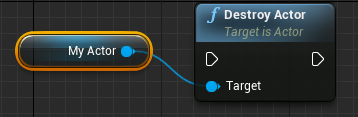 |
Destroying GameObject / Actor (with 1-Second Delay)
Unity |
C++ |
Blueprint 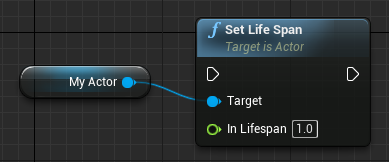
|
Disabling GameObjects / Actors
Unity |
C++ |
Blueprint 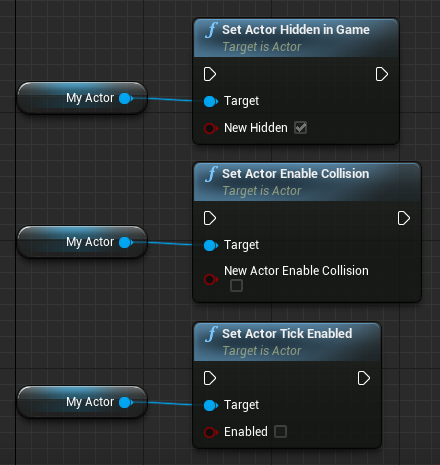
|
Accessing the GameObject / Actor from a Component
Unity |
C++ |
Blueprint 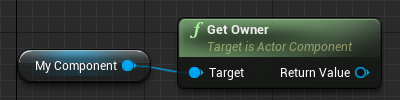
|
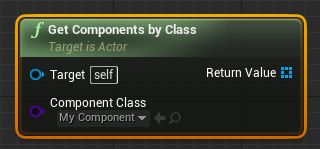
Accessing a Component from the GameObject / Actor
Unity C#
MyComponent MyComp = gameObject.GetComponent<MyComponent>();
Unreal Engine C++
UMyComponent* MyComp = MyActor->FindComponentByClass<UMyComponent>();
Blueprint
Finding GameObjects / Actors
Unity C#
// Find GameObject by name
GameObject MyGO = GameObject.Find("MyNamedGameObject");
// Find Objects by type
MyComponent[] Components = Object.FindObjectsOfType(typeof(MyComponent)) as MyComponent[];
foreach (MyComponent Component in Components)
{
// ...
}
// Find GameObjects by tag
GameObject[] GameObjects = GameObject.FindGameObjectsWithTag("MyTag");
foreach (GameObject GO in GameObjects)
{
// ...
}
Unreal Engine C++
// Find Actor by name (also works on UObjects)
AActor* MyActor = FindObject<AActor>(nullptr, TEXT("MyNamedActor"));
// Find Actors by type (needs a UWorld object)
for (TActorIterator<AMyActor> It(GetWorld()); It; ++It)
{
AMyActor* MyActor = *It;
// ...
}
Blueprint
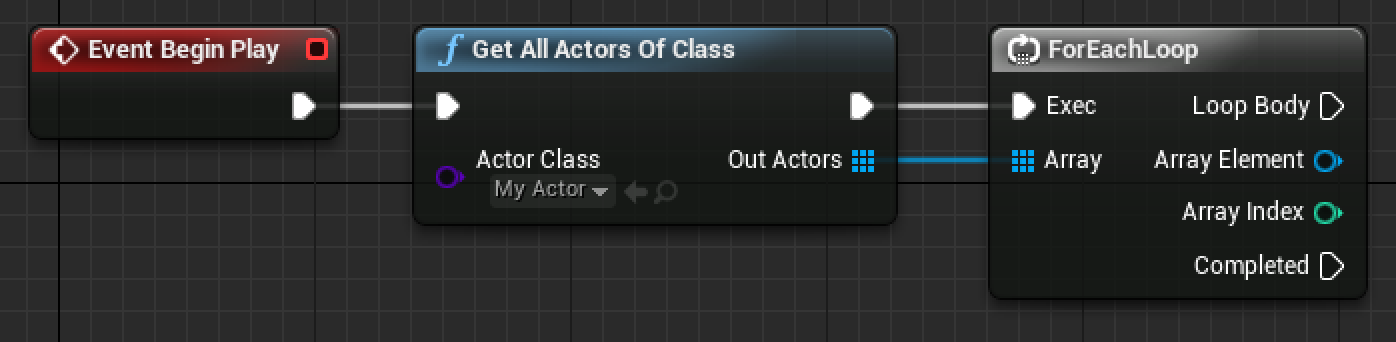
Unreal Engine C++
// Find UObjects by type
for (TObjectIterator<UMyObject> It; It; ++it)
{
UMyObject* MyObject = *It;
// ...
}
// Find Actors by tag (also works on ActorComponents, use TObjectIterator instead)
for (TActorIterator<AActor> It(GetWorld()); It; ++It)
{
AActor* Actor = *It;
if (Actor->ActorHasTag(FName(TEXT("Mytag"))))
{
// ...
}
}
Blueprint

Adding tags to GameObjects / Actors
Unity C#
MyGameObject.tag = "MyTag";
Unreal Engine C++
// Actors can have multiple tags
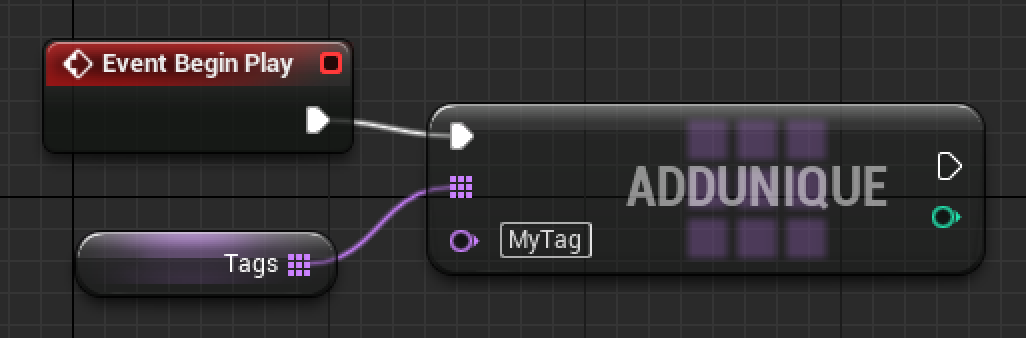
MyActor.Tags.AddUnique(TEXT("MyTag"));
Blueprint
Adding tags to MonoBehaviours / ActorComponents
Unity C#
// This changes the tag on the GameObject it is attached to
MyComponent.tag = "MyTag";
Unreal Engine C++
// Components have their own array of tags
MyComponent.ComponentTags.AddUnique(TEXT("MyTag"));
Comparing tags on GameObjects / Actors and MonoBehaviours / ActorComponents
Unity C#
if (MyGameObject.CompareTag("MyTag"))
{
// ...
}
// Checks the tag on the GameObject it is attached to
if (MyComponent.CompareTag("MyTag"))
{
// ...
}
Unreal Engine C++
// Checks if an Actor has this tag
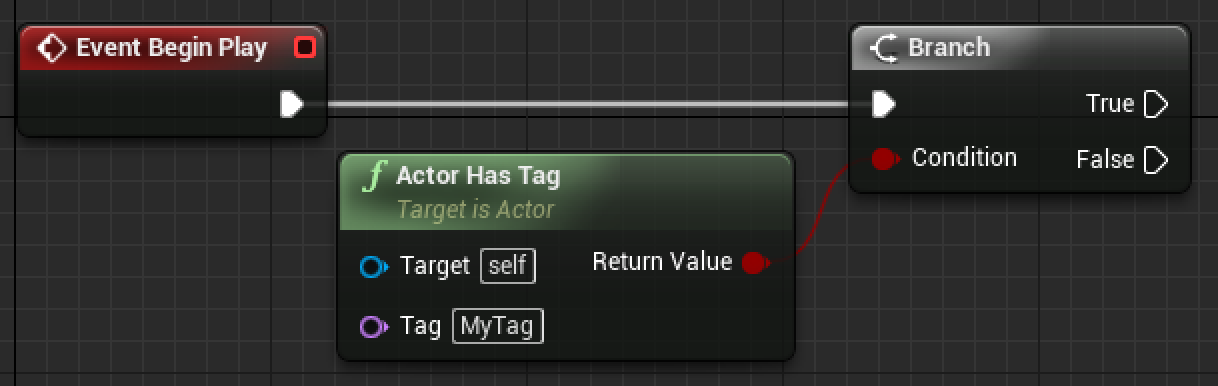
if (MyActor->ActorHasTag(FName(TEXT("MyTag"))))
{
// ...
}
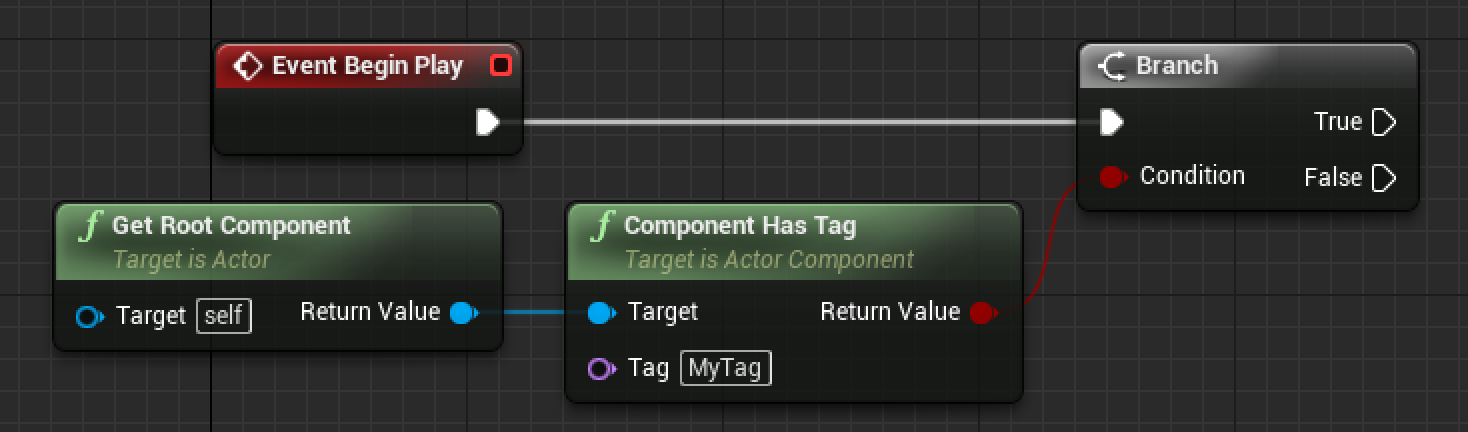
Blueprint
Unreal Engine C++
// Checks if an ActorComponent has this tag
if (MyComponent->ComponentHasTag(FName(TEXT("MyTag"))))
{
// ...
}
Blueprint
Physics: RigidBody vs. Primitive Component
In Unity, to give any GameObject physics characteristics, you first had to give it a RigidBody component.
In Unreal Engine, any Primitive Component (UPrimitiveComponent in C++) can be a physical object. Some common Primitive Components are:
- Shape Components (Capsule, Sphere, and Box)
- Static Mesh Components
- Skeletal Mesh Components
Unlike Unity, which separates the responsibilities of collision and visualizations into separate components, Unreal Engine combines the concepts of "potentially physical" and "potentially visible" into a single Primitive Component. Any Component that would have any geometry in the world, that could either be rendered or interacted with physically, is a subclass of PrimitiveComponent.
Layers vs Channels
Collision Channels are the Unreal Engine equivalent of layers in Unity. To learn more, refer to Collision Filtering.
RayCast vs. RayTrace
Unity C#
GameObject FindGOCameraIsLookingAt()
{
Vector3 Start = Camera.main.transform.position;
Vector3 Direction = Camera.main.transform.forward;
float Distance = 100.0f;
int LayerBitMask = 1 << LayerMask.NameToLayer("Pawn");
RaycastHit Hit;
bool bHit = Physics.Raycast(Start, Direction, out Hit, Distance, LayerBitMask);
if (bHit)
{
return Hit.collider.gameObject;
}
return null;
}
Unreal Engine C++
APawn* AMyPlayerController::FindPawnCameraIsLookingAt()
{
// You can use this to customize various properties about the trace
FCollisionQueryParams Params;
// Ignore the player's pawn
Params.AddIgnoredActor(GetPawn());
// The hit result gets populated by the line trace
FHitResult Hit;
// Raycast out from the camera, only collide with pawns (they are on the ECC_Pawn collision channel)
FVector Start = PlayerCameraManager->GetCameraLocation();
FVector End = Start + (PlayerCameraManager->GetCameraRotation().Vector() * 1000.0f);
bool bHit = GetWorld()->LineTraceSingle(Hit, Start, End, ECC_Pawn, Params);
if (bHit)
{
// Hit.Actor contains a weak pointer to the Actor that the trace hit
return Cast<APawn>(Hit.Actor.Get());
}
return nullptr;
}
Blueprint
Click the image for full size.
Trigger Volumes
Unity C#
public class MyComponent : MonoBehaviour
{
void Start()
{
collider.isTrigger = true;
}
void OnTriggerEnter(Collider Other)
{
// ...
}
void OnTriggerExit(Collider Other)
{
// ...
}
}
Unreal Engine C++
UCLASS()
class AMyActor : public AActor
{
GENERATED_BODY()
// My trigger component
UPROPERTY()
UPrimitiveComponent* Trigger;
AMyActor()
{
Trigger = CreateDefaultSubobject<USphereComponent>(TEXT("TriggerCollider"));
// Both colliders need to have this set to true for events to fire
Trigger.bGenerateOverlapEvents = true;
// Set the collision mode for the collider
// This mode will only enable the collider for raycasts, sweeps, and overlaps
Trigger.SetCollisionEnabled(ECollisionEnabled::QueryOnly);
}
virtual void NotifyActorBeginOverlap(AActor* Other) override;
virtual void NotifyActorEndOverlap(AActor* Other) override;
};
Unreal Engine Blueprint
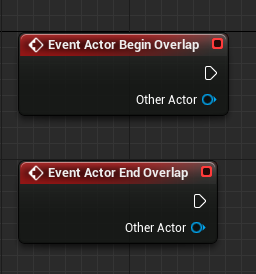
To learn more about setting up collision responses, refer to the Collision page.
Kinematic Rigidbodies
Unity C#
public class MyComponent : MonoBehaviour
{
void Start()
{
rigidbody.isKinematic = true;
rigidbody.velocity = transform.forward * 10.0f;
}
}
In Unreal Engine, the collision component and rigidbody component are one. The base class for this is UPrimitiveComponent, which has many subclasses (USphereComponent, UCapsuleComponent, etc.) to suit your needs.
Unreal Engine C++
UCLASS()
class AMyActor : public AActor
{
GENERATED_BODY()
UPROPERTY()
UPrimitiveComponent* PhysicalComp;
AMyActor()
{
PhysicalComp = CreateDefaultSubobject<USphereComponent>(TEXT("CollisionAndPhysics"));
PhysicalComp->SetSimulatePhysics(false);
PhysicalComp->SetPhysicsLinearVelocity(GetActorRotation().Vector() * 100.0f);
}
};
Input Events
Unity C#
public class MyPlayerController : MonoBehaviour
{
void Update()
{
if (Input.GetButtonDown("Fire"))
{
// ...
}
float Horiz = Input.GetAxis("Horizontal");
float Vert = Input.GetAxis("Vertical");
// ...
}
}
Unreal Engine C++:
UCLASS()
class AMyPlayerController : public APlayerController
{
GENERATED_BODY()
void SetupInputComponent()
{
Super::SetupInputComponent();
InputComponent->BindAction("Fire", IE_Pressed, this, &AMyPlayerController::HandleFireInputEvent);
InputComponent->BindAxis("Horizontal", this, &AMyPlayerController::HandleHorizontalAxisInputEvent);
InputComponent->BindAxis("Vertical", this, &AMyPlayerController::HandleVerticalAxisInputEvent);
}
void HandleFireInputEvent();
void HandleHorizontalAxisInputEvent(float Value);
void HandleVerticalAxisInputEvent(float Value);
};
Blueprint
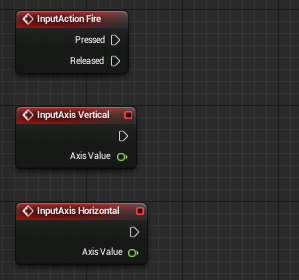
This is what your input properties in your Project Settings might look like:
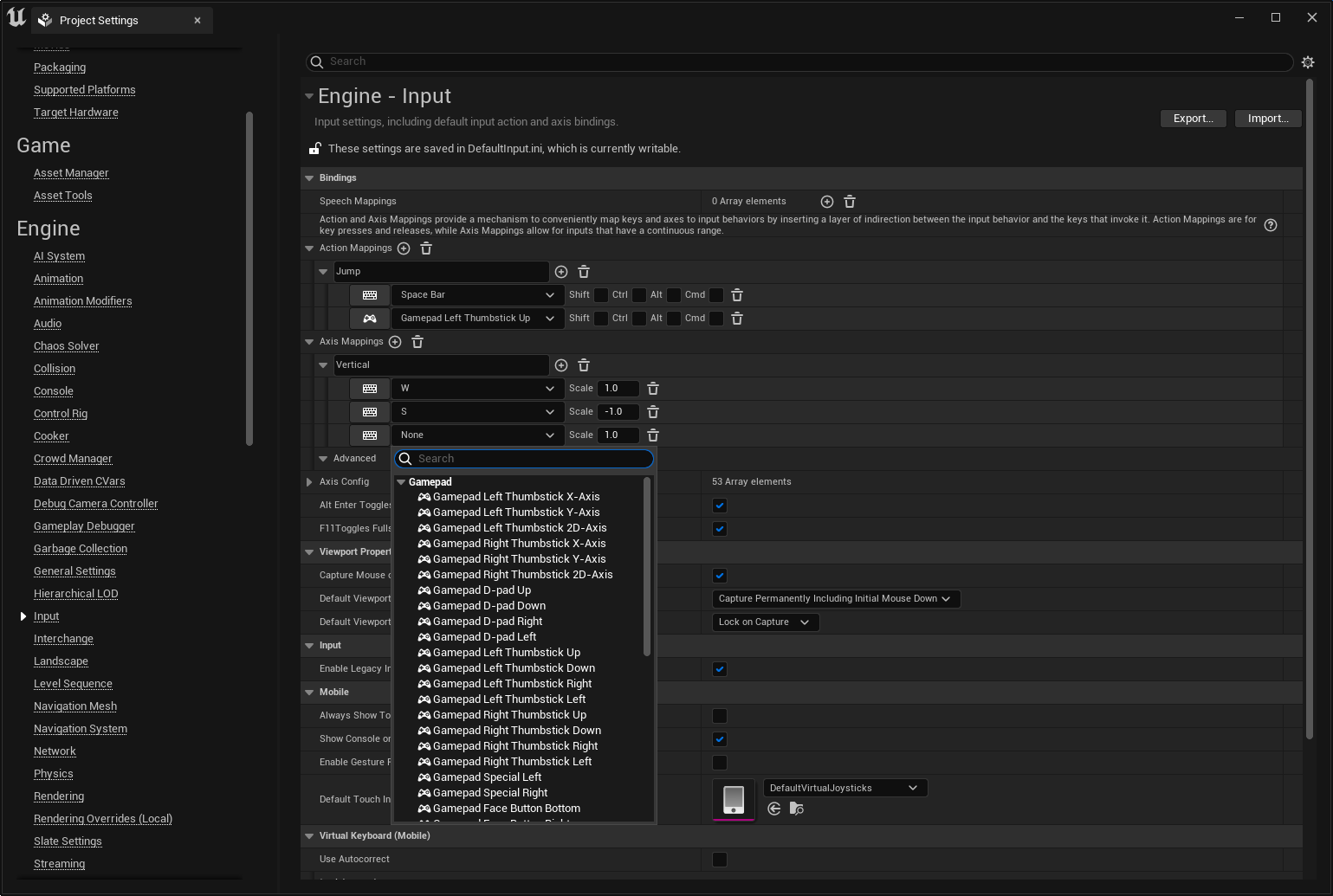
To learn more about how to set up input for your Unreal Engine project, refer to the Input page.