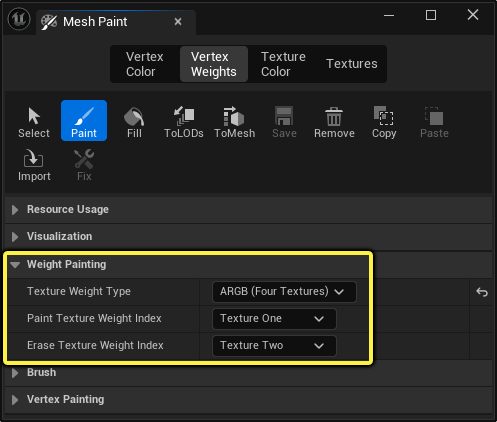
You can use vertex color data in a material to blend between different texture layers based on a color value painted onto the mesh. In this page, you’ll learn how you can set up multiple textures to blend together when painted onto a mesh using Vertex Weights paint mode.
Setting Up a Material for Texture Blending
To get started, you’ll want to setup a material that is used as the basis for your vertex color data being used on the mesh:
- Choose a Blend Mode.
- Add a VertexColor material expression to your material graph.
- Each of the examples in this page use a single VertexColor node, but you can use more than one.
- For blending of textures, this node is primarily used with a Linear Interpolate (Lerp) expression where the vertex color drives the Alpha input for blending.
Using Lerp Nodes to Blend VertexColor Between Textures
For this material’s setup below, the Linear Interpolate (or Lerp) node is used to blend between each of these textures by using the Alpha input to take in the VertexColor node’s color channel being used to blend these textures in the material graph.
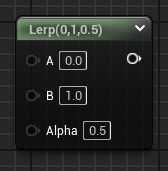
Linear Interpolate (Lerp) Material Expression
This is the most basic setup using a Lerp node to blend two textures with the VertexColor driving the layering of the two.
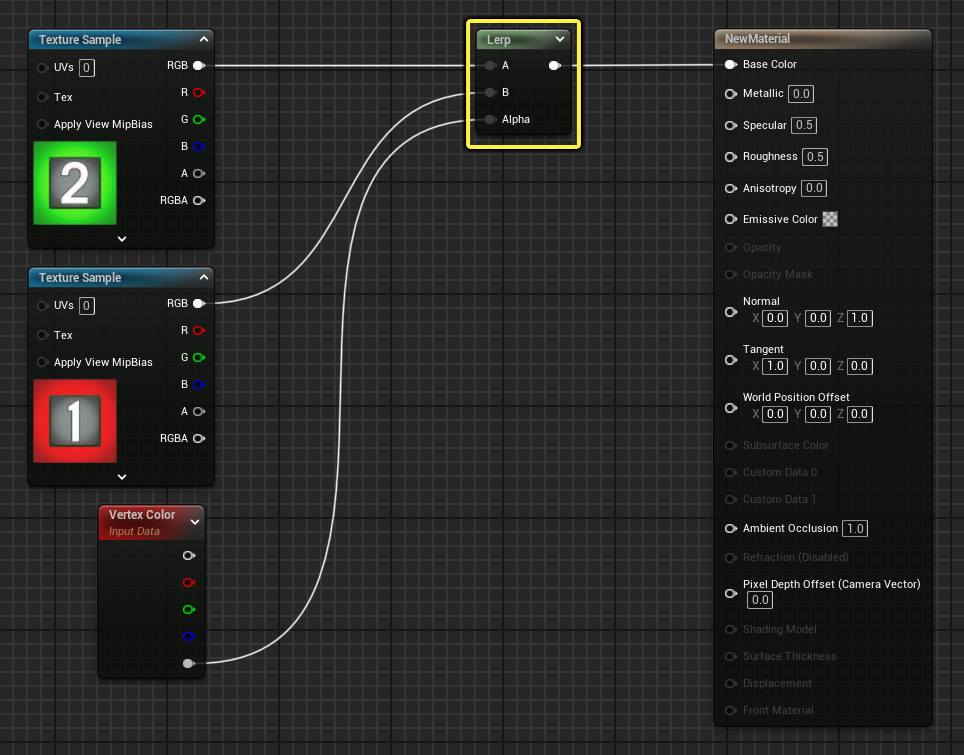
Material Texture Blend Set Ups
Below are multiple examples of how to set up texture blending using a VertexColor material expression using two, three, four, and five textures.
2-Way Texture Blend
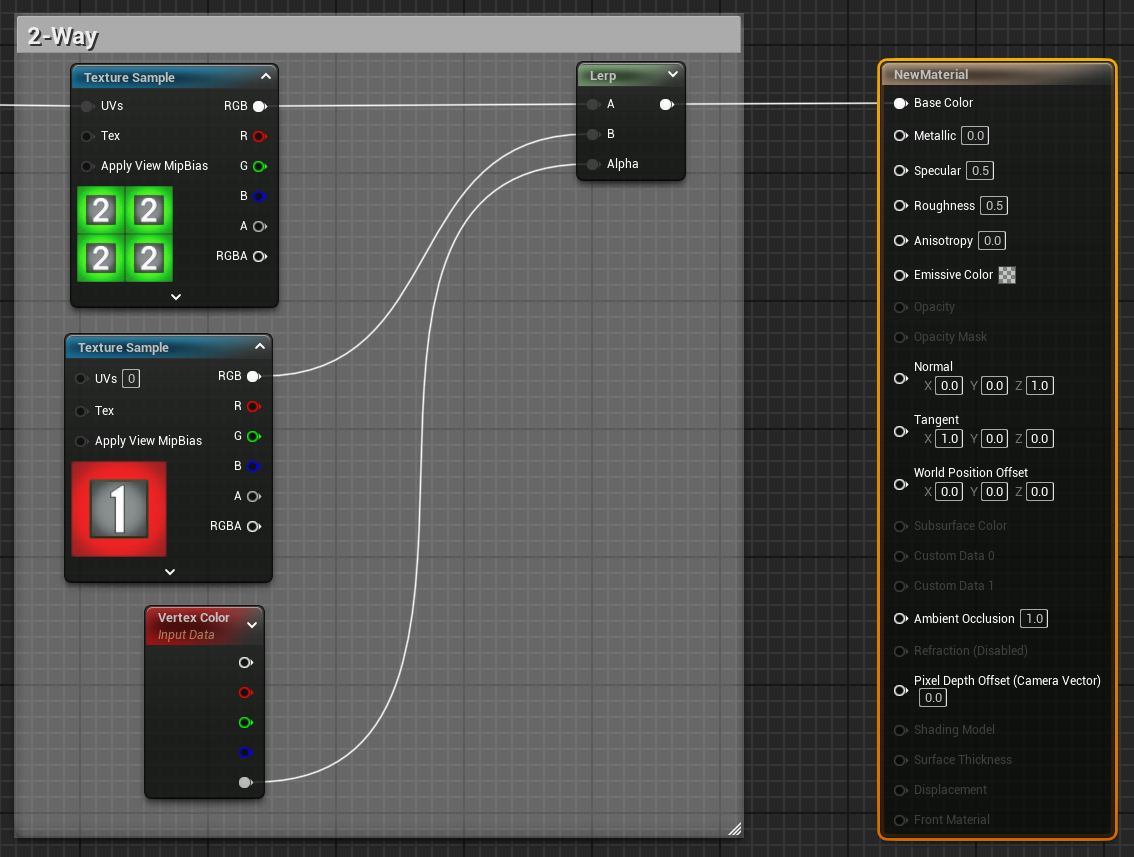
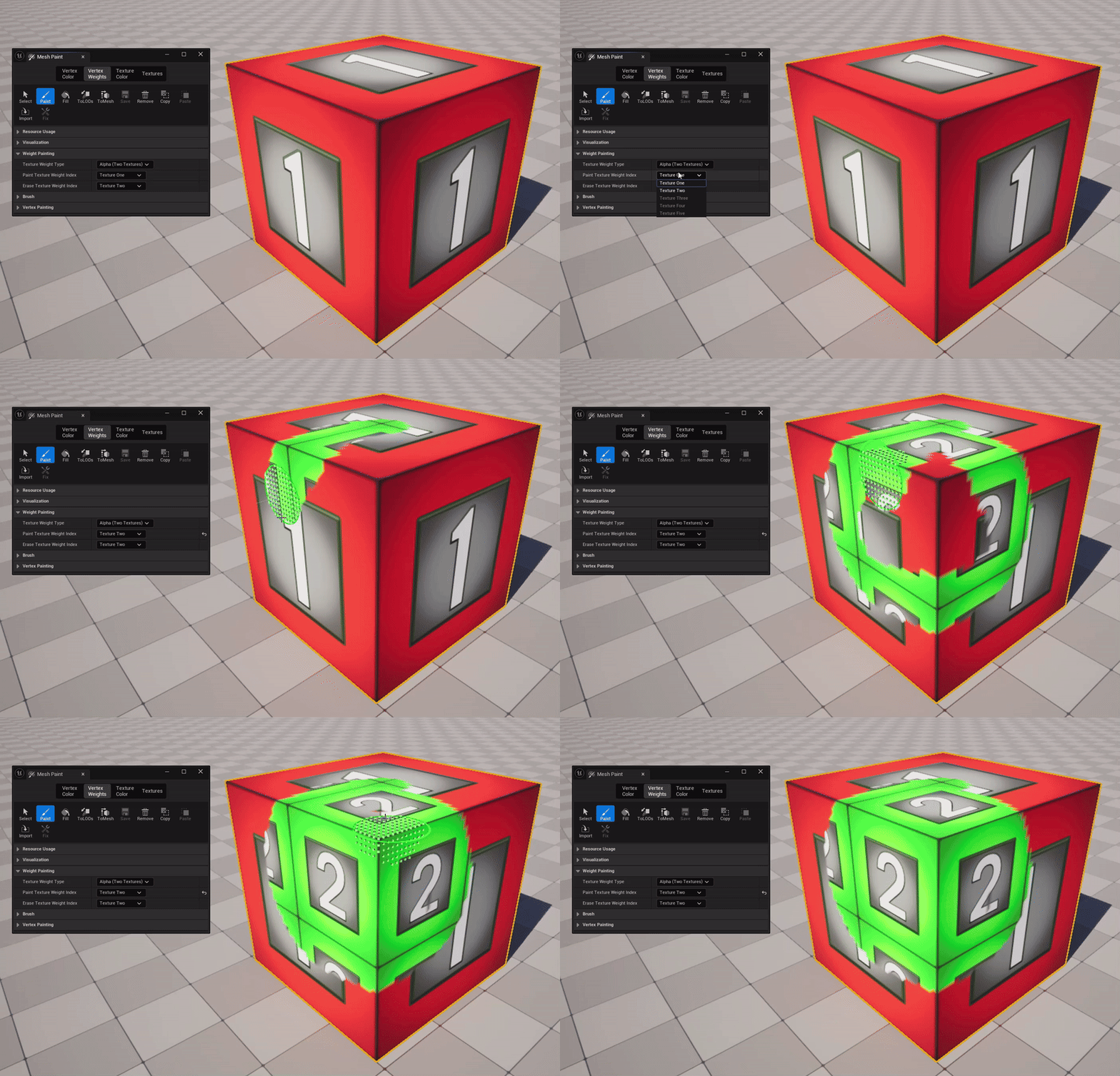
The set up below is an example of how you can blend two texture layers together to paint vertex weights onto meshes. The Alpha color channel is used to linearly interpolate between each texture layer being painted.
The Alpha output of the VertexColor node is passed to the Alpha input on the Lerp node. With this setup, you’ll use the default Texture Weight Type for Alpha (Two Textures) to paint and erase these two texture layers.
Here is an example of this set up painted on a mesh:
3-Way Texture Blend
The set up below is an example of how you can blend three texture layers together to paint vertex weights onto meshes. The individual color channels for Red, Green, and Blue of the VertexColor node are used to linearly interpolate between each texture layer being painted.
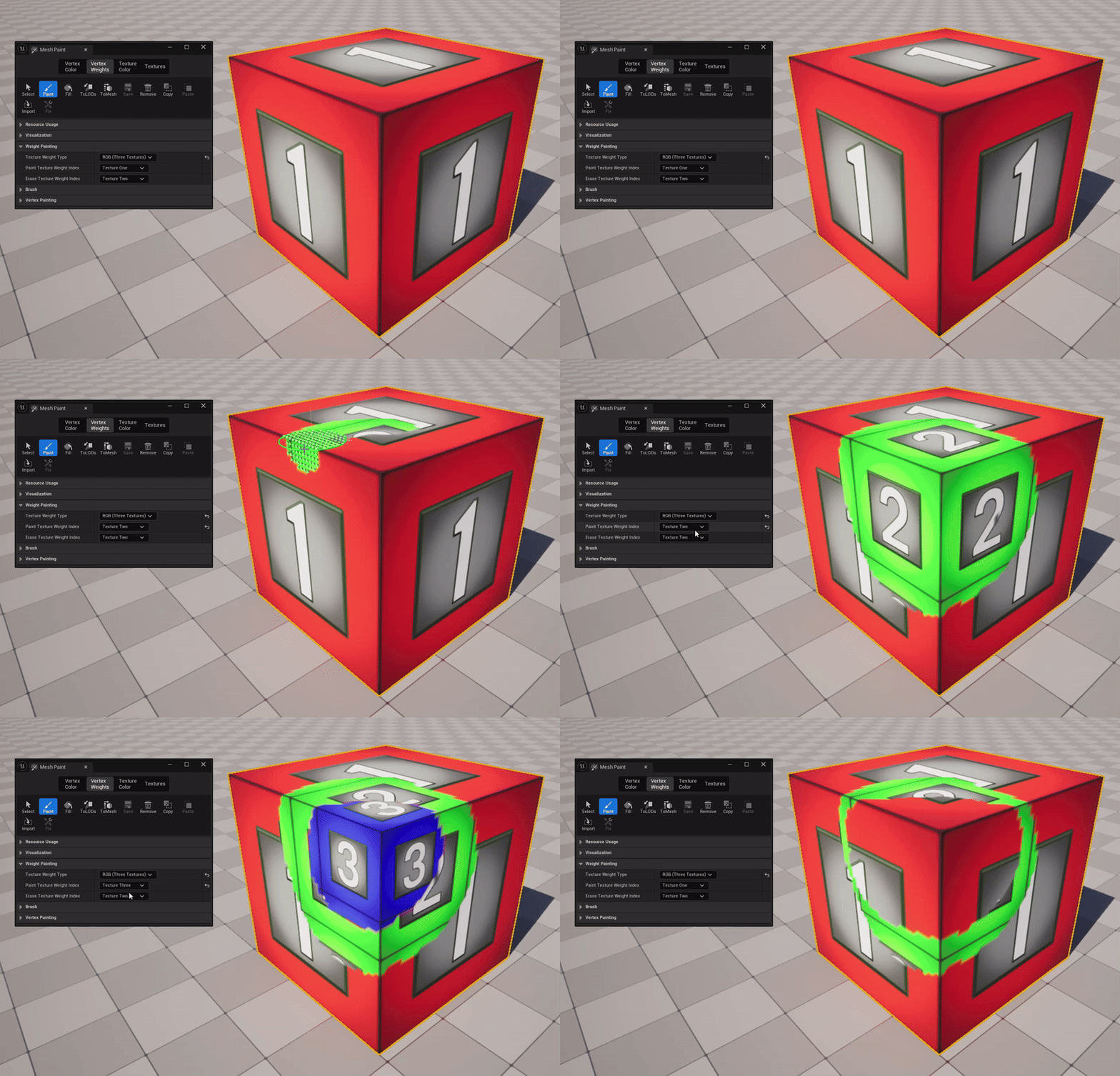
The three color channels for Red, Green, and Blue are used to paint on the mesh. You’ll set the Texture Weight Type to RGB (Three Textures) to paint and erase textures associated with each of these color channels. You can change the Paint Texture Weight Index and Erase Texture Weight Index to set which of two textures are used for painting onto the mesh at any given time.
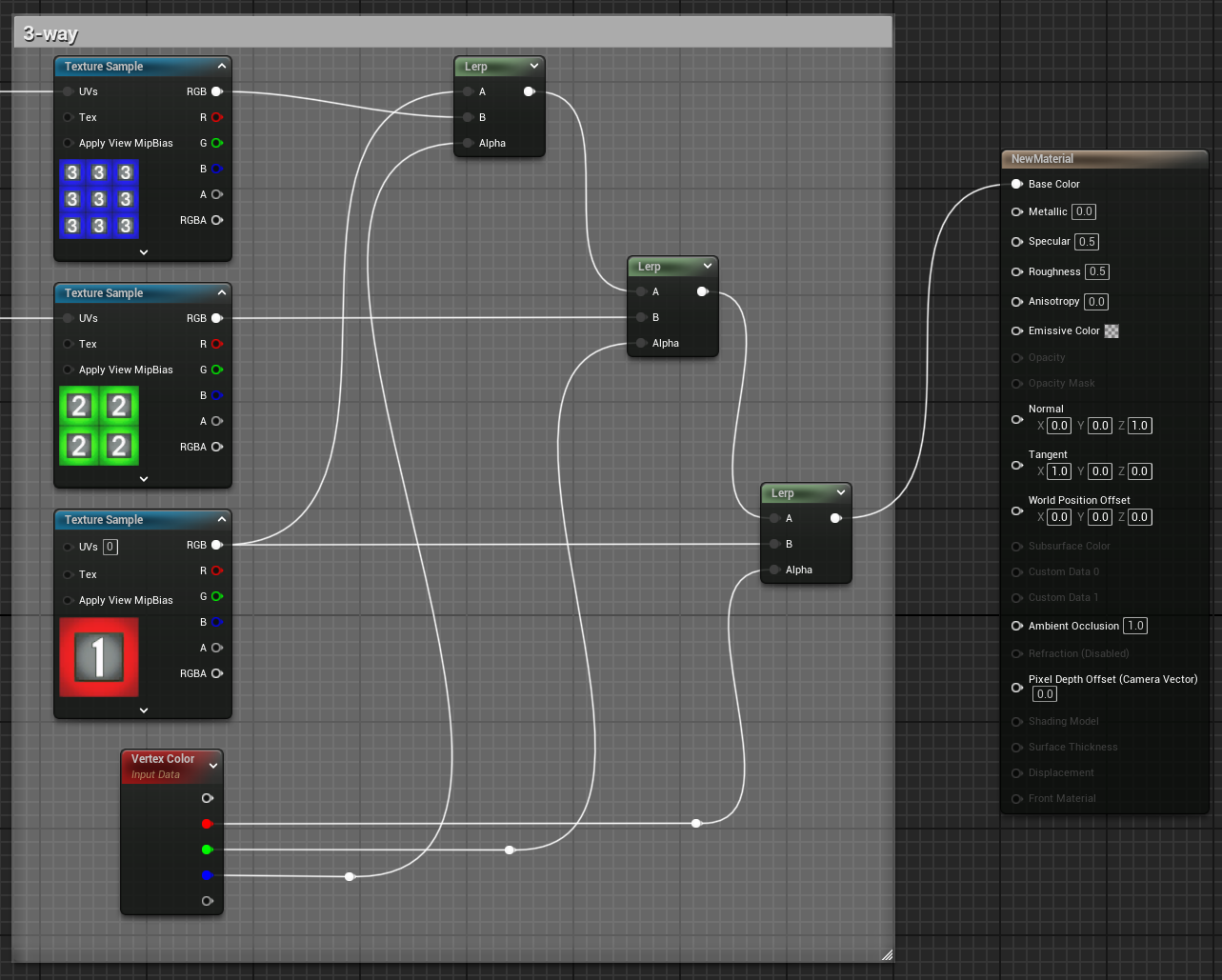
On the VertexColor node, the color channels correspond to the following textures:
- Texture 1 is mapped to the Red channel and to the Linear Interpolation for Texture 3 so that it is the default texture when the material compiles
- Texture 2 is mapped to the Green channel.
- Texture 3 is mapped to the Blue channel.
Here is an example of this set up painted on a mesh:
4-Way Texture Blend
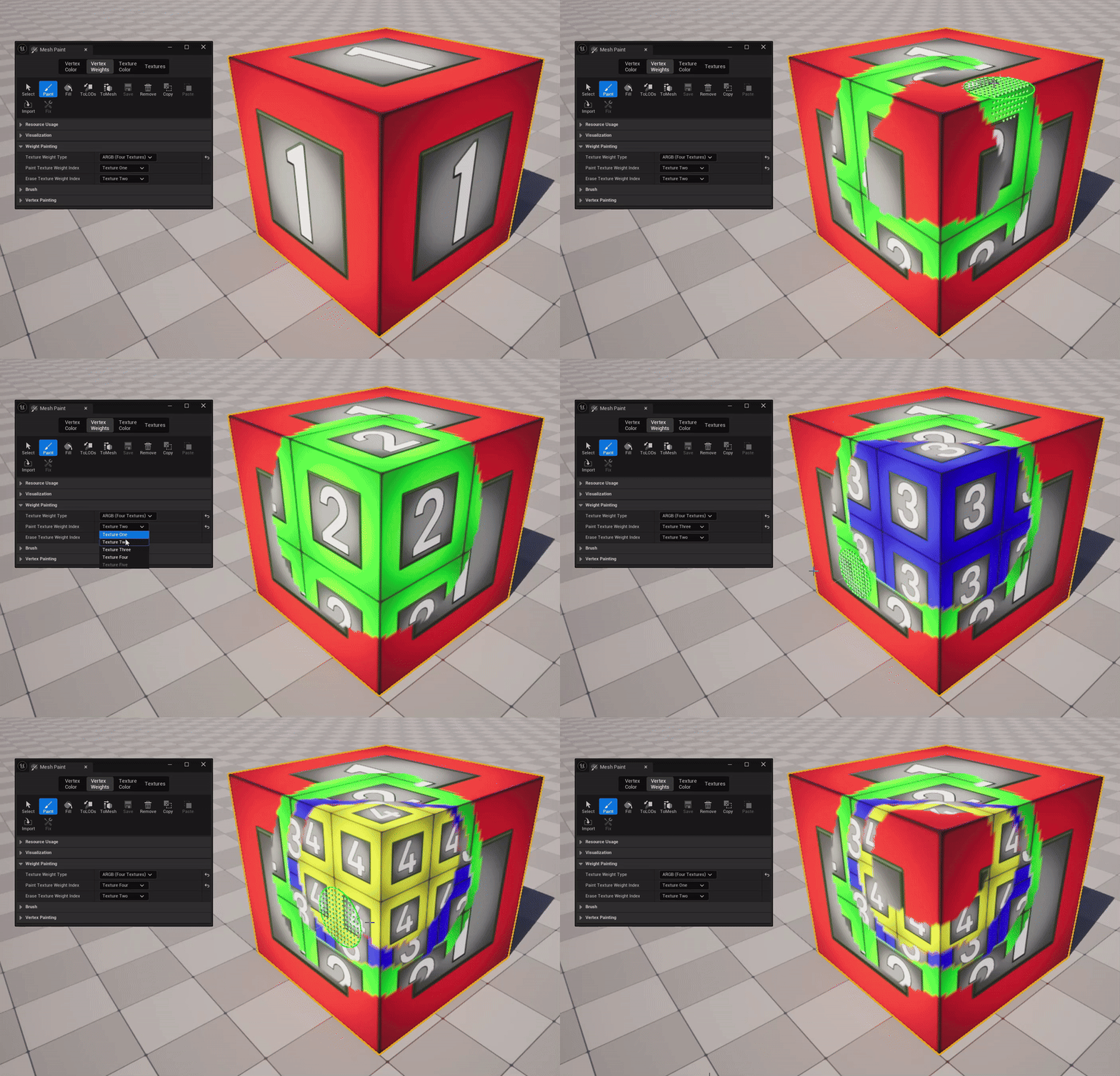
The set up below is an example of how you can blend four texture layers together to paint vertex weights onto meshes. The individual color channels for Alpha, Red, Green, and Blue of the VertexColor node are used to linearly interpolate between each texture layer being painted.
The four color channels for Alpha, Red, Green, and Blue are used to paint on the mesh. You’ll set the Texture Weight Type to ARGB (Four Textures) to paint and erase textures associated with each of these color channels. You can change the Paint Texture Weight Index and Erase Texture Weight Index to set which of two textures are used for painting onto the mesh at any given time.
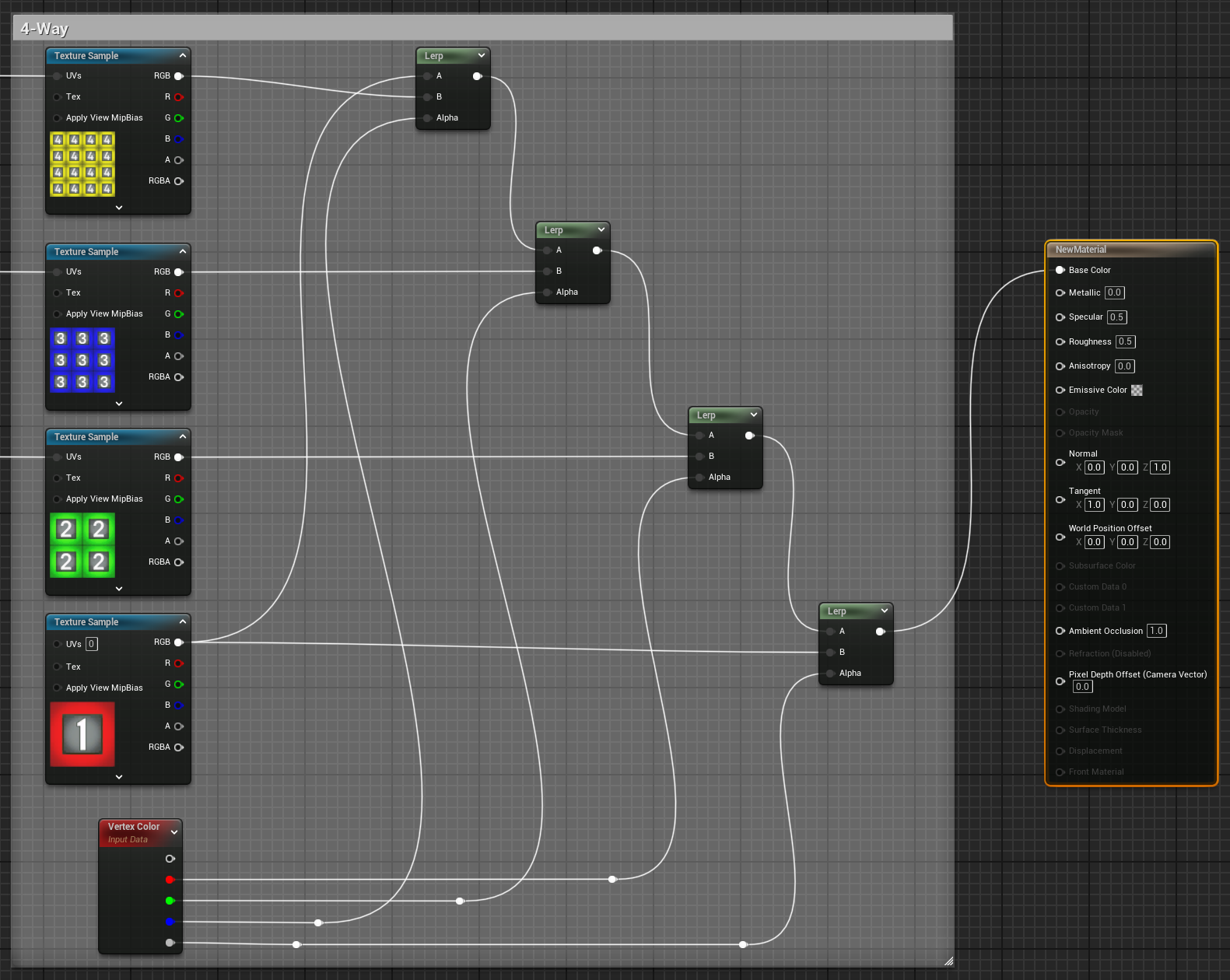
On the VertexColor node, the color channels correspond to the following textures:
- Texture 1 is mapped to the Alpha channel and to the Linear Interpolation for Texture 4 so that it is the default texture when the material compiles
- Texture 2 is mapped to the Red channel.
- Texture 3 is mapped to the Green channel.
- Texture 4 is mapped to the Blue channel.
Here is an example of this set up painted on the mesh:
5-Way Texture Blend
The set up below is an example of how you can blend five texture layers together to paint vertex weights onto meshes. The individual color channels for Alpha, Red, Green, and Blue are used to linearly interpolate between each layer being painted. To get the extra fifth channel for texture painting, a 1-x (One Minus) node is used.
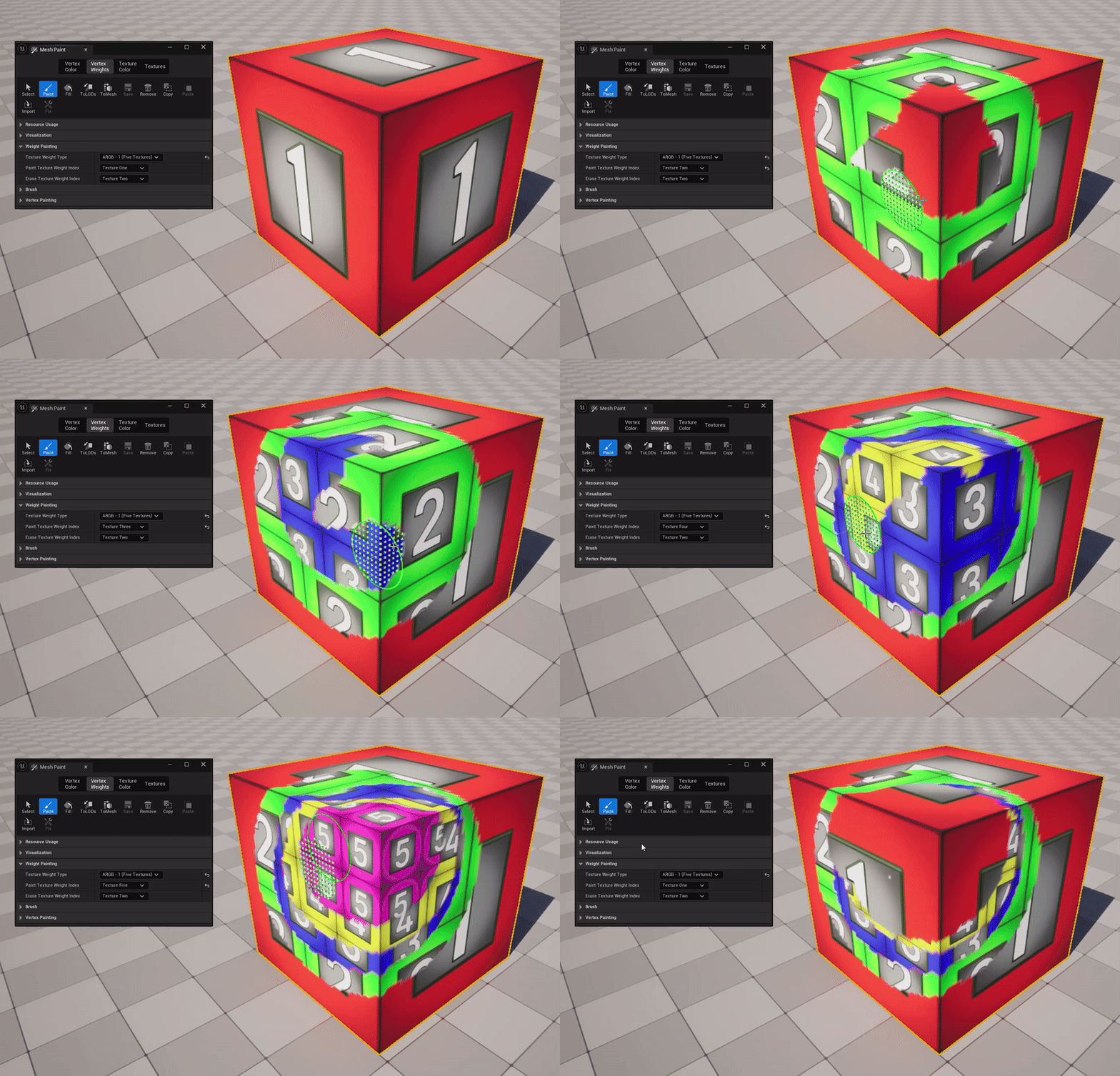
The five color channels for Alpha, Red, Green, Blue, and Alpha-1 are used to paint on the mesh. You’ll set the Texture Weight Type to ARGB - 1 (Five Textures) to paint and erase textures associated with each of these color channels. You can change the Paint Texture Weight Index and Erase Texture Weight Index to set which of two textures are used for painting onto the mesh at any given time.
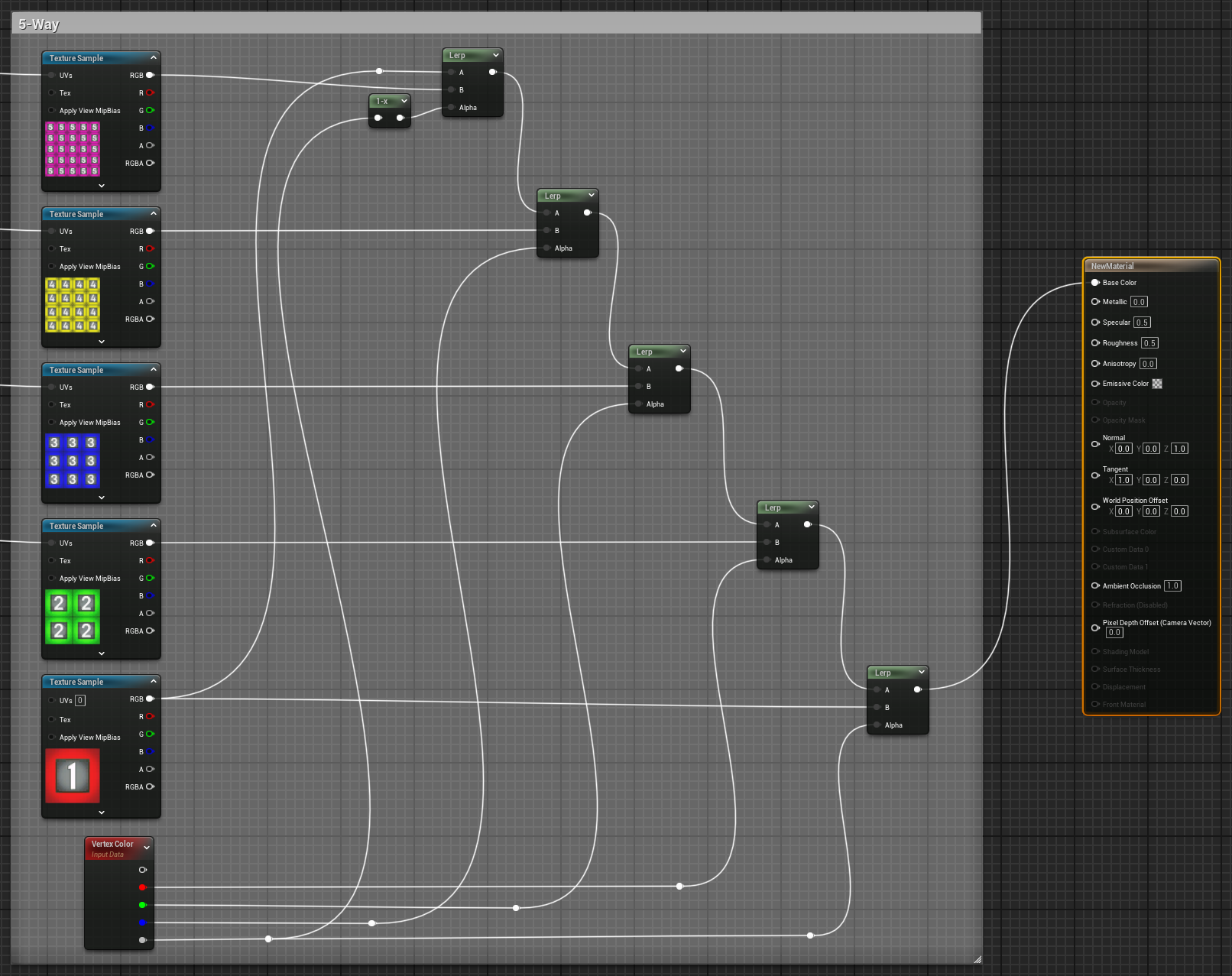
On the VertexColor node, the color channels correspond to the following textures:
- Texture 1 is mapped to the Alpha and to the Linear Interpolation for Texture 5 so that it is the default texture when the material compiles.
- Texture 2 is mapped to the Red channel.
- Texture 3 is mapped to the Green channel.
- Texture 4 is mapped to the Blue channel.
- Texture 5 is mapped to the Alpha with a 1-x (One Minus) node.
Here is an example of this set up painted on the mesh:
Painting a Texture-Blended Material onto a Mesh
You can use the following actions to paint on your mesh:
- Left Mouse Button (LMB) to paint onto the mesh.
- SHIFT + Left Mouse Button to erase paint onto the mesh.
- X key to quickly swap between the Paint and Erase texture weight indices.
When using the Vertex Weights painting mode, you will need to set Texture Weight Type to match the number of textures setup in your material that will be used for texture blending.
To paint a particular texture onto the mesh, you’ll use the Paint Texture Weight Index and Erase Texture Weight Index to assign the texture you’ll paint onto the mesh.