

MetaSound Pages are MetaSound variations you can use to support different hardware performance levels. With pages, you can define a set of MetaSound input values or an entirely different MetaSound graph, and then swap between the pages based on platform targets or runtime logic.
Platforms are not one-to-one with pages, so you can map them based on complexity, CPU usage, memory usage, or anything else.
You cannot use pages to modify active MetaSound instances, as paged data swaps occur before a MetaSound instance executes.
Using Pages
Adjust Project Settings
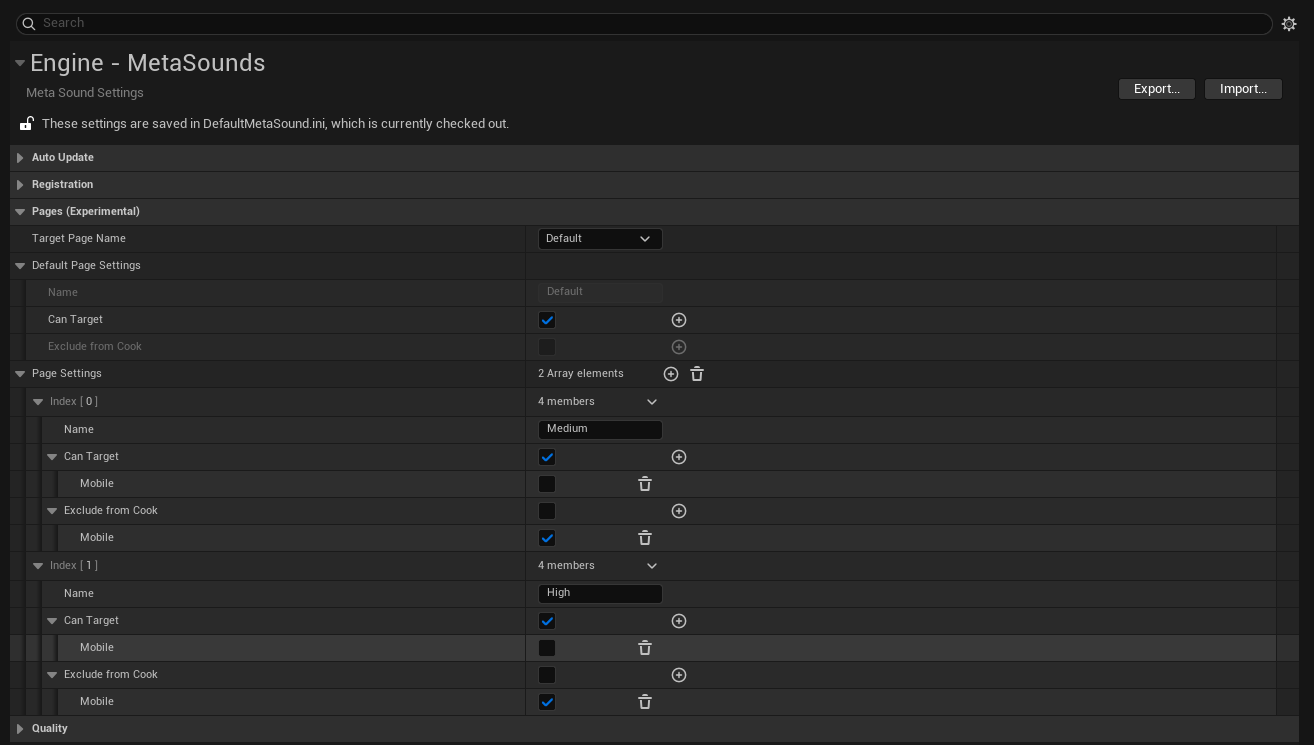
You can create pages and adjust their settings in Project Settings.
- Select Edit > Project Settings.
- On the left, under the Engine heading, select MetaSounds.
- Modify the following settings under the Pages (Experimental) section:
- Click the Add button for Page Settings to add a page to the array.
- Expand the new array element.
- Set the Name, such as "Low," "High," or "Mobile." The order of the pages in the array is important. See Fallback Handling for more information.
- If Targetable is true, the page targets all platforms. If you want to target a specific platform, click the Add button for Targetable and select the target platform. Repeat this step to set multiple.
- If you want to exclude the page from cooking on specific platforms, click the Add button for Exclude from Cook and select the excluded platforms. Repeat this step to set multiple.
- If you want to target a page other than "Default," set the Target Page Name to your desired page. See Target Page Name for more information on this setting.
The Default page cannot be deleted or renamed.
Fallback Handling
If a target page is not implemented for the active platform, the MetaSound uses the index order of the cooked pages in Page Settings. Specifically, the MetaSound falls back to the next lowest index-ordered page that it implements. If no fallback is found, the MetaSound uses the default implementation.
Target Page Name
The Target Page Name setting sets the page used when executing MetaSounds. This target is reflected during playback in Play In Editor (PIE).
You can set the Target Page Name in the following ways:
- In the Project Settings
- In a Platform
.inifile ([PROJECT_ROOT]\Platforms\[PLATFORM_NAME]\Config\[PLATFORM_NAME]MetaSound.ini) - Using the console variable
cvar au.MetaSound.Pages.SetTarget [PAGE_NAME] - In Blueprint or C++, during runtime
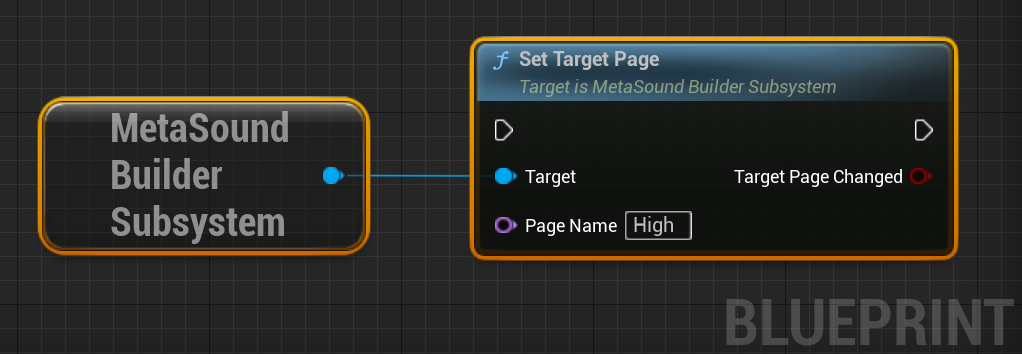
The Target Page Name is also reflected in the MetaSound Editor by default, but you can audition with other platforms and pages, too. See Auditioning Pages in Editor for more information.
Paging MetaSound Graphs

After setting up pages in Project Settings, you can use them in MetaSound Source and Patch graphs in the Pages tab.
From the Pages tab, you can:
- Add a new page by selecting one from the Add Page Graph dropdown.
- Remove a page by selecting the Trash Can button to the right of it.
- Focus a page by selecting the Focus (<-) button to the left of it.
If you add a page, the existing graph is copied to the new page. Afterward, any changes to the active graph apply only to the focused page. You should use this workflow to create the best-case sound, then add pages for variations requiring less complex graphs.
All pages share the same input and output members, including interfaces. However, variables are set per graph.
You can see the currently focused page in the bottom-left corner of the MetaSound Graph panel.
Paging MetaSound Inputs
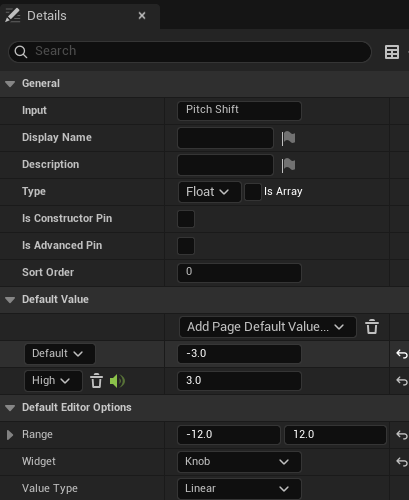
In addition to graph variations, you can also set different default input values per page. For example, you can specify a different number of Sound Waves in an array based on the different resource requirements of your target pages.
To create a paged input, do the following:
- In the Members panel, select an input.
- In the Details panel, click the Default Value > Add Page Default Value dropdown and select the relevant page. This creates a new Default Value entry.
- Set the new entry's value.
Graphless Input Fallback
The input variations associated with pages are separate from graph variations. If a paged graph is unavailable for a given page, the next available paged graph is used as a fallback with any relevant input variations.
For example, you can use a "Low" paged input on a "Medium" page's graph by doing the following:
- In the Project Settings, create the "Medium" and "Low" pages in that order.
- On the MetaSound:
- Create the "Medium" paged graph.
- Create a "Low" paged input.
See Fallback Handling for more information.
Auditioning Pages in Editor

By default, auditioning a MetaSound in the MetaSound Editor corresponds to what plays in PIE.
However, you can override this functionality in the Audition menu, where you can set the following:
- Audition Platform - Set a platform and apply the relevant target and cook settings to auditioning.
- Sync With Graph Page (enabled by default) - If enabled, playing a MetaSound in the MetaSound Editor plays the focused page's graph. If disabled, you can select a specific Audition Page to preview.
If the page is not a target page for the selected Audition platform, the Play button will turn yellow with a warning icon and relevant tooltip. However, you can still play it.
The Audition menu's settings are reflected in Editor Preferences > MetaSound Editor.
Limitations
- You cannot add or remove pages within a MetaSound Preset, but you can override page input defaults.
- Interface input defaults do not support page input defaults.
- C++ node classes do not support page input defaults.
- Projects cannot alter audition behavior in editor.