

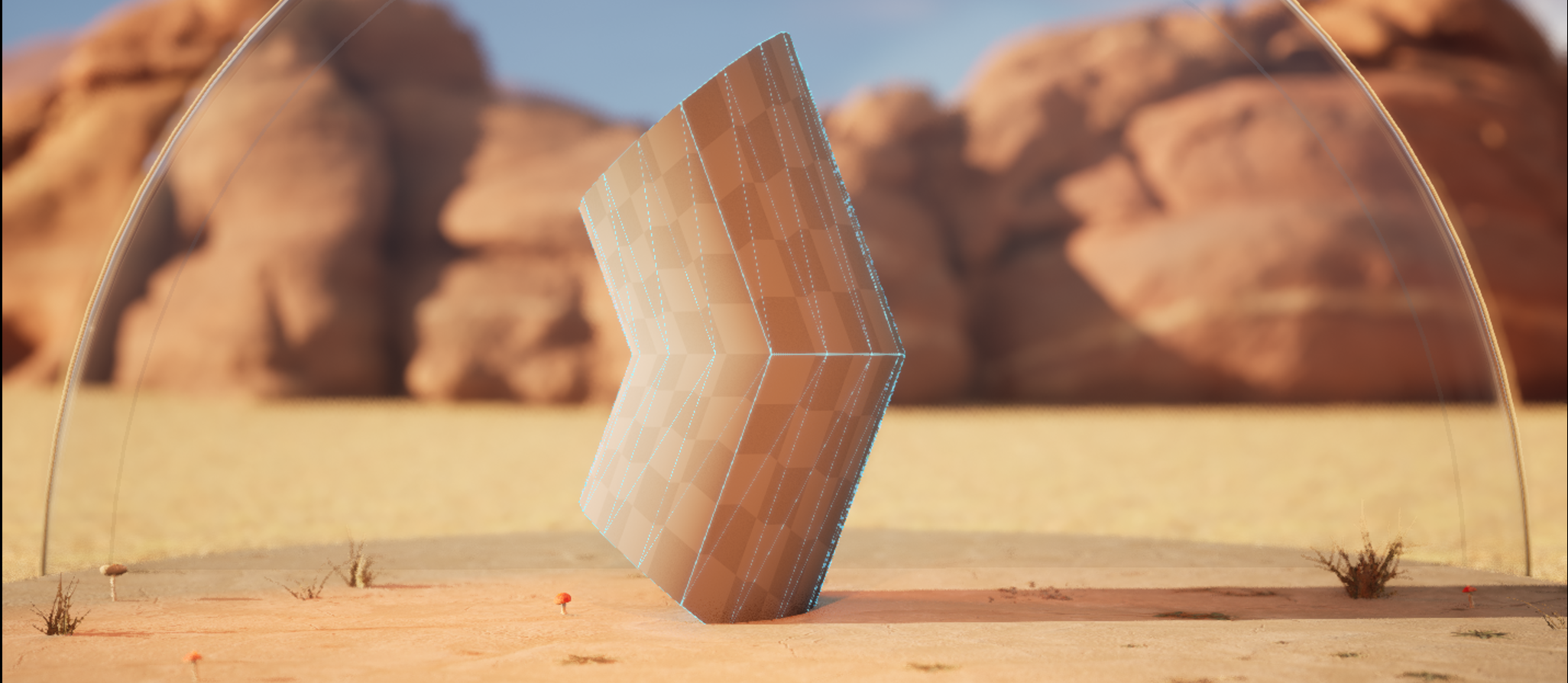
The Lattice tool edits a mesh's vertices through a 3D grid of points. The number of points per axis determines what radius of vertices are used to deform a mesh. Providing fine transformation control to specific mesh regions helps you quickly add variation.
Select the Constraints option to help with marquee selection and control affected areas by freezing points.
Accessing the Tool
You can access the Lattice tool from the Deform category in Modeling Mode. To learn more about Modeling Mode and how to access it, see Modeling Mode Overview.
Workflow Tips
Resolution
When working with the Deform category tools, you may experience unexpected results in your mesh's shape. The shape could indicate your resolution needs to be higher because you have a low-poly mesh.
To resolve the problem, follow these steps:
-
Add more triangles using the Remesh tool.
-
Perform any necessary edits.
-
Reduce the resolution using the Simplify tool.
 |
 |
| Low-poly | High-poly |
In the image above, you can see the difference the Warp tool has on a mesh with roughly 30 triangles compared to one with over 100 triangles.
Depending on your project's desired look and performance budget, using the Simplify tool to reduce the number of polygons may not be necessary if remeshing didn't add a quantitative amount of triangles.
Normals
Not all Deform category tools adjust normals properly as you sculpt, which could cause them to look incorrect. To correct the appearnce, you can use the Edit Attributes tool to reset normals to the sculpted surface after you deform the mesh.
Viewport
As a general modeling practice, use the various Viewport Types (Front, Back, Left, and Right) to help ensure your model is shaping correctly.
In addition, viewing your mesh's wireframe helps you troubleshoot and keep track of the topology. To do so, enable the Show Wireframe option in the applicable Deform category tool or use the Inspect tool. You can also change the View Mode to Wireframe, visualizing the polygon edges of all geometry in the Viewport.
Using Lattice
To adjust the grid size, use the Resolution section to change the number of points per axis and distance from the mesh (Padding). To transform the points, click or marquee select the points, then use the gizmo to move the points.
Once you are done using the tool, accept or cancel the changes in the Tool Confirmation panel.
Hotkeys
| Hotkey | Description |
|---|---|
| F | Zooms into the mesh's location. |
| Shift + Click/Drag | Adds points to the current selection. |
| Ctrl + Click/Drag | Removes from the current selection. |
| Ctrl + Shift + Click/Drag | Toggles the selection of points. |
| Enter | Accepts tool changes. |
| ESC | Cancels the changes and exits the tool. |
| Q | Hides the gizmo. |


