

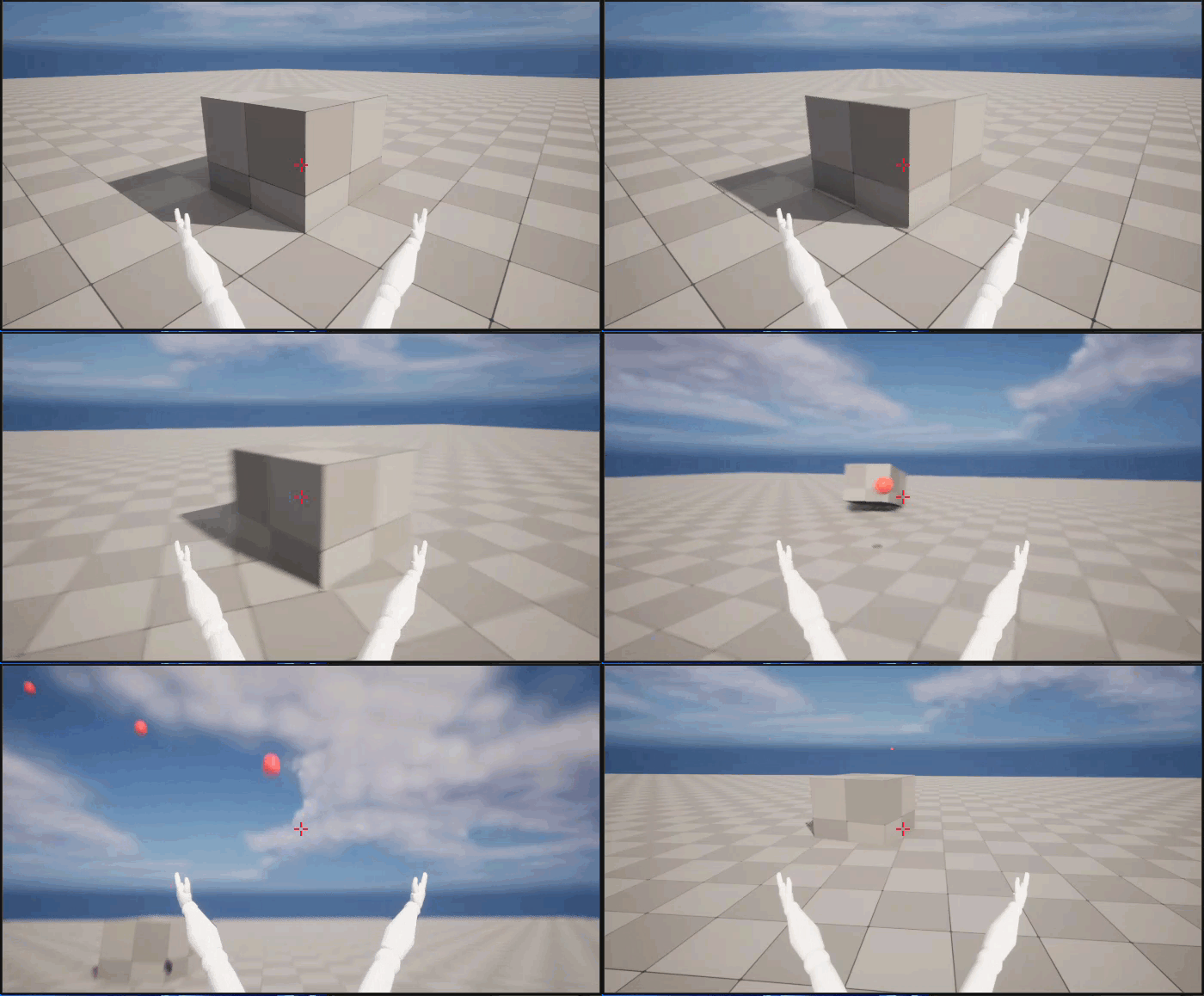
This is what you'll see at the end of this section.
Goals
The purpose of this section is to show you how to implement projectiles for your First Person Shooter game.
Objectives
By the end of this section of the tutorial, you'll be able to:
- Add Projectiles to Your Game
- Implement Shooting
- Set Up Projectile Collision and Lifetime
- Get Your Projectiles to Interact with the World
- Add Crosshairs to Your Viewport
Steps
- 3.1 - Adding Projectiles to Your Game
- 3.2 - Implementing Shooting
- 3.3 - Setting Up Projectile Collision and Lifetime
- 3.4 - Getting Projectiles to Interact with the World
- 3.5 - Adding Crosshairs to Your Viewport
3.1 - Adding Projectiles to your Game
Now that you have set up your character, it's time to implement a projectile weapon. You are going to program a simple grenade-like projectile to shoot from the center of the screen and fly until it collides with the world. During this step, you are going to add input and create a new code class for our projectile.
Adding Fire Action Mapping
-
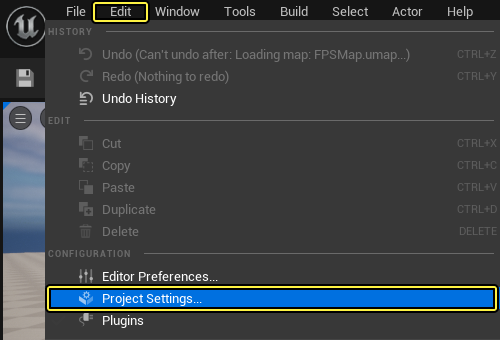
Click the Edit in the Main menu panel, select Project Settings.
-
Under the Engine heading on the left side of the Project Settings tab, click Input.
-
Under the Bindings on the right side, click the (+) sign next to Action Mappings.
-
Click the arrow to the left of Action Mappings.
-
Type Fire into the text field that appears.
-
In the dropdown menu, select Left Mouse Button from the Mouse dropdown list.
-
Your input settings should now look like the following:
Click for full image.
-
Close the Project Settings menu.
Adding a Projectile Class
-
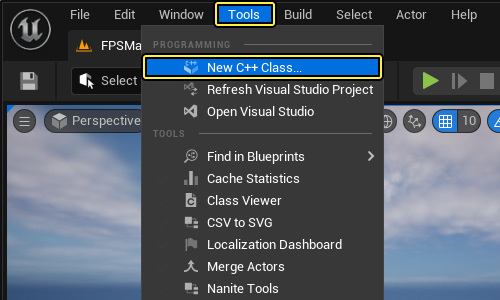
Click the Tools in the Main menu panel, select New C++ Class....
-
The Choose Parent Class window appears. Select Actor as the parent class, and click Next.
Click for full image.
-
Name the new class FPSProjectile, then click Create Class.
Click for full image.
Adding a USphere Component
-
The Visual Studio appears automatically with opened
FPSProjectile.hheader file andFPSProjectile.cppimplementation file, when C++ class will be created. -
Navigate to the
FPSProjectile.hclass header file. -
Add the SphereComponent header file:
FPSProjectile.h
#include "Components/SphereComponent.h" -
For adding a reference to a
USphereComponentin theFPSProjectileinterface, add following code to theFPSProjectile.hunderpublicaccess specifier:FPSProjectile.h
// Sphere collision component. UPROPERTY(VisibleDefaultsOnly, Category = Projectile) USphereComponent* CollisionComponent; -
FPSProjectile.hshould now look like the following:FPSProjectile.h
// Copyright Epic Games, Inc. All Rights Reserved. #pragma once #include "CoreMinimal.h" #include "GameFramework/Actor.h" #include "Components/SphereComponent.h" #include "FPSProjectile.generated.h" UCLASS() class FPSPROJECT_API AFPSProjectile : public AActor { GENERATED_BODY() public: // Sets default values for this actor's properties AFPSProjectile(); protected: // Called when the game starts or when spawned virtual void BeginPlay() override; public: // Called every frame virtual void Tick( float DeltaTime ) override; // Sphere collision component UPROPERTY(VisibleDefaultsOnly, Category = Projectile) USphereComponent* CollisionComponent; }; -
Navigate to the
FPSProjectile.cppclass implementation file. -
Add the following code to the
AFPSProjectileconstructor (afterPrimaryActorTick.bcanEverTick) inFPSProjectile.cpp:FPSProjectile.cpp
if(!RootComponent) { RootComponent = CreateDefaultSubobject<USceneComponent>(TEXT("ProjectileSceneComponent")); } if(!CollisionComponent) { // Use a sphere as a simple collision representation. CollisionComponent = CreateDefaultSubobject<USphereComponent>(TEXT("SphereComponent")); // Set the sphere's collision radius. CollisionComponent->InitSphereRadius(15.0f); // Set the root component to be the collision component. RootComponent = CollisionComponent; }You are making
CollisionComponentaRootComponentsince the simulation will drive it. -
FPSProjectile.cppshould now look like the following:FPSProjectile.cpp
// Copyright Epic Games, Inc. All Rights Reserved. #include "FPSProjectile.h" // Sets default values AFPSProjectile::AFPSProjectile() { // Set this actor to call Tick() every frame. You can turn this off to improve performance if you don't need it. PrimaryActorTick.bCanEverTick = true; if(!RootComponent) { RootComponent = CreateDefaultSubobject<USceneComponent>(TEXT("ProjectileSceneComponent")); } if(!CollisionComponent) { // Use a sphere as a simple collision representation. CollisionComponent = CreateDefaultSubobject<USphereComponent>(TEXT("SphereComponent")); // Set the sphere's collision radius. CollisionComponent->InitSphereRadius(15.0f); // Set the root component to be the collision component. RootComponent = CollisionComponent; } } // Called when the game starts or when spawned void AFPSProjectile::BeginPlay() { Super::BeginPlay(); } // Called every frame void AFPSProjectile::Tick( float DeltaTime ) { Super::Tick( DeltaTime ); }
Adding a Projectile Movement Component
-
Navigate to the
FPSProjectile.hclass header file. -
Add the ProjectileMovementComponent header file.
FPSProjectile.h
#include "GameFramework/ProjectileMovementComponent.h" -
Add the following code to
FPSProjectile.h, underpublicaccess specifier:FPSProjectile.h
// Projectile movement component. UPROPERTY(VisibleAnywhere, Category = Movement) UProjectileMovementComponent* ProjectileMovementComponent; -
FPSProjectile.hshould now look like the following:FPSProjectile.h
// Copyright Epic Games, Inc. All Rights Reserved. #pragma once #include "CoreMinimal.h" #include "GameFramework/Actor.h" #include "Components/SphereComponent.h" #include "GameFramework/ProjectileMovementComponent.h" #include "FPSProjectile.generated.h" UCLASS() class FPSPROJECT_API AFPSProjectile : public AActor { GENERATED_BODY() public: // Sets default values for this actor's properties AFPSProjectile(); protected: // Called when the game starts or when spawned virtual void BeginPlay() override; public: // Called every frame virtual void Tick( float DeltaTime ) override; // Sphere collision component. UPROPERTY(VisibleDefaultsOnly, Category = Projectile) USphereComponent* CollisionComponent; // Projectile movement component. UPROPERTY(VisibleAnywhere, Category = Movement) UProjectileMovementComponent* ProjectileMovementComponent; }; -
Navigate to the
FPSProjectile.cppclass implementation file. -
Add the following lines of code to the
AFPSProjectileconstructor inFPSProjectile.cpp:FPSProjectile.cpp
if(!ProjectileMovementComponent) { // Use this component to drive this projectile's movement. ProjectileMovementComponent = CreateDefaultSubobject<UProjectileMovementComponent>(TEXT("ProjectileMovementComponent")); ProjectileMovementComponent->SetUpdatedComponent(CollisionComponent); ProjectileMovementComponent->InitialSpeed = 3000.0f; ProjectileMovementComponent->MaxSpeed = 3000.0f; ProjectileMovementComponent->bRotationFollowsVelocity = true; ProjectileMovementComponent->bShouldBounce = true; ProjectileMovementComponent->Bounciness = 0.3f; ProjectileMovementComponent->ProjectileGravityScale = 0.0f; } -
FPSProjectile.cppshould now look like the following:FPSProjectile.cpp
// Copyright Epic Games, Inc. All Rights Reserved. #include "FPSProjectile.h" // Sets default values AFPSProjectile::AFPSProjectile() { // Set this actor to call Tick() every frame. You can turn this off to improve performance if you don't need it. PrimaryActorTick.bCanEverTick = true; if(!RootComponent) { RootComponent = CreateDefaultSubobject<USceneComponent>(TEXT("ProjectileSceneComponent")); } if(!CollisionComponent) { // Use a sphere as a simple collision representation. CollisionComponent = CreateDefaultSubobject<USphereComponent>(TEXT("SphereComponent")); // Set the sphere's collision radius. CollisionComponent->InitSphereRadius(15.0f); // Set the root component to be the collision component. RootComponent = CollisionComponent; } if(!ProjectileMovementComponent) { // Use this component to drive this projectile's movement. ProjectileMovementComponent = CreateDefaultSubobject<UProjectileMovementComponent>(TEXT("ProjectileMovementComponent")); ProjectileMovementComponent->SetUpdatedComponent(CollisionComponent); ProjectileMovementComponent->InitialSpeed = 3000.0f; ProjectileMovementComponent->MaxSpeed = 3000.0f; ProjectileMovementComponent->bRotationFollowsVelocity = true; ProjectileMovementComponent->bShouldBounce = true; ProjectileMovementComponent->Bounciness = 0.3f; ProjectileMovementComponent->ProjectileGravityScale = 0.0f; } } // Called when the game starts or when spawned void AFPSProjectile::BeginPlay() { Super::BeginPlay(); } // Called every frame void AFPSProjectile::Tick( float DeltaTime ) { Super::Tick( DeltaTime ); }
Setting the Projectile's Initial Velocity
-
Navigate to the
FPSProjectile.hclass header file. -
Add the following function declaration in
FPSProjectile.h, underpublicaccess specifier:FPSProjectile.h
// Function that initializes the projectile's velocity in the shoot direction. void FireInDirection(const FVector& ShootDirection);This function will be responsible for launching the projectile.
-
FPSProjectile.hshould now look like the following:FPSProjectile.h
~~~ // Copyright Epic Games, Inc. All Rights Reserved.
#pragma once
#include "CoreMinimal.h" #include "GameFramework/Actor.h" #include "Components/SphereComponent.h" #include "GameFramework/ProjectileMovementComponent.h" #include "FPSProjectile.generated.h"
UCLASS() class FPSPROJECT_API AFPSProjectile : public AActor { GENERATED_BODY()
public: // Sets default values for this actor's properties AFPSProjectile();
protected: // Called when the game starts or when spawned virtual void BeginPlay() override;
public: // Called every frame virtual void Tick( float DeltaTime ) override;
// Sphere collision component. UPROPERTY(VisibleDefaultsOnly, Category = Projectile) USphereComponent* CollisionComponent;
// Projectile movement component. UPROPERTY(VisibleAnywhere, Category = Movement) UProjectileMovementComponent* ProjectileMovementComponent;
// Function that initializes the projectile's velocity in the shoot direction. void FireInDirection(const FVector& ShootDirection); }; ~~~
-
Navigate to the
FPSProjectile.cppclass implementation file. -
Add the following function definition to
FPSProjectile.cpp:FPSProjectile.cpp
// Function that initializes the projectile's velocity in the shoot direction. void AFPSProjectile::FireInDirection(const FVector& ShootDirection) { ProjectileMovementComponent->Velocity = ShootDirection * ProjectileMovementComponent->InitialSpeed; }You only needed to supply a launch direction because the projectile's speed is defined by
ProjectileMovementComponent. -
FPSProjectile.cppshould now look like the following:FPSProjectile.cpp
// Copyright Epic Games, Inc. All Rights Reserved. #include "FPSProjectile.h" // Sets default values AFPSProjectile::AFPSProjectile() { // Set this actor to call Tick() every frame. You can turn this off to improve performance if you don't need it. PrimaryActorTick.bCanEverTick = true; if(!RootComponent) { RootComponent = CreateDefaultSubobject<USceneComponent>(TEXT("ProjectileSceneComponent")); } if (!CollisionComponent) { // Use a sphere as a simple collision representation. CollisionComponent = CreateDefaultSubobject<USphereComponent>(TEXT("SphereComponent")); // Set the sphere's collision radius. CollisionComponent->InitSphereRadius(15.0f); // Set the root component to be the collision component. RootComponent = CollisionComponent; } if(!ProjectileMovementComponent) { // Use this component to drive this projectile's movement. ProjectileMovementComponent = CreateDefaultSubobject<UProjectileMovementComponent>(TEXT("ProjectileMovementComponent")); ProjectileMovementComponent->SetUpdatedComponent(CollisionComponent); ProjectileMovementComponent->InitialSpeed = 3000.0f; ProjectileMovementComponent->MaxSpeed = 3000.0f; ProjectileMovementComponent->bRotationFollowsVelocity = true; ProjectileMovementComponent->bShouldBounce = true; ProjectileMovementComponent->Bounciness = 0.3f; ProjectileMovementComponent->ProjectileGravityScale = 0.0f; } } // Called when the game starts or when spawned void AFPSProjectile::BeginPlay() { Super::BeginPlay(); } // Called every frame void AFPSProjectile::Tick( float DeltaTime ) { Super::Tick( DeltaTime ); } // Function that initializes the projectile's velocity in the shoot direction. void AFPSProjectile::FireInDirection(const FVector& ShootDirection) { ProjectileMovementComponent->Velocity = ShootDirection * ProjectileMovementComponent->InitialSpeed; }
Binding the Fire Input Action
-
Navigate to the Solution Explorer in the Visual Studio and open the
FPSCharacter.hclass header file. -
Add the following function declaration in
FPSCharacter.h, underpublicaccess specifier:FPSCharacter.h
// Function that handles firing projectiles. UFUNCTION() void Fire(); -
FPSCharacter.hshould now look like the following:FPSCharacter.h
// Copyright Epic Games, Inc. All Rights Reserved. #pragma once #include "CoreMinimal.h" #include "GameFramework/Character.h" #include "Camera/CameraComponent.h" #include "Components/CapsuleComponent.h" #include "FPSCharacter.generated.h" UCLASS() class FPSPROJECT_API AFPSCharacter : public ACharacter { GENERATED_BODY() public: // Sets default values for this character's properties AFPSCharacter(); protected: // Called when the game starts or when spawned virtual void BeginPlay() override; public: // Called every frame virtual void Tick( float DeltaTime ) override; // Called to bind functionality to input virtual void SetupPlayerInputComponent(class UInputComponent* PlayerInputComponent) override; // Handles input for moving forward and backward. UFUNCTION() void MoveForward(float Value); // Handles input for moving right and left. UFUNCTION() void MoveRight(float Value); // Sets jump flag when key is pressed. UFUNCTION() void StartJump(); // Clears jump flag when key is released. UFUNCTION() void StopJump(); // FPS camera UPROPERTY(VisibleAnywhere) UCameraComponent* FPSCameraComponent; // First-person mesh (arms), visible only to the owning player. UPROPERTY(VisibleDefaultsOnly, Category = Mesh) USkeletalMeshComponent* FPSMesh; // Function that handles firing projectiles. UFUNCTION() void Fire(); }; -
Navigate to the Solution Explorer in the Visual Studio and open the
FPSCharacter.cppclass implementation file. -
To bind the
Firefunction, add the following code to theSetupPlayerInputComponentfunction inFPSCharacter.cpp:FPSCharacter.cpp
PlayerInputComponent->BindAction("Fire", IE_Pressed, this, &AFPSCharacter::Fire); -
Add the following function definition to
FPSCharacter.cpp:FPSCharacter.cpp
void AFPSCharacter::Fire() { } -
FPSCharacter.cppshould now look like the following:FPSCharacter.cpp
// Copyright Epic Games, Inc. All Rights Reserved. #include "FPSCharacter.h" // Sets default values AFPSCharacter::AFPSCharacter() { // Set this character to call Tick() every frame. You can turn this off to improve performance if you don't need it. PrimaryActorTick.bCanEverTick = true; // Create a first person camera component. FPSCameraComponent = CreateDefaultSubobject<UCameraComponent>(TEXT("FirstPersonCamera")); check(FPSCameraComponent != nullptr); // Attach the camera component to our capsule component. FPSCameraComponent->SetupAttachment(CastChecked<USceneComponent, UCapsuleComponent>(GetCapsuleComponent())); // Position the camera slightly above the eyes. FPSCameraComponent->SetRelativeLocation(FVector(0.0f, 0.0f, 50.0f + BaseEyeHeight)); // Enable the pawn to control camera rotation. FPSCameraComponent->bUsePawnControlRotation = true; // Create a first person mesh component for the owning player. FPSMesh = CreateDefaultSubobject<USkeletalMeshComponent>(TEXT("FirstPersonMesh")); check(FPSMesh != nullptr); // Only the owning player sees this mesh. FPSMesh->SetOnlyOwnerSee(true); // Attach the FPS mesh to the FPS camera. FPSMesh->SetupAttachment(FPSCameraComponent); // Disable some environmental shadowing to preserve the illusion of having a single mesh. FPSMesh->bCastDynamicShadow = false; FPSMesh->CastShadow = false; // The owning player doesn't see the regular (third-person) body mesh. GetMesh()->SetOwnerNoSee(true); } // Called when the game starts or when spawned void AFPSCharacter::BeginPlay() { Super::BeginPlay(); check(GEngine != nullptr); // Display a debug message for five seconds. // The -1 "Key" value argument prevents the message from being updated or refreshed. GEngine->AddOnScreenDebugMessage(-1, 5.0f, FColor::Red, TEXT("We are using FPSCharacter.")); } // Called every frame void AFPSCharacter::Tick( float DeltaTime ) { Super::Tick( DeltaTime ); } // Called to bind functionality to input void AFPSCharacter::SetupPlayerInputComponent(class UInputComponent* PlayerInputComponent) { Super::SetupPlayerInputComponent(PlayerInputComponent); // Set up "movement" bindings. PlayerInputComponent->BindAxis("MoveForward", this, &AFPSCharacter::MoveForward); PlayerInputComponent->BindAxis("MoveRight", this, &AFPSCharacter::MoveRight); // Set up "look" bindings. PlayerInputComponent->BindAxis("Turn", this, &AFPSCharacter::AddControllerYawInput); PlayerInputComponent->BindAxis("LookUp", this, &AFPSCharacter::AddControllerPitchInput); // Set up "action" bindings. PlayerInputComponent->BindAction("Jump", IE_Pressed, this, &AFPSCharacter::StartJump); PlayerInputComponent->BindAction("Jump", IE_Released, this, &AFPSCharacter::StopJump); PlayerInputComponent->BindAction("Fire", IE_Pressed, this, &AFPSCharacter::Fire); } void AFPSCharacter::MoveForward(float Value) { // Find out which way is "forward" and record that the player wants to move that way. FVector Direction = FRotationMatrix(Controller->GetControlRotation()).GetScaledAxis(EAxis::X); AddMovementInput(Direction, Value); } void AFPSCharacter::MoveRight(float Value) { // Find out which way is "right" and record that the player wants to move that way. FVector Direction = FRotationMatrix(Controller->GetControlRotation()).GetScaledAxis(EAxis::Y); AddMovementInput(Direction, Value); } void AFPSCharacter::StartJump() { bPressedJump = true; } void AFPSCharacter::StopJump() { bPressedJump = false; } void AFPSCharacter::Fire() { }
Defining the Projectile's Spawn Location
-
When spawning the
FPSProjectileactor, there are two points to consider when implementing theOnFirefunction, namely:- Where to spawn the projectile.
- The projectile class (so that
FPSCharacterand its derived Blueprint know what projectile to spawn).
You are going to use a camera-space offset vector to determine the projectile's spawn location. You will make this parameter editable so that you can set and tweak it in your
BP_FPSCharacterBlueprint. Ultimately, you'll be able to calculate an initial location for the projectile based on this data. -
Navigate to the
FPSCharacter.hclass header file. -
Add the following code to
FPSCharacter.h, underpublicaccess specifier:FPSCharacter.h
// Gun muzzle offset from the camera location. UPROPERTY(EditAnywhere, BlueprintReadWrite, Category = Gameplay) FVector MuzzleOffset;EditAnywhereenables you to change the value of the muzzle offset within the Defaults mode of the Blueprint Editor or within the Details tab for any instance of the character. TheBlueprintReadWritespecifier enables you to get and set the value of the muzzle offset within a Blueprint. -
Add the following code to
FPSCharacter.hunder theprotectedaccess specifier:FPSCharacter.h
protected: // Projectile class to spawn. UPROPERTY(EditDefaultsOnly, Category = Projectile) TSubclassOf<class AFPSProjectile> ProjectileClass;EditDefaultsOnlymeans that you will only be able to set the projectile class as a default on the Blueprint, not on each instance of the Blueprint. -
FPSCharacter.hshould look like the following:FPSCharacter.h
~~~ // Copyright Epic Games, Inc. All Rights Reserved.
#pragma once
#include "CoreMinimal.h" #include "GameFramework/Character.h" #include "Camera/CameraComponent.h" #include "Components/CapsuleComponent.h" #include "FPSCharacter.generated.h"
UCLASS() class FPSPROJECT_API AFPSCharacter : public ACharacter { GENERATED_BODY()
public: // Sets default values for this character's properties AFPSCharacter();
protected: // Called when the game starts or when spawned virtual void BeginPlay() override;
// Projectile class to spawn. UPROPERTY(EditDefaultsOnly, Category = Projectile) TSubclassOf
ProjectileClass; public: // Called every frame virtual void Tick( float DeltaTime ) override;
// Called to bind functionality to input virtual void SetupPlayerInputComponent(class UInputComponent* PlayerInputComponent) override;
// Handles input for moving forward and backward. UFUNCTION() void MoveForward(float Value);
// Handles input for moving right and left. UFUNCTION() void MoveRight(float Value);
// Sets jump flag when key is pressed. UFUNCTION() void StartJump();
// Clears jump flag when key is released. UFUNCTION() void StopJump();
// Function that fires projectiles. UFUNCTION() void Fire();
// FPS camera UPROPERTY(VisibleAnywhere) UCameraComponent* FPSCameraComponent;
// First-person mesh (arms), visible only to the owning player. UPROPERTY(VisibleDefaultsOnly, Category = Mesh) USkeletalMeshComponent* FPSMesh;
// Gun muzzle offset from the camera location. UPROPERTY(EditAnywhere, BlueprintReadWrite, Category = Gameplay) FVector MuzzleOffset; }; ~~~
Compiling and Checking Your Code
It is now time to compile and check your newly implemented projectile code.
-
Save all of your header and implementation files in Visual Studio.
-
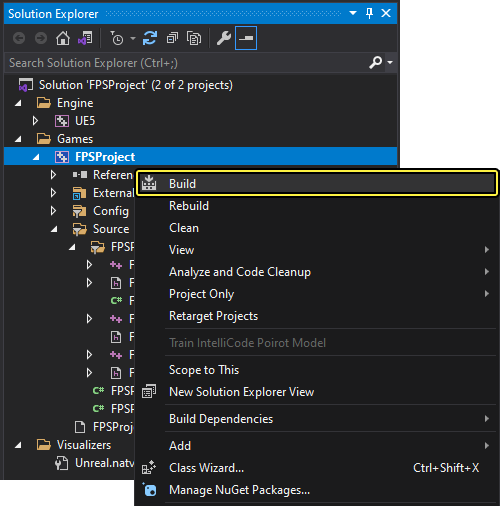
Navigate to the Solution Explorer and select FPSProject.
-
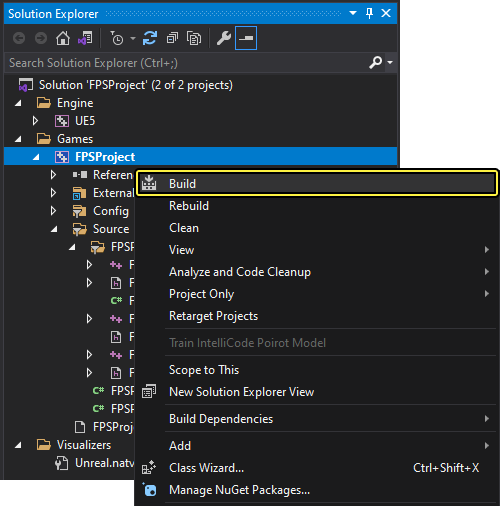
Right-click on FPSProject and select Build to compile your project.
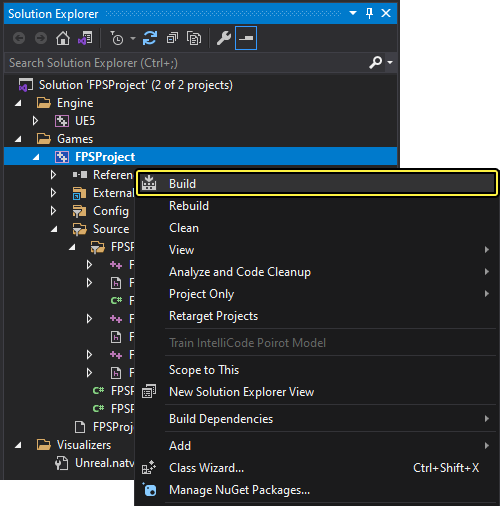
The purpose of this step is to catch any build errors before moving onto the next step. If you encounter any build errors or warnings outside the scope of this tutorial, refer to and the Unreal Engine API Reference.
3.2 - Implementing Shooting
Learn how to implement shooting for your First Person Shooter character.
Implementing the Fire Function
-
Navigate to the
FPSCharacter.hclass header file. -
Add the following line to
FPSCharacter.h.FPSCharacter.h
#include "FPSProjectile.h" -
Navigate to the
FPSCharacter.cppclass implementation file. -
Add the following
Firefunction definition toFPSCharacter.cpp:FPSCharacter.cpp
void AFPSCharacter::Fire() { // Attempt to fire a projectile. if (ProjectileClass) { // Get the camera transform. FVector CameraLocation; FRotator CameraRotation; GetActorEyesViewPoint(CameraLocation, CameraRotation); // Set MuzzleOffset to spawn projectiles slightly in front of the camera. MuzzleOffset.Set(100.0f, 0.0f, 0.0f); // Transform MuzzleOffset from camera space to world space. FVector MuzzleLocation = CameraLocation + FTransform(CameraRotation).TransformVector(MuzzleOffset); // Skew the aim to be slightly upwards. FRotator MuzzleRotation = CameraRotation; MuzzleRotation.Pitch += 10.0f; UWorld* World = GetWorld(); if (World) { FActorSpawnParameters SpawnParams; SpawnParams.Owner = this; SpawnParams.Instigator = GetInstigator(); // Spawn the projectile at the muzzle. AFPSProjectile* Projectile = World->SpawnActor<AFPSProjectile>(ProjectileClass, MuzzleLocation, MuzzleRotation, SpawnParams); if (Projectile) { // Set the projectile's initial trajectory. FVector LaunchDirection = MuzzleRotation.Vector(); Projectile->FireInDirection(LaunchDirection); } } } } -
FPSCharacter.hshould now look like the following:FPSCharacter.h
// Copyright Epic Games, Inc. All Rights Reserved. #pragma once #include "CoreMinimal.h" #include "GameFramework/Character.h" #include "Camera/CameraComponent.h" #include "Components/CapsuleComponent.h" #include "FPSProjectile.h" #include "FPSCharacter.generated.h" UCLASS() class FPSPROJECT_API AFPSCharacter : public ACharacter { GENERATED_BODY() public: // Sets default values for this character's properties AFPSCharacter(); protected: // Called when the game starts or when spawned virtual void BeginPlay() override; // Projectile class to spawn. UPROPERTY(EditAnywhere, Category = Projectile) TSubclassOf<class AFPSProjectile> ProjectileClass; public: // Called every frame virtual void Tick(float DeltaTime) override; // Called to bind functionality to input virtual void SetupPlayerInputComponent(class UIComponent* PlayerInputComponent) override; // Handles input for moving forward and backward. UFUNCTION() void MoveForward(float Value); // Handles input for moving right and left. UFUNCTION() void MoveRight(float Value); // Sets jump flag when key is pressed. UFUNCTION() void StartJump(); // Clears jump flag when key is released. UFUNCTION() void StopJump(); // FPS camera UPROPERTY(VisibleAnywhere) UCameraComponent* FPSCameraComponent; // First-person mesh (arms), visible only to the owning player. UPROPERTY(VisibleDefaultsOnly, Category = Mesh) USkeletalMeshComponent* FPSMesh; // Function that fires projectiles. UFUNCTION() void Fire(); // Gun muzzle offset from the camera location. UPROPERTY(EditAnywhere, BlueprintReadWrite, Category = Gameplay) FVector MuzzleOffset; }; -
FPSCharacter.cppshould now look like the following:FPSCharacter.cpp
// Copyright Epic Games, Inc. All Rights Reserved. #include "FPSCharacter.h" // Sets default values AFPSCharacter::AFPSCharacter() { // Set this character to call Tick() every frame. You can turn this off to improve performance if you don't need it. PrimaryActorTick.bCanEverTick = true; // Create a first person camera component. FPSCameraComponent = CreateDefaultSubobject<UCameraComponent>(TEXT("FirstPersonCamera")); check(FPSCameraComponent != nullptr); // Attach the camera component to our capsule component. FPSCameraComponent->SetupAttachment(CastChecked<USceneComponent, UCapsuleComponent>(GetCapsuleComponent())); // Position the camera slightly above the eyes. FPSCameraComponent->SetRelativeLocation(FVector(0.0f, 0.0f, 50.0f + BaseEyeHeight)); // Enable the Pawn to control camera rotation. FPSCameraComponent->bUsePawnControlRotation = true; // Create a first person mesh component for the owning player. FPSMesh = CreateDefaultSubobject<USkeletalMeshComponent>(TEXT("FirstPersonMesh")); check(FPSMesh != nullptr); // Only the owning player sees this mesh. FPSMesh->SetOnlyOwnerSee(true); // Attach the FPS mesh to the FPS camera. FPSMesh->SetupAttachment(FPSCameraComponent); // Disable some environmental shadowing to preserve the illusion of having a single mesh. FPSMesh->bCastDynamicShadow = false; FPSMesh->CastShadow = false; // The owning player doesn't see the regular (third-person) body mesh. GetMesh()->SetOwnerNoSee(true); } // Called when the game starts or when spawned void AFPSCharacter::BeginPlay() { Super::BeginPlay(); check(GEngine != nullptr); // Display a debug message for five seconds. // The -1 "Key" value argument prevents the message from being updated or refreshed. GEngine->AddOnScreenDebugMessage(-1, 5.0f, FColor::Red, TEXT("We are using FPSCharacter.")); } // Called every frame void AFPSCharacter::Tick(float DeltaTime) { Super::Tick( DeltaTime ); } // Called to bind functionality to input void AFPSCharacter::SetupPlayerInputComponent(UInputComponent* PlayerInputComponent) { Super::SetupPlayerInputComponent(PlayerInputComponent); // Set up "movement" bindings. PlayerInputComponent->BindAxis("MoveForward", this, &AFPSCharacter::MoveForward); PlayerInputComponent->BindAxis("MoveRight", this, &AFPSCharacter::MoveRight); // Set up "look" bindings. PlayerInputComponent->BindAxis("Turn", this, &AFPSCharacter::AddControllerYawInput); PlayerInputComponent->BindAxis("LookUp", this, &AFPSCharacter::AddControllerPitchInput); // Set up "action" bindings. PlayerInputComponent->BindAction("Jump", IE_Pressed, this, &AFPSCharacter::StartJump); PlayerInputComponent->BindAction("Jump", IE_Released, this, &AFPSCharacter::StopJump); PlayerInputComponent->BindAction("Fire", IE_Pressed, this, &AFPSCharacter::Fire); } void AFPSCharacter::MoveForward(float Value) { // Find out which way is "forward" and record that the player wants to move that way. FVector Direction = FRotationMatrix(Controller->GetControlRotation()).GetScaledAxis(EAxis::X); AddMovementInput(Direction, Value); } void AFPSCharacter::MoveRight(float Value) { // Find out which way is "right" and record that the player wants to move that way. FVector Direction = FRotationMatrix(Controller->GetControlRotation()).GetScaledAxis(EAxis::Y); AddMovementInput(Direction, Value); } void AFPSCharacter::StartJump() { bPressedJump = true; } void AFPSCharacter::StopJump() { bPressedJump = false; } void AFPSCharacter::Fire() { // Attempt to fire a projectile. if (ProjectileClass) { // Get the camera transform. FVector CameraLocation; FRotator CameraRotation; GetActorEyesViewPoint(CameraLocation, CameraRotation); // Set MuzzleOffset to spawn projectiles slightly in front of the camera. MuzzleOffset.Set(100.0f, 0.0f, 0.0f); // Transform MuzzleOffset from camera space to world space. FVector MuzzleLocation = CameraLocation + FTransform(CameraRotation).TransformVector(MuzzleOffset); // Skew the aim to be slightly upwards. FRotator MuzzleRotation = CameraRotation; MuzzleRotation.Pitch += 10.0f; UWorld* World = GetWorld(); if (World) { FActorSpawnParameters SpawnParams; SpawnParams.Owner = this; SpawnParams.Instigator = GetInstigator(); // Spawn the projectile at the muzzle. AFPSProjectile* Projectile = World->SpawnActor<AFPSProjectile>(ProjectileClass, MuzzleLocation, MuzzleRotation, SpawnParams); if (Projectile) { // Set the projectile's initial trajectory. FVector LaunchDirection = MuzzleRotation.Vector(); Projectile->FireInDirection(LaunchDirection); } } } } -
Save
FPSCharacter.handFPSCharacter.cppin Visual Studio. -
Navigate to the Solution Explorer and select FPSProject.
-
Right-click on FPSProject and select Build to compile your project.
Importing the Projectile Mesh
Before continuing, download and extract the sample mesh from the following link:
-
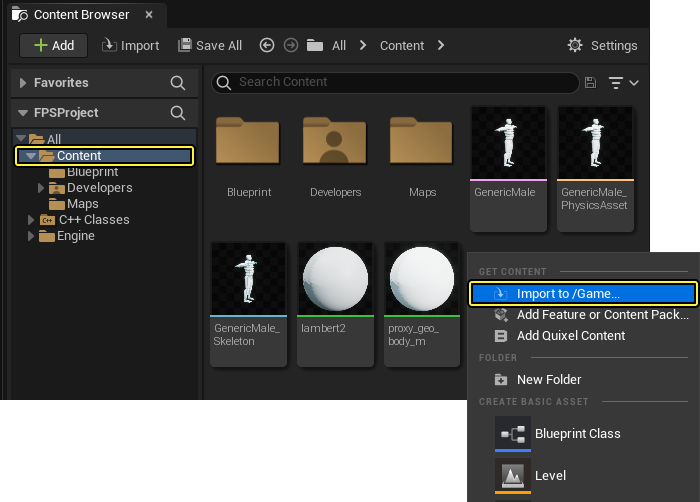
Open Unreal Engine, navigate to the Content Browser and open the Content folder.
-
Right-click inside the file window of the Content Browser to open the Import Asset dialog window.
Although we cover right-click import, there are three methods to import content. For information about how to import content see Importing Assets Directly:
-
Click Import to /Game... to open the Import dialog window.
-
Locate and select the Sphere.fbx mesh file, where you have downloaded this file.
-
Click Open to begin importing the mesh to your project.
-
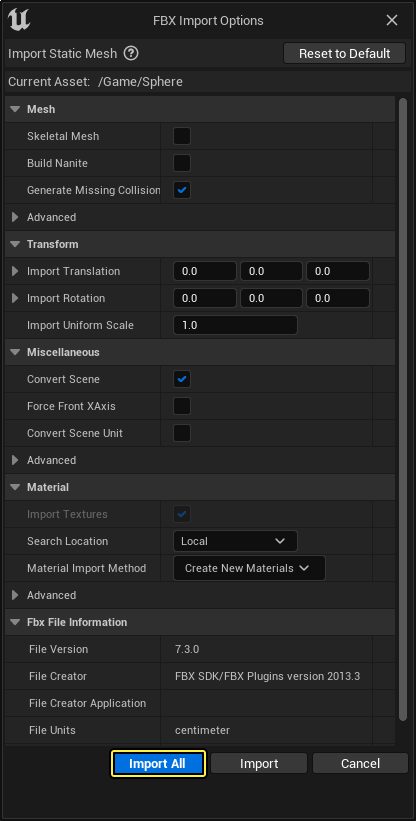
The FBX Import Options dialog window appears. Clicking Import All adds your mesh to the Project.
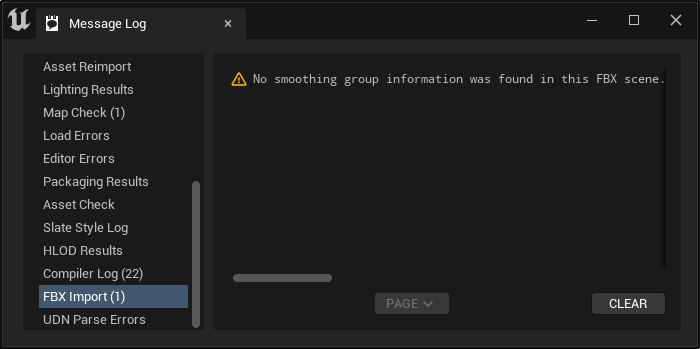
Disregard the following error regarding smoothing groups:
This mesh still illustrates the first person mesh setup and it will work with the animations you'll set-up in a later section.
-
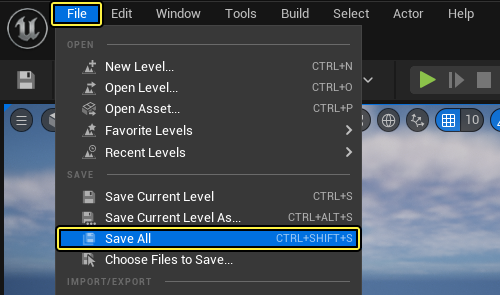
Click File in the Main menu panel, select Save all to save your imported mesh.
Adding the Projectile's Mesh
-
Open Visual Studio and navigate to the Solution Explorer.
-
In the Solution Explorer open the
FPSProjectile.hclass header file. -
Add the following code to
FPSProjectile.hunder thepublicaccess specifier:FPSProjectile.h
// Projectile mesh UPROPERTY(VisibleDefaultsOnly, Category = Projectile) UStaticMeshComponent* ProjectileMeshComponent; -
Navigate to the Solution Explorer in Visual Studio and open the
FPSProjectile.cppclass implementation file. -
Add the following code to the constructor in
FPSProjectile.cpp:FPSProjectile.cpp
if(!ProjectileMeshComponent) { ProjectileMeshComponent = CreateDefaultSubobject<UStaticMeshComponent>(TEXT("ProjectileMeshComponent")); static ConstructorHelpers::FObjectFinder<UStaticMesh>Mesh(TEXT("[ADD STATIC MESH ASSET REFERENCE]")); if(Mesh.Succeeded()) { ProjectileMeshComponent->SetStaticMesh(Mesh.Object); } } -
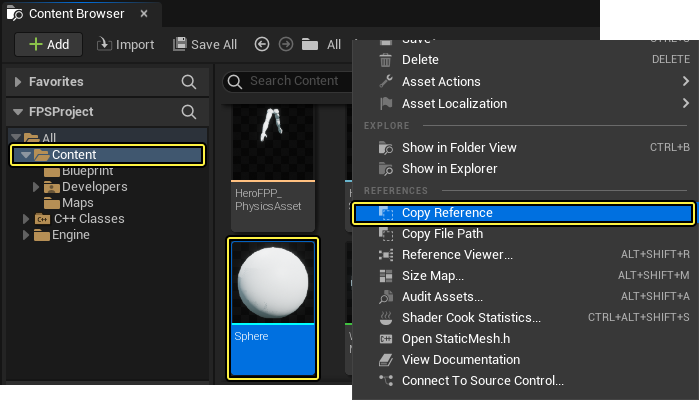
Open the Unreal Editor. navigate to the Content Browser, right-click the Sphere static mesh and select Copy Reference:
-
Open Visual Studio, go back to the
ProjectileMeshComponentcode inFPSProjectile.cppand replace[ADD STATIC MESH ASSET REFERENCE]with the copied reference. Your code should look similar to the following:FPSProjectile.cpp
if(!ProjectileMeshComponent) { ProjectileMeshComponent = CreateDefaultSubobject<UStaticMeshComponent>(TEXT("ProjectileMeshComponent")); static ConstructorHelpers::FObjectFinder<UStaticMesh>Mesh(TEXT("'/Game/Sphere.Sphere'")); if(Mesh.Succeeded()) { ProjectileMeshComponent->SetStaticMesh(Mesh.Object); } }Your asset reference path may vary depending on where you saved the Sphere mesh in the Content Browser. Also, when you paste in the copied asset reference, the reference contains the asset's type name before the asset's reference path. In your case, you will observe StaticMesh'/Game/Sphere.Sphere'. Make sure to remove the asset's type name (for example, StaticMesh) from the reference path.
-
FPSProjectile.hshould look like the following:FPSProjectile.h
// Copyright Epic Games, Inc. All Rights Reserved. #pragma once #include "CoreMinimal.h" #include "GameFramework/Actor.h" #include "Components/SphereComponent.h" #include "GameFramework/ProjectileMovementComponent.h" #include "FPSProjectile.generated.h" UCLASS() class FPSPROJECT_API AFPSProjectile : public AActor { GENERATED_BODY() public: // Sets default values for this actor's properties AFPSProjectile(); protected: // Called when the game starts or when spawned virtual void BeginPlay() override; public: // Called every frame virtual void Tick(float DeltaTime) override; // Sphere collision component UPROPERTY(VisibleDefaultsOnly, Category = Projectile) USphereComponent* CollisionComponent; // Projectile movement component UPROPERTY(VisibleAnywhere, Category = Movement) UProjectileMovementComponent* ProjectileMovementComponent; // Function that initializes the projectile's velocity in the shoot direction. void FireInDirection(const FVector& ShootDirection); // Projectile mesh UPROPERTY(VisibleDefaultsOnly, Category = Projectile) UStaticMeshComponent* ProjectileMeshComponent; }; -
FPSProjectile.cppshould look like the following:FPSProjectile.cpp
// Copyright Epic Games, Inc. All Rights Reserved. #include "FPSProjectile.h" // Sets default values AFPSProjectile::AFPSProjectile() { // Set this actor to call Tick() every frame. You can turn this off to improve performance if you don't need it. PrimaryActorTick.bCanEverTick = true; if (!RootComponent) { RootComponent = CreateDefaultSubobject<USceneComponent>(TEXT("ProjectileSceneComponent")); } if (!CollisionComponent) { // Use a sphere as a simple collision representation. CollisionComponent = CreateDefaultSubobject<USphereComponent>(TEXT("SphereComponent")); // Set the sphere's collision radius. CollisionComponent->InitSphereRadius(15.0f); // Set the root component to be the collision component. RootComponent = CollisionComponent; } if (!ProjectileMovementComponent) { // Use this component to drive this projectile's movement. ProjectileMovementComponent = CreateDefaultSubobject<UProjectileMovementComponent>(TEXT("ProjectileMovementComponent")); ProjectileMovementComponent->SetUpdatedComponent(CollisionComponent); ProjectileMovementComponent->InitialSpeed = 3000.0f; ProjectileMovementComponent->MaxSpeed = 3000.0f; ProjectileMovementComponent->bRotationFollowsVelocity = true; ProjectileMovementComponent->bShouldBounce = true; ProjectileMovementComponent->Bounciness = 0.3f; ProjectileMovementComponent->ProjectileGravityScale = 0.0f; } if (!ProjectileMeshComponent) { ProjectileMeshComponent = CreateDefaultSubobject<UStaticMeshComponent>(TEXT("ProjectileMeshComponent")); static ConstructorHelpers::FObjectFinder<UStaticMesh>Mesh(TEXT("'/Game/Sphere.Sphere'")); if (Mesh.Succeeded()) { ProjectileMeshComponent->SetStaticMesh(Mesh.Object); } } } // Called when the game starts or when spawned void AFPSProjectile::BeginPlay() { Super::BeginPlay(); } // Called every frame void AFPSProjectile::Tick(float DeltaTime) { Super::Tick(DeltaTime); } // Function that initializes the projectile's velocity in the shoot direction. void AFPSProjectile::FireInDirection(const FVector& ShootDirection) { ProjectileMovementComponent->Velocity = ShootDirection * ProjectileMovementComponent->InitialSpeed; } -
Save
FPSProjectile.handFPSProjectile.cppin Visual Studio. -
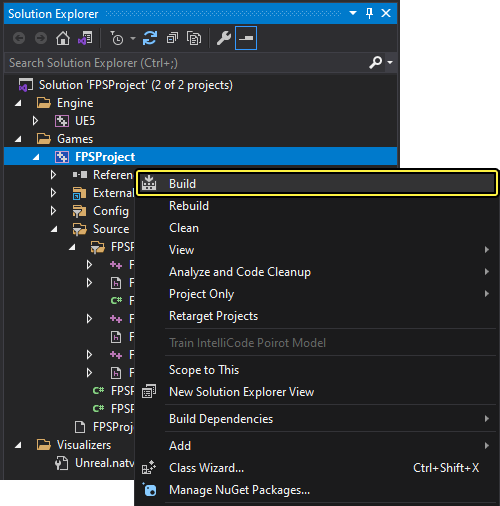
Navigate to the Solution Explorer and select FPSProject.
-
Right-click on FPSProject and select Build to compile your project.
Adding the Projectile's Material
-
In Visual Studio navigate to the
FPSProjectile.hand add the following code toFPSProjectile.hunder thepublicaccess specifier:FPSProjectile.h
// Projectile material UPROPERTY(VisibleDefaultsOnly, Category = Movement) UMaterialInstanceDynamic* ProjectileMaterialInstance; -
Navigate to the
FPSProjectile.cppand add the following code to the bottom of theif (!ProjectileMeshComponent)constructor:FPSProjectile.cpp
static ConstructorHelpers::FObjectFinder<UMaterial>Material(TEXT("[ADD MATERIAL ASSET REFERENCE]")); if (Material.Succeeded()) { ProjectileMaterialInstance = UMaterialInstanceDynamic::Create(Material.Object, ProjectileMeshComponent); } ProjectileMeshComponent->SetMaterial(0, ProjectileMaterialInstance); ProjectileMeshComponent->SetRelativeScale3D(FVector(0.09f, 0.09f, 0.09f)); ProjectileMeshComponent->SetupAttachment(RootComponent); -
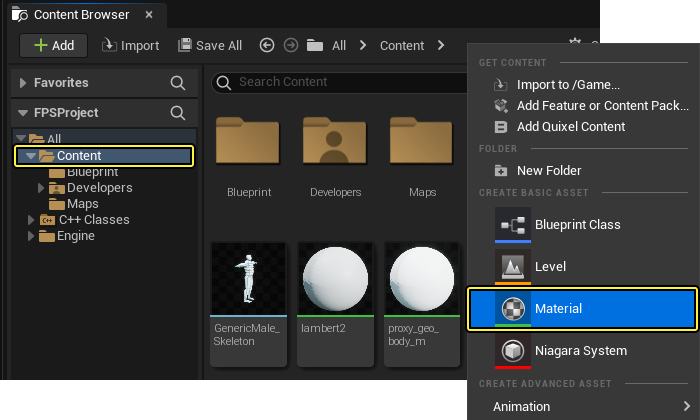
Open Unreal Engine and navigate to the Content folder of the Content Browser. Right-click in the file window of the Content Browser and select Material.
-
Name the new material SphereMaterial.
-
Set up the new material's node graph with properties similar to the following:
- Base Color: drag off Base Color pin, in the window appears search for and select the Constant3Vector node, set it to (R:1; G:0; B:0)
- Specular: drag off Specular pin, in the window appears search for and select the Constant node, set its Value to 0.5
- Emissive Color: drag off Emissive Color, in the window appears search for and select the Constant node, set its Value to 0.05
Click for full image.
During this step, you are creating a basic Material asset. If you want to learn how to make more complex materials, read how to use and make Materials.
-
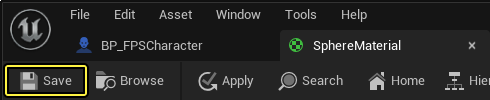
After setting up the new material's node graph, click Save, and navigate to the Content Browser.
-
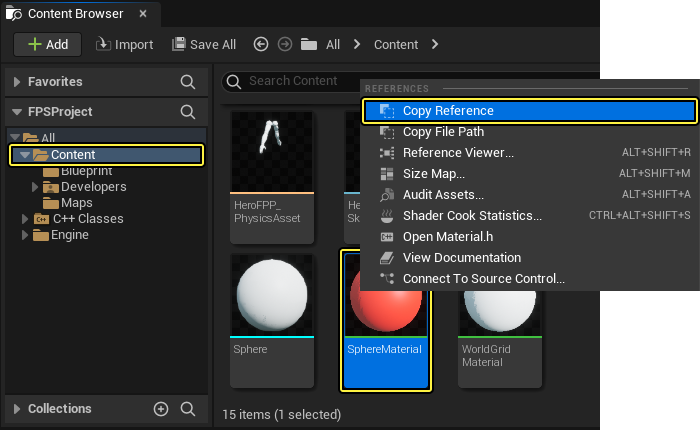
Right-click the Sphere material and select Copy Reference.
-
Go back to the
ProjectileMeshComponentcode inFPSProjectile.cppand replace[ADD MATERIAL ASSET REFERENCE]with the copied reference. Your code should look similar to the following:FPSProjectile.cpp
static ConstructorHelpers::FObjectFinder<UMaterial>Material(TEXT("'/Game/SphereMaterial.SphereMaterial'")); if (Material.Succeeded()) { ProjectileMaterialInstance = UMaterialInstanceDynamic::Create(Material.Object, ProjectileMeshComponent); } ProjectileMeshComponent->SetMaterial(0, ProjectileMaterialInstance); ProjectileMeshComponent->SetRelativeScale3D(FVector(0.09f, 0.09f, 0.09f)); ProjectileMeshComponent->SetupAttachment(RootComponent);Your asset reference path may vary depending on where you saved the Sphere material in the Content Browser. Also, when you paste in the copied asset reference, the reference contains the asset's type name before the asset's reference path. In our case, you will observe Material'/Game/Sphere.Sphere'. Make sure to remove the asset's type name (for example, Material) from the reference path.
-
FPSProjectile.hshould look like the following:FPSProjectile.h
// Copyright Epic Games, Inc. All Rights Reserved. #pragma once #include "CoreMinimal.h" #include "GameFramework/Actor.h" #include "Components/SphereComponent.h" #include "GameFramework/ProjectileMovementComponent.h" #include "FPSProjectile.generated.h" UCLASS() class FPSPROJECT_API AFPSProjectile : public AActor { GENERATED_BODY() public: // Sets default values for this actor's properties AFPSProjectile(); protected: // Called when the game starts or when spawned virtual void BeginPlay() override; public: // Called every frame virtual void Tick(float DeltaTime) override; // Sphere collision component UPROPERTY(VisibleDefaultsOnly, Category = Projectile) USphereComponent* CollisionComponent; // Projectile movement component UPROPERTY(VisibleAnywhere, Category = Movement) UProjectileMovementComponent* ProjectileMovementComponent; // Function that initializes the projectile's velocity in the shoot direction. void FireInDirection(const FVector& ShootDirection); // Projectile mesh UPROPERTY(VisibleDefaultsOnly, Category = Projectile) UStaticMeshComponent* ProjectileMeshComponent; // Projectile material UPROPERTY(VisibleDefaultsOnly, Category = Movement) UMaterialInstanceDynamic* ProjectileMaterialInstance; }; -
FPSProjectile.cppshould look like the following:FPSProjectile.cpp
// Copyright Epic Games, Inc. All Rights Reserved. #include "FPSProjectile.h" // Sets default values AFPSProjectile::AFPSProjectile() { // Set this actor to call Tick() every frame. You can turn this off to improve performance if you don't need it. PrimaryActorTick.bCanEverTick = true; if (!RootComponent) { RootComponent = CreateDefaultSubobject<USceneComponent>(TEXT("ProjectileSceneComponent")); } if (!CollisionComponent) { // Use a sphere as a simple collision representation. CollisionComponent = CreateDefaultSubobject<USphereComponent>(TEXT("SphereComponent")); // Set the sphere's collision radius. CollisionComponent->InitSphereRadius(15.0f); // Set the root component to be the collision component. RootComponent = CollisionComponent; } if (!ProjectileMovementComponent) { // Use this component to drive this projectile's movement. ProjectileMovementComponent = CreateDefaultSubobject<UProjectileMovementComponent>(TEXT("ProjectileMovementComponent")); ProjectileMovementComponent->SetUpdatedComponent(CollisionComponent); ProjectileMovementComponent->InitialSpeed = 3000.0f; ProjectileMovementComponent->MaxSpeed = 3000.0f; ProjectileMovementComponent->bRotationFollowsVelocity = true; ProjectileMovementComponent->bShouldBounce = true; ProjectileMovementComponent->Bounciness = 0.3f; ProjectileMovementComponent->ProjectileGravityScale = 0.0f; } if (!ProjectileMeshComponent) { ProjectileMeshComponent = CreateDefaultSubobject<UStaticMeshComponent>(TEXT("ProjectileMeshComponent")); static ConstructorHelpers::FObjectFinder<UStaticMesh>Mesh(TEXT("'/Game/Sphere.Sphere'")); if (Mesh.Succeeded()) { ProjectileMeshComponent->SetStaticMesh(Mesh.Object); } static ConstructorHelpers::FObjectFinder<UMaterial>Material(TEXT("'/Game/SphereMaterial.SphereMaterial'")); if (Material.Succeeded()) { ProjectileMaterialInstance = UMaterialInstanceDynamic::Create(Material.Object, ProjectileMeshComponent); } ProjectileMeshComponent->SetMaterial(0, ProjectileMaterialInstance); ProjectileMeshComponent->SetRelativeScale3D(FVector(0.09f, 0.09f, 0.09f)); ProjectileMeshComponent->SetupAttachment(RootComponent); } } // Called when the game starts or when spawned void AFPSProjectile::BeginPlay() { Super::BeginPlay(); } // Called every frame void AFPSProjectile::Tick(float DeltaTime) { Super::Tick(DeltaTime); } // Function that initializes the projectile's velocity in the shoot direction. void AFPSProjectile::FireInDirection(const FVector& ShootDirection) { ProjectileMovementComponent->Velocity = ShootDirection * ProjectileMovementComponent->InitialSpeed; } -
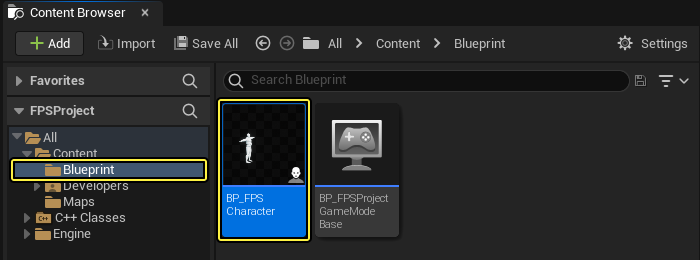
Open UE, navigate to the Blueprints folder in the Content Browser and open the BP_FPSCharacter file.
-
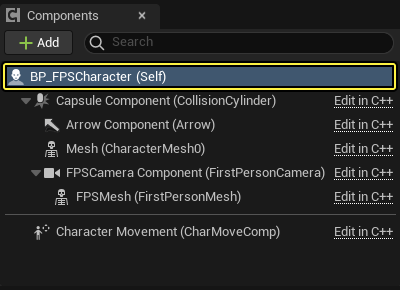
Open the Full Blueprint Editor (if necessary), navigate to Components panel and select BP_FPSCharacter (Self) component.
-
Navigate to the Detail panel in the opened Blueprint Editor.
-
Find the Projectile section, and in the dropdown next to Projectile Class, select FPSProjectile.
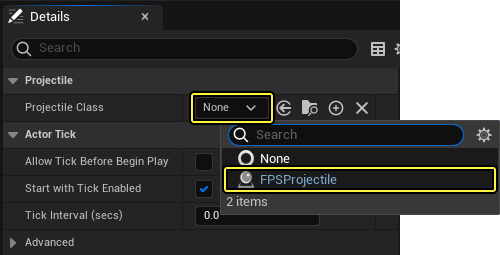
If you can't find the FPSProjectile in the opened dropdown menu, please rerun Unreal Engine.
-
Click Compile and Save buttons.
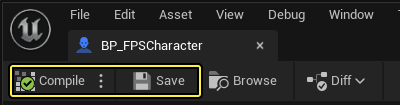
-
Open the Visual Studio, navigate to the Solution Explorer and select FPSProject.
-
Right-click on FPSProject and select Build to compile your project.
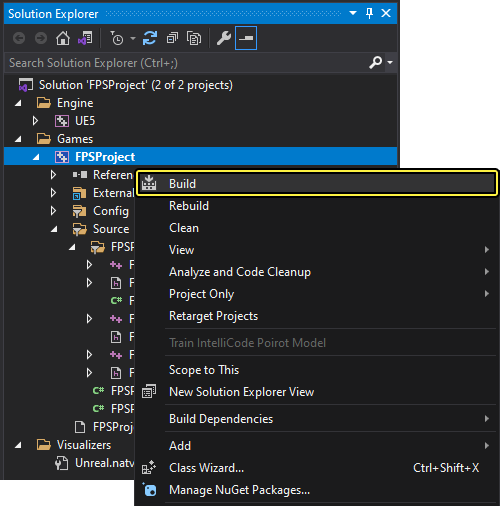
-
Run the game in PIE mode to verify that the Static Mesh and Material are being spawned in the scene.
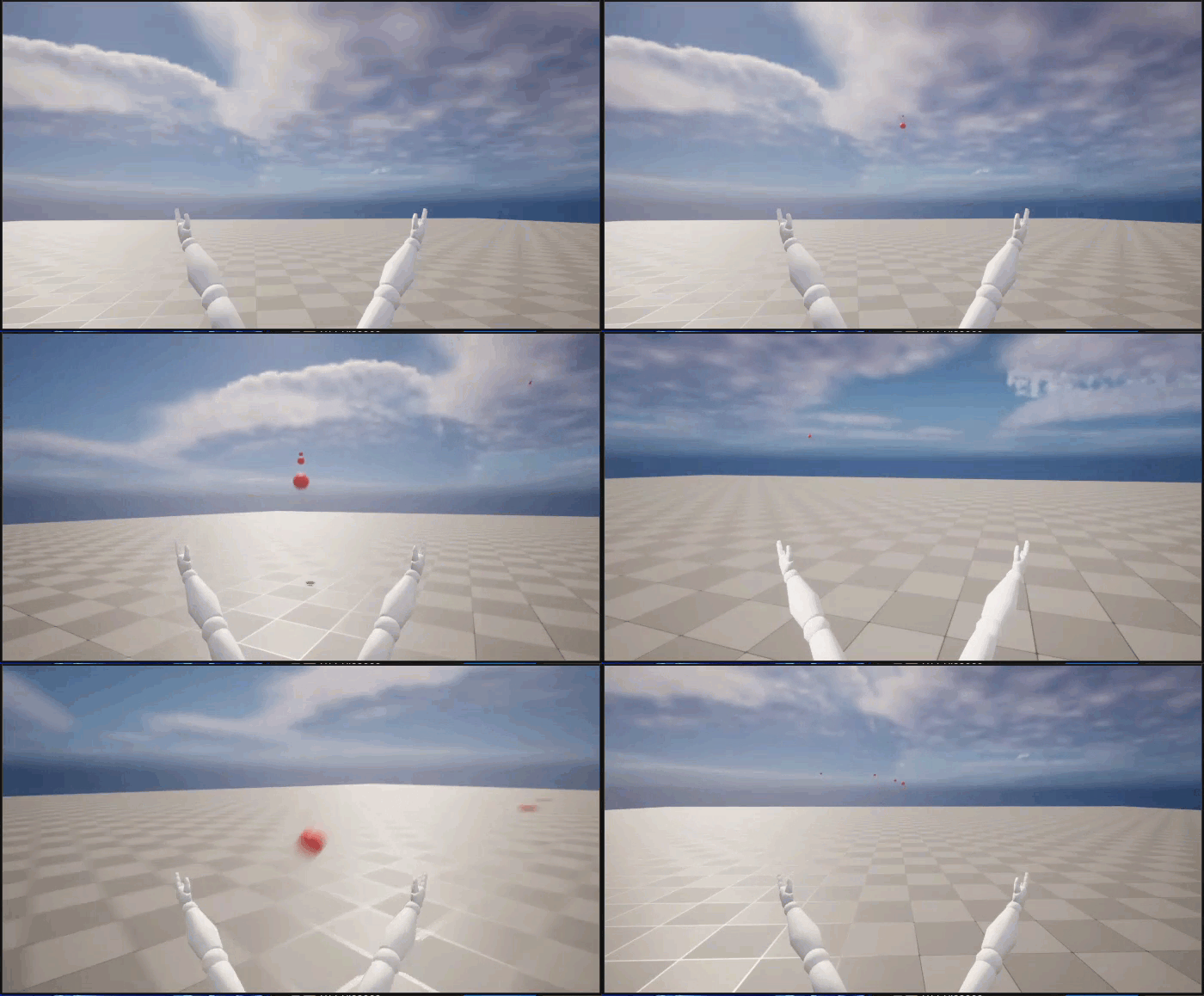
While firing the projectiles, you will observe in the Outliner that the number of projectiles keeps increasing because they have no defined lifespan.
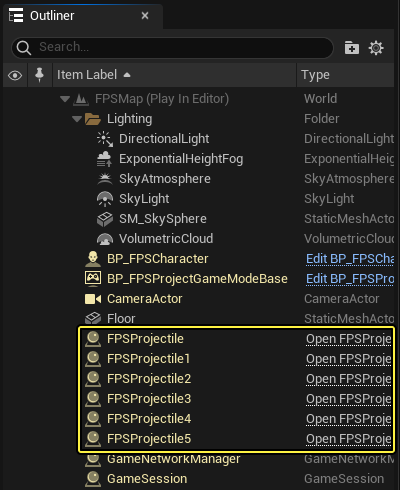
In the next section, tutorial shows you how to define the projectile's initial lifespan.
3.3 - Setting up Projectile Collision and Lifetime
Currently, our projectiles:
- Live forever (they never disappear from the Scene Outliner)
- Don't collide with other objects in the world
During this step, you are going to set up projectile collision and lifetime.
Limiting the Projectile's Life Span
-
Open the Visual Studio and navigate to the Solution Explorer.
-
In the Solution Explorer open the
FPSProjectile.cppclass implementation file. -
Add the following code to the
AFPSProjectile::AFPSProjectile()constructor of theFPSProjectile.cppto set the projectile's lifespan:FPSProjectile.cpp
// Delete the projectile after 3 seconds. InitialLifeSpan = 3.0f; -
FPSProjectile.cppshould look like the following:FPSProjectile.cpp
// Copyright Epic Games, Inc. All Rights Reserved. #include "FPSProjectile.h" // Sets default values AFPSProjectile::AFPSProjectile() { // Set this actor to call Tick() every frame. You can turn this off to improve performance if you don't need it. PrimaryActorTick.bCanEverTick = true; if (!RootComponent) { RootComponent = CreateDefaultSubobject<USceneComponent>(TEXT("ProjectileSceneComponent")); } if (!CollisionComponent) { // Use a sphere as a simple collision representation. CollisionComponent = CreateDefaultSubobject<USphereComponent>(TEXT("SphereComponent")); // Set the sphere's collision radius. CollisionComponent->InitSphereRadius(15.0f); // Set the root component to be the collision component. RootComponent = CollisionComponent; } if (!ProjectileMovementComponent) { // Use this component to drive this projectile's movement. ProjectileMovementComponent = CreateDefaultSubobject<UProjectileMovementComponent>(TEXT("ProjectileMovementComponent")); ProjectileMovementComponent->SetUpdatedComponent(CollisionComponent); ProjectileMovementComponent->InitialSpeed = 3000.0f; ProjectileMovementComponent->MaxSpeed = 3000.0f; ProjectileMovementComponent->bRotationFollowsVelocity = true; ProjectileMovementComponent->bShouldBounce = true; ProjectileMovementComponent->Bounciness = 0.3f; ProjectileMovementComponent->ProjectileGravityScale = 0.0f; } if (!ProjectileMeshComponent) { ProjectileMeshComponent = CreateDefaultSubobject<UStaticMeshComponent>(TEXT("ProjectileMeshComponent")); static ConstructorHelpers::FObjectFinder<UStaticMesh>Mesh(TEXT("'/Game/Sphere.Sphere'")); if (Mesh.Succeeded()) { ProjectileMeshComponent->SetStaticMesh(Mesh.Object); } static ConstructorHelpers::FObjectFinder<UMaterial>Material(TEXT("'/Game/SphereMaterial.SphereMaterial'")); if (Material.Succeeded()) { ProjectileMaterialInstance = UMaterialInstanceDynamic::Create(Material.Object, ProjectileMeshComponent); } ProjectileMeshComponent->SetMaterial(0, ProjectileMaterialInstance); ProjectileMeshComponent->SetRelativeScale3D(FVector(0.09f, 0.09f, 0.09f)); ProjectileMeshComponent->SetupAttachment(RootComponent); } // Delete the projectile after 3 seconds. InitialLifeSpan = 3.0f; } // Called when the game starts or when spawned void AFPSProjectile::BeginPlay() { Super::BeginPlay(); } // Called every frame void AFPSProjectile::Tick(float DeltaTime) { Super::Tick(DeltaTime); } // Function that initializes the projectile's velocity in the shoot direction. void AFPSProjectile::FireInDirection(const FVector& ShootDirection) { ProjectileMovementComponent->Velocity = ShootDirection * ProjectileMovementComponent->InitialSpeed; } -
Save your file.
-
Navigate to the Solution Explorer and select FPSProject.
-
Right-click on FPSProject and select Build to compile your project.
-
To verify that the projectiles are being destroyed after three seconds, run the game in PIE mode.
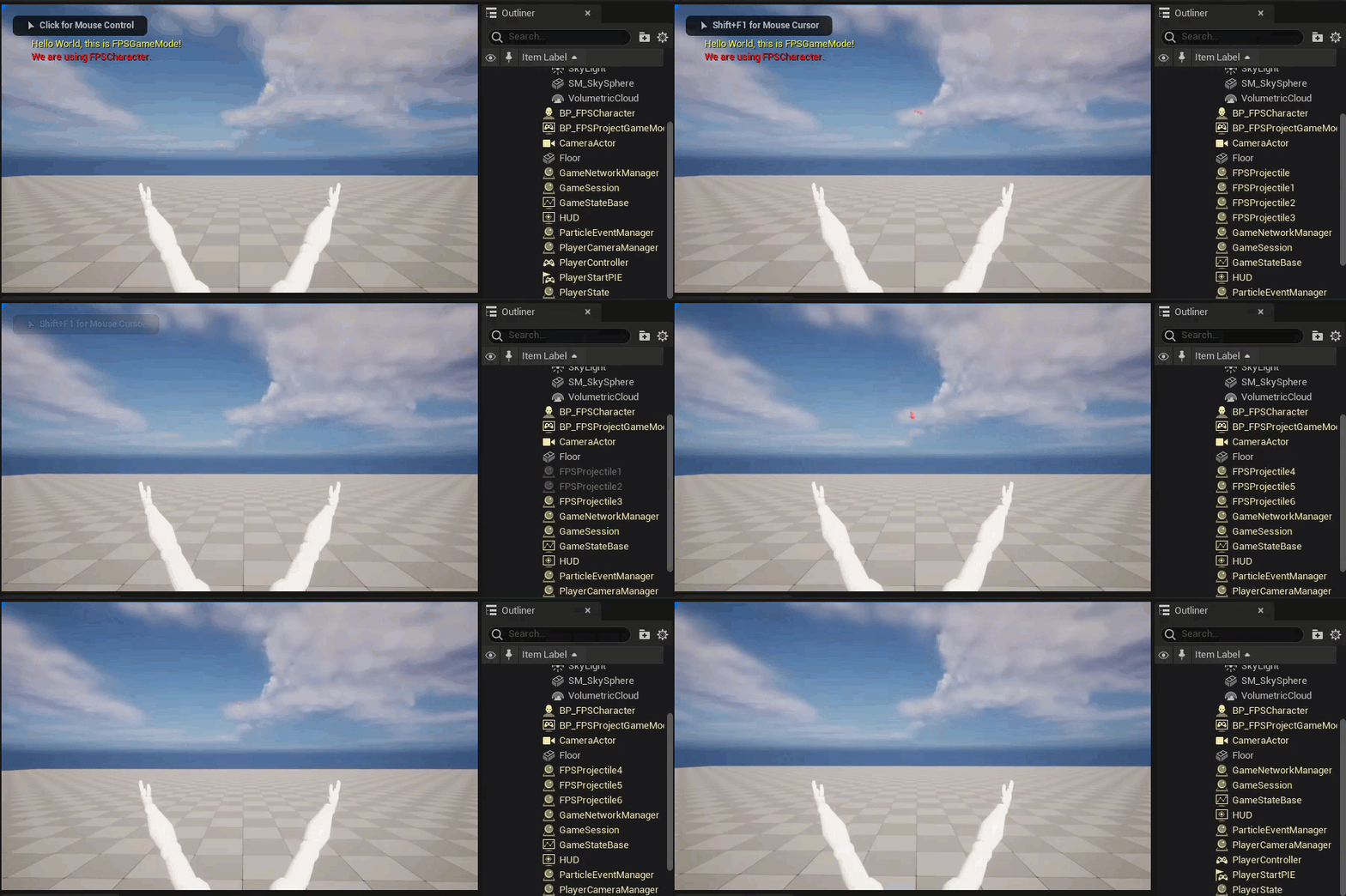
As verified in the Outliner, every spawned projectile will disappear from the scene after three seconds.
Editing the Projectile's Collision Settings
Unreal Engine comes packaged with several preset collision channels; however, the Engine also provides customizable channels that game projects can use.
-
To create a custom collision channel, navigate to Unreal Engine and open Project Settings, select the Engine heading on the left side and select Collision, expand Preset section on the right side.
Click for full image.
-
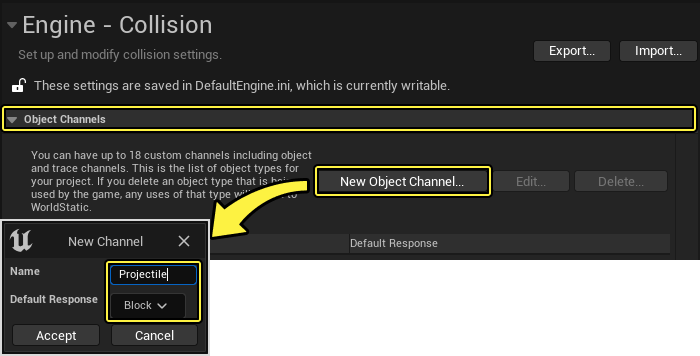
Navigate to the Object Channels and select New Object Channel... to create a new collision channel. Name your new collision channel Projectile and verify that the Default Response is set to Block before clicking Accept.
-
Select New... under Preset and name your new profile Projectile. Reference the following image to set your collision presets and click Accept.
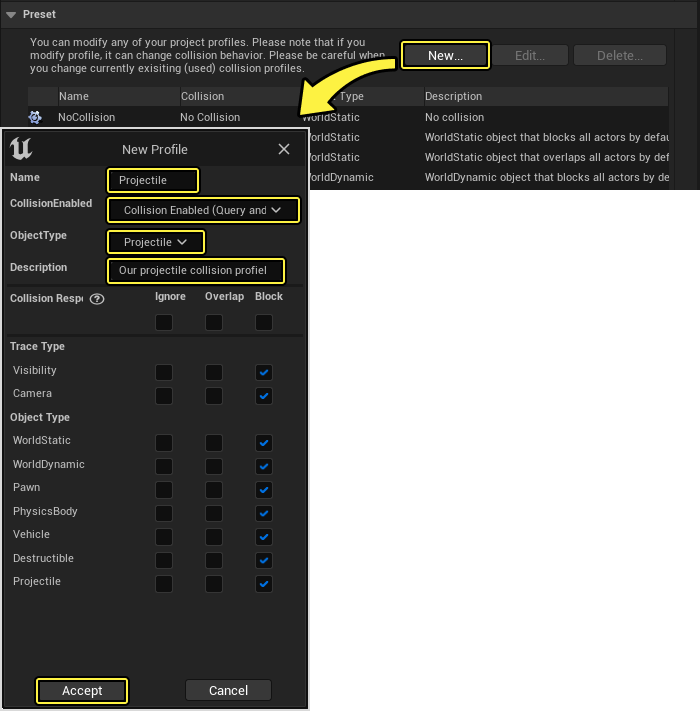
This collision profile specifies that the projectile will be blocked by Static Actors, Dynamic Actors, Actors simulating Physics, Vehicles, and Destructible Actors. Also, this collision profile specifies that the projectile overlaps Pawns.
Using the New Collision Channel's Settings
-
Open the Visual Studio and navigate to the
FPSProjectile.cppclass implementation file. -
In the
FPSProjectileconstructor, add the following line to theif (!CollisionComponent)block, afterCreateDefaultSubobject<USphereComponent>(TEXT("SphereComponent"));:FPSProjectile.cpp
// Set the sphere's collision profile name to "Projectile". CollisionComponent->BodyInstance.SetCollisionProfileName(TEXT("Projectile")); -
FPSProjectile.cppshould now look like the following:FPSProjectile.cpp
// Copyright Epic Games, Inc. All Rights Reserved. #include "FPSProjectile.h" // Sets default values AFPSProjectile::AFPSProjectile() { // Set this actor to call Tick() every frame. You can turn this off to improve performance if you don't need it. PrimaryActorTick.bCanEverTick = true; if (!RootComponent) { RootComponent = CreateDefaultSubobject<USceneComponent>(TEXT("ProjectileSceneComponent")); } if (!CollisionComponent) { // Use a sphere as a simple collision representation. CollisionComponent = CreateDefaultSubobject<USphereComponent>(TEXT("SphereComponent")); // Set the sphere's collision profile name to "Projectile". CollisionComponent->BodyInstance.SetCollisionProfileName(TEXT("Projectile")); // Set the sphere's collision radius. CollisionComponent->InitSphereRadius(15.0f); // Set the root component to be the collision component. RootComponent = CollisionComponent; } if (!ProjectileMovementComponent) { // Use this component to drive this projectile's movement. ProjectileMovementComponent = CreateDefaultSubobject<UProjectileMovementComponent>(TEXT("ProjectileMovementComponent")); ProjectileMovementComponent->SetUpdatedComponent(CollisionComponent); ProjectileMovementComponent->InitialSpeed = 3000.0f; ProjectileMovementComponent->MaxSpeed = 3000.0f; ProjectileMovementComponent->bRotationFollowsVelocity = true; ProjectileMovementComponent->bShouldBounce = true; ProjectileMovementComponent->Bounciness = 0.3f; ProjectileMovementComponent->ProjectileGravityScale = 0.0f; } if (!ProjectileMeshComponent) { ProjectileMeshComponent = CreateDefaultSubobject<UStaticMeshComponent>(TEXT("ProjectileMeshComponent")); static ConstructorHelpers::FObjectFinder<UStaticMesh>Mesh(TEXT("'/Game/Sphere.Sphere'")); if (Mesh.Succeeded()) { ProjectileMeshComponent->SetStaticMesh(Mesh.Object); } static ConstructorHelpers::FObjectFinder<UMaterial>Material(TEXT("'/Game/SphereMaterial.SphereMaterial'")); if (Material.Succeeded()) { ProjectileMaterialInstance = UMaterialInstanceDynamic::Create(Material.Object, ProjectileMeshComponent); } ProjectileMeshComponent->SetMaterial(0, ProjectileMaterialInstance); ProjectileMeshComponent->SetRelativeScale3D(FVector(0.09f, 0.09f, 0.09f)); ProjectileMeshComponent->SetupAttachment(RootComponent); } // Delete the projectile after 3 seconds. InitialLifeSpan = 3.0f; } // Called when the game starts or when spawned void AFPSProjectile::BeginPlay() { Super::BeginPlay(); } // Called every frame void AFPSProjectile::Tick(float DeltaTime) { Super::Tick(DeltaTime); } // Function that initializes the projectile's velocity in the shoot direction. void AFPSProjectile::FireInDirection(const FVector& ShootDirection) { ProjectileMovementComponent->Velocity = ShootDirection * ProjectileMovementComponent->InitialSpeed; } -
Save your file.
-
Navigate to the Solution Explorer and select FPSProject.
-
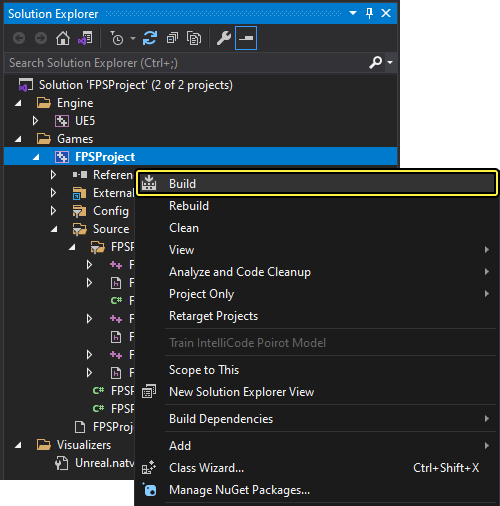
Right-click on FPSProject and select Build to compile your project.
3.4 - Getting Projectiles to Interact with the World
Now that you can detect the projectile's collision interactions, you can determine how to respond to those collisions. During this step, you will add an OnHit function to FPSProjectile that'll respond to collision events.
Getting Projectiles to React to Collisions
-
Open
FPSProjectile.h. -
Add the following code to
FPSProjectile.hunder thepublicaccess specifier:FPSProjectile.h
// Function that is called when the projectile hits something. UFUNCTION() void OnHit(UPrimitiveComponent* HitComponent, AActor* OtherActor, UPrimitiveComponent* OtherComponent, FVector NormalImpulse, const FHitResult& Hit); -
FPSProjectile.hshould now look like the following:FPSProjectile.h
// Copyright Epic Games, Inc. All Rights Reserved. #pragma once #include "CoreMinimal.h" #include "GameFramework/Actor.h" #include "Components/SphereComponent.h" #include "GameFramework/ProjectileMovementComponent.h" #include "FPSProjectile.generated.h" UCLASS() class FPSPROJECT_API AFPSProjectile : public AActor { GENERATED_BODY() public: // Sets default values for this actor's properties AFPSProjectile(); protected: // Called when the game starts or when spawned virtual void BeginPlay() override; public: // Called every frame virtual void Tick(float DeltaTime) override; // Sphere collision component UPROPERTY(VisibleDefaultsOnly, Category = Projectile) USphereComponent* CollisionComponent; // Projectile movement component UPROPERTY(VisibleAnywhere, Category = Movement) UProjectileMovementComponent* ProjectileMovementComponent; // Function that initializes the projectile's velocity in the shoot direction. void FireInDirection(const FVector& ShootDirection); // Projectile mesh UPROPERTY(VisibleDefaultsOnly, Category = Projectile) UStaticMeshComponent* ProjectileMeshComponent; // Projectile material UPROPERTY(VisibleDefaultsOnly, Category = Movement) UMaterialInstanceDynamic* ProjectileMaterialInstance; // Function that is called when the projectile hits something. UFUNCTION() void OnHit(UPrimitiveComponent* HitComponent, AActor* OtherActor, UPrimitiveComponent* OtherComponent, FVector NormalImpulse, const FHitResult& Hit); }; -
Open
FPSProjectile.cppto add the following code:FPSProjectile.cpp
// Function that is called when the projectile hits something. void AFPSProjectile::OnHit(UPrimitiveComponent* HitComponent, AActor* OtherActor, UPrimitiveComponent* OtherComponent, FVector NormalImpulse, const FHitResult& Hit) { if (OtherActor != this && OtherComponent->IsSimulatingPhysics()) { OtherComponent->AddImpulseAtLocation(ProjectileMovementComponent->Velocity * 100.0f, Hit.ImpactPoint); } Destroy(); } -
In the
FPSProjectileconstructor, add the following line to theif (!CollisionComponent)block, afterBodyInstance.SetCollisionProfileName:FPSProjectile.cpp
// Event called when component hits something. CollisionComponent->OnComponentHit.AddDynamic(this, &AFPSProjectile::OnHit); -
FPSProjectile.cppshould now look like the following:FPSProjectile.cpp
// Copyright Epic Games, Inc. All Rights Reserved. #include "FPSProjectile.h" // Sets default values AFPSProjectile::AFPSProjectile() { // Set this actor to call Tick() every frame. You can turn this off to improve performance if you don't need it. PrimaryActorTick.bCanEverTick = true; if (!RootComponent) { RootComponent = CreateDefaultSubobject<USceneComponent>(TEXT("ProjectileSceneComponent")); } if (!CollisionComponent) { // Use a sphere as a simple collision representation. CollisionComponent = CreateDefaultSubobject<USphereComponent>(TEXT("SphereComponent")); // Set the sphere's collision profile name to "Projectile". CollisionComponent->BodyInstance.SetCollisionProfileName(TEXT("Projectile")); // Event called when component hits something. CollisionComponent->OnComponentHit.AddDynamic(this, &AFPSProjectile::OnHit); // Set the sphere's collision radius. CollisionComponent->InitSphereRadius(15.0f); // Set the root component to be the collision component. RootComponent = CollisionComponent; } if (!ProjectileMovementComponent) { // Use this component to drive this projectile's movement. ProjectileMovementComponent = CreateDefaultSubobject<UProjectileMovementComponent>(TEXT("ProjectileMovementComponent")); ProjectileMovementComponent->SetUpdatedComponent(CollisionComponent); ProjectileMovementComponent->InitialSpeed = 3000.0f; ProjectileMovementComponent->MaxSpeed = 3000.0f; ProjectileMovementComponent->bRotationFollowsVelocity = true; ProjectileMovementComponent->bShouldBounce = true; ProjectileMovementComponent->Bounciness = 0.3f; ProjectileMovementComponent->ProjectileGravityScale = 0.0f; } if (!ProjectileMeshComponent) { ProjectileMeshComponent = CreateDefaultSubobject<UStaticMeshComponent>(TEXT("ProjectileMeshComponent")); static ConstructorHelpers::FObjectFinder<UStaticMesh>Mesh(TEXT("'/Game/Sphere.Sphere'")); if (Mesh.Succeeded()) { ProjectileMeshComponent->SetStaticMesh(Mesh.Object); } static ConstructorHelpers::FObjectFinder<UMaterial>Material(TEXT("'/Game/SphereMaterial.SphereMaterial'")); if (Material.Succeeded()) { ProjectileMaterialInstance = UMaterialInstanceDynamic::Create(Material.Object, ProjectileMeshComponent); } ProjectileMeshComponent->SetMaterial(0, ProjectileMaterialInstance); ProjectileMeshComponent->SetRelativeScale3D(FVector(0.09f, 0.09f, 0.09f)); ProjectileMeshComponent->SetupAttachment(RootComponent); } // Delete the projectile after 3 seconds. InitialLifeSpan = 3.0f; } // Called when the game starts or when spawned void AFPSProjectile::BeginPlay() { Super::BeginPlay(); } // Called every frame void AFPSProjectile::Tick(float DeltaTime) { Super::Tick(DeltaTime); } // Function that initializes the projectile's velocity in the shoot direction. void AFPSProjectile::FireInDirection(const FVector& ShootDirection) { ProjectileMovementComponent->Velocity = ShootDirection * ProjectileMovementComponent->InitialSpeed; } // Function that is called when the projectile hits something. void AFPSProjectile::OnHit(UPrimitiveComponent* HitComponent, AActor* OtherActor, UPrimitiveComponent* OtherComponent, FVector NormalImpulse, const FHitResult& Hit) { if (OtherActor != this && OtherComponent->IsSimulatingPhysics()) { OtherComponent->AddImpulseAtLocation(ProjectileMovementComponent->Velocity * 100.0f, Hit.ImpactPoint); } Destroy(); }
Testing Projectile Collision
-
Save your files in Visual Studio.
-
Navigate to the Solution Explorer and select FPSProject.
-
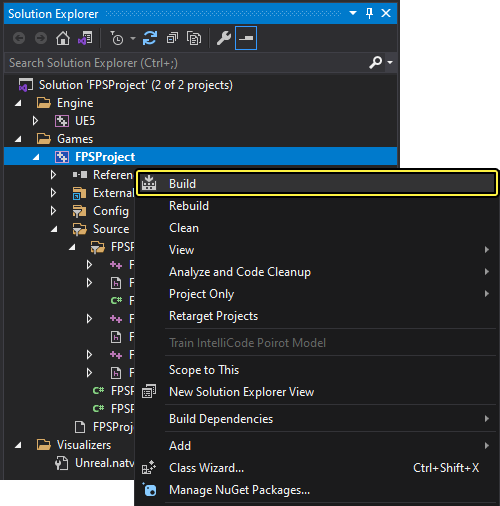
Right-click on FPSProject and select Build to compile your project.
-
After the build finishes, go back to your FPSProject in the Unreal Editor.
-
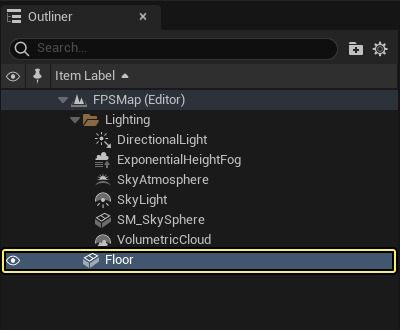
Navigate to the Outliner and select the Floor Static Mesh.
-
Copy and paste selected Floor mesh.
-
Making sure that the ratio lock is unlocked (the lock icon next to the Scale row), set options of the Transform section in the Detail panel of the Floor2 as following:
- Location: (0.0, 0.0, 150);
- Rotation: (0.0, 0.0, 0.0);
- Scale: (0.2, 0.2, 3.0).
-
Scroll down to the Physics section and check the Simulate Physics box.
Click on the image to zoom in.
-
Click the File in the Main menu panel and select Save All to save your imported mesh.
-
Click the Play button in the Level Editor Toolbar.
-
To verify that projectiles are colliding with the cube, left-click your mouse button to fire projectiles and move the cube around your level.
[
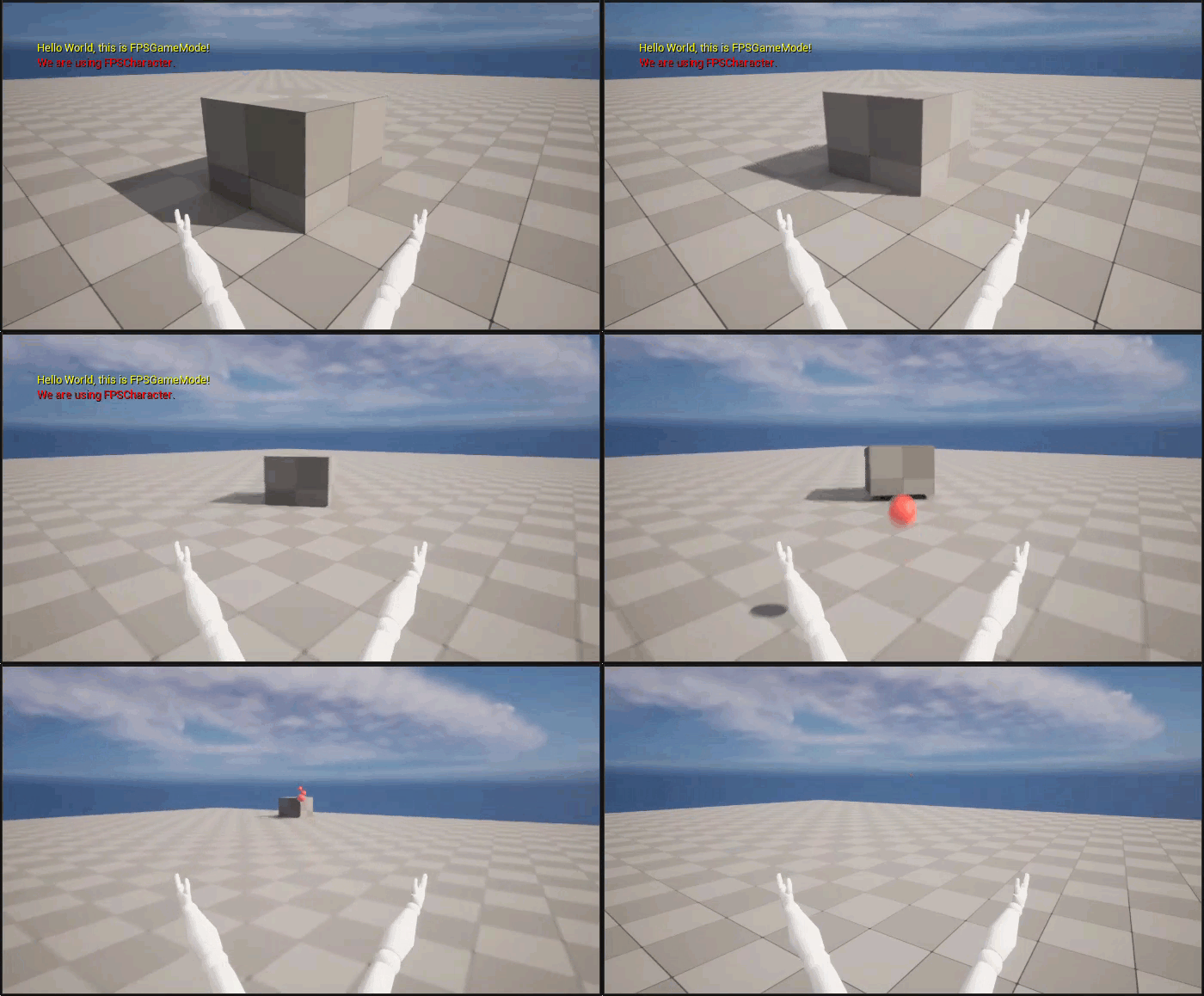
Congratulations, your projectiles are complete!
-
Press the Shift + Escape or click Stop in the Level Editor Toolbar to exit PIE mode.
3.5 - Adding Crosshairs to your Viewport
During this step, you will add a crosshair HUD element to our game so that you can aim our projectiles.
Importing a Crosshair Asset
Before getting started, download and extract the sample image from the following link:
-
Navigate to the Content Browser and open the Content folder.
-
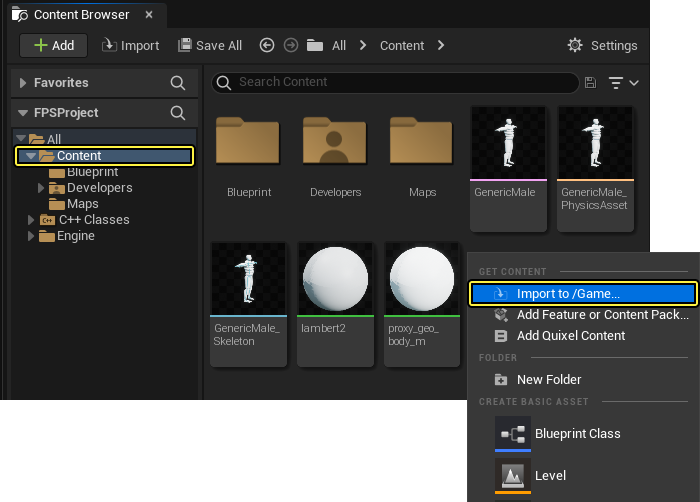
Right-click inside the file window of the Content Browser to open the Import Asset dialog window.
-
Click 'Import to / Game...' to open the Import dialog window.
-
Locate and select the crosshair.TGA image file, where you have downloaded this file.
-
Click Open to begin importing the image file to your project.
-
Click the File in the Main menu panel to save your imported mesh.
Adding a New HUD Class
-
Click the Tools in the Main menu panel, New C++ Class... to choose your new parent class.
-
The Choose Parent Class menu appears. Select HUD as the parent class and click Next.
Click for full image.
-
Name the new class FPSHUD, then click Create Class.
Click for full image.
-
The Visual Studio appears automatically with opened
FPSHUD.hheader file andFPSHUD.cppimplementation file, when C++ class will be created. -
Navigate to the
FPSHUD.hclass header file, and add the following variable under theprotectedaccess specifier:FPSHUD.h
protected: // This will be drawn at the center of the screen. UPROPERTY(EditDefaultsOnly) UTexture2D* CrosshairTexture; -
Add the following function declaration in
FPSHUD.hunder thepublicaccess specifier:FPSHUD.h
public: // Primary draw call for the HUD. virtual void DrawHUD() override; -
Add the following header file to
FPSHUD.h:FPSHUD.h
#include "Engine/Canvas.h" -
FPSHUD.hshould now look like the following:FPSHUD.h
// Copyright Epic Games, Inc. All Rights Reserved. #pragma once #include "CoreMinimal.h" #include "GameFramework/HUD.h" #include "Engine/Canvas.h" #include "FPSHUD.generated.h" /** * */ UCLASS() class FPSPROJECT_API AFPSHUD : public AHUD { GENERATED_BODY() protected: // This will be drawn at the center of the screen. UPROPERTY(EditDefaultsOnly) UTexture2D* CrosshairTexture; public: // Primary draw call for the HUD. virtual void DrawHUD() override; }; -
Open the
FPSHUD.cppimplementation file and add theDrawHUDfunction:FPSHUD.cpp
void AFPSHUD::DrawHUD() { Super::DrawHUD(); if (CrosshairTexture) { // Find the center of our canvas. FVector2D Center(Canvas->ClipX * 0.5f, Canvas->ClipY * 0.5f); // Offset by half of the texture's dimensions so that the center of the texture aligns with the center of the Canvas. FVector2D CrossHairDrawPosition(Center.X - (CrosshairTexture->GetSurfaceWidth() * 0.5f), Center.Y - (CrosshairTexture->GetSurfaceHeight() * 0.5f)); // Draw the crosshair at the centerpoint. FCanvasTileItem TileItem(CrossHairDrawPosition, CrosshairTexture->Resource, FLinearColor::White); TileItem.BlendMode = SE_BLEND_Translucent; Canvas->DrawItem(TileItem); } } -
Save
FPSHUD.handFPSHUD.cppin Visual Studio. -
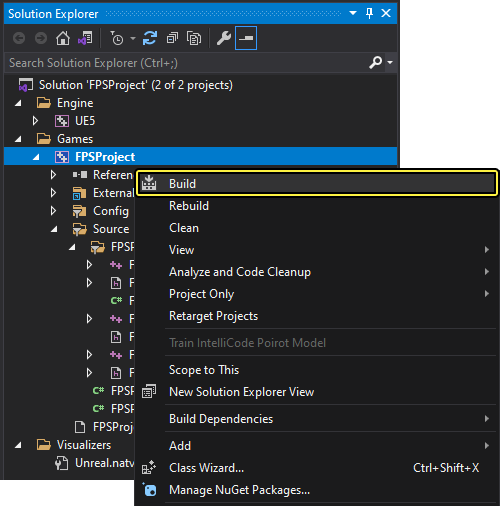
Navigate to the Solution Explorer and select FPSProject.
-
Right-click on FPSProject and select Build to compile your project.
Extending your CPP HUD Class to Blueprints
Now is a good time to extend the CPP HUD class to Blueprints. If you need a refresher, go to our C++ and Blueprints reference page to learn more about extending C++ classes to Blueprints.
-
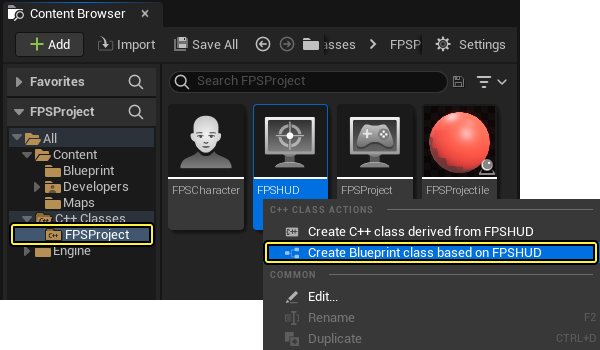
Right-click the
FPSHUDclass to open the C++ Class Actions menu. -
Click Create Blueprint class based on FPSHUD to open the Add Blueprint Class dialog menu.
-
Name your new Blueprint Class BP_FPSHUD and choose the Blueprints folder before clicking the Create Blueprint Class button.
Click for full image.
-
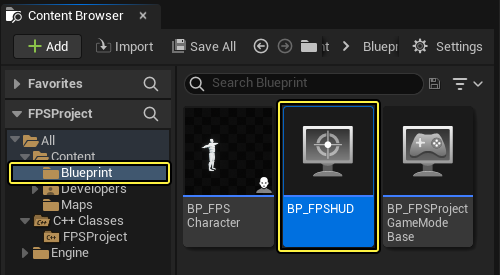
By now, you should have a newly created BP_FPSHUD Blueprint Class located inside of the Blueprints folder.
-
Make sure to save your BP_FPSHUD Blueprint before closing the Blueprint Editor.
Setting the Default HUD Class
-
Click the Edit in the Main menu panel, select Project Settings.
-
Under the Project heading on the left side of the Project Settings tab, click on Maps & Modes.
-
Select BP_FPSHUD in the Default HUD dropdown menu.
Click for full image.
-
Close the Project Settings menu.
-
Go back and open the BP_FPSHUD in the Blueprint Editor.
-
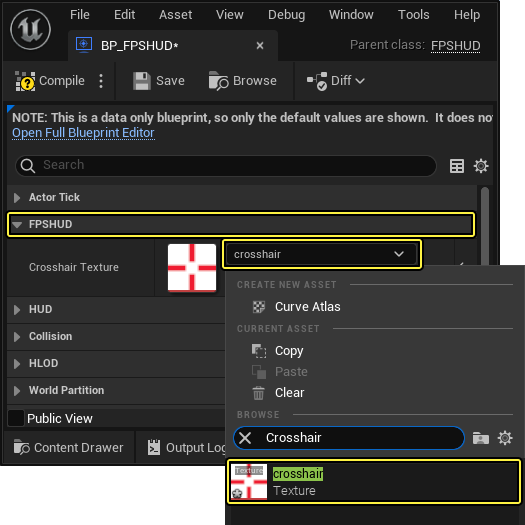
Now, click on the dropdown menu located in the FPSHUD section of the Blueprint Editor to select your crosshair texture.
-
Finally, Compile and Save the BP_FPSHUD Blueprint before closing the Blueprint Editor.
Verifying your HUD
-
Click the Play button in the Level Editor Toolbar. You should now be able to aim the projectiles with your newly added crosshair.
 (convert:false)
 -
Press the Shift + Escape or click Stop in the Level Editor Toolbar to exit PIE mode.
Finished Section Code
FPSProjectile.h
// Copyright Epic Games, Inc. All Rights Reserved.
#pragma once
#include "CoreMinimal.h"
#include "GameFramework/Actor.h"
#include "Components/SphereComponent.h"
#include "GameFramework/ProjectileMovementComponent.h"
#include "FPSProjectile.generated.h"
UCLASS()
class FPSPROJECT_API AFPSProjectile : public AActor
{
GENERATED_BODY()
public:
// Sets default values for this actor's properties
AFPSProjectile();
protected:
// Called when the game starts or when spawned
virtual void BeginPlay() override;
public:
// Called every frame
virtual void Tick(float DeltaTime) override;
// Sphere collision component
UPROPERTY(VisibleDefaultsOnly, Category = Projectile)
USphereComponent* CollisionComponent;
// Projectile movement component
UPROPERTY(VisibleAnywhere, Category = Movement)
UProjectileMovementComponent* ProjectileMovementComponent;
// Function that initializes the projectile's velocity in the shoot direction.
void FireInDirection(const FVector& ShootDirection);
// Projectile mesh
UPROPERTY(VisibleDefaultsOnly, Category = Projectile)
UStaticMeshComponent* ProjectileMeshComponent;
// Projectile material
UPROPERTY(VisibleDefaultsOnly, Category = Movement)
UMaterialInstanceDynamic* ProjectileMaterialInstance;
// Function that is called when the projectile hits something.
UFUNCTION()
void OnHit(UPrimitiveComponent* HitComponent, AActor* OtherActor, UPrimitiveComponent* OtherComponent, FVector NormalImpulse, const FHitResult& Hit);
};
FPSProjectile.cpp
// Copyright Epic Games, Inc. All Rights Reserved.
#include "FPSProjectile.h"
// Sets default values
AFPSProjectile::AFPSProjectile()
{
// Set this actor to call Tick() every frame. You can turn this off to improve performance if you don't need it.
PrimaryActorTick.bCanEverTick = true;
if (!RootComponent)
{
RootComponent = CreateDefaultSubobject<USceneComponent>(TEXT("ProjectileSceneComponent"));
}
if (!CollisionComponent)
{
// Use a sphere as a simple collision representation.
CollisionComponent = CreateDefaultSubobject<USphereComponent>(TEXT("SphereComponent"));
// Set the sphere's collision profile name to "Projectile".
CollisionComponent->BodyInstance.SetCollisionProfileName(TEXT("Projectile"));
// Event called when component hits something.
CollisionComponent->OnComponentHit.AddDynamic(this, &AFPSProjectile::OnHit);
// Set the sphere's collision radius.
CollisionComponent->InitSphereRadius(15.0f);
// Set the root component to be the collision component.
RootComponent = CollisionComponent;
}
if (!ProjectileMovementComponent)
{
// Use this component to drive this projectile's movement.
ProjectileMovementComponent = CreateDefaultSubobject<UProjectileMovementComponent>(TEXT("ProjectileMovementComponent"));
ProjectileMovementComponent->SetUpdatedComponent(CollisionComponent);
ProjectileMovementComponent->InitialSpeed = 3000.0f;
ProjectileMovementComponent->MaxSpeed = 3000.0f;
ProjectileMovementComponent->bRotationFollowsVelocity = true;
ProjectileMovementComponent->bShouldBounce = true;
ProjectileMovementComponent->Bounciness = 0.3f;
ProjectileMovementComponent->ProjectileGravityScale = 0.0f;
}
if (!ProjectileMeshComponent)
{
ProjectileMeshComponent = CreateDefaultSubobject<UStaticMeshComponent>(TEXT("ProjectileMeshComponent"));
static ConstructorHelpers::FObjectFinder<UStaticMesh>Mesh(TEXT("'/Game/Sphere.Sphere'"));
if (Mesh.Succeeded())
{
ProjectileMeshComponent->SetStaticMesh(Mesh.Object);
}
static ConstructorHelpers::FObjectFinder<UMaterial>Material(TEXT("'/Game/SphereMaterial.SphereMaterial'"));
if (Material.Succeeded())
{
ProjectileMaterialInstance = UMaterialInstanceDynamic::Create(Material.Object, ProjectileMeshComponent);
}
ProjectileMeshComponent->SetMaterial(0, ProjectileMaterialInstance);
ProjectileMeshComponent->SetRelativeScale3D(FVector(0.09f, 0.09f, 0.09f));
ProjectileMeshComponent->SetupAttachment(RootComponent);
}
// Delete the projectile after 3 seconds.
InitialLifeSpan = 3.0f;
}
// Called when the game starts or when spawned
void AFPSProjectile::BeginPlay()
{
Super::BeginPlay();
}
// Called every frame
void AFPSProjectile::Tick(float DeltaTime)
{
Super::Tick(DeltaTime);
}
// Function that initializes the projectile's velocity in the shoot direction.
void AFPSProjectile::FireInDirection(const FVector& ShootDirection)
{
ProjectileMovementComponent->Velocity = ShootDirection * ProjectileMovementComponent->InitialSpeed;
}
void AFPSProjectile::OnHit(UPrimitiveComponent* HitComponent, AActor* OtherActor, UPrimitiveComponent* OtherComponent, FVector NormalImpulse, const FHitResult& Hit)
{
if (OtherActor != nullptr && OtherActor != this && OtherComponent != nullptr && OtherComponent->IsSimulatingPhysics())
{
OtherComponent->AddImpulseAtLocation(ProjectileMovementComponent->Velocity * 100.0f, Hit.ImpactPoint);
}
Destroy();
}
FPSCharacter.h
// Copyright Epic Games, Inc. All Rights Reserved.
#pragma once
#include "CoreMinimal.h"
#include "GameFramework/Character.h"
#include "Camera/CameraComponent.h"
#include "Components/CapsuleComponent.h"
#include "FPSProjectile.h"
#include "FPSCharacter.generated.h"
UCLASS()
class FPSPROJECT_API AFPSCharacter : public ACharacter
{
GENERATED_BODY()
public:
// Sets default values for this character's properties
AFPSCharacter();
protected:
// Called when the game starts or when spawned
virtual void BeginPlay() override;
// Projectile class to spawn.
UPROPERTY(EditAnywhere, Category = Projectile)
TSubclassOf<class AFPSProjectile> ProjectileClass;
public:
// Called every frame
virtual void Tick(float DeltaTime) override;
// Called to bind functionality to input
virtual void SetupPlayerInputComponent(class UInputComponent* PlayerInputComponent) override;
// Handles input for moving forward and backward.
UFUNCTION()
void MoveForward(float Value);
// Handles input for moving right and left.
UFUNCTION()
void MoveRight(float Value);
// Sets jump flag when key is pressed.
UFUNCTION()
void StartJump();
// Clears jump flag when key is released.
UFUNCTION()
void StopJump();
// FPS camera
UPROPERTY(VisibleAnywhere)
UCameraComponent* FPSCameraComponent;
// First-person mesh (arms), visible only to the owning player.
UPROPERTY(VisibleDefaultsOnly, Category = Mesh)
USkeletalMeshComponent* FPSMesh;
// Function that fires projectiles.
UFUNCTION()
void Fire();
// Gun muzzle offset from the camera location.
UPROPERTY(EditAnywhere, BlueprintReadWrite, Category = Gameplay)
FVector MuzzleOffset;
};
FPSCharacter.cpp
// Copyright Epic Games, Inc. All Rights Reserved.
#include "FPSCharacter.h"
// Sets default values
AFPSCharacter::AFPSCharacter()
{
// Set this character to call Tick() every frame. You can turn this off to improve performance if you don't need it.
PrimaryActorTick.bCanEverTick = true;
// Create a first person camera component.
FPSCameraComponent = CreateDefaultSubobject<UCameraComponent>(TEXT("FirstPersonCamera"));
check(FPSCameraComponent != nullptr);
// Attach the camera component to our capsule component.
FPSCameraComponent->SetupAttachment(CastChecked<USceneComponent, UCapsuleComponent>(GetCapsuleComponent()));
// Position the camera slightly above the eyes.
FPSCameraComponent->SetRelativeLocation(FVector(0.0f, 0.0f, 50.0f + BaseEyeHeight));
// Enable the Pawn to control camera rotation.
FPSCameraComponent->bUsePawnControlRotation = true;
// Create a first person mesh component for the owning player.
FPSMesh = CreateDefaultSubobject<USkeletalMeshComponent>(TEXT("FirstPersonMesh"));
check(FPSMesh != nullptr);
// Only the owning player sees this mesh.
FPSMesh->SetOnlyOwnerSee(true);
//Attach the FPS mesh to the FPS Camera.
FPSMesh->SetupAttachment(FPSCameraComponent);
//Disable some environmental shadows to preserve the illusion of having a single mesh.
FPSMesh->bCastDynamicShadow = false;
FPSMesh->CastShadow = false;
// The owning player doesn't see the regular (third-person) body mesh.
GetMesh()->SetOwnerNoSee(true);
}
// Called when the game starts or when spawned
void AFPSCharacter::BeginPlay()
{
Super::BeginPlay();
check(GEngine != nullptr);
// Display a debug message for five seconds.
// The -1 "Key" value argument prevents the message from being updated or refreshed.
GEngine->AddOnScreenDebugMessage(-1, 5.0f, FColor::Red, TEXT("We are using FPSCharacter."));
}
// Called every frame
void AFPSCharacter::Tick(float DeltaTime)
{
Super::Tick(DeltaTime);
}
// Called to bind functionality to input
void AFPSCharacter::SetupPlayerInputComponent(UInputComponent* PlayerInputComponent)
{
Super::SetupPlayerInputComponent(PlayerInputComponent);
// Set up "movement" bindings.
PlayerInputComponent->BindAxis("MoveForward", this, &AFPSCharacter::MoveForward);
PlayerInputComponent->BindAxis("MoveRight", this, &AFPSCharacter::MoveRight);
// Set up "look" bindings.
PlayerInputComponent->BindAxis("Turn", this, &AFPSCharacter::AddControllerYawInput);
PlayerInputComponent->BindAxis("LookUp", this, &AFPSCharacter::AddControllerPitchInput);
// Set up "action" bindings.
PlayerInputComponent->BindAction("Jump", IE_Pressed, this, &AFPSCharacter::StartJump);
PlayerInputComponent->BindAction("Jump", IE_Released, this, &AFPSCharacter::StopJump);
PlayerInputComponent->BindAction("Fire", IE_Pressed, this, &AFPSCharacter::Fire);
}
void AFPSCharacter::MoveForward(float Value)
{
// Find out which way is "forward" and record that the player wants to move that way.
FVector Direction = FRotationMatrix(Controller->GetControlRotation()).GetScaledAxis(EAxis::X);
AddMovementInput(Direction, Value);
}
void AFPSCharacter::MoveRight(float Value)
{
// Find out which way is "right" and record that the player wants to move that way.
FVector Direction = FRotationMatrix(Controller->GetControlRotation()).GetScaledAxis(EAxis::Y);
AddMovementInput(Direction, Value);
}
void AFPSCharacter::StartJump()
{
bPressedJump = true;
}
void AFPSCharacter::StopJump()
{
bPressedJump = false;
}
void AFPSCharacter::Fire()
{
// Attempt to fire a projectile.
if (ProjectileClass)
{
// Get the camera transform.
FVector CameraLocation;
FRotator CameraRotation;
GetActorEyesViewPoint(CameraLocation, CameraRotation);
// Set MuzzleOffset to spawn projectiles slightly in front of the camera.
MuzzleOffset.Set(100.0f, 0.0f, 0.0f);
// Transform MuzzleOffset from camera space to world space.
FVector MuzzleLocation = CameraLocation + FTransform(CameraRotation).TransformVector(MuzzleOffset);
// Skew the aim to be slightly upwards.
FRotator MuzzleRotation = CameraRotation;
MuzzleRotation.Pitch += 10.0f;
UWorld* World = GetWorld();
if (World)
{
FActorSpawnParameters SpawnParams;
SpawnParams.Owner = this;
SpawnParams.Instigator = GetInstigator();
// Spawn the projectile at the muzzle.
AFPSProjectile* Projectile = World->SpawnActor<AFPSProjectile>(ProjectileClass, MuzzleLocation, MuzzleRotation, SpawnParams);
if (Projectile)
{
// Set the projectile's initial trajectory.
FVector LaunchDirection = MuzzleRotation.Vector();
Projectile->FireInDirection(LaunchDirection);
}
}
}
}
FPSHUD.h
// Copyright Epic Games, Inc. All Rights Reserved.
#pragma once
#include "CoreMinimal.h"
#include "GameFramework/HUD.h"
#include "Engine/Canvas.h"
#include "FPSHUD.generated.h"
/**
*
*/
UCLASS()
class FPSPROJECT_API AFPSHUD : public AHUD
{
GENERATED_BODY()
protected:
// This will be drawn at the center of the screen.
UPROPERTY(EditDefaultsOnly)
UTexture2D* CrosshairTexture;
public:
// Primary draw call for the HUD.
virtual void DrawHUD() override;
};
FPSHUD.cpp
// Copyright Epic Games, Inc. All Rights Reserved.
#include "FPSHUD.h"
void AFPSHUD::DrawHUD()
{
Super::DrawHUD();
if (CrosshairTexture)
{
// Find the center of our canvas.
FVector2D Center(Canvas->ClipX * 0.5f, Canvas->ClipY * 0.5f);
// Offset by half of the texture's dimensions so that the center of the texture aligns with the center of the Canvas.
FVector2D CrossHairDrawPosition(Center.X - (CrosshairTexture->GetSurfaceWidth() * 0.5f), Center.Y - (CrosshairTexture->GetSurfaceHeight() * 0.5f));
// Draw the crosshair at the centerpoint.
FCanvasTileItem TileItem(CrossHairDrawPosition, CrosshairTexture->Resource, FLinearColor::White);
TileItem.BlendMode = SE_BLEND_Translucent;
Canvas->DrawItem(TileItem);
}
}
Congratulations! You've learned how to:
✓ Add Projectiles to your Game
✓ Implement Shooting
✓ Set-up Projectile Collision and Lifetime
✓ Get your Projectiles to Interact with the World
✓ Add Crosshairs to your Viewport
You're now ready to learn how to animate your character in the next section.
