

Sometimes you may want to selectively show, hide, or disable property fields or other UI elements in the Details panel based on specific edit conditions. For example, the Font Resolution setting in Project Settings shows a dropdown field where you can select pre-set DPI values, but if you check the Use Custom DPI setting, it shows an integer field instead.

Unreal Engine (UE) Provides several paths for handling custom edit conditions in the Details view. This document provides a reference for both UPROPERTY implementations and custom edit conditions in Slate C++ code.
Prerequisites
This page uses the Details Panel Customization Quickstart tutorial as the basis for its examples and refers to the following:
- FCustomDataProperty – A custom struct consisting of the following:
- TSoftObjectPtr
CustomTexture - FName CustomName
- FString CustomString
- Int32 CustomInt
- TSoftObjectPtr
- ACustomActor – A simple Actor with the following added properties:
- TSoftObjectPtr
CustomMesh - float CustomFloat
- bool CustomBool
- FCustomDataProperty CustomData
- TSoftObjectPtr
-
FCustomDataPropertyCustomization – A Property Type Customization for FCustomDataProperty.
- FCustomClassDetailsCustomization – A Detail Customization for ACustomActor.
Edit Conditions in UPROPERTY Metadata
You can use a property's UPROPERTY metadata to specify custom edit conditions with the EditCondition tag. The edit condition must be a string containing the name of the field or function acting as your edit condition.
UPROPERTY(EditAnywhere)
bool bAllowEdit;
UPROPERTY(EditAnywhere, meta = (DisplayName = "Custom Integer", EditCondition = "bAllowEdit"))
uint32 CustomInt;
The property is disabled if the edit condition is not met.
Operators in Edit Conditions
You can use operators in EditCondition tags to provide more complex criteria. As a few examples, you can:
- Use
!=, the NOT EQUAL operator, to allow editing when a boolean value is NOTtrue. - Use the
>,>=,<, and<=operators to allow editing when a variable is within a certain threshold. - Use
&&, the AND operator, to string multiple edit conditions together. - Use
||, the OR operator, to provide alternate edit conditions.
The above list is not exhaustive, but represents several common logical and comparison operators. The following is an example of several of these operators in use:
CustomActor.h
UPROPERTY(EditAnywhere)
bool bRestrictEdit;
//CustomInt is only editable if bRestrictEdit ISN'T true.
UPROPERTY(EditAnywhere, meta = (DisplayName = "Custom Integer", EditCondition = "!bRestrictEdit"))
uint32 CustomInt;
//CustomFloat is only editable if CustomInt is greater than or equal to 10 and less than or equal to 20 AND bRestrictEdit is false.
UPROPERTY(EditAnywhere, meta=(DisplayName = "Custom Float", EditCondition = "CustomInt > 10 && CustomInt < 20 && !bRestrictEdit"))
Float CustomFloat;
You can also use the == operator to check if a specific value is met. This can be useful when using enums as edit conditions.
CustomActor.h
UPROPERTY(EditAnywhere)
ECustomIntEditMode EditMode;
//CustomInt is only editable if EditMode is AllowEdit.
UPROPERTY(EditAnywhere, meta = (DisplayName = "Custom Integer", EditCondition = "EditMode==ECustomIntEditMode::AllowEdt"))
uint32 CustomInt;
Functions in UPROPERTY Edit Conditions
UPROPERTY edit conditions do not support the use of functions at this time. If you need to use functions or delegates as a basis for edit conditions, see the section below on Custom Edit Conditions in Details Panel Customizations.
EditConditionHides
Use the EditConditionHides metadata tag to not only disable a property field, but also hide it when the edit condition for it is not met.
This method is used by the Font Resolution setting mentioned above. In C++ code, the UUserInterfaceSettings actually contains three different variables for handling Font DPI:
- An
EFontDPIenum called `FontDPIPreset, which represents the presets from the dropdown. - A
uint32calledCustomFontDPI, which represents the editable integer field. - A boolean called
bUseCustomFontDPI, which is used in the EditCondition for both of the above variables.
CustomClassDetailsCustomization.h
#if WITH_EDITORONLY_DATA
/**
* Controls the relationship between UMG font size and pixel height.
*/
UPROPERTY(config, EditAnywhere, Category = "UMG Fonts", meta = (DisplayName = "Font Resolution", EditCondition = "bUseCustomFontDPI", EditConditionHides, ClampMin = "1", ClampMax = "1000"))
uint32 CustomFontDPI;
/**
* Controls the relationship between UMG font size and pixel height.
*/
UPROPERTY(config, EditAnywhere, Category = "UMG Fonts", meta = (DisplayName = "Font Resolution", EditCondition = "!bUseCustomFontDPI", EditConditionHides))
EFontDPI FontDPIPreset;
/**
* To set your own custom value, check this box, then enter the value in the text box.
*/
UPROPERTY(config, EditAnywhere, Category = "UMG Fonts", meta = (DisplayName = "Use Custom DPI"))
bool bUseCustomFontDPI;
#endif
UUserInterfaceSettings also uses bUseCustomFontDPI in the Font DPI calculations to select whether to use the CustomFontDPI value directly or to convert the FontDPIPreset to an integer value.
The CustomFontDPI property's EditCondition uses "bUseCustomFontDPI" directly, which means bUseCustomFontDPI must be true to display and use CustomFontDPI.
Meanwhile, the FontDPIPreset property's EditCondition is "!bUseCustomFontDPI". The ! operator denotes that bUseCustomFontDPI must be false to display and use FontDPIPreset.
InlineEditConditionToggle
The UPROPERTY metadata tag InlineEditConditionToggle provides a check box next to your property's field that enables or disables it. This works similarly to the post-processing fields for rendering.
//CustomInt has a toggle field for enabling and disabling it displayed directly next to it.
UPROPERTY(EditAnywhere, meta = (DisplayName = "Custom Integer", InlineEditConditionToggle))
uint32 CustomInt;
This does not use the EditCondition metadata tag – InlineEditConditionToggle provides and tracks its own toggle field.
Custom Edit Conditions in Details Panel Customizations
You can use Details panel customizations to create edit conditions that are more complex or depend on functions. The examples below demonstrate this for both property fields and Slate widgets.
Custom Edit Conditions for Property Fields
To create a custom edit condition for property fields:
-
Register a delegate that can refresh the Details panel with any properties that you want to trigger the refresh. For more details on this process, see Refreshing the Details Panel.
-
Use
TSharedRef::GetandIPropertyHandle::GetValueto obtain the value for the property, if needed. -
Add or hide properties based on its value. See Reordering and Hiding Properties for more details.
CustomClassDetailsCustomization.h
bool boolValue; boolPropertyHandle.Get().GetValue(boolValue); if (boolValue) { DetailBuilder.AddProperty(GET_MEMBER_NAME_CHECKED(ACustomActor, CustomMesh)); } else { CustomCategory.HideProperty(GET_MEMBER_NAME_CHECKED(ACustomActor, CustomMesh)); }
Alternatively, you can write other functions to encapsulate the logic for showing and hiding properties, the act of building parts of the Details panel, or both. Provide your IDetailLayoutBuilder reference as a parameter for any functions you want to build part of the Details panel. Provide either your property handle references or your properties' values as parameters to any functions you want to take them into account.
The following is a full example of a CustomizeDetails function that uses a boolean as an edit condition for a TSoftPtr<UStaticMesh> property, as well as a delegate to refresh the Details panel.
CustomClassDetailsCustomization.cpp
void FCustomClassDetailsCustomization::CustomizeDetails(IDetailLayoutBuilder& DetailBuilder)
{
//Add the Custom Settings category.
IDetailCategoryBuilder& CustomCategory = DetailBuilder.EditCategory(FName("Custom Settings"));
//Add the CustomBool property to Custom Settings.
CustomCategory.AddProperty(GET_MEMBER_NAME_CHECKED(ACustomActor, CustomBool));
//Get a property handle for CustomBool.
TSharedRef<IPropertyHandle> boolPropertyHandle = DetailBuilder.GetProperty(GET_MEMBER_NAME_CHECKED(ACustomActor, CustomBool));
//Set up the delegate for value changes. Add this to any Property Handle for a variable that you want to trigger a force refresh of the details panel.
const FSimpleDelegate OnValueChanged = FSimpleDelegate::CreateLambda([&DetailBuilder](){
DetailBuilder.ForceRefreshDetails();
});
//Add the Property Value Changed delegate to CustomBool's property handle.
boolPropertyHandle->SetOnPropertyValueChanged(OnValueChanged);
//Get the value of CustomBool from its property handle.
bool boolValue;
boolPropertyHandle.Get().GetValue(boolValue);
//If CustomBool is true, show the CustomMesh property. If CustomBool is false, hide the CustomMesh property.
if (boolValue)
{
DetailBuilder.AddProperty(GET_MEMBER_NAME_CHECKED(ACustomActor, CustomMesh));
}
else
{
CustomCategory.HideProperty(GET_MEMBER_NAME_CHECKED(ACustomActor, CustomMesh));
}
}
Custom Edit Conditions for Slate Widgets
You may need to create edit conditions for more complex custom Slate widgets in your Details Panel Customizations. As an example, the Open Help URL button in the Documentation Actor is disabled unti a user fills inl the Document Link field.
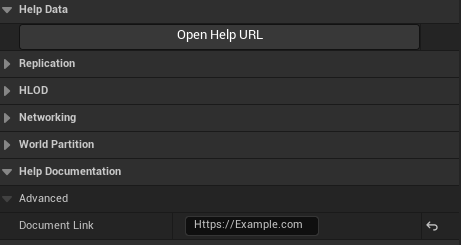
DocumentationActorDetails.cpp adds the Open Help URL button in a custom row with an SButton. FDocumentationActorDetails::IsButtonEnabled controls whether or not the button is enabled using the IsEnabled parameter.
DocumentationActorDetails.cpp
// Add a button we can click on to open the documentation
IDetailCategoryBuilder& HelpCategory = DetailBuilder.EditCategory("Help Data");
HelpCategory.AddCustomRow(LOCTEXT("HelpDocumentation_Filter", "Help Documentation"))
[
SNew(SButton)
.Text(this, &FDocumentationActorDetails::OnGetButtonText)
.ToolTipText(this, &FDocumentationActorDetails::OnGetButtonTooltipText)
.HAlign(HAlign_Center)
.OnClicked(this, &FDocumentationActorDetails::OnHelpButtonClicked)
.IsEnabled(this, &FDocumentationActorDetails::IsButtonEnabled)
];
FDocumentationActorDetails::IsButtonEnabled returns true or false based on whether there is a valid documentation link.
DocumentationActorDetails.cpp
bool FDocumentationActorDetails::IsButtonEnabled() const
{
bool bResult = false;
if ((SelectedDocumentationActor.IsValid() == true) && (SelectedDocumentationActor->HasValidDocumentLink() == true))
{
EDocumentationActorType::Type LinkType = SelectedDocumentationActor->GetLinkType();
bResult = ((LinkType == EDocumentationActorType::UDNLink) || (LinkType == EDocumentationActorType::URLLink)) ? true : false;
}
return bResult;
}
Additional programming is not necessary to refresh the Details panel with this implementation, as the needed delegates and responses are automatically added as part of assigning the IsEnabled Slate parameter.