

This tutorial guides you in creating a Details Panel Customization for a custom property type (a struct) and an Actor class.
Required Setup
Before you begin this tutorial, set up a runtime module and a corresponding editor module. This tutorial uses the CustomGameplay and CustomGameplayEditor modules, both defined in the Editor Modules tutorial. Your folder structure should appear as follows:
- Project Source Folder
- CustomGameplay
- CustomGameplay.Build.cs
- Target.cs
- Editor.Target.cs
- Private
- Public
- CustomGameplayEditor
- CustomGameplayEditor.Build.cs
- Private
- CustomGameplayEditorModule.cpp
- Public
- CustomGameplayEditorModule.h
- CustomGameplay
Customize Property Type Details
To make a custom Details Panel for a struct, follow these steps:
-
Create a new header (
.h) file in the CustomGameplay module'sPublicfolder. Name itCustomDataProperty.h. -
Add the following C++ code to
CustomDataProperty.h:CustomDataProperty.h
#pragma once #include "CoreMinimal.h" #include "CustomDataType.generated.h" USTRUCT(BlueprintType, Category="Custom Data") struct CUSTOMGAMEPLAY_API FCustomDataProperty { GENERATED_BODY() UPROPERTY(EditAnywhere, BlueprintReadWrite, Category="Custom Data") TSoftObjectPtr<UTexture> CustomTexture; UPROPERTY(EditAnywhere, BlueprintReadWrite, Category = "Custom Data") FName CustomName; UPROPERTY(EditAnywhere, BlueprintReadWrite, Category = "Custom Data") FString CustomString; UPROPERTY(EditAnywhere, BlueprintReadWrite, Category = "Custom Data") int32 CustomInt; };Make sure
FCustomDataPropertyhas theBlueprintTypespecifier and all of its properties have aUPROPERTYmacro with theEditAnywherespecifier. This is necessary to makeFCustomDataPropertyaccessible in Blueprint classes and display the struct's properties. -
Create a new header (
.h) file in the CustomGameplayEditor module'sPublicfolder. Name itCustomDataPropertyCustomization.h. -
Add the following C++ code to
CustomDataPropertyCustomization.h:CustomDataPropertyCustomization.h
#pragma once #include "CoreMinimal.h" #include "IPropertyTypeCustomization.h" class IPropertyHandle; //Forward declaration for IPropertyHandle interface class FCustomDataPropertyCustomization : public IPropertyTypeCustomization { public: // Inherited from IPropertyTypeCustomization virtual void CustomizeHeader(TSharedRef<IPropertyHandle> PropertyHandle, FDetailWidgetRow& HeaderRow, IPropertyTypeCustomizationUtils& CustomizationUtils) override; virtual void CustomizeChildren(TSharedRef<IPropertyHandle> PropertyHandle, IDetailChildrenBuilder& ChildBuilder, IPropertyTypeCustomizationUtils& CustomizationUtils) override; //Utility function to create an instance of the Property Customization. static TSharedRef<IPropertyTypeCustomization> MakeInstance(); }; -
Create a new class body (
.cpp) file in the CustomGameplayEditorModule'sPrivatefolder. Name itCustomDataPropertyCustomization.cpp. -
Add the following C++ code to
CustomDataPropertyCustomization.cpp:CustomDataPropertyCustomization.cpp
#include "CustomDataDetailsCustomization.h" #include "Widgets/SWidget.h" #include "DetailLayoutBuilder.h" #include "DetailCategoryBuilder.h" #include "DetailWidgetRow.h" #include "IDetailChildrenBuilder.h" #include "Widgets/Input/SButton.h" #include "Widgets/Text/STextBlock.h" #include "HAL/PlatformApplicationMisc.h" #include "IPropertyUtilities.h" void FCustomDataDetailsCustomization::CustomizeHeader(TSharedRef<IPropertyHandle> PropertyHandle, FDetailWidgetRow& HeaderRow, IPropertyTypeCustomizationUtils& CustomizationUtils) { } void FCustomDataDetailsCustomization::CustomizeChildren(TSharedRef<IPropertyHandle> PropertyHandle, IDetailChildrenBuilder& ChildBuilder, IPropertyTypeCustomizationUtils& CustomizationUtils) { //Make sure the property being accessed is valid before continuing. if (!PropertyHandle->IsValidHandle()) { return; } //Add a custom row that displays the text "Hello World!" ChildBuilder.AddCustomRow( FText::FromString("HelloWorldTest")) .NameContent() [ SNew(STextBlock) .Text(FText::FromString(TEXT("Hello, World!"))) .Font(IDetailLayoutBuilder::GetDetailFont()) ]; //Set up a for loop that can loop through the struct's child properties and adds their default property details. uint32 NumChildren = 0; PropertyHandle->GetNumChildren(NumChildren); //Display the original child properties for the struct. for (uint32 ChildIndex = 0; ChildIndex < NumChildren; ++ChildIndex) { ChildBuilder.AddProperty(PropertyHandle->GetChildHandle(ChildIndex).ToSharedRef()); } } //Create a static instance of the details customization. TSharedRef<IPropertyTypeCustomization> FCustomDataDetailsCustomization::MakeInstance() { return MakeShareable(new FCustomDataDetailsCustomization); }The above code does the following:
-
The include directives add access to classes needed for the details customization, including:
-
Classes relating to widgets (SButton, STextBlock).
-
Classes for modeling details widgets (DetailLayoutBuilder, DetailWidgetRow, DetailCategoryBuilder, IDetailChildrenBuilder).
-
Classes for defining a details panel customization (IDetailChildrenBuilder, IPropertyUtilities)
-
-
FCustomDataDetailsCustomization::CustomizeHeadermust be implemented to satisfy the requirements for implementingIPropertyTypeCustomization, but it is otherwise unused in this example. -
FCustomDataDetailsCustomization::CustomizeChildrencontains the logic for displaying the body of the details customization.-
IDetailChildrenBuilder::AddCustomRowdefines a new Slate details widget row. You can declare other Slate widgets inside it. -
After that, a for loop sets up the default display for each child element of the original struct.
-
-
FCustomDataDetailsCustomization::MakeInstancecreates an instance of the details customization and returns it in aTSharedRef, which is used in the next step to display the property in the details panel.
-
-
Open the CustomGameplayEditor module's implementation file (
CustomGameplayEditor.cpp). Add the following code toOnModuleStartup:CustomGameplayEditor.cpp
#include "CustomGameplayEditorModule.h" #include "CustomDataDetailsCustomization.h" #include "PropertyEditorDelegates.h" #include "PropertyEditorModule.h" IMPLEMENT_GAME_MODULE(FCustomGameplayEditorModule, CustomGameplayEditor); //Register Details Customizations in the StartupModule function. void FCustomGameplayEditorModule::StartupModule() { //Get a reference to the Property Module. FPropertyEditorModule& PropertyModule = FModuleManager::LoadModuleChecked<FPropertyEditorModule>("PropertyEditor"); /* Register the custom property type's layout. This requires the name of the property type. You can provide it manually as a string ("CustomData"), or you can get the FName from the StaticStruct. You also need to provide a delegate for the function that creates an instance of the details customization. In this case, it's the MakeInstance function created earlier. */ PropertyModule.RegisterCustomPropertyTypeLayout(FCustomDataProperty::StaticStruct()->GetFName(), FOnGetPropertyTypeCustomizationInstance::CreateStatic(&FCustomDataDetailsCustomization::MakeInstance)); } //Remove Details Customizations in the ShutdownModule function. void FCustomGameplayEditorModule::ShutdownModule() { PropertyModule.UnregisterCustomPropertyTypeLayout(FCustomDataProperty::StaticStruct()->GetFName()); }The above code does the following:
- The include directives for
PropertyEditorDelegates.handPropertyEditorModule.hadd the classes needed to register a property type customization. - The include directive for
CustomDataPropertyCustomization.hadds the property type customization you created in the previous steps. -
The code in
FCustomGameplayEditorModule::StartupModuledoes the following when Unreal Editor loads the module:- Loads or gets an instance of the Property Editor Module.
-
Uses
FPropertyEditorModule::RegisterCustomPropertyTypeLayoutto tell the editor to use the property type customization you created.- This includes the name of the struct ("CustomDataType") and the method to create an instance of the property type customization when the editor needs to display it (
FCustomDataPropertyCustomization::MakeInstance).
- This includes the name of the struct ("CustomDataType") and the method to create an instance of the property type customization when the editor needs to display it (
- The include directives for
Customize Class Details
-
Make a new C++ class using Actor (
UActor) as the parent class. Name the class CustomActor. -
Open
CustomActor.hand add the following members:CustomActor.h
UPROPERTY(EditAnywhere) TSoftObjectPtr<UStaticMesh> CustomMesh; UPROPERTY(EditAnywhere) float CustomFloat; UPROPERTY(EditAnywhere) bool CustomBool; UPROPERTY(EditAnywhere) FCustomData CustomData;None of these properties include a category because you will provide categories in the code for the Details Panel customization.
-
Create a new header (
.h) file in the CustomGameplayEditor module'sPublicfolder. Name itCustomActorClassCustomization.h. -
Add the following C++ code to
CustomActorClassCustomization.h:CustomActorClassCustomization.h
#pragma once #include "CoreMinimal.h" #include "IDetailCustomization.h" //Forward declaration of IPropertyHandle. class IPropertyHandle; //Custom Class Details Customization class FCustomClassDetailsCustomization : public IDetailCustomization { public: //Function that customizes the Details Panel. virtual void CustomizeDetails(IDetailLayoutBuilder& DetailBuilder) override; //Returns a static instance of the Details Panel customization. static TSharedRef<IDetailCustomization> MakeInstance(); };
Just like in the Property Type Customization, this class includes an FCustomClassDetailsCustomization::MakeInstance function to register it with the editor module later.
-
Create a new body (
.cpp) file in the CustomGameplayEditor module'sPrivatefolder. Name itCustomActorClassCustomization.cpp. -
Add the following C++ code to
CustomActorClassCustomization.cpp:CustomActorClassCustomization.cpp
#include "Widgets/SWidget.h" #include "DetailLayoutBuilder.h" #include "DetailCategoryBuilder.h" #include "DetailWidgetRow.h" #include "IDetailChildrenBuilder.h" #include "Widgets/Input/SButton.h" #include "Widgets/Text/STextBlock.h" #include "HAL/PlatformApplicationMisc.h" #include "IPropertyUtilities.h" #include "CustomActor.h" #include "CustomClassDetailsCustomization.h" void FCustomClassDetailsCustomization::CustomizeDetails(IDetailLayoutBuilder& DetailBuilder) { IDetailCategoryBuilder& CustomCategory = DetailBuilder.EditCategory("CustomSettings"); //Place CustomData and CustomBool at the start of the list to show that properties are added in the order from this code instead of the order listed in the header. CustomCategory.AddProperty(GET_MEMBER_NAME_CHECKED(ACustomActor, CustomData)); CustomCategory.AddProperty(GET_MEMBER_NAME_CHECKED(ACustomActor, CustomBool)); CustomCategory.AddProperty(GET_MEMBER_NAME_CHECKED(ACustomActor, CustomMesh)); CustomCategory.AddProperty(GET_MEMBER_NAME_CHECKED(ACustomActor, CustomFloat)); } //Create the static instance of this detail customization needed for registering it in module startup. TSharedRef<IDetailCustomization> FCustomClassDetailsCustomization::MakeInstance() { return MakeShareable(new FCustomClassDetailsCustomization); }The simplest way to add fields to a class's Details Panel customization is by defining details categories, then adding fields to them. The above code adds a
CustomSettingscategory and uses theIDetailCategoryBuilder::AddPropertyfunction to add the default implementations of each property's details. This overrides any categories you defined in these properties'UPROPERTYspecifiers. -
Open the CustomGameplayEditor module's implementation file (
CustomGameplayEditor.cpp). Add aPropertyModule.RegisterCustomClassLayoutcall in theStartupModulefunction, and aPropertyModule.UnregisterCustomClassLayoutcall in theShutdownModulefunction. Your code should read as follows:CustomGameplayEditorModule.cpp
IMPLEMENT_GAME_MODULE(FCustomGameplayEditorModule, CustomGameplayEditor); void FCustomGameplayEditorModule::StartupModule() { FPropertyEditorModule& PropertyModule = FModuleManager::LoadModuleChecked<FPropertyEditorModule>("PropertyEditor"); PropertyModule.RegisterCustomPropertyTypeLayout(FCustomDataProperty::StaticStruct()->GetFName(), FOnGetPropertyTypeCustomizationInstance::CreateStatic(&FCustomDataDetailsCustomization::MakeInstance)); PropertyModule.RegisterCustomClassLayout(ACustomActor::StaticClass()->GetFName(), FOnGetDetailCustomizationInstance::CreateStatic(&FCustomClassDetailsCustomization::MakeInstance)); } void FCustomGameplayEditorModule::ShutdownModule() { FPropertyEditorModule& PropertyModule = FModuleManager::LoadModuleChecked<FPropertyEditorModule>("PropertyEditor"); PropertyModule.UnregisterCustomPropertyTypeLayout(FCustomDataProperty::StaticStruct()->GetFName()); PropertyModule.UnregisterCustomClassLayout(ACustomActor::StaticClass()->GetFName()); } -
Compile your code and open your project. Place an instance of CustomActor in your map and look at the Details Panel. It should appear as follows:
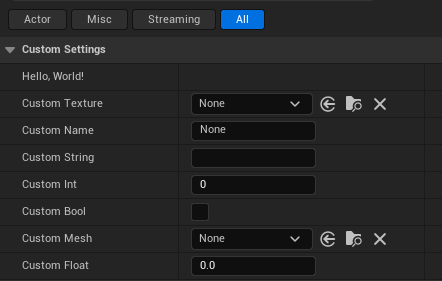
As expected, the custom data type appears first, with the "Hello, World!" string and each of the struct's members, followed by the custom boolean, then the other properties.
Further Reading
The following pages explore common operations when creating custom Details Panels:
