

With the introduction of Apple's M1 processor, Macs from 2021 onward are manufactured using the same ARM64 architecture as iOS devices. Meanwhile, the previous generation of Intel-based Macs use an x86-64 architecture.
Although Apple provides an instruction translator called Rosetta2 to help support legacy applications, Apple Arcade requires developers to provide a single universal binary for games, with explicit support for both architectures. This ensures the best possible performance and stability on both generations of hardware.
This page provides the following resources for building Unreal Engine (UE) projects with this level of support:
- Information about Unreal Engine's compatibility with both architectures.
- Instructions on how to support both architectures separately.
- Instructions on how to build universal binaries that support both architectures.
Prerequisites
The instructions on this page assume that you are building your projects using Xcode running on macOS. You should familiarize yourself with Unreal Automation Tool (UAT) and the BuildCookRun command before proceeding.
Compatibility Notes
In UE 5.1, Unreal Editor when you build a project in Xcode on an Apple Silicon device, it is automatically set to compile with native Apple Silicon support for both editor and standalone builds. However, ARM64 support for Unreal Editor is experimental, as some Unreal Marketplace plugins and third-party libraries do not have ARM64 support yet. To build your editor for x86 instead, change your target device from My Mac to My Mac (Rosetta).
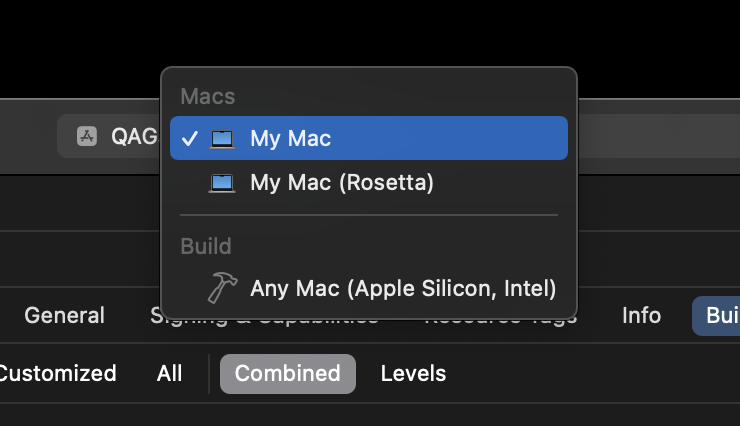
Unreal Engine can output packaged builds for projects with support for ARM64 by setting the target architecture to arm64. See the instructions below for more details.
Creating Binaries for ARM64 and x86-64
Creating Separate Binaries
To build binaries for each architecture, you need to use Unreal Automation Tool's BuildCookRun command to start a build and set the target architecture.
First, navigate to your Unreal Engine's install directory in your command line:
cd /Users/Current.User/Epic\Games/UE5.1
Then, execute RunUAT.sh with the BuildCookRun argument to start the build:
Engine/Build/BatchFiles/RunUAT.sh BuildCookRun -project=MyProject -platform=Mac -architecture=arm64 -build -cook -stage -deploy
Adding the -architecture= command to BuildCookRun will specify which architecture you are building for.
For example, the following command will create a build for ARM64:
-architecture=arm64
And the following command will build for x86:
-architecture=x86_64
The first time you build your project for each architecture will probably take longer than usual. After that, UAT caches cooked data, and subsequent builds will be faster.
You can build projects that support both x86-64 and ARM64 architectures by compiling their binaries separately, and distributing builds with those binaries to different machines as appropriate. However, you need to create merged, universal binaries for Apple Arcade, and having a universal binary is more convenient for distribution overall.
Creating Universal Binaries With UAT
To build a project with universal binaries, use the following as your architecture in BuildCookRun:
-specifiedarchitecture=arm64+x86_64
This will build a project that supports both ARM64 and x86-64 architectures. You can distribute these builds to either type of device, and they will use the appropriate binaries for their architecture automatically.