

In Unreal Engine, Skeletal Mesh assets can be swapped out in real time, with different meshes of the same characters at different levels of detail, called Level of Detail assets (LODs). These lower resolution versions of a Skeletal Mesh are used to reduce the performance cost a character requires when they are far away from the camera, when higher detail would be hard to perceive by the player.
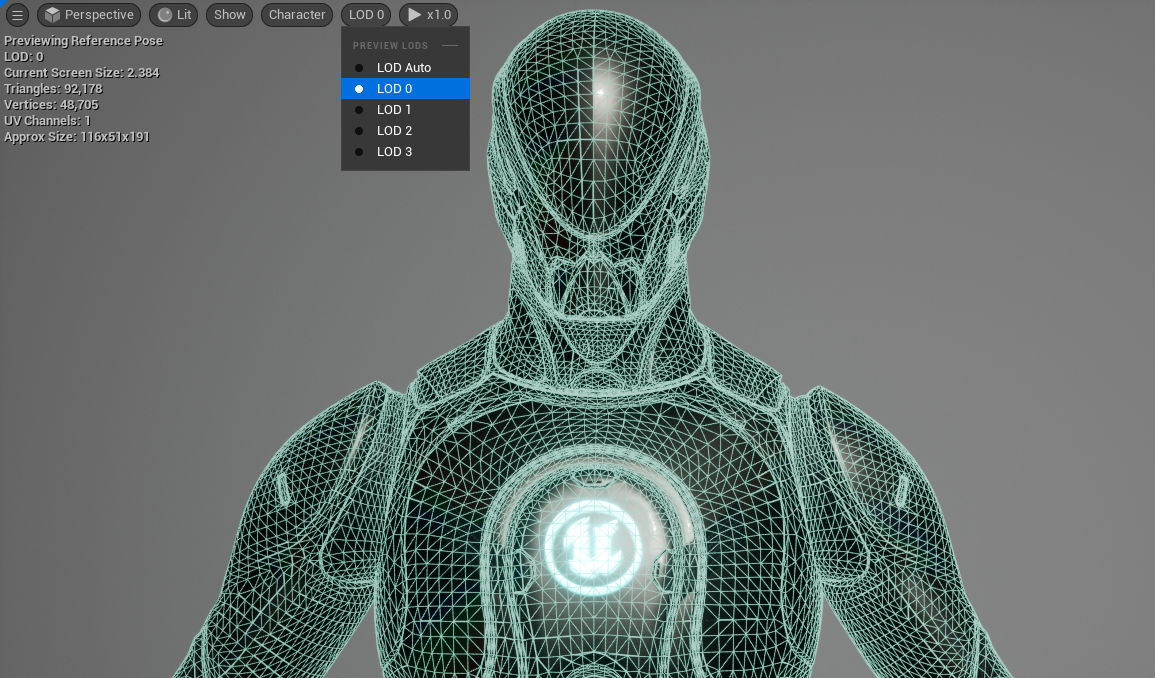



Move the slider to observe the Mannequin Skeletal Mesh at LODs 0 through 3
LODs usually come in ordered sets, starting with the full-resolution Skeletal Mesh being LOD 0, with each increasing LOD number being a reduction in the Meshes geometry count. Some higher number LODs can even reduce the number of bones the character's skeleton contains. The number of LODs a Character contains, and the severity of resolution steps, depends on your project's needs.
LODs can be hand authored in external Digital Content Creation (DCC) software, or generated within the engine using the Skeletal Mesh Reduction Tool.
To read more about Skeletal Mesh LODs in Unreal Engine, refer to the following documentation:
Per-Platform LODs
While having multiple Skeletal Mesh LODs of a character can help lessen the rendering cost, the extra memory required to store this information can be an issue on platforms that have limited resources like memory. It can be beneficial to your project's performance, across multiple platforms, to set a default LODs to be used on a per-platform basis.
The following document will provide an example workflow of how to set these default LODs to scale your project across multiple platforms.
Prerequisites
- Your project contains a Skeletal Mesh asset with a few LODs. If your Skeletal Mesh asset does not have any associated LODs, you can use the Skeletal Mesh Reduction tool to generate a set.
Setting Per-Platform LODs
Navigate in the Content Browser to your Skeletal Mesh asset that contains a set of LODs and open it in the Skeletal Mesh Editor.
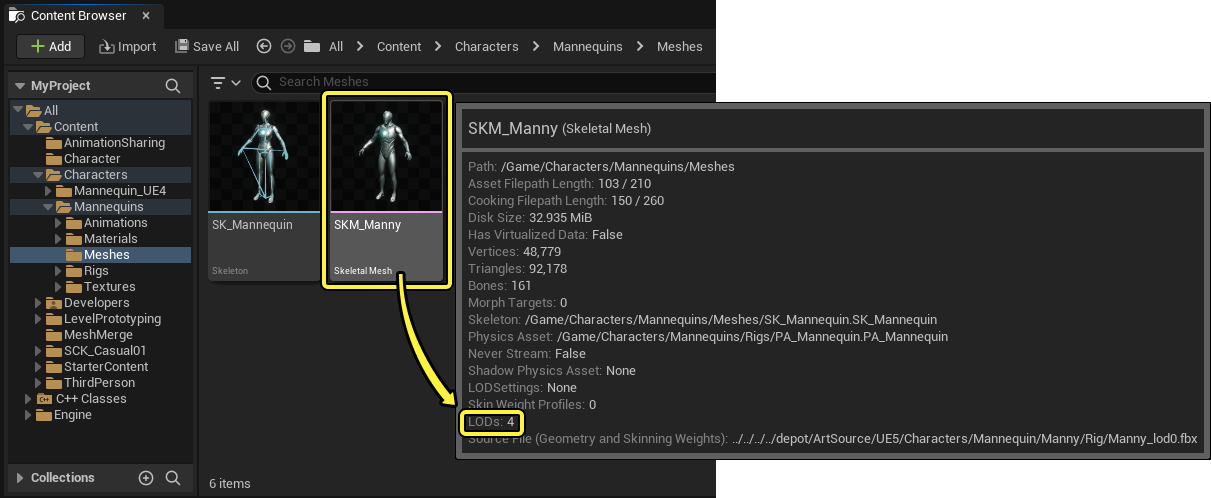
You can hover your mouse over a Skeletal Mesh Asset in the Content Browser, to see some contextual information, including the number of LODs the Skeletal Mesh contains.
To create a new minimum LOD default for a specified release platform, navigate in the Skeletal Mesh Editor's Asset Details panel under the LOD Settings section and add an array to the Minimum LOD property using (+) Add and select the platform or platform group to specify a new minimum LOD default.
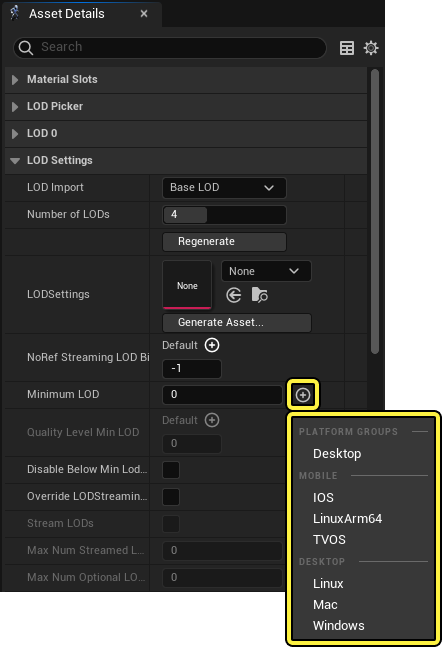
The list of available release platforms to specify a minimum LOD default depends on your installed platform release plugins. See the Sharing and Releasing Projects for more information about setting up your project for release on different platforms.
After selecting a platform, you can specify which LOD number will operate as the minimum, or highest-quality LOD, the platform will use. Inputting a value of 0, will result in that platform using the highest-resolution LOD of the character.
 (convert:false)
LOD Settings Asset
You can also create and assign a LOD Settings asset to set a Skeletal Mesh's LOD settings. A LOD Settings asset can apply LOD settings, including per-platform LOD minimus, for multiple characters and objects. Using a LOD Settings asset can streamline Character LOD setup, making it more efficient to create and edit per-platform minimums across multiple characters and objects.
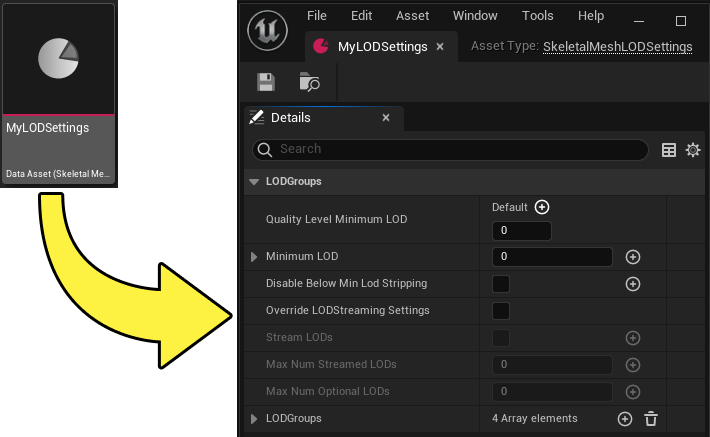
To create a LOD Settings asset, open a Skeletal Mesh asset in the Skeletal Mesh Editor. In the Asset Details panel, under the LOD Settings section, select the Generate Asset option in the LODSetting property.
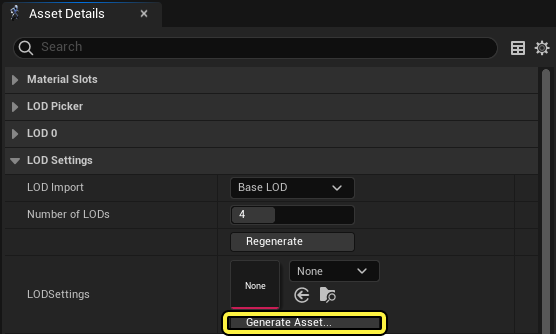
Name and select a location in your project files to save the asset, and then select Create. You can now open the LOD Settings asset and define its properties.
The LOD Settings asset will automatically populate and drive the initial Skeletal Mesh's LOD Settings. You can assign the same asset to drive other characters by opening each additional Skeletal Mesh asset in the Skeletal Mesh Editor, and selecting the LOD Settings asset from the drop-down menu in the LODSettings property.