
Quartz is a Blueprint-exposed scheduling system that solves timing issues between the game, audio logic, and audio rendering threads to provide sample-accurate audio playback.
This guide teaches you how to create a Quartz-powered metronome that triggers audio and gameplay events.
Prerequisites
Create a new Third Person Template project.
1 - Create the MetaSounds
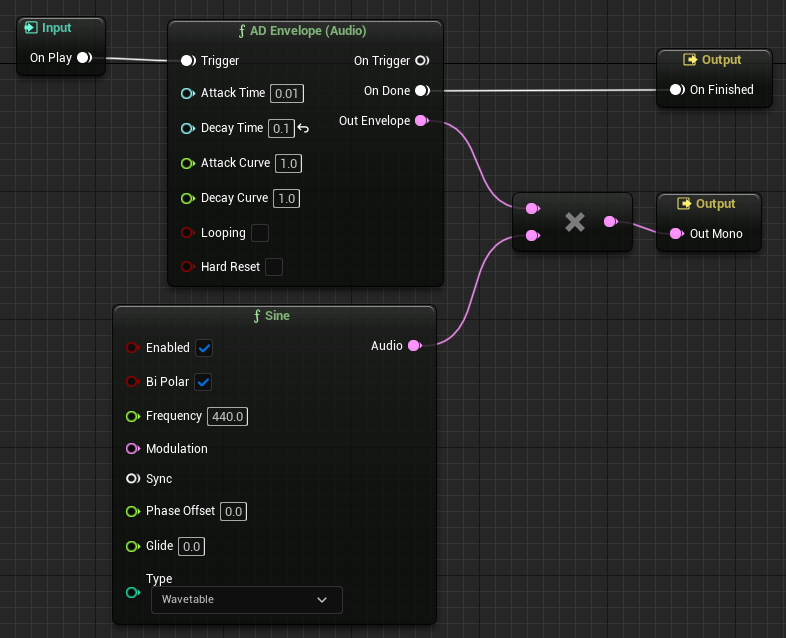
Create two MetaSound Sources for the metronome beeps. Follow the steps below to build the graph above.
1.1 - Create the High-Frequency Beep
-
Create a MetaSound Source.
-
In the Content Browser, click the Add button.
-
Select Audio > MetaSound Source.
-
Name the new MetaSound
MSS_BeepA4.
-
-
Double-click the MetaSound to open the MetaSound Editor.
-
Find the On Play Input node and drag off of the pin into an empty space. Enter "AD Envelope (Audio)" into the node search to create a connected node. You can move the node around the graph by dragging it.
-
On the AD Envelope (Audio) node:
-
Set Decay Time to 0.1.
-
Connect the On Done pin to the On Finished Output node.
-
Drag off the Out Envelope pin and create a Multiply (Audio) node.
-
-
On the Multiply (Audio) node:
-
Drag off the bottom multiplicand pin and create a Sine node.
-
Connect the output pin to the Out Mono Output node.
-
-
Click the Play button on the MetaSound Editor Toolbar to play the short, high-frequency beep sound.
-
Save the MetaSound and close the MetaSound Editor.
1.2 - Create the Low-Frequency Beep
-
In the Content Browser, right-click the
MSS_BeepA4MetaSound and select Duplicate. -
Name the new MetaSound
MSS_BeepA3. -
Double-click the MetaSound to open the MetaSound Editor.
-
On the Sine node, set the Frequency to 220.
-
Click the Play button on the MetaSound Editor Toolbar to play the short, low-frequency beep sound.
-
Save the MetaSound and close the MetaSound Editor.
2 - Build the Level Blueprint
Construct the Level Blueprint to create a Quartz Clock, sounds, and the event delegate for the metronome.
2.1 - Create the Quartz Clock
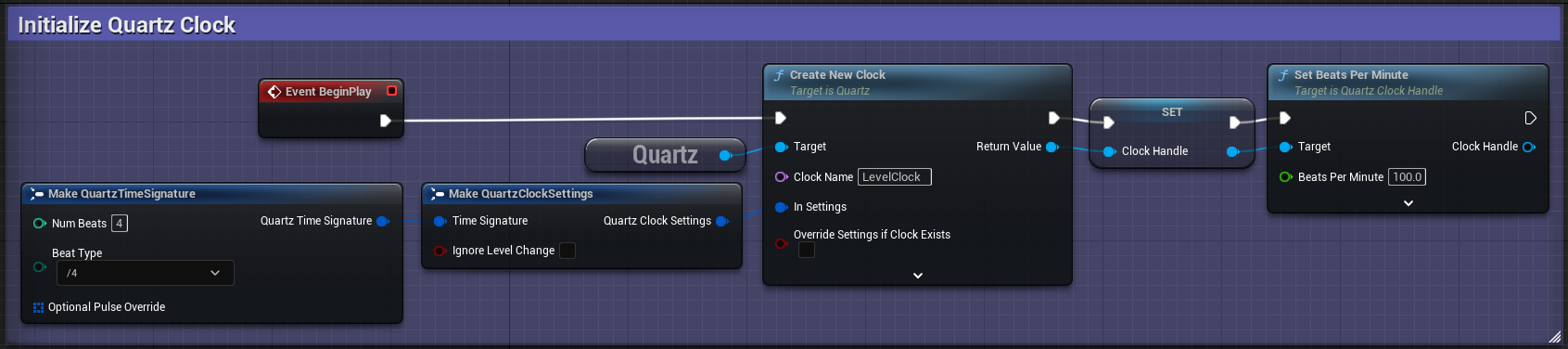
-
On the Level Editor Toolbar, click the Blueprint button and select Open Level Blueprint.
-
Right-click in an empty space and add a Get QuartzSubsystem node.
-
On the Get QuartzSubsystem node, drag off the output pin and add a Create New Clock node.
-
On the Create New Clock node:
-
Connect the Exec Input (>) pin to the Event BeginPlay node.
-
Set Clock Name to
LevelClock. -
Drag off the In Settings pin and add a Make QuartzClockSettings pin.
-
Drag off the Return Value pin and select Promote to Variable. This creates a Set node and a Blueprint variable named
NewVarto store the Quartz Clock Handle and prevent its' garbage collection. -
Connect the Exec Output (>) pin to the Set (NewVar) node.
-
-
In the My Blueprint panel, right-click the NewVar variable and select Rename.
-
Name the variable
ClockHandle. -
On the Make QuartzClockSettings node, drag off Time Signature and create a Make QuartzTimeSignature node.
-
On the Set (Clock Handle) node:
-
Drag off the output pin and create a Set Beats Per Minute node.
-
Connect the Exec Output (>) pin to the Set Beats Per Minute node.
-
-
On the Set Beats Per Minute node, set Beats Per Minute to 100.0.
2.2 - Create the Sounds

-
On the Set Beats Per Minute node (at the end of the previous section), drag off the Exec Output (>) pin and create a Create Sound 2D node.
-
On the Create Sound 2D node:
-
Set Sound to
MSS_BeepA4. -
Drag off the Return Value pin and select Promote to Variable. This creates a Set node and another Blueprint variable named
NewVar. -
Drag off the Audio Component Output pin and create a Set Play Multiple Instances node.
-
Connect the Exec Output (>) pin to the Set Play Multiple Instances node.
-
-
In the My Blueprint panel, right-click the NewVar variable and select Rename.
-
Name the variable
BeepA4. -
On the Set Play Multiple Instances node:
-
Enable Play Multiple Instances.
-
Drag off the Exec Output (>) pin and create a second Create Sound 2D node.
-
-
On the second Create Sound 2D node:
-
Set Sound to
MSS_BeepA3. -
Drag off the Return Value pin and select Promote to Variable. This creates a Set node and another Blueprint variable named
NewVar. -
Drag off the Audio Component Output pin and create a second Set Play Multiple Instances node.
-
Connect the Exec Output (>) pin to the Set Play Multiple Instances node.
-
-
In the My Blueprint panel, right-click the NewVar variable and select Rename.
-
Name the variable
BeepA3. -
On the second Set Play Multiple Instances node:
- Enable Play Multiple Instances.
2.3 - Start the Quartz Clock
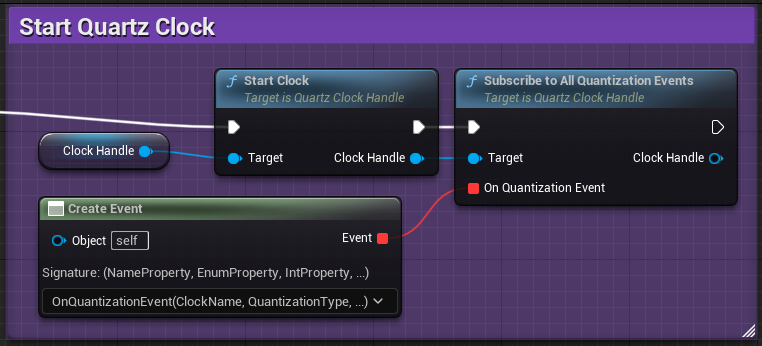
-
Right-click in an empty space and add a Get Clock Handle node.
-
On the Get Clock Handle node, drag off the output pin and create a Start Clock node.
-
On the Start Clock node:
-
Connect the Exec Input (>) pin to the second Set Play Multiple Instances node (at the end of the previous section).
-
Drag off the Clock Handle node and create a Subscribe to All Quantization Events node.
-
Connect the Exec Output (>) pin to the Subscribe to All Quantization Events node.
-
-
On the Subscribe to All Quantization Events node, drag off the On Quantization Event pin and create a Create Event node.
-
On the Create Event node:
-
Click the dropdown and select [Create a matching event]. This creates a new Custom Event node.
-
Name the Custom Event
OnQuantizationEvent.
-
2.4 - Construct the Event Delegate
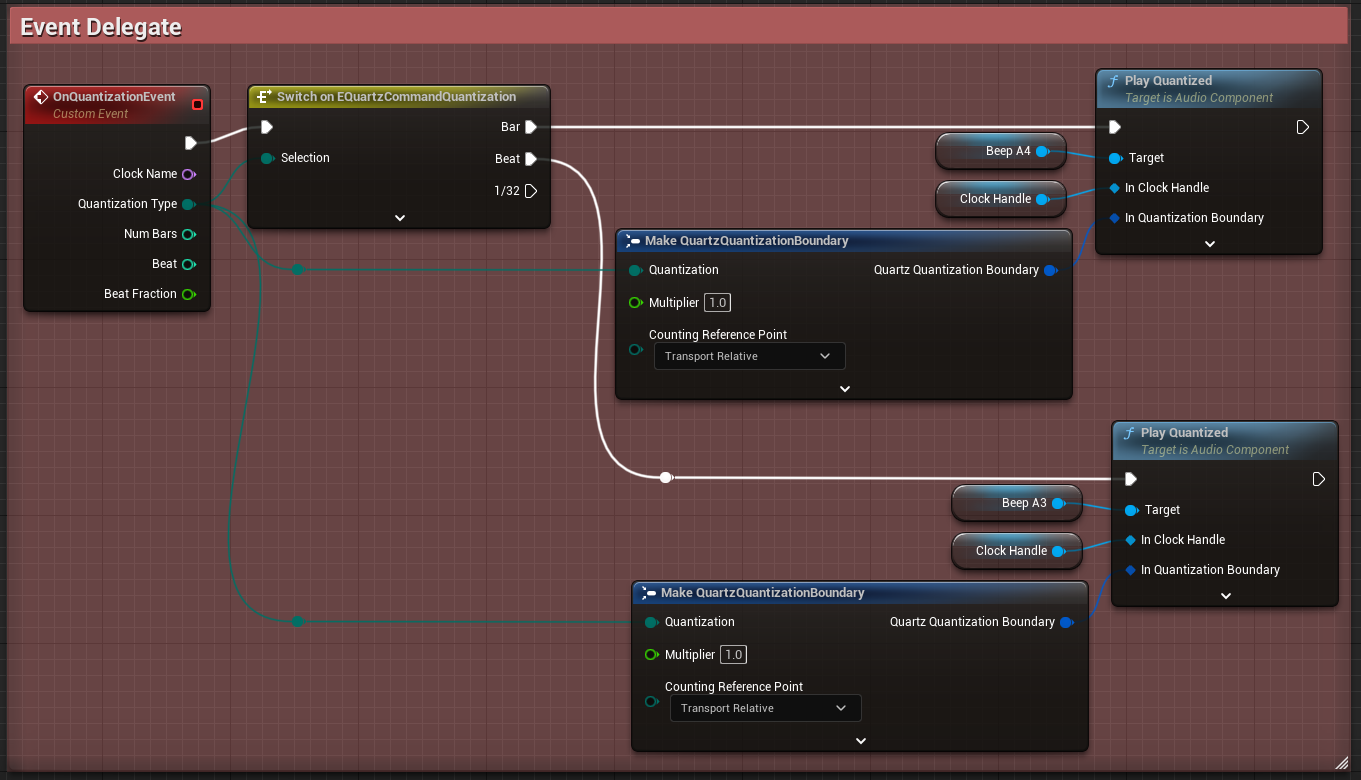
-
On the OnQuantizationEvent node:
-
Drag off the QuantizationType pin and create a Switch on EQuartzCommandQuantization node.
-
Connect the Exec Output (>) pin to the Switch on EQuartzCommandQuantization node.
-
Drag off the QuantizationType pin and create a Make QuartzQuantizationBoundary node.
-
Drag off the QuantizationType pin and create a second Make QuartzQuantizationBoundary node.
-
-
On both of the Make QuartzQuantizationBoundary nodes, set the Counting Reference Point to Transport Relative.
-
On the Switch on EQuartzCommandQuantization node:
-
Drag off the Bar pin and create a Play Quantized node.
-
Drag off the Beat pin and create a second Play Quantized node.
-
-
On the first Play Quantized node:
-
Drag off the Target pin and create a Get Beep A4 node.
-
Drag off the In Clock Handle pin and create a Get Clock Handle node.
-
Connect the In Quantization Boundary pin to the output pin of one of the Make QuartzQuantizationBoundary nodes.
-
-
On the second Play Quantized node:
-
Drag off the Target pin and create a Get Beep A3 node.
-
Drag off the In Clock Handle pin and create a Get Clock Handle node.
-
Connect the In Quantization Boundary pin to the output pin of the unconnected Make QuartzQuantizationBoundary node.
-
-
Compile and save the Blueprint.
-
Close the Blueprint Editor.
2.5 - Test the Level
Click the Play button on the Level Editor Toolbar. The low-frequency beep MetaSound plays every beat, and the high-frequency beep MetaSound plays every bar.
3 - Build the Blueprint Actor
Create a Blueprint Actor with a Cube Component that scales with the beat of the Quartz Clock that you set up on the Level Blueprint.
3.1 - Create the Blueprint Actor
-
In the Content Browser, click the Add button.
-
Select Blueprint Class.
-
From the Pick Parent Class window, select Actor.
-
Name the new Blueprint Actor
BP_QuartzCube. -
Double-click the Blueprint Actor to open the Blueprint Editor.
-
In the Components panel, click the Add button, type "Cube" into the search bar, and press Enter.
3.2 - Get the Level Clock on the Actor's Event Graph
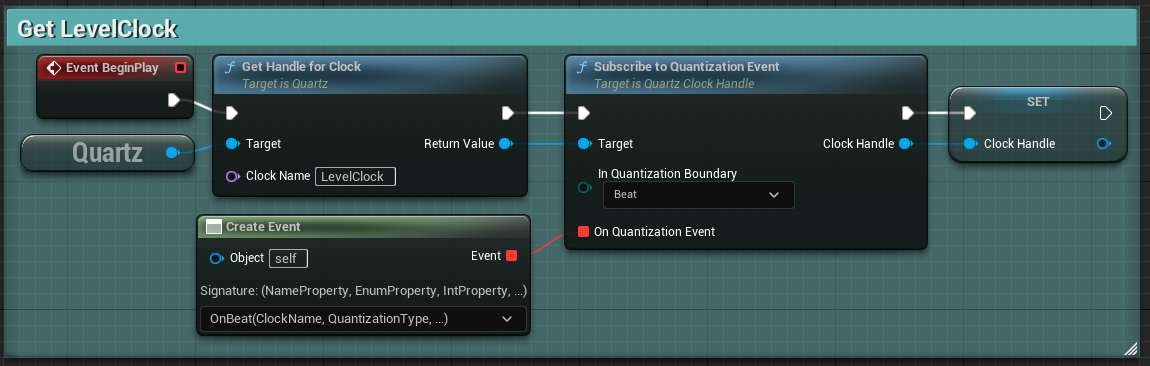
-
Right-click in an empty space and add a Get QuartzSubsystem node.
-
On the Get QuartzSubsystem node, drag off the output pin and add a Get Handle for Clock node.
-
On the Get Handle for Clock node:
-
Connect the Exec Input (>) pin to the Event BeginPlay node.
-
Set Clock Name to
LevelClock. -
Drag off the Return Value pin and create a Subscribe to Quantization Event node.
-
Connect the Exec Output (>) pin to the Subscribe to Quantization Event node.
-
-
On the Subscribe to Quantization Event node:
-
Set In Quantization Event to Beat.
-
Drag off the Return Value pin and select Promote to Variable. This creates a Blueprint variable named
Clock Handleto store the Quartz Clock Handle and prevent its' garbage collection. -
Connect the Exec Output (>) pin to the Set (Clock Handle) node.
-
Drag off the On Quantization Event pin and create a Create Event node.
-
-
On the Create Event node:
-
Click the dropdown and select [Create a matching event]. This will create a new Custom Event node.
-
Name the Custom Event
OnBeat.
-
3.3 - Scale the Actor on Beat
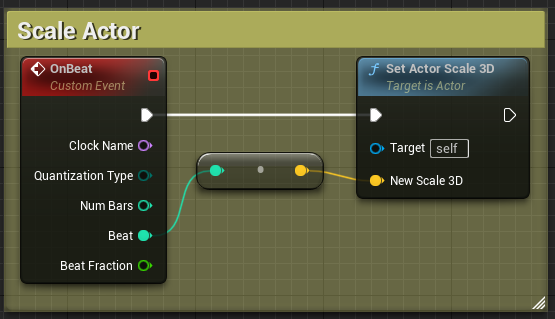
-
On the OnBeat node:
-
Drag off the Exec Output (>) pin and create a Set Actor Scale 3D node.
-
Connect the Beat pin to the New Scale 3D pin on the Set Actor Scale 3D node. This automatically creates a To Vector (Integer) node.
-
-
Compile and save the Blueprint.
-
Close the Blueprint Editor.
4 - Modify the Level Blueprint
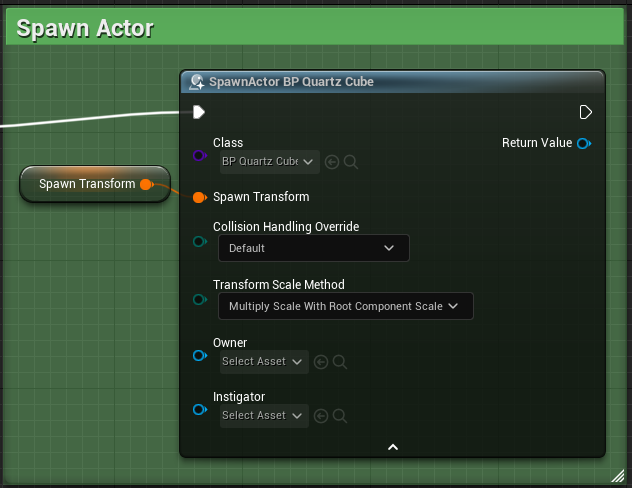
Add logic to the Level Blueprint to spawn the BP_QuartzCube.
-
On the Level Editor Toolbar, click the Blueprint button and select Open Level Blueprint.
-
On the Subscribe to All Quantization Events node (in section 2.3), drag off the Exec Output (>) pin and create a Spawn Actor from Class node.
-
On the Spawn Actor node:
-
Set Class to
BP_QuartzCube. -
Drag off the Spawn Transform pin and select Promote to Variable.
-
-
Compile the Blueprint.
-
Select the Spawn Transform node.
-
In the Details panel, set the Default Value > Spawn Transform > Location to 1600.0, 1200.0, 200.0.
-
Compile and save the Blueprint.
-
Close the Blueprint Editor.
5 - Test the Level
Click the Play button on the Level Editor Toolbar. The BP_QuartzCube now spawns in the level and scales with the metronome beat.