Before an Unreal project can be distributed to users, it must be properly packaged. Follow the instructions below to build a package for the HoloLens 2.
Configure the Plugins for HoloLens
Steps
-
In your Unreal project, make sure that the Microsoft OpenXR Plugin is enabled. See Developing for Hololens for more information about downloading and installing the Microsoft OpenXR plugin
The Windows Mixed Reality plugin is no longer supported and should be disabled before you start developing your HoloLens project.
Install Supporting Files from the Epic Games Launcher
If this is the first time that you have built a package for the HoloLens, you may need to download supporting files from the Epic Games Launcher.
Steps
-
Go to the Library tab in the Epic Games Launcher.
-
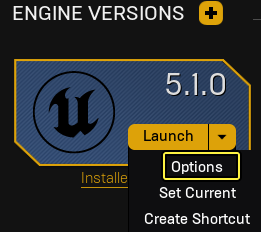
Select the pulldown arrow next to Launch, then select Options.
-
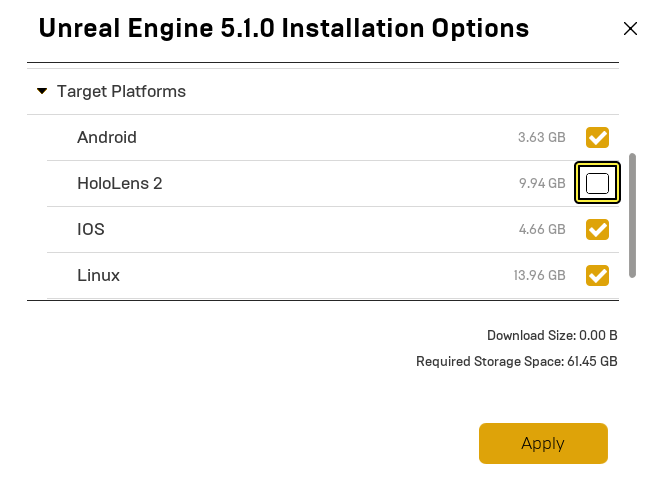
From the Unreal Engine Installation Options menu, select HoloLens 2 and click Apply.
Configure the Project Settings for HoloLens Packaging
Steps
- Go to Edit > Project Settings > Project > Description > About and enter the following information:
- Project Name: The name of your project.
- Company Name: The name of your company.
-
Company Distinguished Name: Enter CN= followed by your company name.
-
Go to Project Settings > Project > Description > Settings and enable Start in VR.
-
Go to Project Settings > Platforms > HoloLens > Packaging > Signing Certificate and select Generate new.
-
You will be prompted to create a Private Key Password. For testing purposes, click None.
-
If you are packaging for HoloLens Emulation, go to Project Settings > Platforms > HoloLens > Holo Lens and select Build for HoloLens Emulation.
-
If you are packaging for the HoloLens Device, go to Project Settings > Platforms > HoloLens > Holo Lens and select Build for HoloLens Device.
Package a Project for the HoloLens
Steps
-
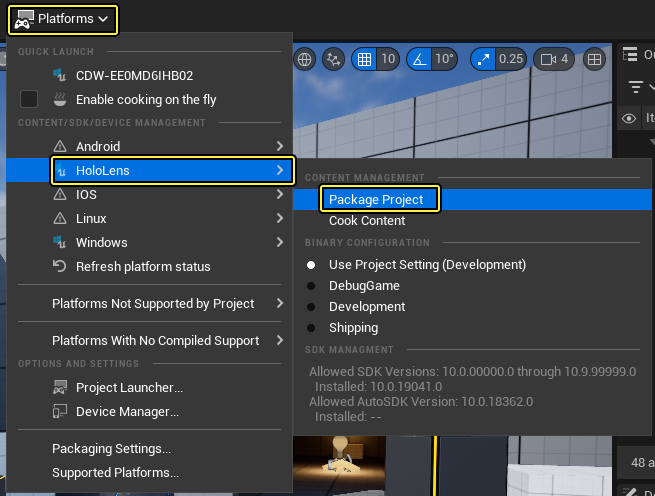
In the Editor, Select Platforms > HoloLens > Package Project .
-
Enter a specific destination folder for the package (or accept the default).
-
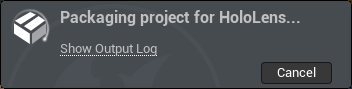
The packaging status is displayed in the bottom right-hand of the screen. Details of the process are available in the Output Log.
Results
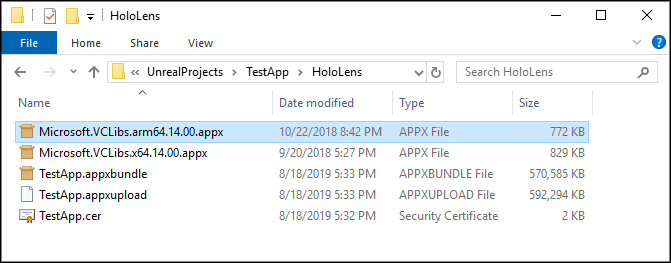
Once the packaging process finishes, you should see something similar to the screenshot below in your project directory. If you accepted the default destination folder, a HoloLens directory was created during the packaging process. To deploy your app, see the instructions in the HoloLens 2 Emulator Quick Start or HoloLens 2 Device Quick Start topics.