
You can customize the end user's experience with the Ansel. For example, you may disable certain effects during photography or limit the movement of the camera in game-specific ways. Several Blueprint events and functions are available to implement logic to customize the player's experience.
Events
On Photography Session Start
Event triggered upon entering Photography mode (before pausing, if r.Photography.AutoPause is 1).
On Photography Session End
Event triggered upon leaving Photography mode (after unpausing, if r.Photography.AutoPause is 1).
On Photography Multi Part Capture Start
Event triggered upon the start of a multi-part photograph capture (i.e. a stereoscopic or 360-degree shot). This is an ideal time to turn off rendering effects that tile badly (UI, subtitles, vignette, very aggressive bloom, etc; most of these are automatically disabled when r.Photography.AutoPostprocess is 1).
On Photography Multi Part Capture End
Event triggered upon the end of a multi-part photograph capture, when manual free-roaming photographic camera control is about to be returned to the user. Here you may re-enable whatever was turned off within OnPhotographyMultiPartCaptureStart.
Overridable Functions
To override the functions listed below:
-
Create a new Blueprint Class with Player Camera Manager as the parent and open it in the Blueprint Editor.
-
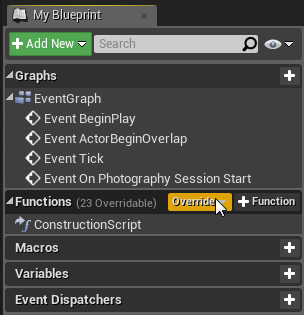
In the My Blueprint panel, place the mouse cursor over the Functions heading and click Override.
-
Select the function you wish to override from the list of overridable functions. The function appears in the Functions list and the graph for it is opened so you can edit it.
Photography Camera Modify
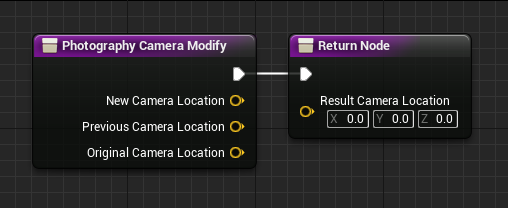
This allows a PlayerCameraManager subclass to constrain or otherwise modify the camera during free-camera photography. By default, the camera is constrained such that it remains a finite distance from its starting position and may not pass through collidable walls. You may replace or augment this behavior.
This function gives you the original, previous, and proposed camera positions and takes your modified camera position as a result.
See the Constrain Camera By Distance and Constrain Camera By Geometry Blueprint utilties for two ready-made constraint functions.
Utility Actions
Start Session
Immediately start a photography session without waiting for the user to hit Alt-F2. This is useful for binding photography mode to alternative hotkeys or controller buttons.
Stop Session
Immediately stop a photography session in progress.
Is Photography Available
Returns whether the photography system is available at all. Also see console variable r.Photography.Available
Is Photography Allowed
Returns whether the app is permitting photography at this time. Also see console variable r.Photography.Allowed
Set Is Photography Allowed
Sets whether the app is permitting photography at this time. Also see console variable r.Photography.Allowed
Set Settle Frames
Set the number of frames between captures in a multi-part shot. Also see console variable r.Photography.SettleFrames
Set Camera Movement Speed
Sets the normal speed of movement of the photography camera. Also see console variable r.Photography.TranslationSpeed
Set Camera Constraint Camera Size
Sets the size of the photography camera for collision purposes; only relevant when default implementation of PlayerCameraManager's PhotographyCameraModify function is used or the Constrain Camera By Geometry utility is used directly. Also see console variable r.Photography.Constrain.CameraSize
Set Camera Constraint Distance
Sets the maximum distance which the camera is allowed to wander from its initial position; only relevant when the default implementation of PlayerCameraManager's Photography Camera Modify function is used. Also see console variable r.Photography.Constrain.MaxCameraDistance
Set Auto Postprocess
Sets whether the photography system automatically tries to optimize Unreal's postprocessing effects for photography. Also see console variable r.Photography.AutoPostprocess
Set Auto Pause
Sets whether the photography system automatically pauses the game during a photography session. Also see console variable r.Photography.AutoPause
Set UIControl Visibility
Allows you to hide controls in the photography UI which let the player tweak standard UE visual effects during photography - for example, depth of field or chromatic aberration. Note: these controls only exist when SetAutoPostprocess is turned on. Some may not apply to your application either because you are not using the associated effect or you are using a custom version of the effect.
Constrain Camera By Distance
A utility which constrains distance of camera from its start point; may be useful when implementing a custom Photography Camera Modify function.
Constrain Camera By Geometry
A utility which constrains the camera against collidable geometry; may be useful when implementing a custom Photography Camera Modify function.