

When developing animation systems in Unreal Engine using Animation Blueprints you can use several animation optimization techniques to increase your animation system's performance.
While some of the animation optimization properties and settings are available within the framework of the Unreal Engine Editor, other methods and tools can be enabled and controlled through your project's C++ code base. While the Engine's included tool set is comprehensive for most use cases, there are instances where C++ logic provides the most direct control of animation evaluation and playback.
You can use the following documentation to learn more about animation optimization techniques in Unreal Engine.
Frame Rate
Your project's performance, or how quickly your project is able to evaluate all of its game systems and render its scene and characters, is based on the amount of work your Central Processing Unit (CPU) and Graphics Processing Unit (GPU) are able to process in a set amount of time. Higher frame rate projects have less time to process data because the time in between frames is less than lower frame rate projects.
Deciding what frame rate you are targeting early on in your project is an important step. Common project frame rates range from 30 to 60 and sometimes even higher. For projects running on less powerful hardware like console and mobile platforms, a lower framerate is more common, while projects running on PC hardware can often be scaled to meet the bandwidth available based on the user's hardware. However, even when running on powerful hardware, you may want to consider choosing a set frame rate to run your project, to create a more stable and uniform experience for your players.
Game animations are often authored, or created, at 30 frames per second. Unreal Engine is able to interpolate 30 frames per second animations to appear seamless when run at 60 frames per second. However, some animations may be authored at a different frame rate for a specific look or feel.
Here you can see the difference between the same animation running at both 30 frames per second and 60 frames per second. The 30 frames per second animation includes less information, resulting in a lower quality animation playback. The 60 frames per second animation plays at a higher fidelity, but requires more evaluations, reducing the available bandwidth for your project, especially when scaled to an entire animation system across multiple characters or objects.
| 30 Frames per Second | 60 Frames per Second |
|---|---|
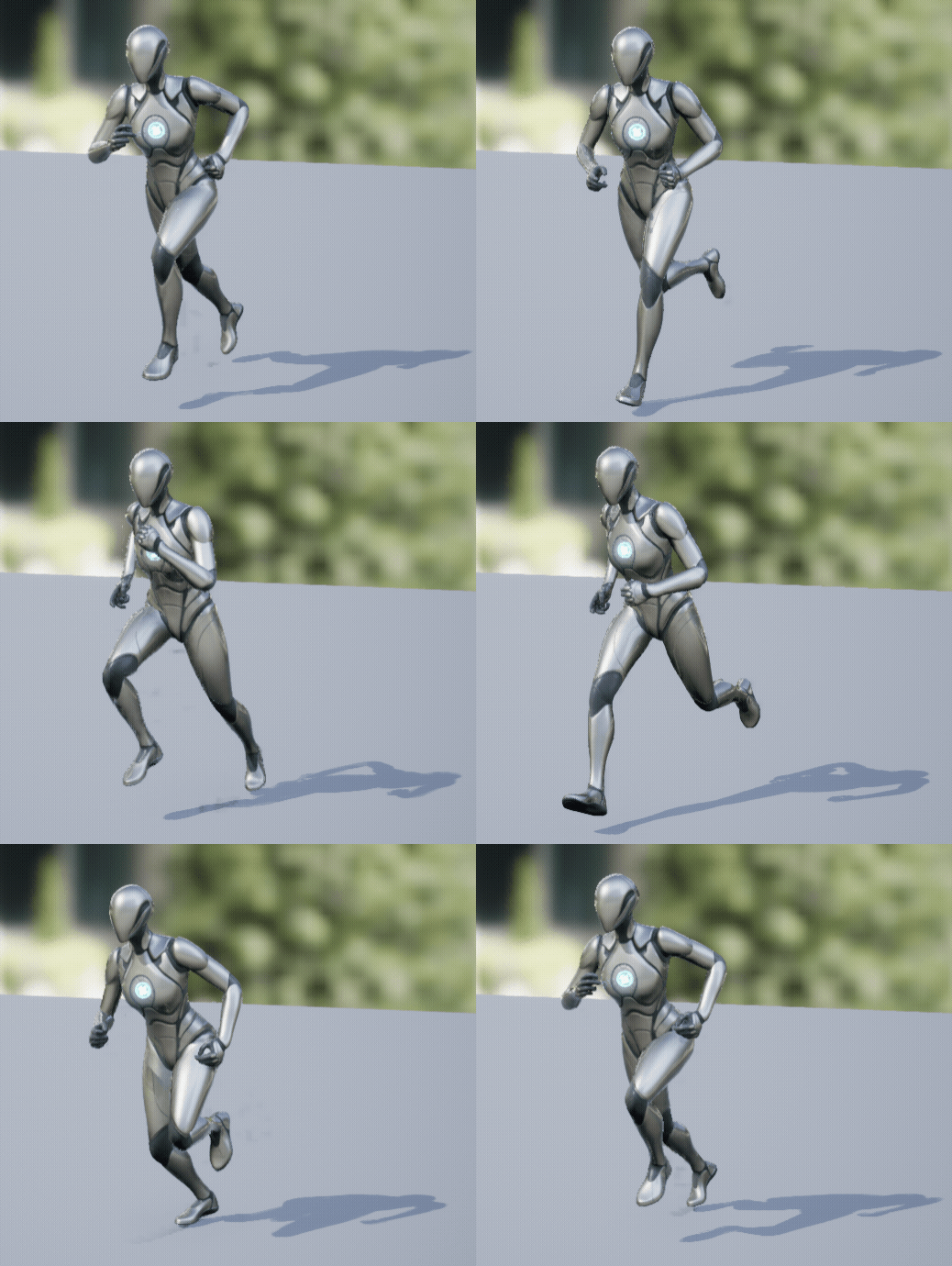 |
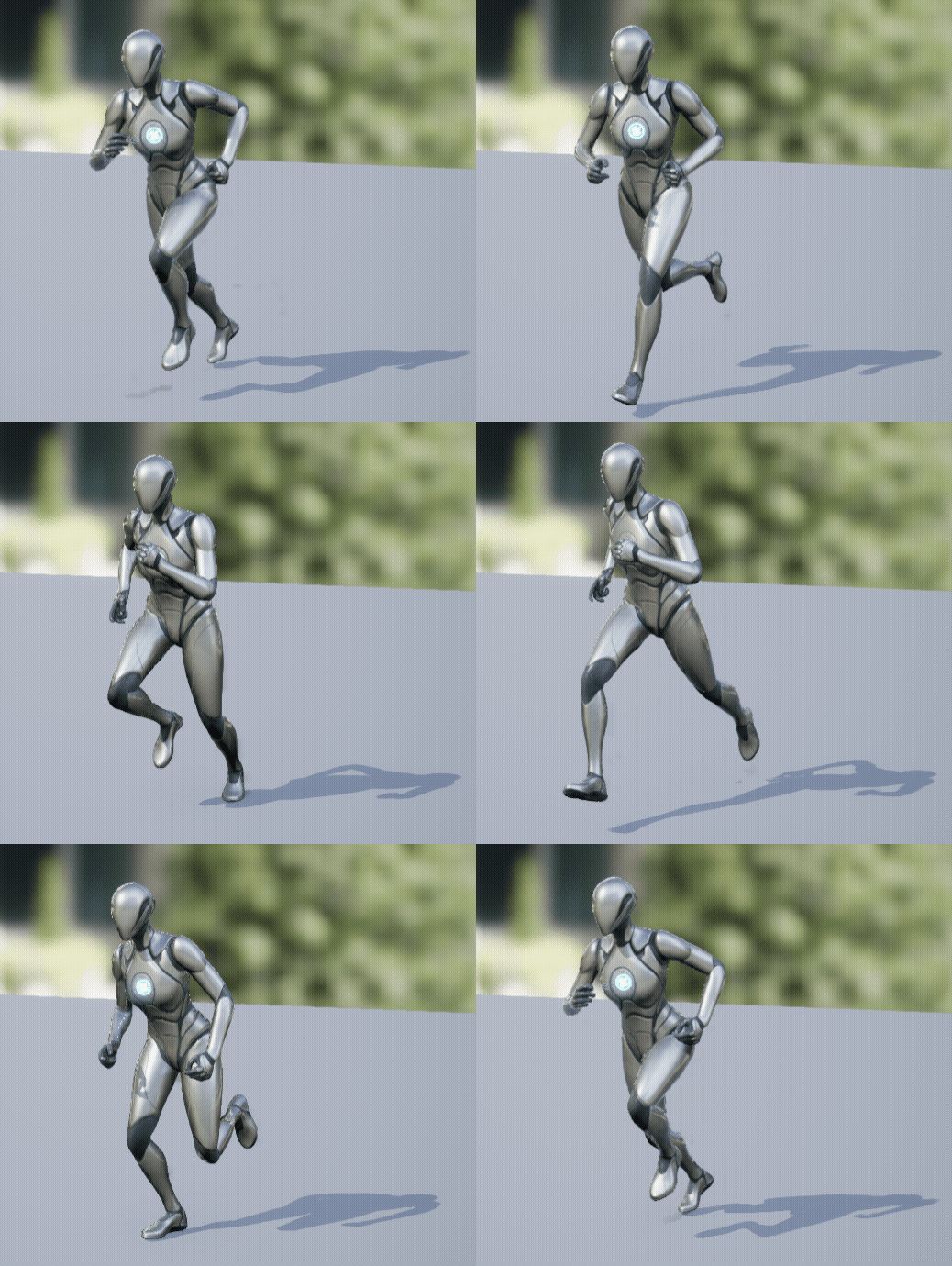 |
Animations are added to an Animation Blueprint, where they will be evaluated and played back on the character at runtime using the game thread. Additional processes, such as blends, IK evaluations, physics simulations, and more, will each subtract from your project's performance budget in order to be evaluated. Some processes are simple and don't require much performance budget to evaluate, others may perform more advanced operations that result in better looking animations, but may require a lot of your performance budget. All animation system features have an associated performance cost.
Using Unreal Engine's Animation Insights, you can generate a visual representation of your project's animation performance cost during your project's simulation, to observe how your performance budget is being used by your game and animations systems.
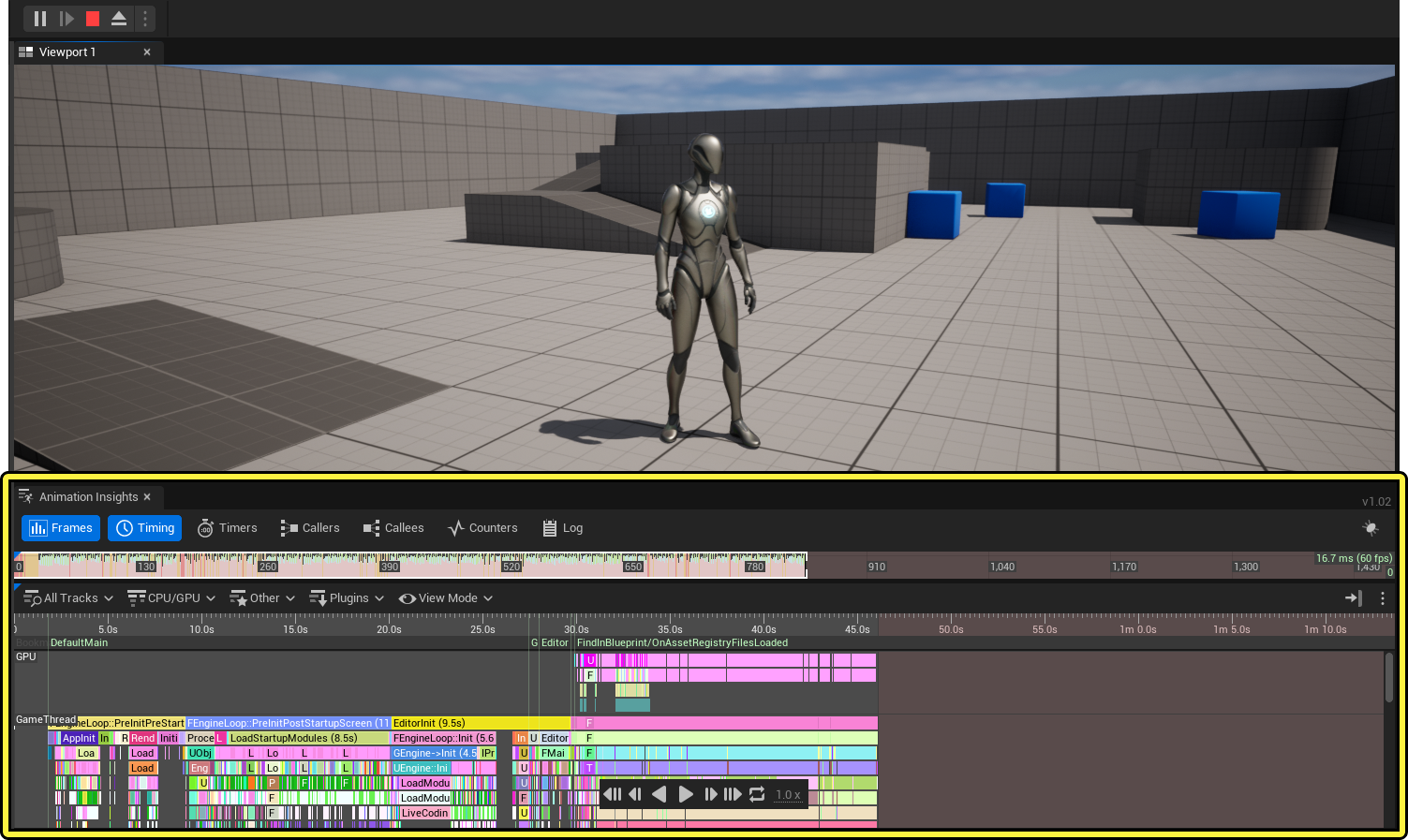
For more information about setting up and using Animation Insights to optimize your project see the following documentation:
animating-characters-and-objects\SkeletalMeshAnimation\Debugging\AnimInsights
Using Multi-Threaded Animation Updates
In Unreal Engine, processes are divided within threads, so your target hardware is able to evaluate more than one thing at the same time, when possible.The game thread is the main thread that is used to sequentially evaluate your project's blueprints, which contain game systems, character animation systems, physics, and more, each frame.
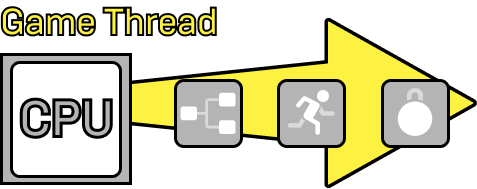
Unreal Engine uses other threads, such as the render thread, which is run on the GPU, to perform other functions such as rendering your scene.
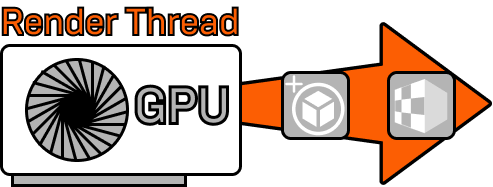
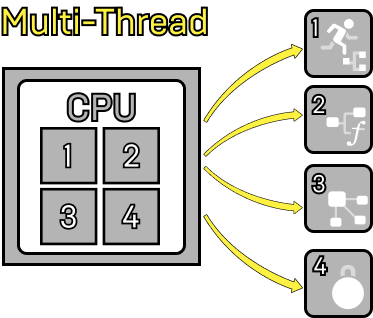
You can implement Multi-Threading within your project, and with individual blueprints, to split the workload into separate sub-threads, to evaluate multiple processes at the same time, if your target hardware has more than one CPU core available for the project to use. This can greatly reduce the time it takes to evaluate each frame of your project at runtime by performing functions simultaneously rather than sequentially. Proper implementation of Multi-Threading can result in projects that are able to achieve a higher frame rate than those that use traditional computational techniques.
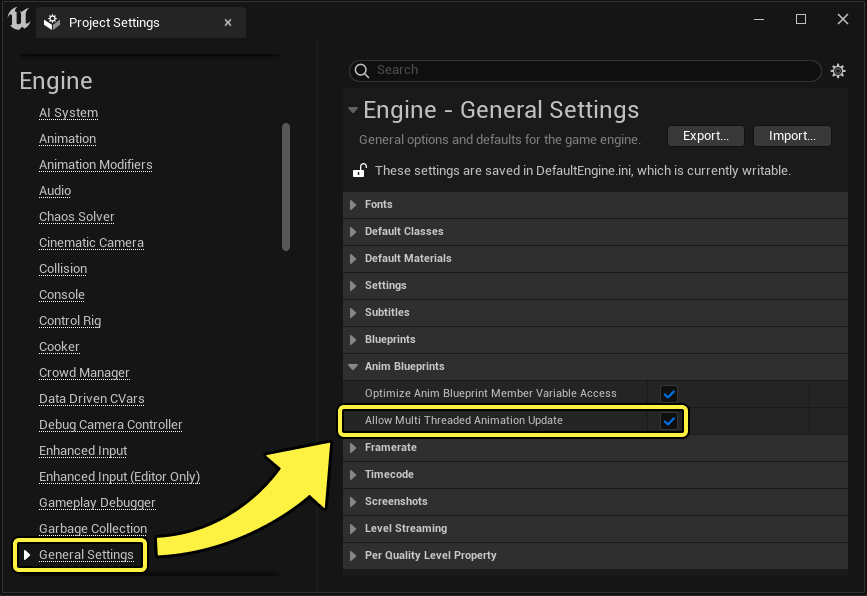
Multi-Threading is enabled by default for all Unreal Engine projects, and can be toggled in your Project Settings. In the Menu Bar, navigate to Edit > Project Settings. In the Project Settings window, navigate to General Settings > Anim Blueprints, and you can toggle Allow Multi Threaded Animation Update.
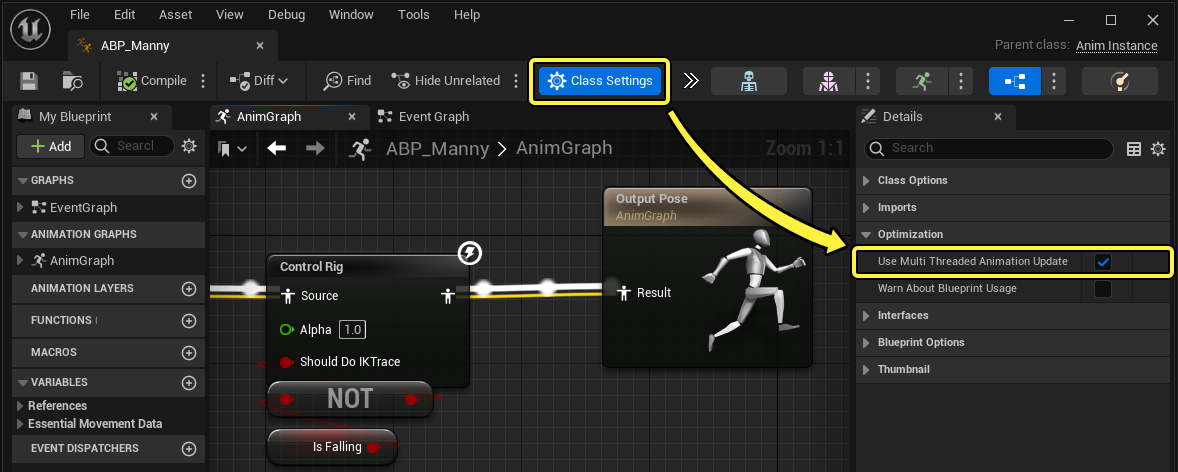
In order to take advantage of Multi-threaded animation blueprint evaluation, you will also enable the Use Multi Threaded Animation Update property within each Animation Blueprint that you wish to take advantage of this system. This property is enabled by default, but can be toggled within the Anim Blueprint's Class Defaults under Optimization.
You can use Multi-Threaded animation blueprint evaluations to have greater control and access over your project's data across threads, and increase your project's animation system performance.
Additionally, Multi-Threaded animation blueprint updates can be used in conjunction with special warnings, by enabling Warn About Blueprint Usage. This property will emit warnings to the Compiler Results log window whenever a call into the Blueprint Virtual Machine is made.
Multi-Thread Functions
When running your project, animation blueprint evaluations on the AnimGraph and the EventGraph are performed on the Game Thread. If your project and Animation Blueprint are enabled to use Multi-Threading, you can optionally build animation blueprint logic using separate functions, to allow multiple processes to be evaluated across several sub-threads at once. By separating processes into several functions, you can reduce the bottleneck of your animation system by using more than a single thread.
Data Structs
You can access your AnimGraph data using the FAnimInstanceProxy struct. Using this proxy structure you can access the bulk of the data found in the UAnimInstance struct.
In most use-cases, the UAnimInstance struct should not be accessed or mutated from within AnimGraph nodes' Update or Evaluate processes, as these functions can be run on other threads. To prevent this access, there are locking wrappers such as the GetProxyOnAnyThread and GetProxyOnGameThread structs, that prevent access to the FAnimInstanceProxy while tasks are evaluating. This prevents tasks from overloading the thread by forcing tasks to queue, so each task waits for the previous to complete before data is allowed to be read from or written to in the proxy.
The AnimGraph can only access the FAnimInstanceProxy from animation blueprint nodes, not the UAnimInstance. Data must be exchanged with the proxy for each tick, through buffering, copying or some other process, in FAnimInstanceProxy::PreUpdate or FAnimInstaceProxy::PreEvaluateAnimation. Any data that then needs to be accessed by external objects should then be exchanged or copied from the proxy in FAnimInstanceProxy::PostUpdate.
This is in conflict with the general use case of UAnimInstance where member variables can be accessed from other classes while tasks are in-flight. It is recommended to not directly access the Anim Instance at all from other classes. Instead, the Anim Instance should pull data from elsewhere.
Example Custom Native AnimInstance
The following code block is an example of how you can build a custom native AnimInstance class using the new FAnimInstanceProxy, granting access to the internal workings and avoiding copies of shared data between the proxy and the instance:
USTRUCT()
struct FExampleAnimInstanceProxy : public FAnimInstanceProxy
{
GENERATED_BODY()
FExampleAnimInstanceProxy()
: FAnimInstanceProxy()
{}
FExampleAnimInstanceProxy(UAnimInstance* Instance);
virtual void Update(float DeltaSeconds) override
{
// Update internal variables
MovementAngle += 1.0f * DeltaSeconds;
HorizontalSpeed = FMath::Max(0.0f, HorizontalSpeed - DeltaSeconds);
}
public:
UPROPERTY(Transient, BlueprintReadWrite, EditAnywhere, Category = "Example")
float MovementAngle;
UPROPERTY(Transient, BlueprintReadWrite, EditAnywhere, Category = "Example")
float HorizontalSpeed;
};
UCLASS(Transient, Blueprintable)
class UExampleAnimInstance : public UAnimInstance
{
GENERATED_UCLASS_BODY()
private:
// The AllowPrivateAccess meta flag will allow this to be exposed to Blueprint,
// but only to graphs internal to this class.
UPROPERTY(Transient, BlueprintReadOnly, Category = "Example", meta = (AllowPrivateAccess = "true"))
FExampleAnimInstanceProxy Proxy;
virtual FAnimInstanceProxy* CreateAnimInstanceProxy() override
{
// override this to just return the proxy on this instance
return &Proxy;
}
virtual void DestroyAnimInstanceProxy(FAnimInstanceProxy* InProxy) override
{
}
friend struct FExampleAnimInstanceProxy;
}
Animation Fast Path
Animation Fast Path provides a way to optimize variable access inside the AnimGraph update. This enables the engine to copy parameters internally rather than executing Blueprint code, which involves making calls into the Blueprint Virtual Machine. The compiler can currently optimize the following constructs:
-
Member Variables
-
Negated Boolean Member Variables
-
Members of a Nested Structure
Multi-Threading is enabled by default for all Unreal Engine projects, and can be toggled in your Project Settings. In the Menu Bar, navigate to Edit > Project Settings. In the Project Settings window, navigate to General Settings > Anim Blueprints, and you can toggle Allow Multi Threaded Animation Update.
The Animation Fast Path option is enabled by default inside the Project Settings. To toggle Animation Fast Path, navigate in the Project Settings to General Settings > Anim Blueprints to the Optimize Anim Blueprint Member Variable Access property.
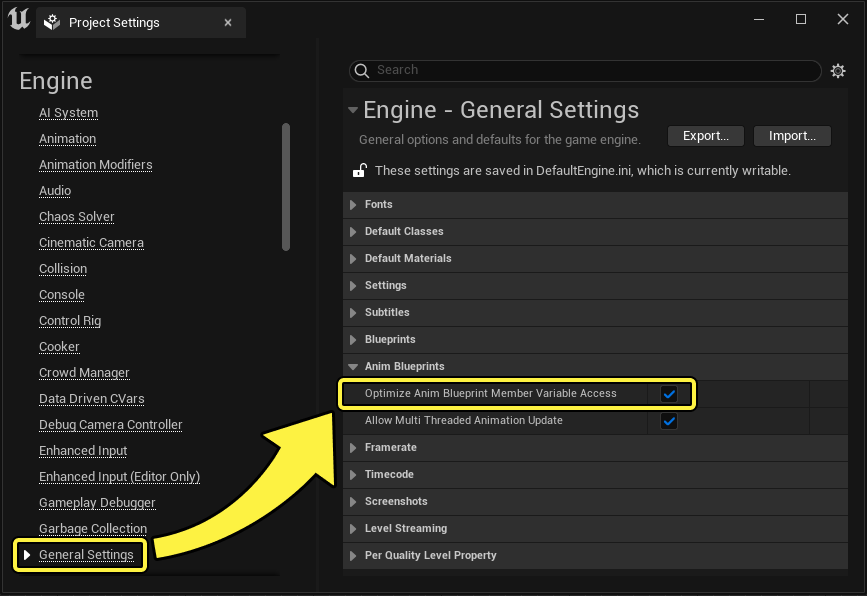
To make use of Animation Fath Path, inside the AnimGraph of your Animation Blueprints, ensure that no Blueprint logic is being executed.
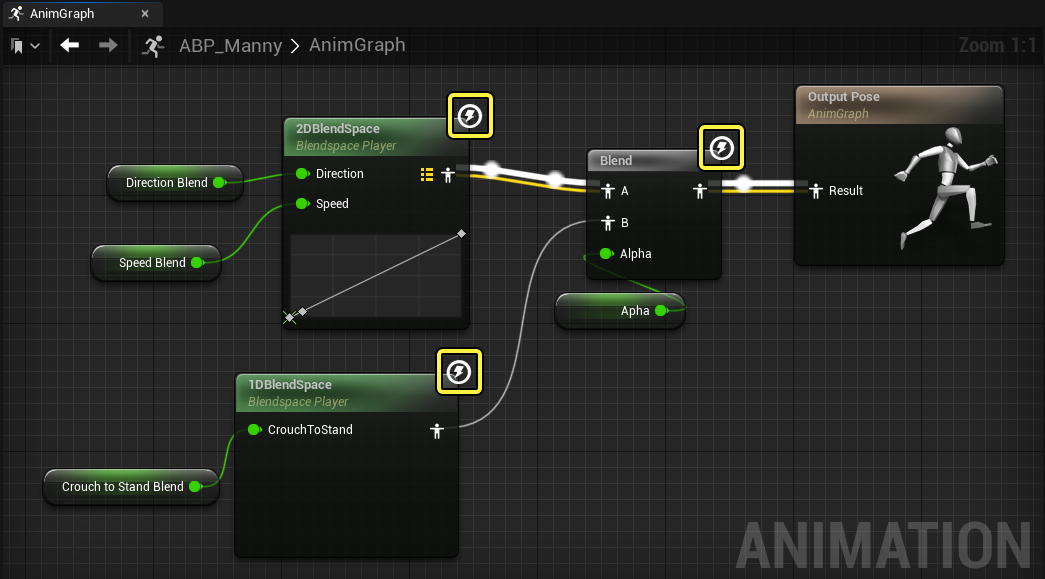
In the following example blueprint, the AnimGraph is reading several float values, which are being used to drive multiple Blend Space assets and a Blend node resulting in our Final Animation Pose. Each node denoted with the lightning icon in the upper right corner is utilizing Fast Path as no logic is being executed.
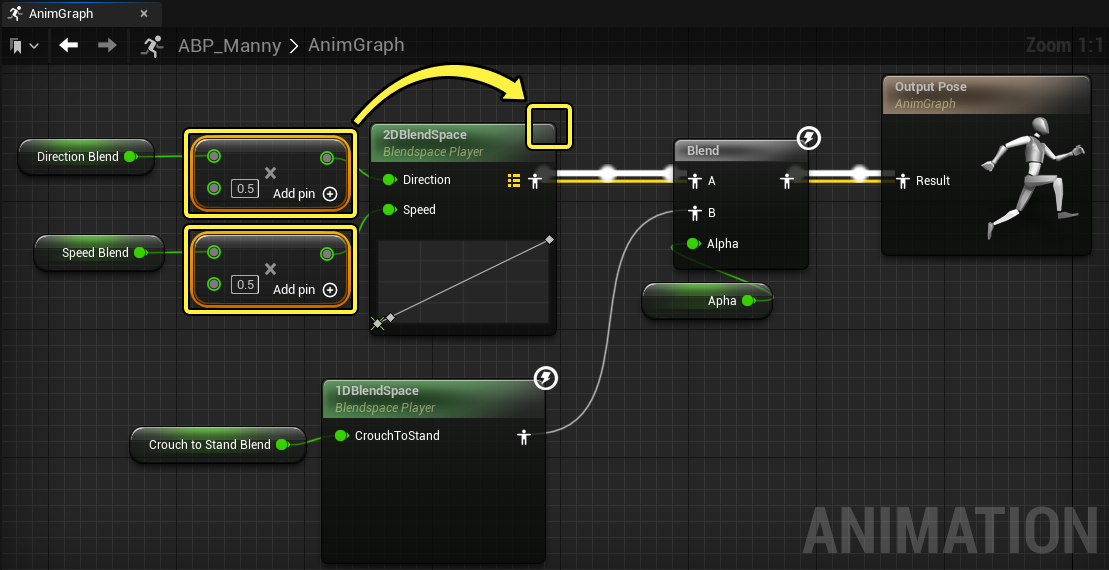
If any form of calculation is added to the graph, the associated node would no longer be using Fast Path. In the following example, a simple multiply function is added to the float variables, resulting in the Blend Space node being unable to use Fast Path. After the graph is compiled, the lightning icon is removed to denote this change.
Fast Path Methods
The following are the methods you can use to implement Fast Path variable access in your Animation Blueprints.
Access Member Variables Directly
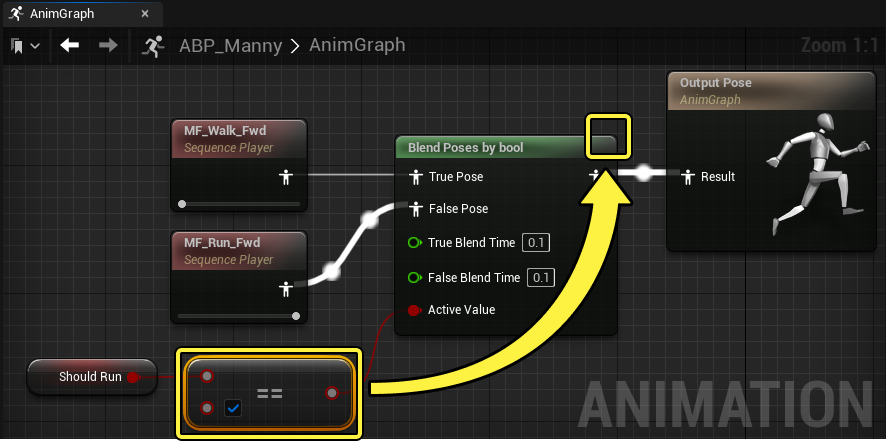
You can use Fast Path by directly accessing and reading the value of our boolean variable to determine our pose.
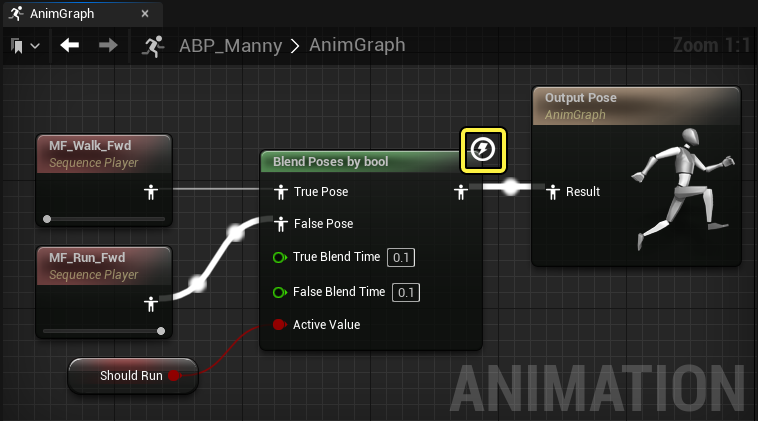
Here you can see that the Blend Poses by bool node circumvents the Fast Path variable access when logic is performed to determine the boolean's state, rather than direct access.
Access Members of a Nested Struct
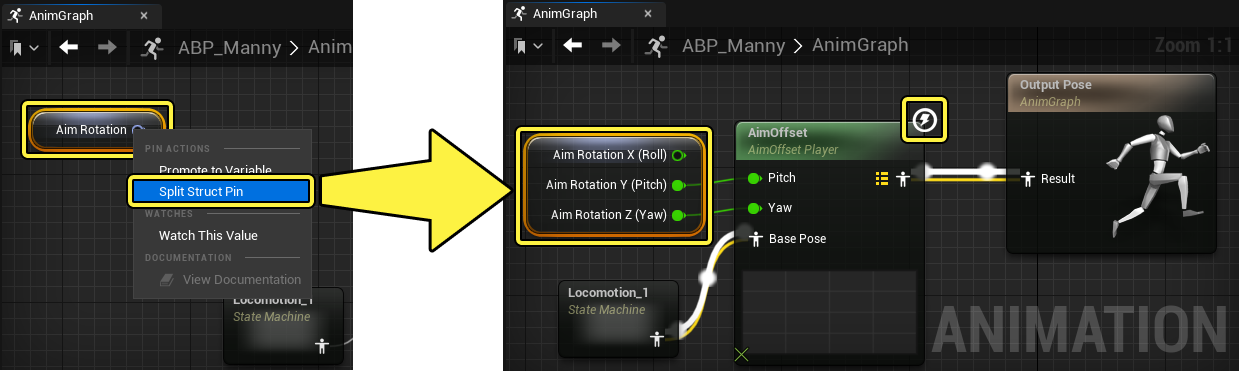
You can break nested structs, such as a rotator variable, to directly access its components. You can break a struct directly by right-clicking the variable in the graph, and selecting Split Struct Pin from the context menu. This will convert the node into a variable that you can access its component values directly.
Access Members Using Break-Struct Nodes
You can alternatively use a Break Struct node to break a nested struct, in order to access its component values directly.
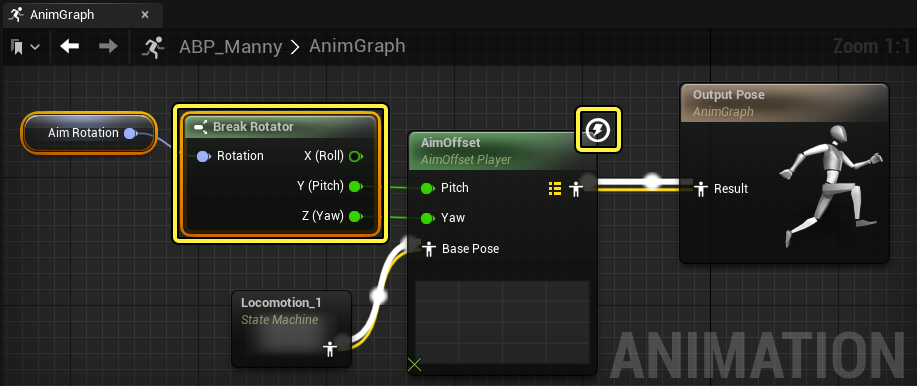
Some Break Struct nodes like Break Transform will not currently use Fast Path as they perform conversions internally rather than simply copying data.
Warn About Blueprint Usage
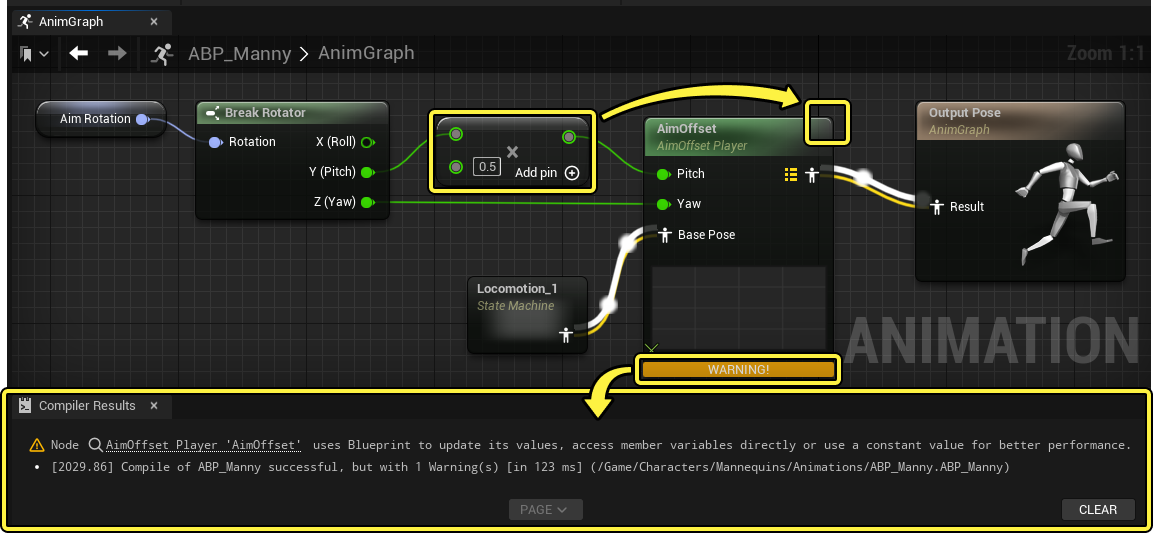
To ensure that your Animation Blueprints are using Fast Path, you can enable the Warn About Blueprint Usage property. When Warn About Blueprint Usage is enabled, the compiler will emit warnings to the Compiler Results panel when a call into the Blueprint Virtual Machine is made from the AnimGraph.
To enable Warn About Blueprint Usage, enable the option inside the Class Settings of your Animation Blueprint under Optimization.
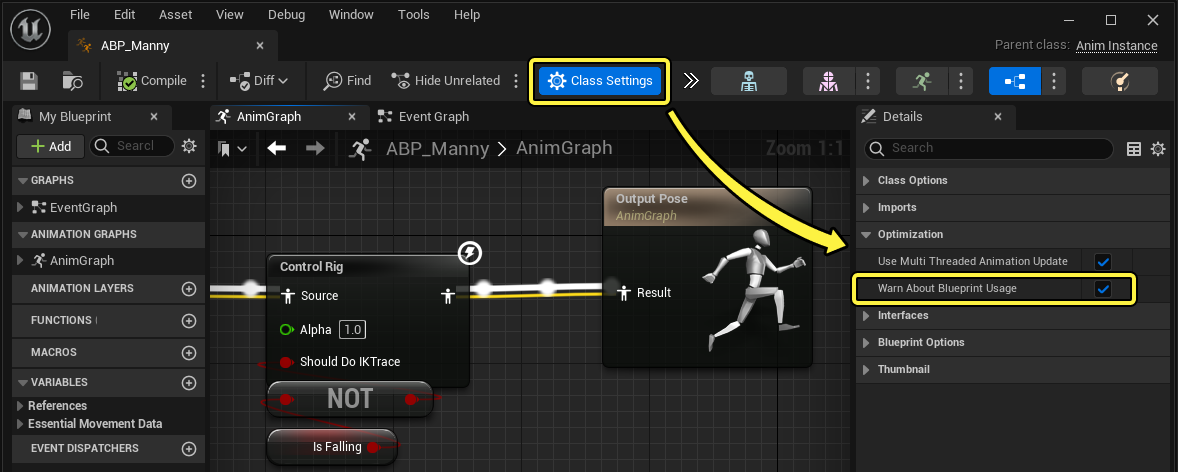
When executing Blueprint logic in the AnimGraph with the Warn About Blueprint Usage property enabled, a warning message in the Compiler Results panel will appear when a Variable can be accessed using Fast Path. You can click on the link in the warning message to focus the graph on the source of the warning. This can help track down optimizations that need to be made and will enable you to identify any node variable access that may be optimizable.
General Tips
As you start to consider the performance of your project's animation system, you can consider the following guidelines during the optimization process. Each project has unique optimization requirements, based on the size and scope of your project, more invasive changes may be needed, however, the following guidelines provide a general approach most projects can benefit from.
-
Make sure that the conditions for Parallel Updates are met.
- In UAnimInstance::NeedsImmediateUpdate struct, you can see all the conditions that must be met to avoid the update phase of animation running on the game thread. If root motion is required for character movement, the parallel update cannot be performed as character movement is not multi-threaded.
-
Avoid calls into the Blueprint Virtual Machine.
-
Consider Nativizing Blueprints into C++ code.
-
It is recommended to not perform logic in the animation blueprint's Event Graph. Instead, use a custom UAnimInstance and FAnimInstanceProxy derived classes and perform logic in the proxy during FAnimInstanceProxy::Update or FAnimInstanceProxy::Evaluate as these are executed on worker threads.
-
Ensure that the nodes within your Anim Graph of your Animation Blueprint are structured in a way that they are using Fast Path.
-
Ensure that the Optimize Anim Blueprint Member Variable Access property is enabled in the Project Settings as this controls whether Animation Blueprint nodes that access member variables of their class directly should use the optimized path that avoids a call into the Blueprint Virtual Machine.
-
Generally, the most costly part of an AnimGraph's execution is calls into the Blueprint Virtual Machine. Avoiding these calls is the key to getting maximum performance out of Animation Blueprints.
-
-
Use Update Rate Optimizations (URO) when possible.
-
URO will prevent your animations from ticking too often. Controlling how this is applied will depend on the needs of your project, but it is recommended to target Update Rates that perform at 15Hz and under, at appropriate distances, for most characters, as well as disabling interpolation.
-
To enable URO, navigate in your Skeletal Mesh Component's Details panel to the Optimization section, and select the Enable Update Rate Optimizations property. You can then use the
AnimUpdateRateTick()struct to set and observe your blueprint's tick rate.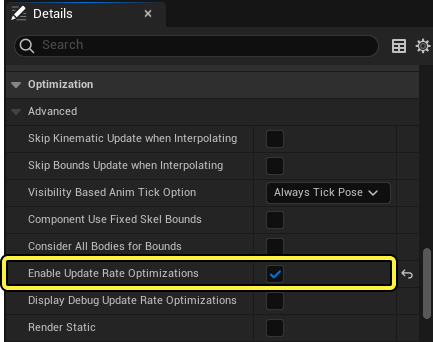
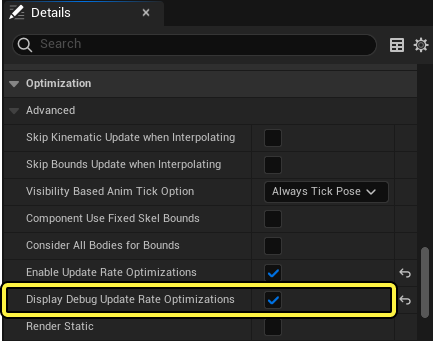
- Optionally, you can also enable the Display Debug Update Rate Optimizations property, in the skeletal mesh components details panel, to enable an onscreen debug display of the rate of URO that is applied to your project during simulation.
-
-
Enable Component Use Fixed Skel Bounds, when your character does not need access to its Physics Asset.
-
In your Skeletal Mesh Component's Details panel, enable the Component Use Fixed Skel Bounds property.
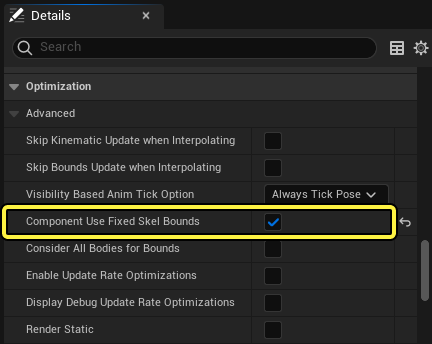
- This will skip using a Physics Asset and will instead always use the fixed bounds defined in the Skeletal Mesh.
- This will also skip recalculating bounding volumes for culling for every frame, increasing performance.
-
Other Considerations
When profiling your project, using Animation Insights, you may see that FParallelAnimationCompletionTask is being run for Skeletal Meshes on the main thread after worker threads have completed their processes. This process will be the bulk of the main thread work that you will see in your profile once the conditions for parallel updates are satisfied. It will typically consist of a few things, depending on your setup:
-
Calculating the movements of your project's components, such as updating physics objects.
- When possible, avoid updating physics for things that don't actually need it. This will result in the most significant reduction of the FParallelAnimationCompletionTask.
-
Initiating Animation Notifies.
-
All Notifies should be non-Blueprint based, to avoid calls to the Blueprint Virtual Machine.
-
Notifies should be performed on the game thread, as they can affect the animated object's lifetime.
-
-
Interpolation of animation if URO is enabled.
-
Blending of curves if Material or Morph Target curves are in use.