
When you’re working with meshes, you might sometimes update the mesh outside of the editor. This can include changing the topology of a mesh that either adds or removes vertices from it. If you’ve already spent time painting vertex colors or vertex weights to your mesh, this can lead to errors with the vertex color data when you import the mesh again after changing it. Map check errors like this one could appear:
StaticMeshActor_73 (LOD 0) has hand-painted vertex colors that no longer match the original StaticMesh
The Mesh Paint mode’s Fix tool can resolve these types of errors where the vertex colors are mismatched against the original mesh’s vertices, which can make them look incorrect.
The Fix tool is available when using Vertex Color, Vertex Weights, and Texture Color painting methods.
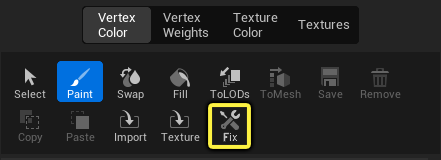
The Fix tool is only available when there is an issue with the painted vertex data that needs to be resolved with the mesh. By default, this tool is disabled and grayed out.
This tool is designed to always match some color, even if the changes are significant. The tool is effective for fixing smaller changes to a mesh. However, substantial changes can be more challenging to fix, since there they increase the likelihood of colors not matching.
The examples below show vertex color painted on the mesh with its wireframe and the RGB vertex painted visualization for comparison. This is the original mesh with vertex colors (left) before being reimported with a lower vertex count after having the Fix tool apply fixups to the vertex colors (right).
| Original vertex color painted mesh with high vertex count. | Reimported vertex color painted mesh with lower vertex count with fix up applied. |