
Adjustment Nodes
BrightnessContrast
The BrightnessContrast node in the Texture Graph Editor adjusts the brightness and contrast of textures. Brightness affects overall lightness, increasing it lightens the texture, while decreasing darkens it. Contrast controls the difference between light and dark areas, with higher values enhancing visual dynamism.

ConvertToGrayscale
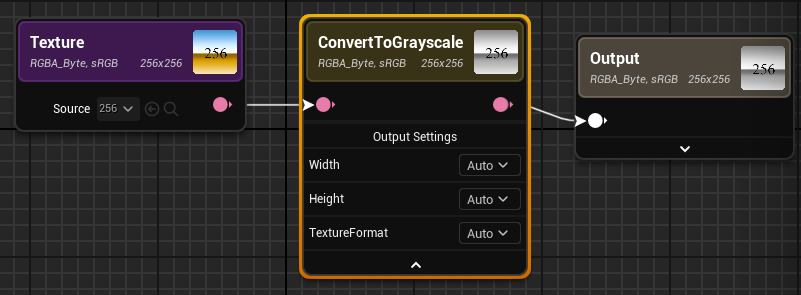
The ConvertToGrayScale node transforms the color values into grayscale values within a designated range from black to white (0-1).
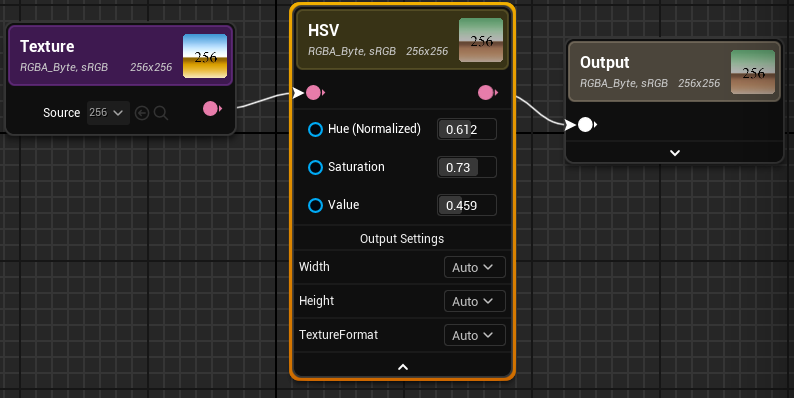
HSV
The HSV node adjusts colors based on the three components of the HSV color model: hue, saturation, and value. This node is useful when fine-tuning textures for various visual effects or achieving specific color variations.
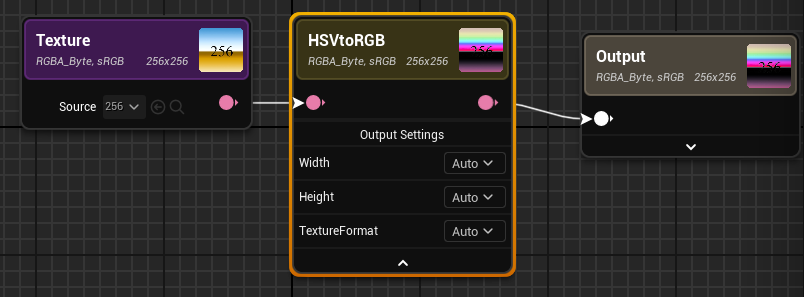
HSVtoRGB
The HSVtoRGB node interprets the input as HSV and converts it to RGB (red, green, and blue).
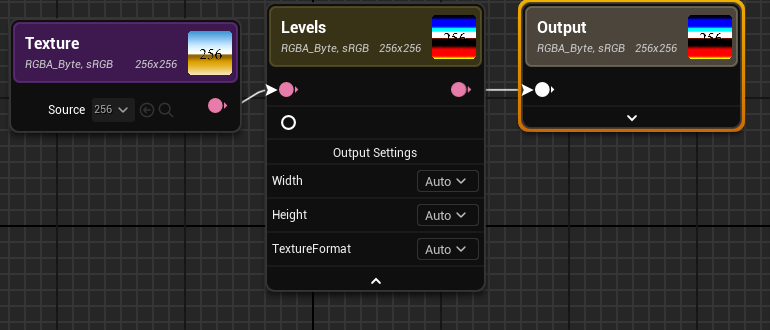
Levels
The Levels node remaps shadows and highlights of an input based on the three parameters in Levels node: Low, Medium, and High.
Any value greater than and equal to high (adjusts in Details tab for levels node) is mapped to white. Any value in between (adjusts in Details tab for levels node) has gamma applied as an exponent. Any value less than or equal to low is mapped to black.
Auto levels are supposed to auto normalize based on the min, max and mid-point within the incoming image. When you check Auto Levels it should disable the manual sliders.
NormalFromHeightMap
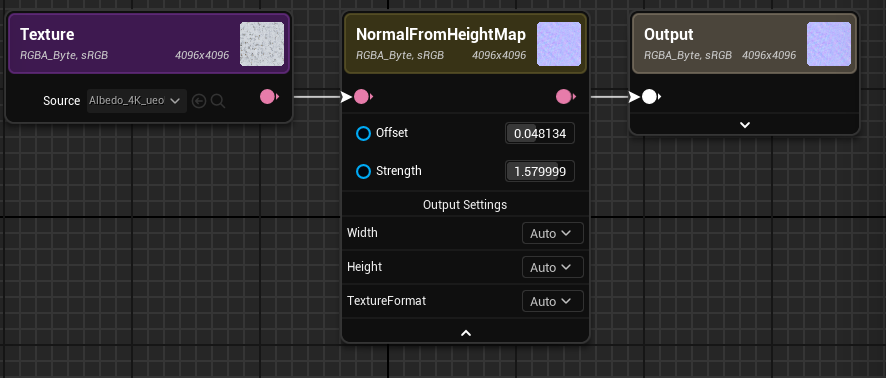
NormalFromHeightmap node transforms a given input height map or texture into a corresponding normal map. This functionality enables users to easily generate a normal map based on a provided height map.
The following are options for adjusting Normal:
-
Offset: Creates an offset for borders. Looks like it expands and blurs borders.
-
Strength: Adjusts map depth.
RGBtoHSV
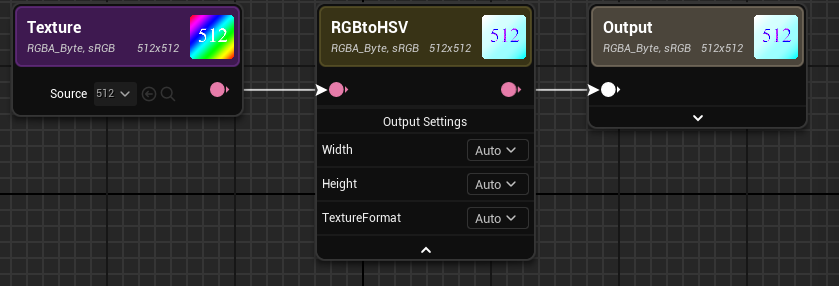
The RGBtoHSV node interprets the input as RGB and converts it to HSV.
Threshold
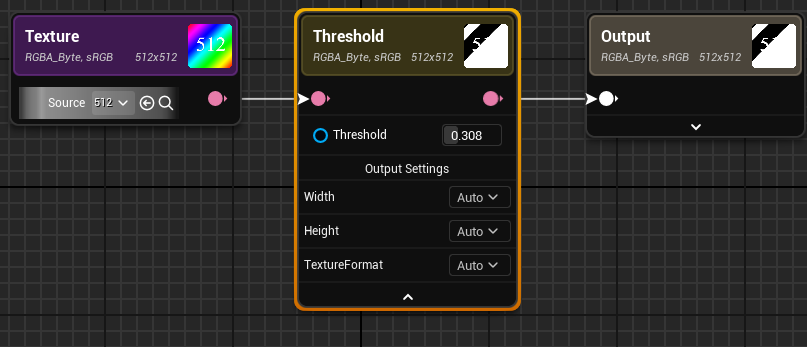
The Threshold node applies a threshold filter to the input image. The output is white if the luminance of the pixel is greater than or equal to the threshold otherwise the output is black.
Channels
CombineChannels
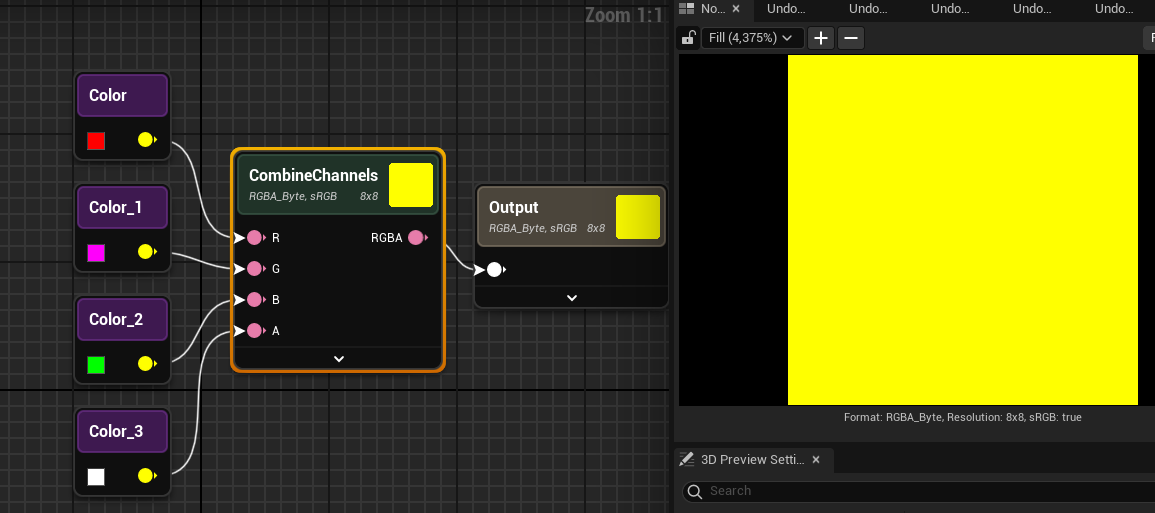
The CombineChannels node merges the red, green, blue, and alpha channels from various inputs into a single RGBA format output. It's used to unify separate channels, whether from textures or color values, by connecting them to the R, G, B, and A pins of the node.
SplitChannels
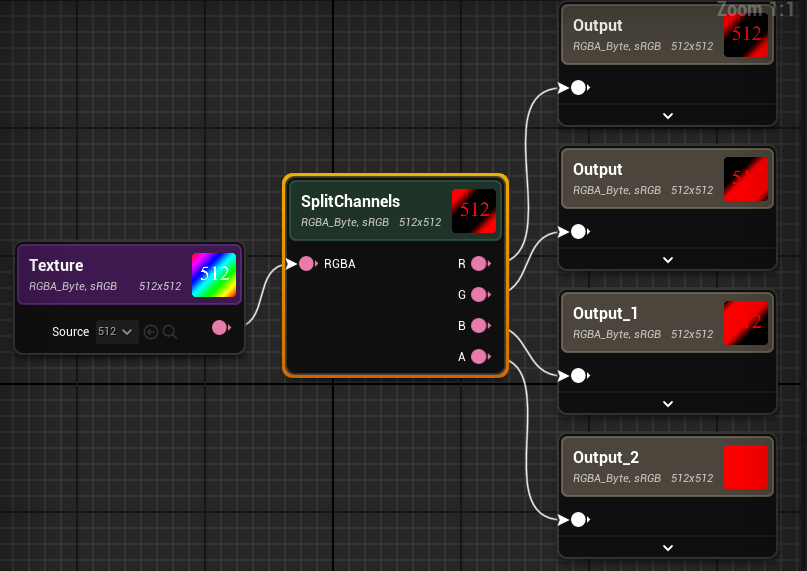
The SplitChannels node is crafted to isolate and segregate the red, green, blue, and alpha channels from an input, delivering four separate outputs for each channel.
Filter
Blur
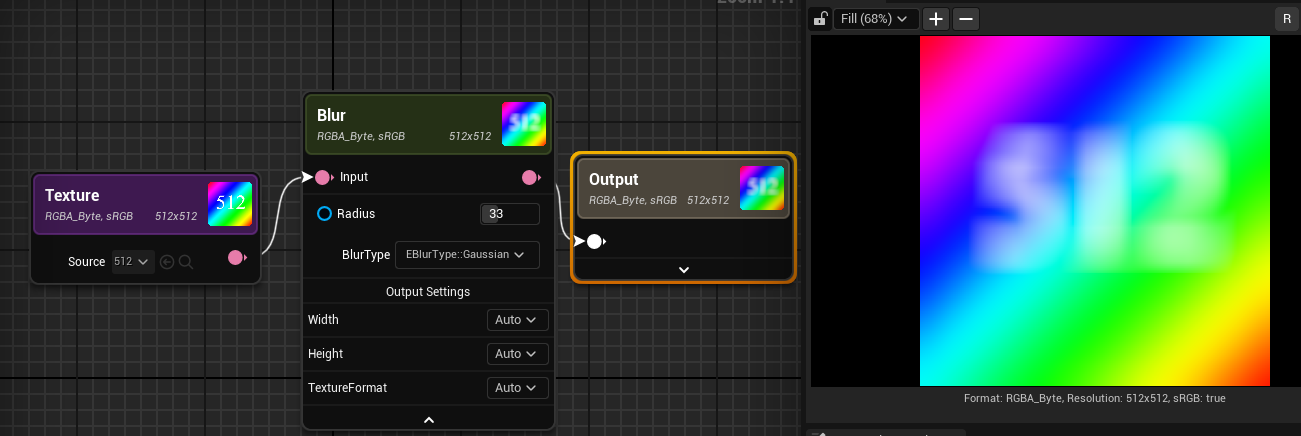
The Blur node offers the capability to apply a blur effect to input data, providing options for Gaussian blur, directional blur, and Radial blur. By incorporating the Blur node into the texture graph and choosing the desired blur type, users can tailor and augment the blurring effect to suit their unique design needs.
Input
Color
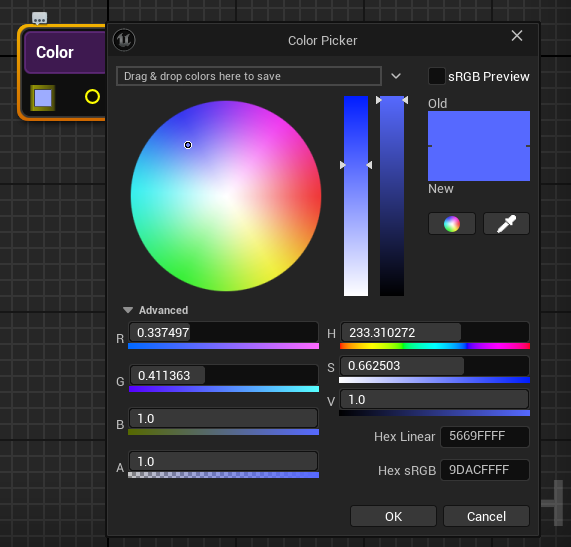
The Color node functions as an input node, it facilitates the specification of color values within the 0-255 range.
The node features a field users use to choose a color. The color value can be configured directly from the Details panel or by selecting the color field on the node itself.
Scalar
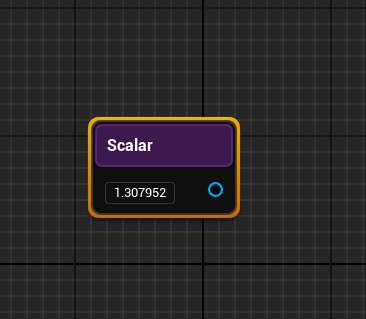
The Scalar node is used as an input node for defining floating-point values. Floating-point values are decimal numbers that can have fractional parts, providing a high level of precision for manipulating textures.
Settings
The Settings node enables users to configure output settings. This node proves useful in scenarios where instead of adjusting settings individually for each output in various output nodes, users can employ the Settings node. By connecting it to multiple output nodes, users can export multiple outputs with identical settings, streamlining the process.
 (w:700)
Texture
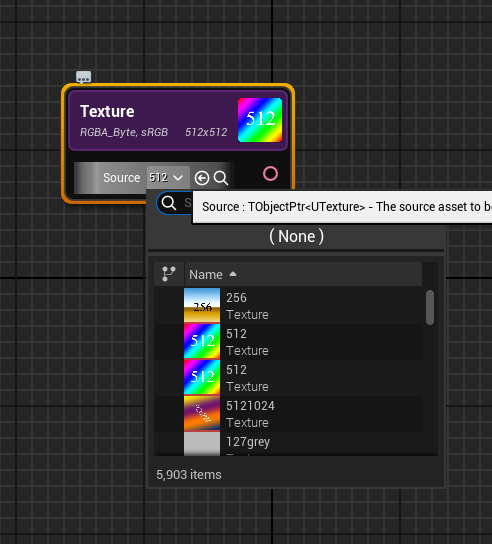
The primary function of the Texture node is to provide the functionality to select an existing texture and derive a new, unique texture from it. This approach provides the exploration of various transformations and adjustments to achieve the desired visual outcome.
Vector
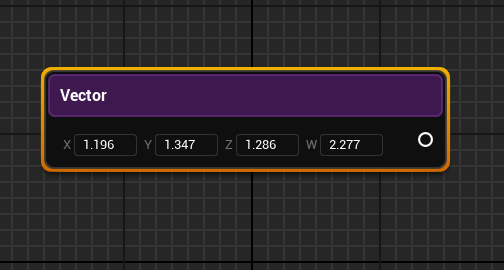
The Vector node provides users with the capability to define an XYZ vector, which is automatically exposed as a graph input parameter. This node accepts input values for X, Y, and Z coordinates.
Math
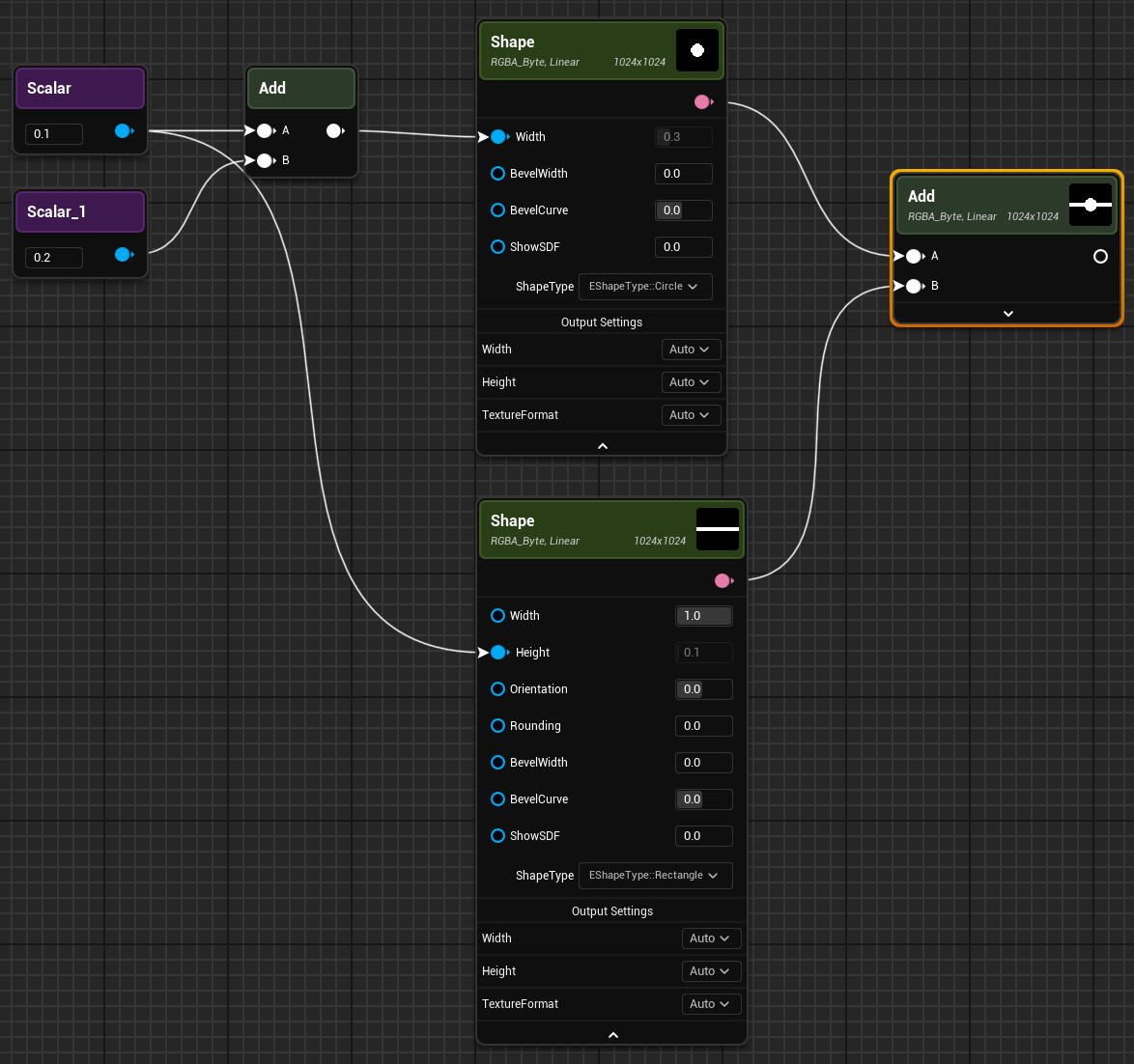
You can use the Math nodes for a wide range of operations and depending on their input they can return numerical or image based operations. For example, you can use the Add node to control the relationship between the circle and rectangle size. In addition, you can use the Add node to combine the images into a mask.
| Math Node | Description |
|---|---|
| Abs | Determines the absolute value of floating-point number inputs. |
| Add | Performa addition on numerical or image inputs. It serves as a basic building block for creating textures by allowing users to combine and modify values. |
| Blend | Mixes a foreground and background value using a variety of methods. A mask can optionally be used to control the blending operation. This node proves to be particularly useful in creating complex and nuanced textures by combining different visual elements. Unlike other math nodes the Blend node has options for the type of blending and the opacity of the blend operation.
|
| Cbrt (Cube Root) | Computes the cube root of a given input. |
| Ceil | Rounds a given number to the nearest integer greater than or equal to the original value. |
| Clamp | Takes a single input and ensures that it falls within the defined minimum and maximum range. If the input value is below the minimum, it is set to the minimum; if it exceeds the maximum, it is capped at the maximum. |
| Cross | Calculates the cross product of input values. |
| Cube | Computes the cube of a given input. |
| Divide | Performes division operations on inputs. The primary purpose of Divide node is to divide two inputs and generate an output based on the division result. |
| Dot | Calculates the dot product of two vector inputs. |
| Exp (Exponential) | Takes a single numerical input and calculates its exponential value, commonly denoted as "e" raised to the power of the input. |
| Floor | Rounds a given real number down to the nearest integer that is less than or equal to the original value. |
| IfThenElse | Compares input A and input B based on the selected operator and comparison type and depending on the results selects either the then input or the if input. |
| Invert | The Invert node is used to invert any value or input. |
| Lerp | Takes three inputs: a start value, an end value, and an interpolation factor. It calculates a linear interpolation between the start and end values based on the interpolation factor. |
| Log | The log node takes a single numerical input and calculates its logarithm, typically with respect to a specified base. |
| Log10 | Takes a single numerical input and computes its logarithm to the base 10. This operation is particularly useful when dealing with scenarios where values exhibit exponential growth or decay with respect to powers of 10. |
| Log2 | Takes a single numerical input and computes its logarithm to the base 2. This operation is particularly useful when dealing with scenarios where values exhibit exponential growth or decay with respect to powers of 2. |
| Max | Facilitates the comparison of two inputs and outputs the maximum value. |
| Min | Facilitates the comparison of two inputs and outputs the minimum value. |
| Multiply | Performs multiplication on inputs. The node takes two inputs and produces a multiply of input as its output. |
| MultiplyAdd | Takes three inputs: two values to be multiplied ( A and B) and a third value to be added (Addend). |
| Pow | Calculates the power of a given base raised to a specified exponent. |
| Round | Takes a single numerical input and rounds it to the nearest integer. This operation is beneficial when working with numerical values that need to be converted to whole numbers. |
| SmoothStep | Returns a smooth Hermite interpolation between 0 and 1, if x is in the range [min, max]. If input is less than minimum input returns 0 and if input is greater than maximum input return 1. |
| Sqrt | Computes the square root of a given input. |
| Square | Computes the square of a given input. |
| Subtract | Performs subtraction on numerical inputs. |
| Trigonometry | Performs various trigonometric functions on input values. The Trigonometry Node supports several fundamental trigonometric functions, including sine, cosine, tangent, arcsine, arccosine, and arctangent. |
Output
The Output node serves as the endpoint of the texture graph. As different nodes are added and connected to the output, the final result becomes visible in the viewport.
To view the final result, connect various nodes to the Output node of the texture graph. The connected nodes contribute to the overall texture.
Procedural
Noise
A Noise mask in a Texture Graph Editor typically refers to the use of a noise function to create a mask that can be applied to a texture.
The purpose of a noise mask is to introduce randomness or irregularities into the texture, adding detail and complexity.
Pattern
A Pattern node involves using a predefined pattern to influence the appearance of texture within Texture Graph Editor.
The node has the following Pattern types: Square, Circle, Checker, and Gradient. Each type has its own settings.
Shape
The Shape node is a fundamental geometry generation node within the Texture Graph Editor. This versatile node provides the means for you to create various geometric shapes, including circles, segments, rectangles, triangles, ellipses, pentagons, hexagons, and polygons.
Transform
The Transform node is a powerful tool within the Texture Graph Editor that you use to apply transformations to inputs, such as translation, rotation and repetition on an input.
Utilities
MaterialID
The MaterialID node provides the means for you to extract colors from a given texture input and subsequently create a mask by selecting specific colors.
TextureGraph
The TextureGraph node is available to add a texture graph within a texture graph. This way, you can create different graphs using another texture graph.