After adding Sprites to your project, you may have adjustments or modifications to the Sprite's size, collision or rendering behaviors. Using Unreal Engine's Sprite Editor you can make adjustments to your character, object and Tile Sprites.
To open the Sprite Editor, double-click the a sprite in the Content Browser, or open multiple by selecting many sprites, right-clicking, and selecting Edit from the Context Menu.
Here you can reference an overview image of the Sprite Editor, with highlighted tools and panels.
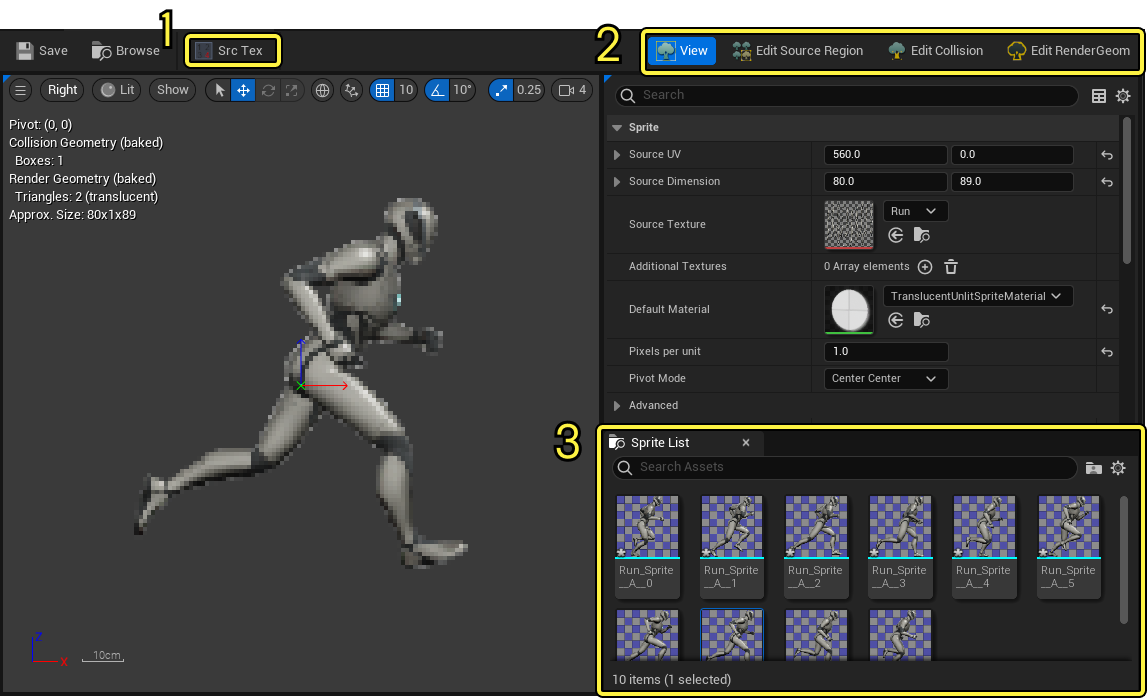
1: Toolbar
2: Editor Modes
3: Sprite List
Toolbar
Here you can reference the unique Toolbar tools that you can use when working with Sprites in the Sprite Editor.
| Tool | Icon | Description |
|---|---|---|
| Scr Tex |  |
Here you can toggle the sprite viewport to show the current sprite in the context of the sprite sheet it was extracted from while working within the View Sprite Editor mode. The current sprite will be highlighted while the remaining sprites in the sprite sheet will appear darker. |
| Other Sprites |  |
Here you can toggle the bounding boxes that contain the other sprites within the sprite sheet while working within the Edit Source Region Sprite Editor mode. |
| Sprite Names |  |
Here you can toggle the sprite names to be overlaid over the sprites in the viewport while working within the Edit Source Region Sprite Editor mode. |
| Extract Sprites |  |
Here you can open the Extract Sprites window to re extract sprite from the sprite sheet the current sprite is from while working within the Edit Source Region Sprite Editor mode. |
| Add Box |  |
Here you can add a box collision or render boundary shape while working within the Edit Collision or Edit RenderGeom Sprite Editor modes. |
| Add Polygon |  |
Here you can add a custom polygon collision or render boundary shape while working within the Edit Collision or Edit RenderGeom Sprite Editor modes. After selecting the Add Polygon tool you can click within the viewport to create a new vertex for the custom shape. The Sprite Editor will automatically connect new vertices with existing ones. |
| Add Circle |  |
Here you can add a circle collision shape while working within the Edit Collision Sprite Editor mode. |
| Snap to pixel grid |  |
Here you can snap all collisions or render boundary shape vertices to the sprites pixel grid. This is helpful to actually align sprites and the collusion and render boundary shapes. |
Sprite Editor Modes
The Sprite Editor features Four Modes you can use to modify and edit sprites in Unreal Engine.
View Mode
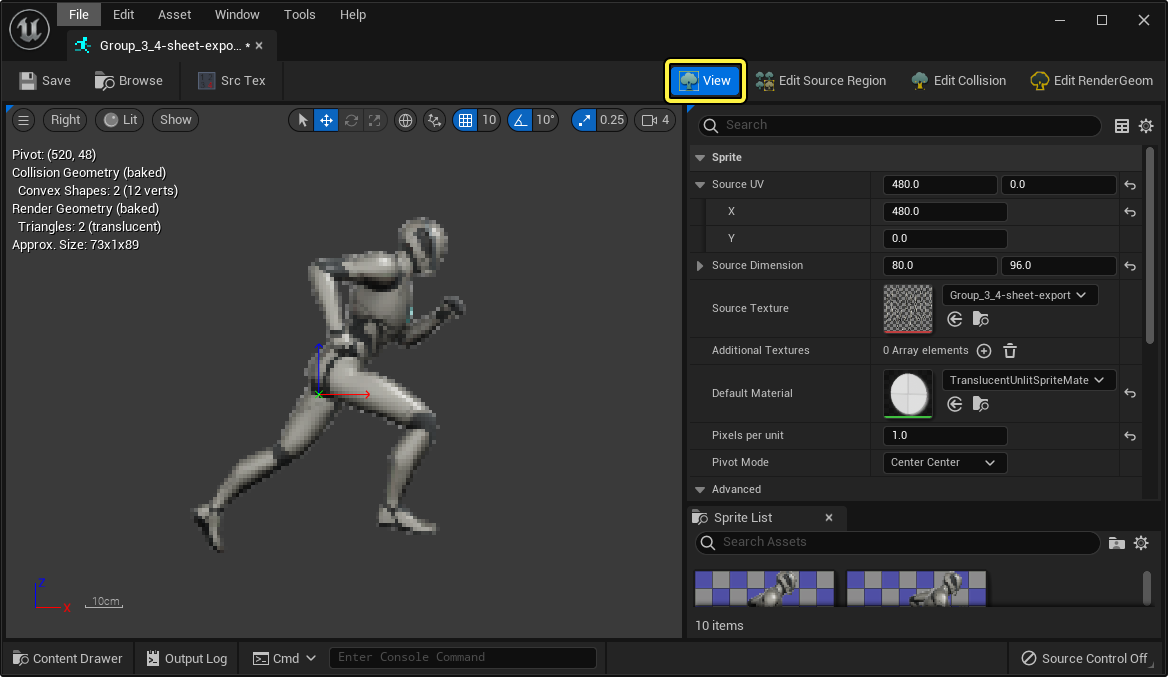
Using the View Sprite Editor mode you can modify the sprite's properties such as its Materials and Pivot Mode.
Sprite Editor Property Reference
Here you can reference the Sprite Editor properties and a description of their functionality:
Some properties are only accessible within specific Editor modes. These mode restrictions are noted in the editor and within the property descriptions. For mode specific property descriptions, see the associated Sprite Editor Mode section.
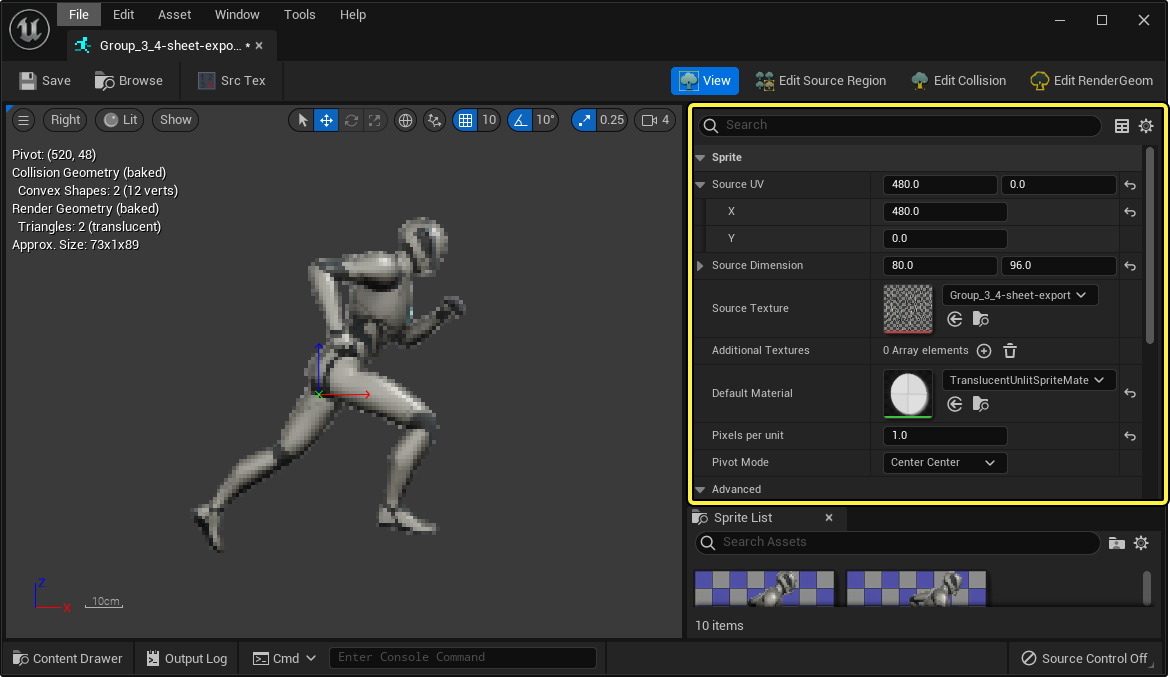
| Property | Description |
|---|---|
| Source UV | Position within the source texture, or sprite sheet, in pixels. |
| Source Dimension | Dimensions within the source texture, or sprite sheet, in pixels. |
| Source Texture | Reference the source texture or sprite sheet asset. |
| Additional Textures | Set additional source textures that occupy numerical slots. These textures can be referenced and applied during gameplay using Blueprints. |
| Default Material | Assign a Default Material to use when rendering the Sprite. This material is the default material used when no other material is assigned. For more information about Sprite Materials, see the Sprite Materials documentation. |
| Pixels per unit | Set the scaling of the Sprite in the level. By default, this property is set to 1, which sizes the sprite so that one pixel of the sprite is 1 Unreal Unit (cm) by 1 Unreal Unit. |
| Pivot Mode | Set the point at which the sprite can pivot. You can set the pivot point in the View Sprite Editor mode's viewport using the widget. You can also set the pivot point by selecting a preset location using the drop down menu. Selecting the Custom option, will allow you to manually set a Custom Pivot Point using X and Y values. |
| Origin in Source Image Before Trimming | Reference the Sprite's origin within the Source image prior to atlasing. |
| Source Image Dimension Before Trimming | Reference the Source Image's Dimensions, Height (X) and Width (Y) before any trimming. |
| Trimmed in Source Image | When enabled, the source file will use the Origin in Source Image Before Trimming and Source Image Dimension Before Trimming properties to atlas the sprite. |
| Rotated in Source Image | When enabled, the source file swaps the X and Y dimensions, effectively rotating the Sprite Sheet and all extracted Sprites 90 degrees counter-clockwise. |
| Source Texture Dimension | Reference the Source Image's Dimensions, Height (X) and Width (Y) after any trimming. |
| Snap Pivot to Pixel Grid | When enabled, the Sprite's Pivot Point will snap to be aligned with the sprites pixel grid. You can set a more precise pivot point by disabling this property. |
| Sockets | Here you can Add (+) Sprite Sockets to the sprite. Sprite sockets are used to attach other objects to the sprite at specific locations. After creating a Sprite Socket, you can define its local transform, and name. Sprite Sockets can then be referenced and used in Blueprints. |
Edit Source Region Mode
Using the Source Region Sprite Editor mode, you can edit the extracted sprite from the sprite sheet or source file.
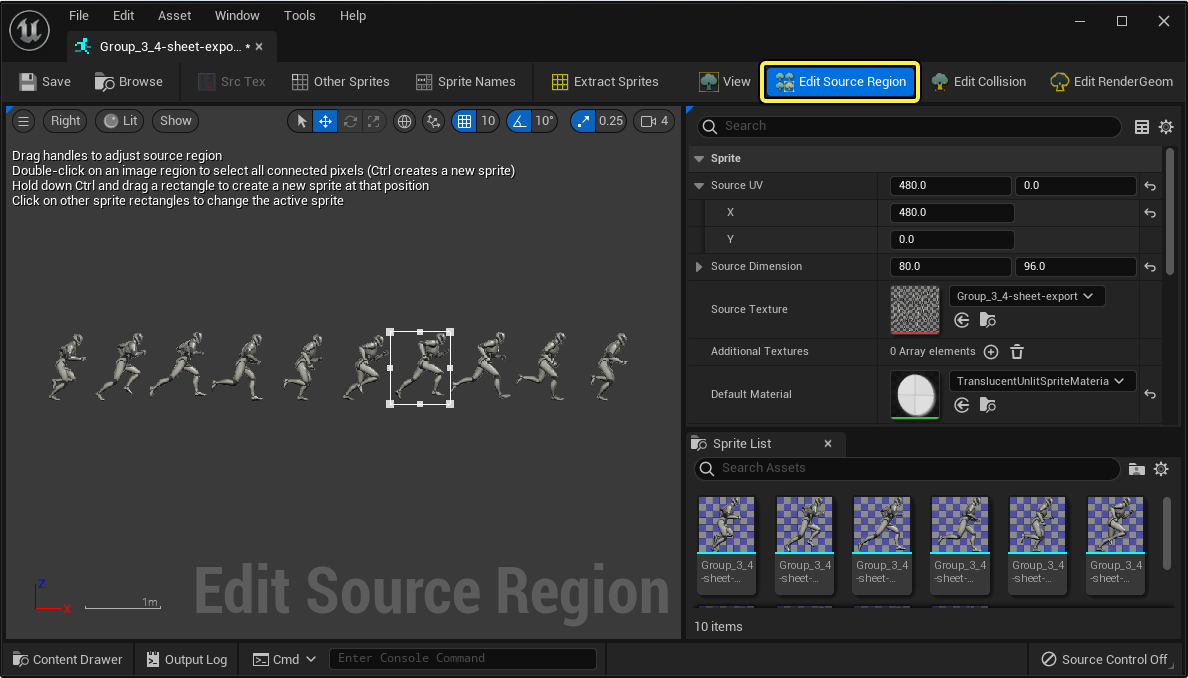
By clicking and dragging the edges of the source region of the sprite, represented as a white box, you can modify the boundaries of the sprite that have been extracted from the Sprite Sheet.
Edit Collision Mode
With the Edit Collision Sprite Editor mode, you can edit the collision boundary of the sprite.
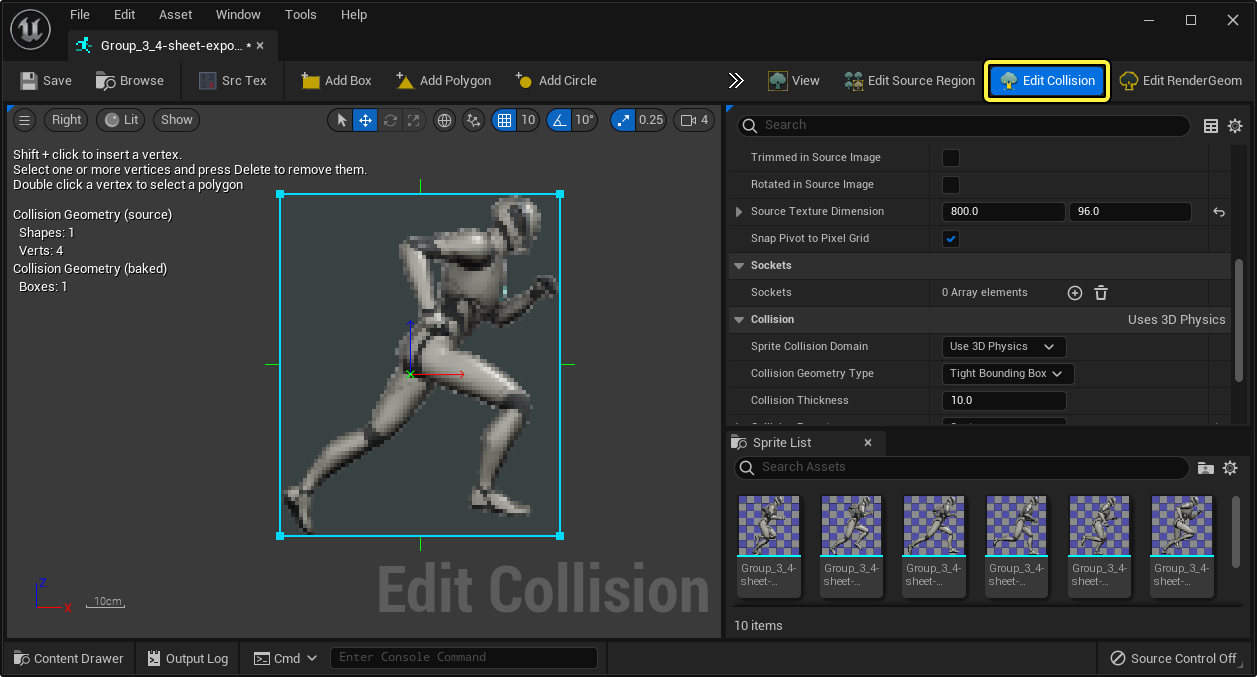
Here you can reference the specific Edit Collision Sprite Editor mode properties and a description of their functionality:
| Property | Description |
|---|---|
| Sprite Collision Domain | Set the type of collision the sprite should use. By selecting None the sprite will not collide with physics objects or influence other physics objects. By selecting the Use 3D Physics option, the sprite will collide with objects and other objects can collide with the sprite. The Use 3D Physics setting will populate the Sprite Editor's collisions settings with many properties you can use to fine tune the collision properties to fit the needs of your project. |
| Collision Geometry Type | Here you can set the type of Collision Geometry that will surround the Sprite. You can select from the following options:
|
| Collision Thickness | When the Sprite Collision Domain is set to Use 3D Physics, this property sets the extrusion thickness of the sprite's collision geometry. A value of 10 is used as the default. Increasing this value will increase the thickness of the extrusion, decreasing the value will decrease the thickness. |
| Collision Presets | Here you can select from a list of collision setting presets, or access a range of properties by selecting the Custom option. You can select the following collision setting presets: The sprite will act as a
If Custom is selected, the additional options are available to fine tune the sprites collision properties. See below for more information. |
| Render Shapes | Here you can add collision shapes to the sprite for dynamic collision boundaries. You can Add (+) as many collision shapes as you desire and each collision shape can be modified using its properties. The following properties are adjustable per collision box.
|
| Collision Shapes | Here you can add collision shapes to the sprite for dynamic collision boundaries. You can Add additional Collision Shapes using the toolbar buttons (Add Box, Add Polygon, and Add Circle). Each collision shape will appear as an array and can be modified using its properties. The following properties are adjustable per collision shape.
|
Collision Presets Custom Options
| Property | Description |
|---|---|
| Collision Enabled | Select the method of collision used when enabled. You can select from the following options:
|
| Object Type | Set what layer the Sprite will occupy. You can choose from the following options:
|
| Collision Responses | Toggle how the Sprite will behave for specific facets of its collision properties and representation properties, and how it will appear during playback. You can toggle each property to be Ignored which will ignore the property, Overlap will allow the property to overlap the sprites and Block which will block the property from engaging with the sprite. You can toggle one of these behaviors with the following properties:
|
Edit RenderGeom Mode
Using the Edit RenderGeom Sprite Editor Mode you can edit the sprites render boundary to correct for overdraw.
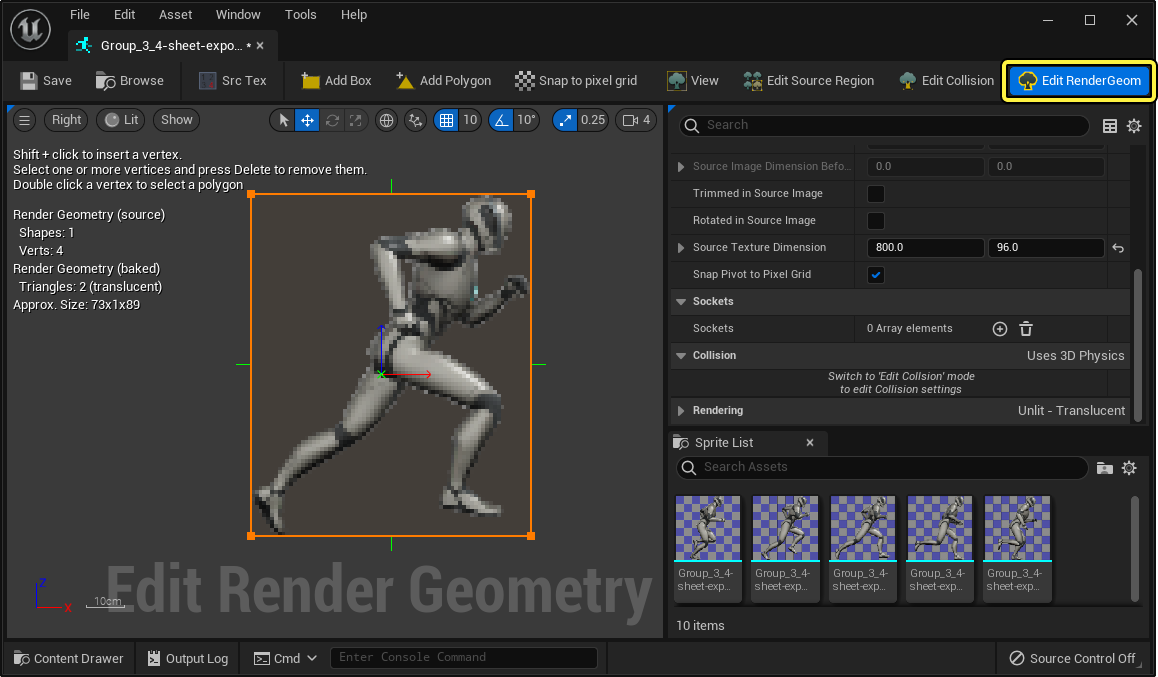
Here you can reference the specific Edit RenderGeom Sprite Editor mode properties and a description of their functionality:
| Property | Description |
|---|---|
| Render Geometry Type | Select the type of Render Geometry you wish to use to render the sprite in your project. You can choose from the following options:
|
| Pixels Per Subdivision X | Here you can set the size of a single subdivision (in pixels) on the X-axis (when using Diced mode). |
| Pixel per Subdivision Y | Here you can set the size of a single subdivision (in pixels) in Y-axis (when using Diced mode). |
| Avoid Vertex Merging | When enabled, you can avoid vertex merging so extra vertices are preserved. This is an experimental property, and therefore projects should not rely on its functionality. |
| Alpha Threshold | Set a value to act as the threshold to ignore alpha (or transparent) color values. By default this is set to 0.0, meaning only 100% transparent values will be ignored, you can increase this property to ignore less transparent alpha values with a value of 1.0 ignoring all color values. |
| Detail Amount | Amount of detail to consider when shrink-wrapping. 0 = low detail, 1 = high detail. |
Sprite List
Using the Sprite List panel you can access other sprites from the same Source File, or Sprite Sheet.
By double-clicking a sprite in the Sprite List panel, you can open another Sprite in the Sprite Editor.