The DMX Conflict Monitor checks for potential DMX data collisions on all enabled Universes and Patch ranges when sending DMX data from the engine to an external device. Conflicts can occur between the different DMX tools in Unreal Engine (such as Control Console, Pixel Mappers, and Blueprints) if they are writing DMX data to the same address.
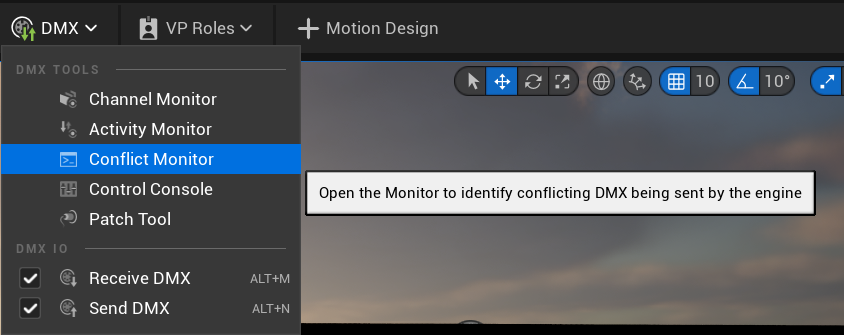
To open the Conflict Monitor, click DMX > Conflict Monitor in the Main Toolbar.
The Conflict Monitor opens as a dockable window. Click the ellipsis (...) to configure the options.
- Play/stop: Start and stop the monitoring process.
- Options
- Auto Pause: Pause when a conflict is detected.
- Print to Log: Print conflicts to the UE Output Log. Only available when Auto-Pause is enabled.
- Monitor
- Run when opened: Monitoring automatically starts when opened.
- Depth: Controls how much detail is included in the log entry.
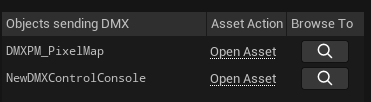
When the Conflict Monitor is running, the Objects Sending DMX section updates to show which assets are currently sending DMX. You can then open the asset or navigate to it in the Content Browser.
Conflict monitoring can be CPU intensive. You can check the current CPU usage in the top right of the Conflict Monitor.

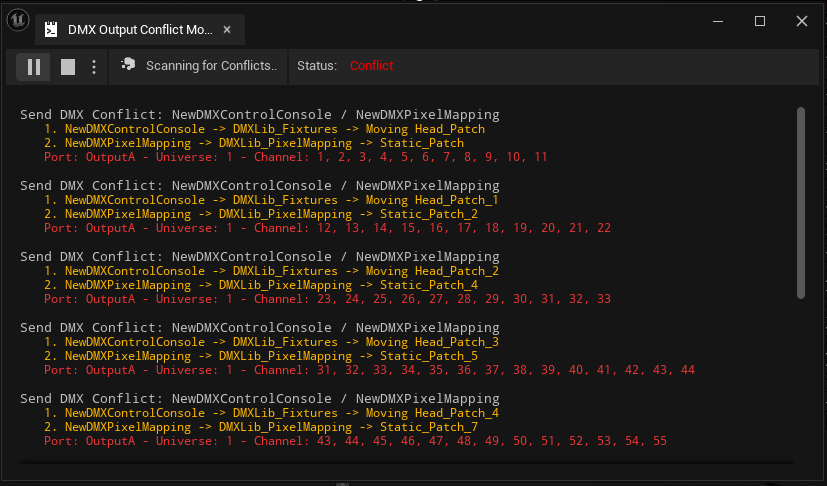
If the Conflict Monitor detects a conflict, then the monitor logs information about the conflict, including the conflicting DMX tools and the affected ports.
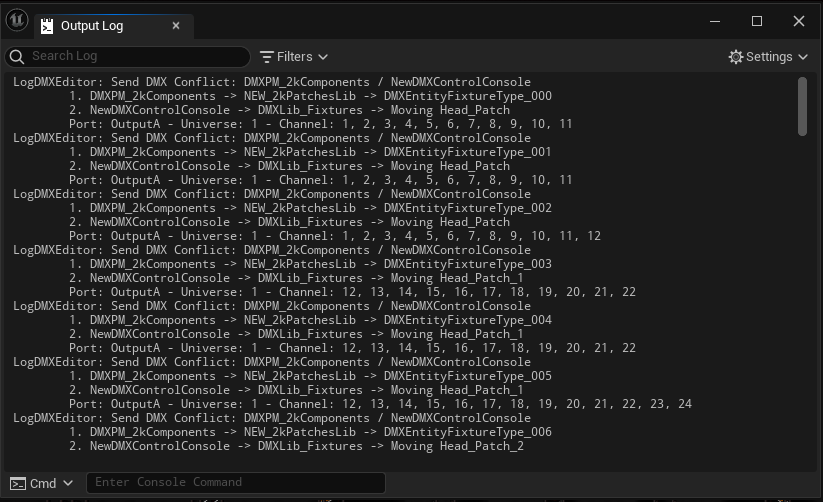
If the Print To Log option is selected, then the Conflict Monitor also sends the same information to the UE Output Log.